Small businesses aren’t just vulnerable to cyberattacks – they’re often the preferred targets. Cybercriminals view smaller companies as easier prey because of limited security resources, smaller IT budgets, and employees who may be less trained to spot sophisticated threats.
This vulnerability stems from several factors: predictable email address patterns that help attackers guess employee addresses for targeted phishing, lack of dedicated IT departments to manage security systems, outdated software and weaker password practices, and valuable data that criminals seek – from customer information to financial records.
The Devastating Statistics
The numbers are stark:
46% of all cyber breaches hit businesses with fewer than 1,000 employees
One in 323 emails sent to small businesses contains malicious content
43% of all data breaches target small-to-medium-sized businesses (SMBs)
207 days average to detect a breach – over half a year of potential damage
70% weekly probability of facing at least one BEC attempt for companies with less than 1,000 employees
60% of small businesses shut down within six months of a cyberattack or data breach
The impact extends beyond immediate financial losses. Lost productivity, reputational damage, customer trust erosion, and legal issues can cripple a small business. The ripple effects include:
Financial Losses: Ransomware payments, lost productivity, legal fees, system restoration costs, and the average BEC wire transfer request of $24,586.
Reputational Damage: Breached businesses lose customer trust, face negative reviews and media attention, and struggle to acquire new clients. Rebuilding trust can take years.
Regulatory Penalties: Depending on breach specifics and compromised data types, businesses face substantial fines and lawsuits – especially damaging for smaller budgets.
Operational Disruptions: Downtime prevents order fulfillment, customer service, and access to essential data, directly translating to lost revenue.
Email security for small businesses isn’t optional – it’s essential for survival. Small businesses are three times more likely to be targeted than larger enterprises, with cyberattacks costing an estimated $2.4 billion annually. Find more detailed statistics here.
Understanding Modern Email Threats
Phishing: The Deceptive Art of Impersonation
Phishing remains a constant threat, accounting for 36% of all cybersecurity breaches. Attackers send an estimated 3.4 billion phishing emails daily, with 94% of malware infections starting from phishing attempts. These attacks impersonate trusted brands and people to steal login credentials and confidential information, using urgent language and attractive offers to trick people into clicking malicious links or downloading infected files.
In 2025, phishing attacks grew by 28%, while AI-driven scams increased by 67.4%, resulting in roughly $84 million in fraud losses. A concerning 94% of organizations experienced email security incidents.
Business Email Compromise: Exploiting Trust
Business Email Compromise (BEC) attacks are especially dangerous, accounting for roughly 73% of all reported cyber incidents. These carefully planned attacks target a company’s financial processes and communication habits by impersonating CEOs requesting money transfers or suppliers sending fraudulent invoices.
BEC attacks rely on social engineering rather than technical hacking, using pretexting to create convincing stories. They succeed because they hijack established trust and authority, often slipping past regular spam filters that look for technical red flags rather than psychological manipulation.
Ransomware: Holding Your Data Hostage
Ransomware spreads through seemingly harmless email attachments. Once opened, it encrypts important data, locking it until a ransom is paid. This causes substantial financial losses and operational disruptions, with downtime impacting productivity and customer trust.
The Hidden Costs of Delayed Detection
Most breaches simmer under the surface for months while attackers quietly exploit access. Like a small leak in a pipe, subtle breaches allow attackers to disappear data, compromise accounts, and plant malware – setting the stage for major system meltdowns.
An employee falling for a phishing scam might give attackers email access. Attackers start small, tweaking forwarding rules to intercept sensitive emails. Weeks or months pass as they gather information about operations and identify valuable targets. By discovery time, damage can be devastating.
Warning signs often hide in plain sight:
Minor system slowdowns
Unusual email patterns
Unexpected login attempts
Sudden spikes in website traffic at unusual hours
Employees reporting intermittent email issues
Building Your Email Security Foundation
Two-Factor Authentication: Your First Defense
Two-factor authentication (2FA) is non-negotiable. Even if someone guesses your password, they’ll need a second factor – usually a code from your phone – to access the account. This drastically reduces unauthorized access risk, even if passwords are leaked.
Choose a 2FA method that’s easy for your team. Authenticator apps like Google Authenticator or Authy are more secure than SMS codes and integrate smoothly into workflows.
Email Authentication Protocols: SPF, DKIM, and DMARC
These protocols verify that emails from your domain actually come from you, preventing impersonation:
SPF (Sender Policy Framework): Specifies which mail servers are allowed to send emails from your domain, preventing unauthorized senders from using your domain for fraudulent emails.
DKIM (DomainKeys Identified Mail): Adds a digital signature to outgoing emails, verifying authenticity and preventing tampering in transit.
DMARC (Domain-based Message Authentication, Reporting & Conformance): Works with SPF and DKIM, telling receiving mail servers what to do with emails that fail authentication checks – quarantine or reject them.
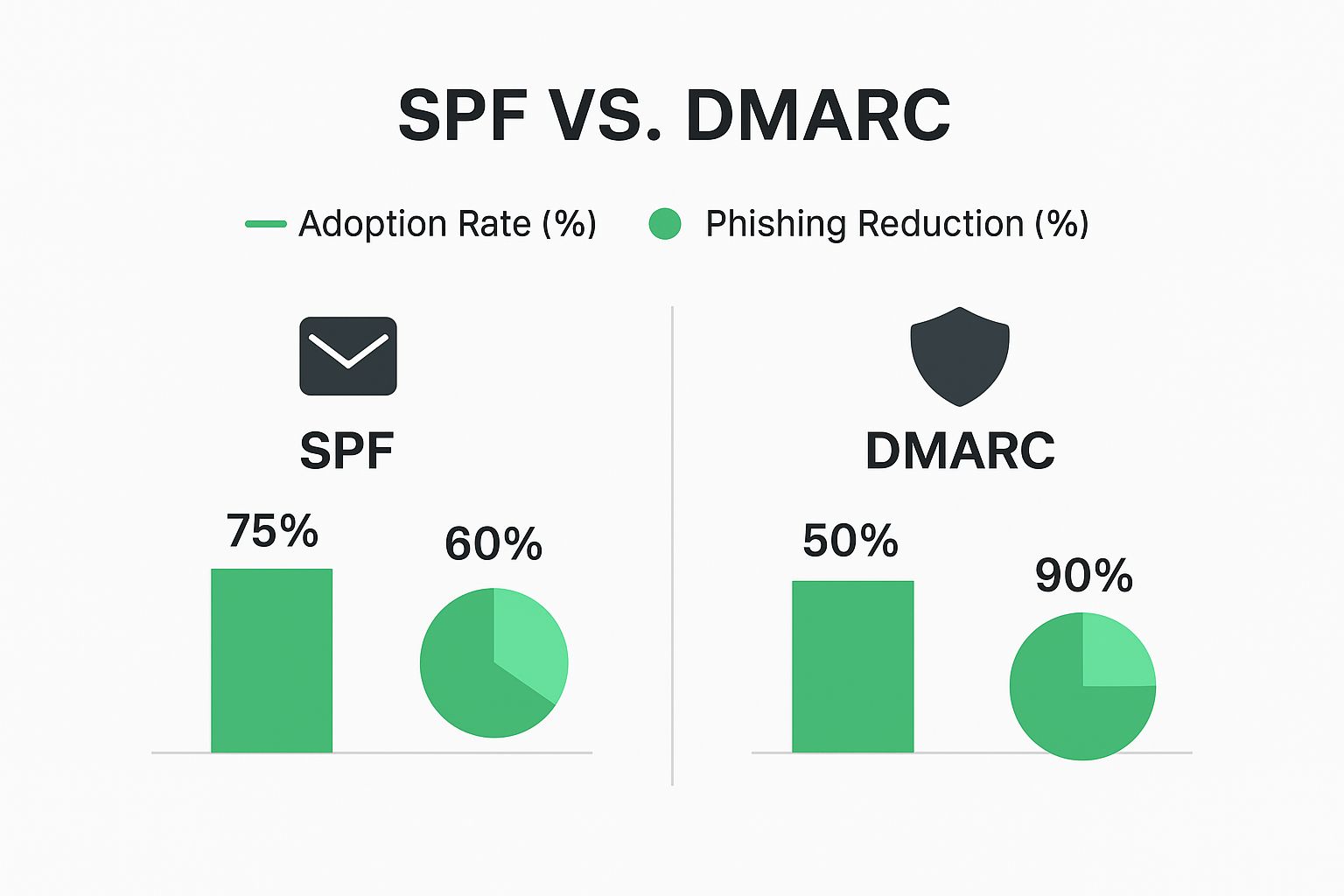
Impact: While 75% of organizations use SPF (resulting in 60% phishing reduction), DMARC adoption at 50% boasts a far more impressive 90% phishing reduction rate.
Setting up these protocols may seem technical, but many email providers offer simple setup guides. This is like setting up a burglar alarm for your email – it won’t stop all threats, but makes impersonation much harder.
Practical Email Encryption
Encryption scrambles email content, making it unreadable to anyone but the intended recipient.
TLS (Transport Layer Security): Encrypts emails in transit between mail servers, protecting them as they travel across the internet.
End-to-End Encryption: Encrypts emails on the sender’s device and decrypts them only on the recipient’s device, offering the highest level of security. Solutions like ProtonMail or Tutanota strike a balance between strong security and user-friendliness for small businesses.
The key is finding solutions that integrate smoothly with existing workflows. One-click encryption encourages adoption; complex systems gather dust.
Turning Employees Into Your Security Front Line
Your employees represent both a significant vulnerability and a crucial defense. The difference is effective security training that transforms behavior without resorting to fear-mongering.
Training That Addresses Real-World Threats
Effective training goes beyond general guidelines. It should address specific daily threats: sophisticated phishing attacks that mimic legitimate communications, handling sensitive customer information under data privacy regulations, and recognizing BEC tactics.
Phishing Simulations: Regular simulated phishing tests uncover vulnerabilities in a constructive, blame-free environment. These work like fire drills for your inbox – the goal is creating learning opportunities, not pointing fingers. Track who clicks, then provide specific training for those who need it. This personalized approach makes training stick.
Real-World Scenarios: Share stories of actual BEC attacks specific to your business type. If you handle financial transactions, work through examples of suspicious payment requests. This practical approach helps teams connect training to everyday work.
Training Effectiveness by Method
More interactive and engaging methods yield significantly better results:
Training Method
Knowledge Retention
Threat Recognition
Cost
Basic email/PDF
20-30%
Low
Low
In-person presentation
40-50%
Moderate
Moderate
Phishing simulations
70-80%
High
Moderate
Real-world scenarios
75-85%
High
Moderate-High
Ongoing interactive training
85-90%
Very High
High
While interactive methods have higher upfront costs, long-term benefits in reduced risk make them worthwhile investments.
Building a Security-Minded Culture
Move beyond mere compliance to foster active engagement in security best practices. Employees should feel comfortable reporting suspicious emails without fear of reprisal. Explain why security measures exist – when people understand the reasoning, they’re more likely to follow rules.
Practical steps:
Make reporting easy and consequence-free
Reward employees for reporting suspicious emails, even false alarms
Keep security top-of-mind with short quizzes, interactive games, or friendly competitions
Incorporate security training into onboarding to set strong foundations from day one
Provide regular refreshers as threats evolve
Advanced Protection Without Breaking the Budget
Automated Threat Detection
Automated threat detection works like a tireless virtual security guard monitoring your inbox 24/7. These systems use artificial intelligence to scrutinize incoming emails, catching suspicious content before it lands in employee inboxes.
These systems spot malicious links, dodgy attachments, and sneaky phishing attempts that slip through traditional filters. They learn and adapt over time, getting better at identifying emerging threats. This proactive approach minimizes human error risk, adding crucial always-on protection.
Choosing Solutions Based on Your Needs
The best approach depends on your specific business type, industry risks, and budget. An online retailer handling sensitive customer data has different needs than a local consulting firm.
Solution Type
Protection Level
Cost
Implementation Difficulty
Best For
Basic email provider security
Moderate
Low
Easy
Very small businesses (1-5 employees)
Email provider + 2FA/authentication
Good
Low-Moderate
Easy-Moderate
Small businesses (5-20 employees)
Dedicated email security gateway
High
Moderate-High
Moderate
Growing businesses (20-50 employees)
Enterprise-grade platform
Very High
High
Complex
Larger organizations (50+ employees)
Consider technical expertise required for setup and maintenance, customer support level, and solution scalability for future growth.
Backup and Recovery: Your Safety Net
Even with strong defenses, breaches can occur. A solid backup and recovery plan is non-negotiable. Regularly backing up email data means you can restore everything quickly and minimize disruption even in worst-case scenarios.
Look for secure, dependable, easy-to-manage solutions. Cloud-based options offer offsite storage benefits. Test backups regularly – this isn’t just about data recovery; it’s about business continuity. Quick email communication restoration keeps customers happy and operations running smoothly.
Your 90-Day Email Security Transformation Plan
Transforming your small business’s email security doesn’t require a complete overhaul. This focused, gradual 90-day plan balances immediate needs with long-term objectives.
Phase 1: Assessment and Quick Wins (Days 1-30)
Week 1 Quick Wins:
Enable 2FA on every email account
Review email provider security settings – ensure spam filters and antivirus protection are enabled and updated
Conduct 15-minute team training on common phishing scams
Remainder of Month:
Vulnerability Assessment: Evaluate existing email practices – do you have basic spam filters? Are employees trained to identify phishing?
Implement Basic Authentication: Set up SPF, DKIM, and DMARC with your email provider
Initial Security Awareness Training: Focus on recognizing common phishing tactics and reporting suspicious emails
Phase 2: Building Stronger Defenses (Days 31-60)
Explore Advanced Threat Protection: Consider upgrading your email provider or investing in a dedicated email security gateway
Advanced Phishing Simulation: Run in-depth tests to identify team vulnerabilities and tailor training
Advanced Security Awareness Training: Use real-world examples and simulated phishing tests
Develop Incident Response Plan: Document what happens when someone clicks a bad link to contain damage quickly
Create Written Security Policies: Address email usage, data handling, and incident response procedures
Phase 3: Continuous Improvement (Days 61-90)
Regular Security Assessments: Identify emerging vulnerabilities and adapt strategies
Ongoing Training and Education: Quarterly refreshers on new threats and best practices
Refine and Test Incident Response Plan: Ensure your team knows how to react swiftly and efficiently
Review and Update Security Policies: Stay current with evolving threats
Explore Advanced Threat Detection: As your business grows, investigate automated systems
By following this plan and implementing these protections, you’ll considerably reduce vulnerability to email threats, protect valuable data, and establish a more secure foundation for your business’s future.
Ready to take control of your email security and protect your business? Start your free trial of Typewire today: Typewire Secure Email
Drowning in Email? Take Back Control of Your Inbox!
Overwhelmed by email? Learn eight powerful email management tips to reclaim your inbox and boost productivity. This list covers practical strategies, from Inbox Zero to AI assistance, plus email bankruptcy and automation. Discover how to reduce email volume, improve filtering, use templates, and implement the 4D method. These email management tips will help you regain control, regardless of your profession or technical skill.
1. Inbox Zero Approach
The Inbox Zero approach is a powerful email management technique aimed at keeping your inbox empty, or nearly empty, at all times. Developed by productivity expert Merlin Mann, this philosophy shifts the focus from letting emails accumulate to processing them quickly and efficiently. The core idea is to treat your inbox as a temporary holding place, not a permanent storage area. Instead of endlessly scrolling through a cluttered inbox, you systematically process each email, making a conscious decision about its fate. The ultimate goal is to achieve "inbox zero"—a state of having no messages in your inbox—by the end of each day or processing session, thereby reducing mental clutter and improving focus.
Inbox Zero involves a specific decision-making framework for every email you encounter. You choose one of five actions: Delete, Delegate, Respond, Defer, or Do. If an email is irrelevant, delete it immediately. If it requires action from someone else, delegate it. If it necessitates a quick response (under 2 minutes), respond right away. If it requires more time or needs to be addressed later, defer it by scheduling it or moving it to a designated folder. Finally, if the email involves a task you can complete quickly, do it immediately. This systematic approach ensures that no email remains unprocessed, preventing important messages from getting lost in the digital shuffle.
This approach deserves its place on this list because it provides a structured framework for achieving email mastery, ultimately contributing to increased productivity and reduced stress. The features of Inbox Zero, including systematic processing, a clear decision-making framework, and a focus on rapid processing, make it an effective strategy for managing the ever-increasing volume of emails. The benefits are clear: reduced email anxiety, improved response times, and the establishment of clear boundaries around email management.
Examples of successful Inbox Zero implementation abound. Some Google employees who adopted this method reported spending 10% less time on email management. Productivity guru Tim Ferriss also uses a modified Inbox Zero approach, checking email only twice daily. These examples demonstrate the practical applicability and effectiveness of this technique.
However, Inbox Zero isn't a one-size-fits-all solution. It can be time-consuming to implement initially and may create pressure to constantly check email. It’s also not suitable for every work style or communication pattern. Maintaining Inbox Zero requires consistent discipline and conscious effort.
Here are some actionable tips for implementing Inbox Zero:
Schedule specific times for email processing: Avoid constantly checking your inbox; instead, dedicate specific blocks of time for processing emails.
Use the 2-minute rule: If an email requires less than two minutes to handle, do it immediately.
Create an email processing workflow: Use folders or labels to organize emails based on their required action (e.g., "To Do," "Waiting For," "Archive").
Start with a clean slate: Archive old emails to begin implementing Inbox Zero with a clear inbox.
While Inbox Zero may seem demanding, the benefits of a clear and organized inbox can significantly impact your productivity and overall well-being. By implementing the tips above and adapting the principles to your individual needs, you can leverage the power of Inbox Zero to conquer email overload and reclaim control of your digital life. Though associated with 43Folders.com creator Merlin Mann, the core principles align with David Allen's Getting Things Done (GTD) methodology, further reinforcing its effectiveness as a powerful email management strategy.
2. Scheduled Email Processing
Constantly checking your inbox can feel like you're treading water – busy, but not making progress. One of the most effective email management tips to reclaim your focus and boost productivity is scheduled email processing. This technique involves designating specific time blocks throughout the day dedicated solely to checking and responding to emails, rather than reacting to every notification as it arrives. This transforms email from a constant interruption into a manageable task, allowing you to concentrate deeply on other important work.
How it Works:
Scheduled email processing replaces reactive email checking with proactive, dedicated time slots. Instead of being constantly pulled into your inbox, you consciously choose when to engage with email. This might mean checking emails three times a day – morning, midday, and late afternoon – for a focused period of 30-60 minutes each. During these designated times, you systematically process your emails, responding, archiving, and deleting as needed. Outside of these windows, email notifications are silenced, and your inbox remains closed, allowing for uninterrupted work on other tasks.
Features of Scheduled Email Processing:
Predetermined time blocks: Dedicated time specifically for email management.
Notifications off: Eliminates distractions outside of processing times.
Batch processing: Group similar tasks together for efficiency (e.g., responding to all requests for information at once).
Clear boundaries: Establishes clear separation between email time and focused work time.
Pros:
Reduced context switching: Minimizes the mental cost of shifting between tasks, significantly boosting overall productivity.
Improved focus: Allows for deeper concentration on non-email related work, leading to better results.
Predictable responses: Creates consistent communication patterns for colleagues, who learn when to expect your replies.
Reduced email-related stress: Regains control over your inbox, alleviating the anxiety of constant notifications.
Cons:
Not suitable for all roles: May not be feasible for jobs requiring immediate email responses (e.g., customer support).
Requires communication: Necessitates informing colleagues about your new email schedule to manage expectations.
Temporary backlog: Can lead to a temporary buildup of emails between scheduled processing times.
Requires discipline: Maintaining the schedule demands consistent effort and self-control.
Examples of Successful Implementation:
Cal Newport, author of Deep Work, champions this approach, processing emails only twice a day to maximize his focused work time. He attributes much of his prolific writing output to this practice.
Microsoft CEO Satya Nadella reportedly utilizes scheduled email time to maintain focus on strategic priorities, demonstrating its effectiveness even at the highest levels of business.
Tips for Implementing Scheduled Email Processing:
Start small: Begin with 2-3 processing periods per day (e.g., morning, midday, and late afternoon).
Communicate your schedule: Inform frequent contacts about your designated email times to manage expectations.
Use an email signature: Include a line in your signature mentioning your checking schedule (e.g., "I typically respond to emails within 24 hours").
Auto-responders for urgency: Consider setting up an auto-reply for genuinely urgent matters, directing senders to an alternative contact if necessary.
Turn off notifications: Disable all email notifications on all devices (phone, computer, tablet) outside of your scheduled processing times.
Why This Deserves a Place in the List:
Scheduled email processing is a cornerstone of effective email management. By consciously choosing when to engage with email, you wrest back control of your time and attention. This method empowers you to prioritize deep, focused work, ultimately leading to increased productivity, reduced stress, and improved work-life balance. This makes it a crucial email management tip for anyone seeking to optimize their workflow and minimize digital distractions. It’s a powerful strategy to transform email from a source of constant interruption into a manageable and productive tool.
3. Email Filtering and Folders System
A robust email filtering and folders system is crucial for effective email management. This method involves creating a comprehensive structure of filters, labels, and folders that automatically sorts incoming emails based on predefined rules. This automated approach minimizes the time spent manually sorting through your inbox, allowing you to prioritize important messages and quickly locate specific emails later. It creates an organized archive, making future retrieval significantly easier and contributing to a more streamlined workflow. This system is an essential email management tip for anyone looking to regain control of their inbox.
This approach involves several key features: automated sorting rules and filters that categorize incoming mail; a hierarchical folder structure for granular organization; a priority labeling system to highlight urgent messages; color-coding for visual identification; and regular maintenance to ensure the system's effectiveness. For example, you could set up a filter to automatically move all newsletters to a dedicated "Newsletters" folder, or label all emails from your boss as "High Priority."
The benefits are numerous. It drastically reduces the time spent manually organizing emails, freeing up valuable time for other tasks. Important messages become more visible, reducing the risk of overlooking critical communications. It facilitates easier retrieval of archived information, turning your email inbox into a searchable database. This creates a sustainable system that scales with increasing email volume, preventing your inbox from becoming overwhelming.
However, setting up a comprehensive filtering and folders system can be initially time-consuming. Overly complex systems with too many folders can become counterproductive and difficult to navigate. The system requires periodic review and adjustment of rules to maintain its effectiveness and adapt to changing needs. Finally, an overly-organized system can create a false sense of organization if the emails within the folders aren't actually being processed and acted upon.
Successful implementations of this method are plentiful. Gmail's priority inbox, for example, has been shown to save users an average of 6% of the time spent on email. Applying Tiago Forte's PARA (Projects, Areas, Resources, Archives) method to email organization has also helped knowledge workers reduce email stress and improve productivity.
Tips for implementing an effective email filtering and folder system:
Limit top-level folders: Stick to 5-7 main categories to avoid over-complication.
Automate: Create rules that automatically file newsletters, promotional content, and other recurring emails.
Prioritize: Use a special label/folder for emails requiring action.
Track Responses: Set up a "Waiting For" folder to keep track of emails you're expecting responses to.
Regular Maintenance: Review and clean up your folder structure quarterly to ensure it remains efficient.
This approach is particularly valuable for busy professionals, project managers, and anyone who receives a high volume of email. It's an essential email management tip that can significantly improve productivity and reduce email overwhelm. The methodology is popularized by productivity systems like David Allen's Getting Things Done (GTD) and Tiago Forte's PARA method, and integrated into features like Microsoft Outlook's focused inbox. By implementing a well-structured email filtering and folders system, you can transform your inbox from a source of stress into a powerful tool for organization and communication.
4. Email Templates and Text Expansion
One of the most effective email management tips for boosting productivity and maintaining consistent communication is leveraging email templates and text expansion. This technique involves creating pre-written responses for common inquiries or situations, which can then be quickly inserted and personalized as needed. This dramatically reduces the time spent typing repetitive emails, freeing you up to focus on more complex tasks and strategic communication. This approach is invaluable for anyone looking to streamline their inbox and reclaim valuable time, making it a crucial addition to any list of effective email management tips.
How It Works:
Email templates are essentially reusable email drafts. They can range from simple acknowledgements to complex proposals, containing pre-formatted text, images, and even attachments. Text expansion, on the other hand, focuses on shorter snippets of text, such as frequently used phrases, addresses, or even code blocks. These tools work by assigning keyboard shortcuts or menu selections to these pre-written blocks of text. When you type the shortcut or select the template, the corresponding text is automatically inserted into your current application, including email clients, word processors, and even messaging apps.
Features and Benefits:
Email templates and text expansion tools offer a range of features designed to optimize your email workflow:
Reusable Email Templates: Craft standardized responses for recurring communication needs like customer support inquiries, meeting confirmations, or project updates.
Text Snippets: Save time by creating shortcuts for frequently typed phrases, signatures, or even complex technical terms.
Customizable Fields: Personalize templates by including placeholders for names, dates, or other specific information. This ensures a personal touch while maintaining efficiency.
Cross-Platform Availability: Access and use your templates and snippets across multiple devices, including desktops and mobile phones, for seamless workflow integration.
Organization System: Manage and categorize multiple templates effectively with tagging and folder structures.
Pros:
Dramatically Reduces Typing Time: Spend less time composing routine emails and more time on tasks that require your full attention.
Ensures Consistency in Messaging and Tone: Project a professional image by using pre-approved language and formatting in all your communications.
Minimizes Errors in Frequently Communicated Information: Reduce the risk of typos and inaccuracies in standard responses.
Allows for Thoughtful, Well-Crafted Responses Even When in a Hurry: Pre-written templates ensure quality communication even when you're pressed for time.
Cons:
Can Make Communication Feel Impersonal If Not Customized Properly: Remember to personalize greetings and other key elements to avoid sounding robotic.
Requires Initial Time Investment to Create Quality Templates: Setting up effective templates requires some upfront effort, but the long-term time savings are significant.
May Lead to Sending Inappropriate Responses If Wrong Template is Selected: Double-check before sending to ensure you’ve chosen the correct template.
Needs Regular Updating as Information Changes: Review and update templates periodically to keep them accurate and relevant.
Examples of Successful Implementation:
Customer service teams at Zappos leverage templates for handling common customer issues while still maintaining a personalized touch, demonstrating that efficiency and empathy can coexist.
Productivity guru Tim Ferriss has documented how his assistants utilize templates to manage up to 90% of his email volume, showcasing the power of this technique for high-volume email users.
Actionable Tips:
Always personalize the greeting and at least one other element. This adds a personal touch and prevents the email from feeling generic.
Create templates for your 10 most common email responses first. Focus on the areas where you spend the most time composing repetitive emails.
Use text expansion tools like TextExpander or PhraseExpress for cross-application snippets. These tools allow you to use your snippets across different programs, further enhancing your productivity.
Review and update templates quarterly. This ensures that your templates remain accurate and relevant.
Include placeholder text (e.g., [Client Name], [Date]) to remind yourself where personalization is needed. This helps avoid sending out impersonal or incomplete emails.
Popularized By:
Boomerang's Respondable feature
TextExpander software
Gmail's Smart Compose and canned responses
By implementing these email management tips and utilizing email templates and text expansion, you can significantly improve your email efficiency, ensuring consistent communication and freeing up valuable time for more important tasks.
5. The 4D Method for Email Processing
Overwhelmed by a constantly overflowing inbox? The 4D Method offers a powerful email management tip to regain control and boost your productivity. This decision-making framework provides a simple, yet effective, way to process emails by immediately categorizing each message into one of four actions: Delete, Delegate, Defer, or Do. This systematic approach ensures every email is handled appropriately without lingering in the inbox, reducing decision fatigue and helping maintain inbox organization.
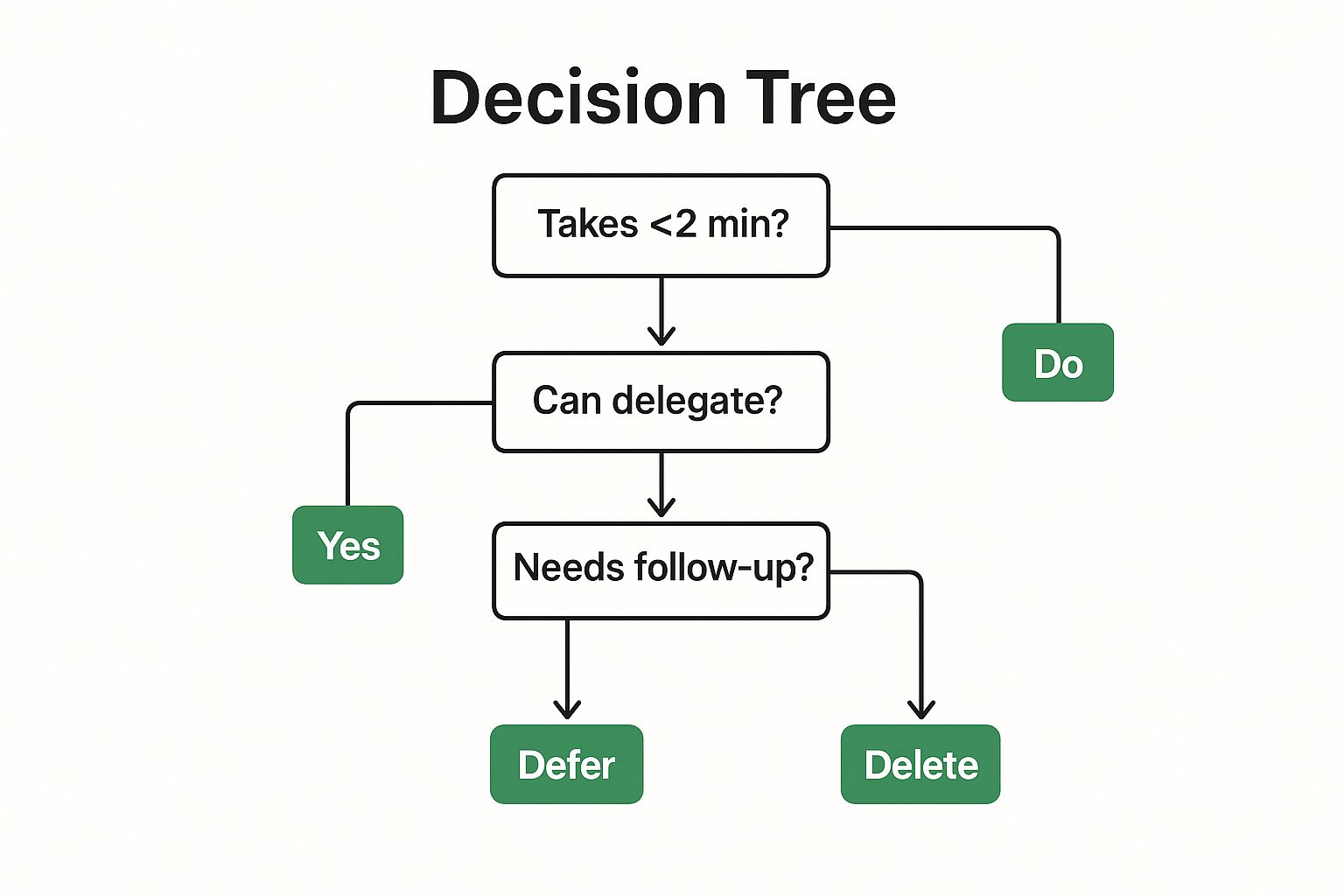
The infographic visualizes the 4D Method as a decision tree, guiding you through the process of efficiently handling each email. It starts with the question "Is this email useful?" and branches into the four actions based on your answer and further criteria.
The 4D method deserves a place on this list because it provides a clear and actionable framework applicable to anyone struggling with email overload, regardless of their email platform or organizational tools. Its simple four-option system eliminates decision paralysis and ensures that each email is processed efficiently. Key features include a simple decision framework, immediate categorization of each email, clear action paths for every message type, and progressive handling based on priority and time requirements. This method has proven effective, with Microsoft executives reporting 30% faster email processing and productivity consultant Stever Robbins helping clients reduce email processing time by 45% after implementation.
The decision process begins with asking if the email is useful. If not, delete it. If it is, ask yourself if action is required. If no action is required, but the email contains valuable information you may need later, defer it. If action is required, determine if you are the appropriate person to take that action. If not, delegate it. If you are the right person, then do it.
Here's a breakdown of each action:
Delete: If the email is irrelevant, outdated, or simply not useful, delete it immediately. This declutters your inbox and prevents you from wasting time on unnecessary information.
Delegate: If the email requires action, but someone else is better suited to handle it, delegate the task. Be sure to include clear expectations and deadlines when delegating.
Defer: If the email requires action, but it's not urgent, defer it to a later time. This allows you to focus on more pressing tasks and prevents your inbox from becoming a to-do list. Create specific folders or tags for deferred items with deadlines to stay organized.
Do: If the email requires action and you are the appropriate person to handle it, do it immediately, especially if it takes less than 2 minutes. This prevents tasks from piling up and keeps your inbox clear.
While the 4D method is highly effective, it’s important to be aware of its limitations. The 'defer' category can become a procrastination tool if not managed properly, and the method requires discipline to make decisions rather than postponing them. Additionally, it doesn't address email volume reduction and may oversimplify complex email needs in some professions.
Tips for Implementing the 4D Method:
Set a timer when processing emails to avoid overthinking decisions.
Create specific folders or tags for deferred items with deadlines.
Establish clear criteria for what can be deleted vs. archived.
When delegating, include clear expectations and deadlines.
Process the 'Do' items immediately if they take less than 2 minutes.
The 4D Method, popularized by Microsoft Outlook training programs, Gina Trapani (founder of Lifehacker), and productivity consultant Mike Song, is a practical email management tip that can significantly improve your email processing efficiency and reduce inbox clutter. By incorporating this method into your daily routine, you can regain control of your inbox and focus on what truly matters.
6. Email Bankruptcy and Reset Strategies
Feeling buried alive under an avalanche of unread emails? Drowning in a sea of newsletters and notifications? You might be a candidate for email bankruptcy. This radical approach to email management involves declaring "bankruptcy" on your overflowing inbox, archiving everything, and starting fresh. It's a drastic measure, but for some, it can be a powerful way to regain control and implement better email management tips.
What is Email Bankruptcy and How Does it Work?
Email bankruptcy is the digital equivalent of hitting the reset button. It involves archiving or deleting all existing emails in your inbox, essentially wiping the slate clean. This drastic step is usually accompanied by a public or private declaration to your contacts explaining the situation and outlining new communication strategies. The goal is to not only eliminate the immediate backlog but also to establish new email management systems to prevent a future relapse.
When and Why to Use This Approach
Email bankruptcy is not for everyone. It's best suited for situations where your inbox has become truly unmanageable and is significantly impacting your productivity and well-being. Consider this approach if:
Your inbox contains thousands of unread emails and the thought of processing them is overwhelming.
You feel constant guilt and stress over your email backlog.
Your current email management system (or lack thereof) is clearly failing.
You're ready to commit to implementing new, sustainable email habits.
Features of Email Bankruptcy:
Complete Archiving: Your entire existing email backlog is moved out of your inbox, either to an archive folder or deleted entirely.
Declaration of Reset: You inform your contacts (publicly or privately) that you are implementing this strategy.
Fresh Start: You begin with a clean inbox and implement new management systems.
Strategic Follow-Up: After the reset, you prioritize and follow up on truly important missed communications.
Pros and Cons of Email Bankruptcy:
Pros:
Immediate Psychological Relief: The act of clearing your inbox can provide a significant sense of relief and reduce stress related to email overload.
Clean Slate: A blank inbox provides the perfect opportunity to implement new organizational systems and habits.
Forced Prioritization: The process forces you to consider what truly matters and who you need to reconnect with.
Increased Productivity: Eliminating the guilt and distraction of an overflowing inbox can significantly boost productivity.
Cons:
Risk of Missing Important Messages: There's a chance you could overlook crucial historical information buried in your archived emails.
Potential for Misinterpretation: In some professional contexts, email bankruptcy can be perceived negatively.
Recurrence of the Problem: Without implementing new email management systems, the problem will likely return.
Damaged Relationships: If not communicated properly, the sudden silence could damage professional or personal relationships.
Examples of Successful Implementation:
Harvard Law professor Lawrence Lessig famously declared email bankruptcy in 2004, popularizing the concept.
Zappos CEO Tony Hsieh implemented a modified version called "Yesterbox" after his own email bankruptcy.
Tips for Declaring Email Bankruptcy:
Communicate with Key Contacts: Before archiving everything, send a courteous email to frequent contacts explaining your reset and providing alternative contact methods.
Set Up an Auto-Responder: Create an auto-responder that explains your situation and directs urgent inquiries to another channel (phone, alternate email address, etc.).
Search for Crucial Emails: After the reset, set aside time to search your archived emails for specific important messages.
Implement New Systems Immediately: Don't delay implementing a new email management system. This is crucial for preventing a future backlog.
Consider a "Soft Bankruptcy": Instead of permanently deleting or archiving everything, move all your emails to an "Old Inbox" folder. This allows you to start fresh while still retaining access to your old messages.
Why Email Bankruptcy Deserves its Place in the List of Email Management Tips:
While extreme, email bankruptcy offers a valuable last resort for those struggling with extreme email overload. It underscores the importance of actively managing our inboxes and provides a powerful example of how a fresh start can pave the way for better habits and increased productivity. It's a reminder that email should serve us, not enslave us, and that sometimes, a radical approach is necessary to regain control. If you are considering this option, carefully weigh the pros and cons, and commit to implementing effective email management strategies after the reset. Only then can you truly benefit from this drastic but potentially liberating approach.
7. Email Automation and AI Assistants
In today's fast-paced digital world, efficient email management is crucial for productivity. Email automation and AI assistants offer a powerful solution to streamline your inbox and reclaim valuable time. These tools leverage cutting-edge technology to automate repetitive tasks, intelligently prioritize messages, and even suggest replies, allowing you to focus on what truly matters. They use machine learning to analyze your email habits, adapting to your individual communication patterns over time and optimizing your overall inbox experience.
Features like AI-powered prioritization ensure that critical emails don't get buried under less important messages. Smart reply suggestions help you draft quick, professional responses, while automatic categorization keeps your inbox organized. Automated follow-up reminders and tracking ensure that important conversations don't fall through the cracks. Some tools even offer schedule optimization, suggesting the best times to send emails for maximum impact. Underlying these features is natural language processing, allowing the AI to analyze email content and understand its context.
The benefits of incorporating these tools into your email management strategy are significant. They drastically reduce the time spent on routine tasks, improve response consistency and professionalism, and prevent important emails from being overlooked. As the AI learns your communication style, it becomes even more effective at managing your inbox, handling increased email volume without a proportional increase in your time investment. For example, Google reports that its Smart Compose feature is used to write 12% of emails in Gmail on mobile, demonstrating the widespread adoption and utility of these features. Furthermore, users of email clients like Superhuman report saving an average of 3 hours per week on email management, highlighting the potential for significant time savings.
However, it's important to be aware of the potential drawbacks. Privacy concerns arise with AI processing sensitive email content. There's also the risk of over-reliance on automated systems, potentially leading to missed nuances in communication. AI-suggested replies, while generally helpful, may be inappropriate in sensitive contexts and should always be reviewed before sending. Finally, many advanced features require subscription fees, and there can be a learning curve to effectively utilize all the available functionalities.
To effectively implement email automation and AI assistance, start with basic features and gradually incorporate more advanced ones as you become comfortable. Always review AI-suggested replies before sending, and customize sensitivity settings to match your communication style. Utilize send-later features to batch outgoing emails during optimal times. Regularly review automation rules to ensure they still align with your evolving needs.
If you're looking for tools to streamline your communication workflows, consider exploring free form builders like Typeform and other alternatives. These tools can help you create engaging forms for various purposes, such as collecting feedback, conducting surveys, or managing registrations, ultimately contributing to better email organization and reduced inbox clutter. This approach, combined with email automation, can contribute significantly to a cleaner and more manageable inbox. Popularized by tools like Gmail with Smart Compose and Smart Reply, Superhuman, Microsoft Outlook's Focused Inbox, SaneBox, and Front, email automation and AI assistance are becoming indispensable for effective email management. By understanding the features, benefits, and potential drawbacks, you can leverage these tools to optimize your email workflow and achieve greater productivity. This deserves a place on any list of email management tips because it offers a powerful solution to the ever-increasing demands of managing a modern inbox.
8. Email Minimalism and Volume Reduction
Feeling overwhelmed by the constant influx of emails? Instead of just trying to manage the deluge, consider a more proactive approach: email minimalism and volume reduction. This email management tip focuses on strategically reducing the number of messages arriving in your inbox in the first place. It's about tackling the root cause of email overload, not just the symptoms. This makes it a crucial strategy for anyone serious about reclaiming control of their digital lives and improving their overall email management.
Email minimalism works by implementing several key strategies: unsubscribing from unnecessary newsletters and mailing lists, setting clear communication boundaries with colleagues and clients, using alternative collaboration tools to reduce internal email traffic, and educating contacts on when email is (and isn't) the appropriate communication channel. The ultimate goal is to receive fewer, but more meaningful, messages.
Features of Email Minimalism:
Systematic unsubscribing: Regularly purging your inbox of low-value communications.
Clear communication policies: Establishing preferred communication channels for different types of interactions.
Alternative systems for internal collaboration: Utilizing project management tools and instant messaging platforms.
Email address segmentation: Creating separate email addresses for different purposes (work, personal, subscriptions).
Regular inbox detox routines: Periodically reviewing and unsubscribing from unwanted emails.
Why Embrace Email Minimalism? (Pros):
Addresses the root cause of email overload: Instead of just managing the symptoms, it tackles the source of the problem.
Creates sustainable long-term improvement: By reducing incoming volume, you create a more manageable inbox for the long haul.
Improves signal-to-noise ratio: You'll be able to focus on important communications without distractions.
Reduces the psychological burden: Less email means less stress and a greater sense of control.
May require organizational culture change: Implementing this approach across a team or organization may necessitate shifts in communication habits.
Can potentially miss useful information: Aggressive filtering could inadvertently block valuable messages.
Initial unsubscribing process can be time-consuming: Cleaning up your subscriptions can take some initial effort.
Real-World Examples:
The software company Basecamp, known for its internal "email is toxic" policy, reported an 80% reduction in internal email volume after implementing alternative communication strategies.
Cal Newport, author of Digital Minimalism, advocates for a more intentional approach to technology, and his methods have helped professionals reduce email by an average of 65%.
Actionable Tips for Implementing Email Minimalism:
Mass unsubscribe: Use services like Unroll.me or Clean Email to quickly unsubscribe from unwanted newsletters. (Note: Be aware of the privacy policies of these services.)
Segment your email addresses: Create separate email addresses for work, personal use, online shopping, and subscriptions.
Establish "office hours" for email: Communicate specific times when you check and respond to emails.
Embrace alternative collaboration tools: Utilize platforms like Slack, Microsoft Teams, or project management software for internal communication and collaboration.
Develop email guidelines: Create clear guidelines for your team or organization regarding appropriate email usage.
Weekly subscription review: Instead of letting subscriptions accumulate, review new subscriptions weekly and unsubscribe from anything you're not actively reading.
Email minimalism, championed by individuals like Cal Newport, and Jason Fried and David Heinemeier Hansson (founders of Basecamp), isn't about avoiding email altogether. It's about using it more intentionally and effectively. By implementing these email management tips and actively working to reduce your incoming email volume, you can reclaim control of your inbox and create a more sustainable and productive digital workflow.
8 Email Management Tips Comparison
Tip
Implementation Complexity 🔄
Resource Requirements ⚡
Expected Outcomes 📊
Ideal Use Cases 💡
Key Advantages ⭐
Inbox Zero Approach
Medium – requires initial setup and discipline
Moderate – time investment for processing
Reduced mental clutter, improved response time
Users needing strict inbox control and focus
Clear boundaries, prevents lost messages
Scheduled Email Processing
Low to Medium – schedule and communicate times
Low – just time blocking
Reduced interruptions, improved focus on main tasks
Roles not needing instant replies; focus-oriented
Reduces context switching, predictable responses
Email Filtering and Folders System
Medium to High – setup and ongoing maintenance
Moderate – time for rules & organization
Better organization, faster retrieval, less manual sort
Users with high email volume needing structure
Automated sorting, scalable system
Email Templates and Text Expansion
Low to Medium – create and maintain templates
Low – initial time to create templates
Faster replies, consistent messaging
Frequent similar emails; customer service
Saves typing time, ensures consistency
The 4D Method for Email Processing
Low – simple decision framework
Low – discipline to apply consistently
Faster inbox processing, less decision fatigue
Users overwhelmed by decisions on each email
Clear prioritization, universal applicability
Email Bankruptcy and Reset Strategies
High – drastic and strategic communication
Moderate – time to communicate and reset
Immediate relief from backlog, clean start
Overwhelmed users with unmanageable backlog
Psychological reset, forces prioritization
Email Automation and AI Assistants
High – tech adoption and learning curve
High – subscription tools/software
Significant time savings, better prioritization
Heavy email users wanting automation
AI-powered, adaptive, reduces routine tasks
Email Minimalism and Volume Reduction
Medium to High – ongoing vigilance and culture
Moderate – tools and communication effort
Long-term volume reduction, less overload
Users seeking root cause reduction in email load
Sustainable workload, better signal-to-noise
Take Charge of Your Inbox Today!
This article has provided you with a comprehensive toolkit of email management tips, ranging from achieving Inbox Zero and scheduling email processing to leveraging AI assistants and embracing email minimalism. We've explored powerful strategies like the 4D method for quick decision-making and even discussed "email bankruptcy" as a last resort for regaining control. Mastering these techniques is not just about efficiency; it's about minimizing distractions, reducing stress, and reclaiming valuable time and focus for what truly matters in your work and personal life. By implementing even a few of these email management tips, you can transform your relationship with your inbox from a source of constant interruption to a powerful tool for communication and productivity.
The most important takeaway is to start small. Choose one or two of these email management tips that resonate most with your current workflow and gradually incorporate others as you become more comfortable. Whether it's setting up filters, scheduling dedicated email processing times, or adopting the 4D method, consistency is key to long-term success. Remember, a well-managed inbox is a crucial component of a productive and focused work environment, especially for privacy-conscious individuals and businesses.
Ready to take your email management to the next level and experience the benefits of a truly secure and private email platform? Explore Typewire today at Typewire and discover how its ad-free, privacy-focused features can seamlessly complement these email management strategies, empowering you to take control of your digital communications.