A cyber attack in Canada doesn't need a complex exploit to hurt your business. A stolen mailbox password, a fake supplier invoice, or a hidden forwarding rule can redirect payments before anyone notices.
Statistics Canada found that 16% of Canadian businesses with at least 10 employees experienced a cybersecurity incident in 2023. That’s down from 18% in 2021 and 21% in 2019. Yet recovery spending moved in the opposite direction, reaching approximately $1.2 billion in 2023, twice the roughly $600 million recorded in 2021. Only 13% of affected businesses reported incidents to police. (Statistics Canada's 2023 cybersecurity results)
Our view at Typewire is straightforward. Treat email as a security system, not just an inbox. Protect identities, monitor mailbox changes, verify financial requests outside email, and prepare a response before someone clicks.
The State of Cyber Attacks in Canada
The headline incident rate can mislead you. Fewer businesses reported attacks in 2023 than in earlier survey years, but the cost of recovery increased sharply. That means incident frequency alone doesn't describe the risk your organization carries.
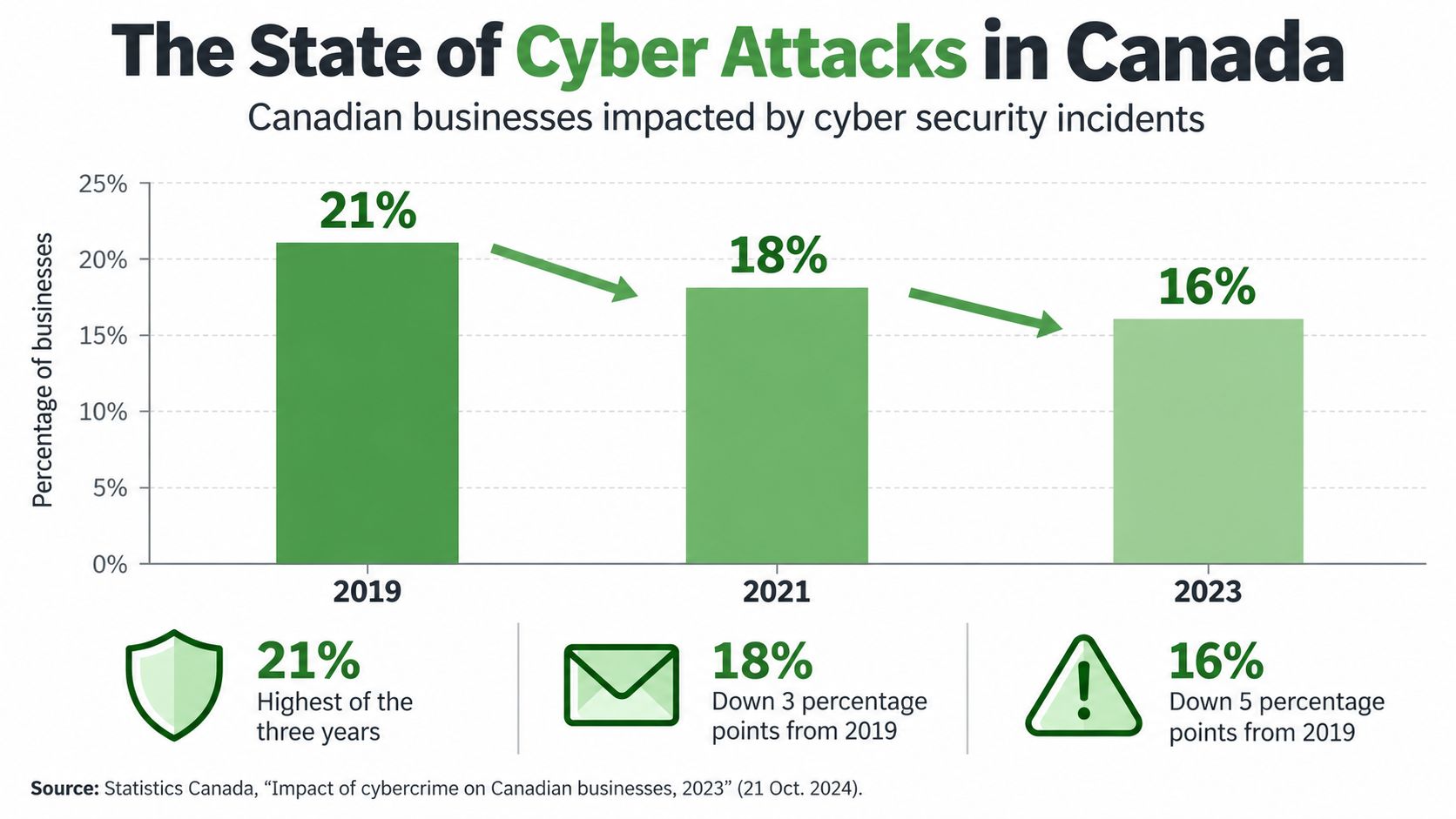
The earlier Statistics Canada survey found that 18% of businesses with at least 10 employees were affected in 2021. Exposure rose with business size. Small businesses (10 to 49 employees) were affected at 16%, medium-sized businesses at 25%, and large businesses at 37%. Among affected businesses, about 40% experienced downtime, with average downtime lasting 36 hours. (Statistics Canada's 2021 survey)
Those figures measure reported business experiences. They don't capture every attempted attack, undetected compromise, or organization that chose not to disclose an incident.
Why email sits at the centre
Email connects identity, payments, customer records, payroll, and external suppliers. A criminal who controls one mailbox can search old conversations, impersonate an executive, create forwarding rules, approve a fake invoice, or use stored links to reach other services.
The Canadian Centre for Cyber Security describes ransomware as the top cybercrime threat to Canada’s critical infrastructure. According to its ransomware outlook, ransomware incidents known to the Cyber Centre grew by an average of 26% a year from 2021 to 2024. In Statistics Canada’s latest survey, 13% of affected businesses reported a ransomware attack.
Canada's government networks also face enormous background noise. Communications Security Establishment Canada sensors blocked approximately 2.4 trillion suspicious cybersecurity events from April 2023 through March 2024. Shared Services Canada blocked about 6.6 trillion events from October 2023 through September 2024. These counts include scanning and other activity, not confirmed compromises, but they show why perimeter filtering alone isn't enough. (Office of the Auditor General report)
Practical rule: Count compromised identities, lost access, downtime, and recovery work. An incident that never becomes a news story can still disrupt your business.
Most Common Email-Based Attacks
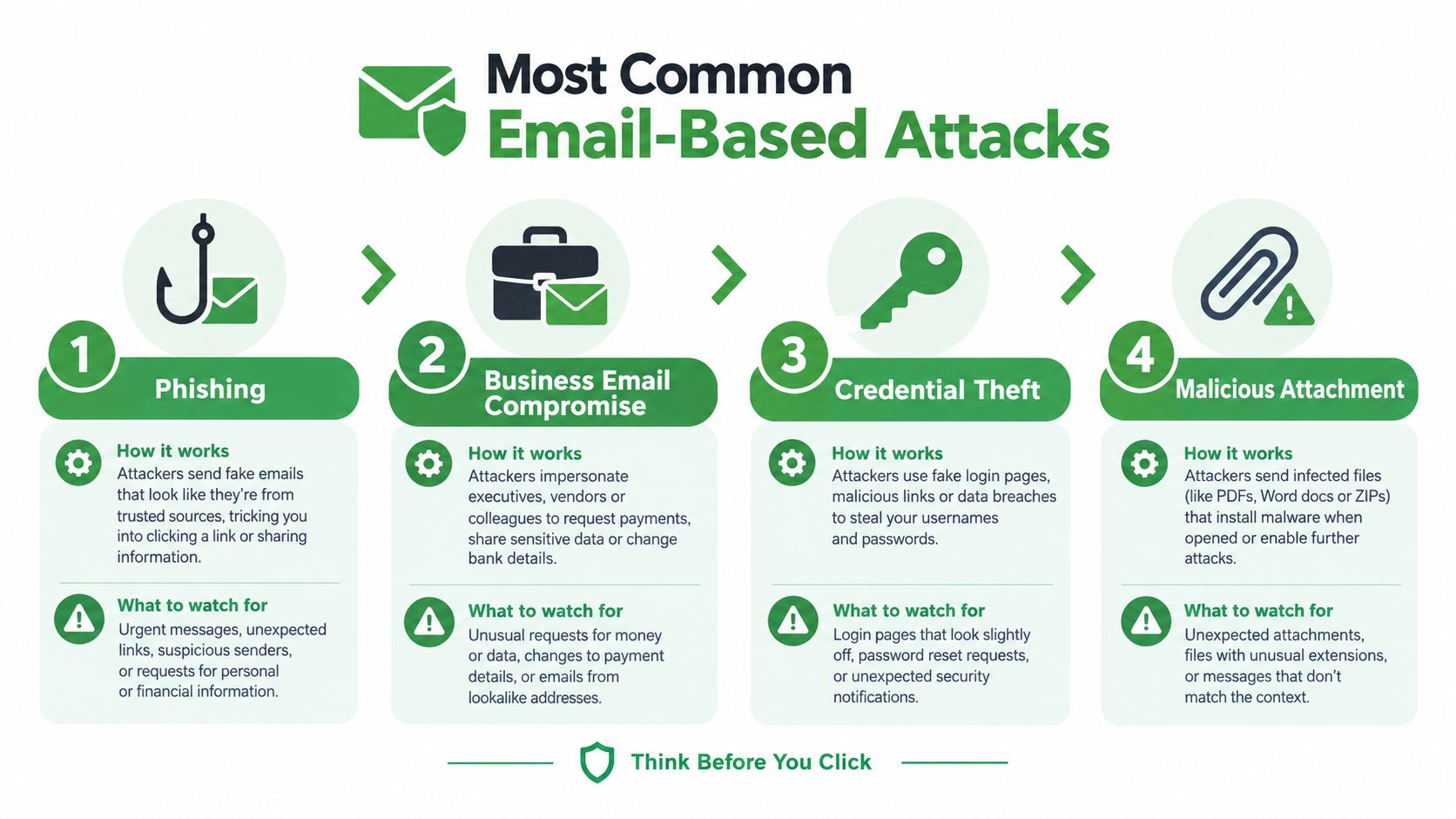
Most email attacks combine two weaknesses: a message that earns trust and an account or process that lacks a strong second check. Technical controls reduce the first problem. Good payment and access procedures reduce the second.
Phishing uses a deceptive message or website to make someone reveal credentials, open a file, or approve an action. The message may imitate Microsoft 365, a bank, a shipping company, or a familiar supplier. A convincing logo matters less than the destination of the link and the urgency of the request.
Business email compromise, or BEC, targets money and authority. An attacker may compromise a real mailbox, imitate a manager, or register a lookalike domain. The request often sounds ordinary: change a direct-deposit account, pay a revised invoice, or keep a transaction confidential.
Credential theft becomes more dangerous when staff reuse passwords or depend on authentication methods that a live phishing proxy can intercept. Phishing-resistant multifactor authentication, such as a security key using FIDO2 or WebAuthn, binds the sign-in to the legitimate website rather than merely confirming a code.
Malicious attachments deliver malware through invoices, shipping notices, resumes, or shared documents. Virus filtering helps, but it can't replace patching, endpoint controls, restricted file execution, and staff who know how to report a suspicious message.
How a fake invoice becomes a real loss
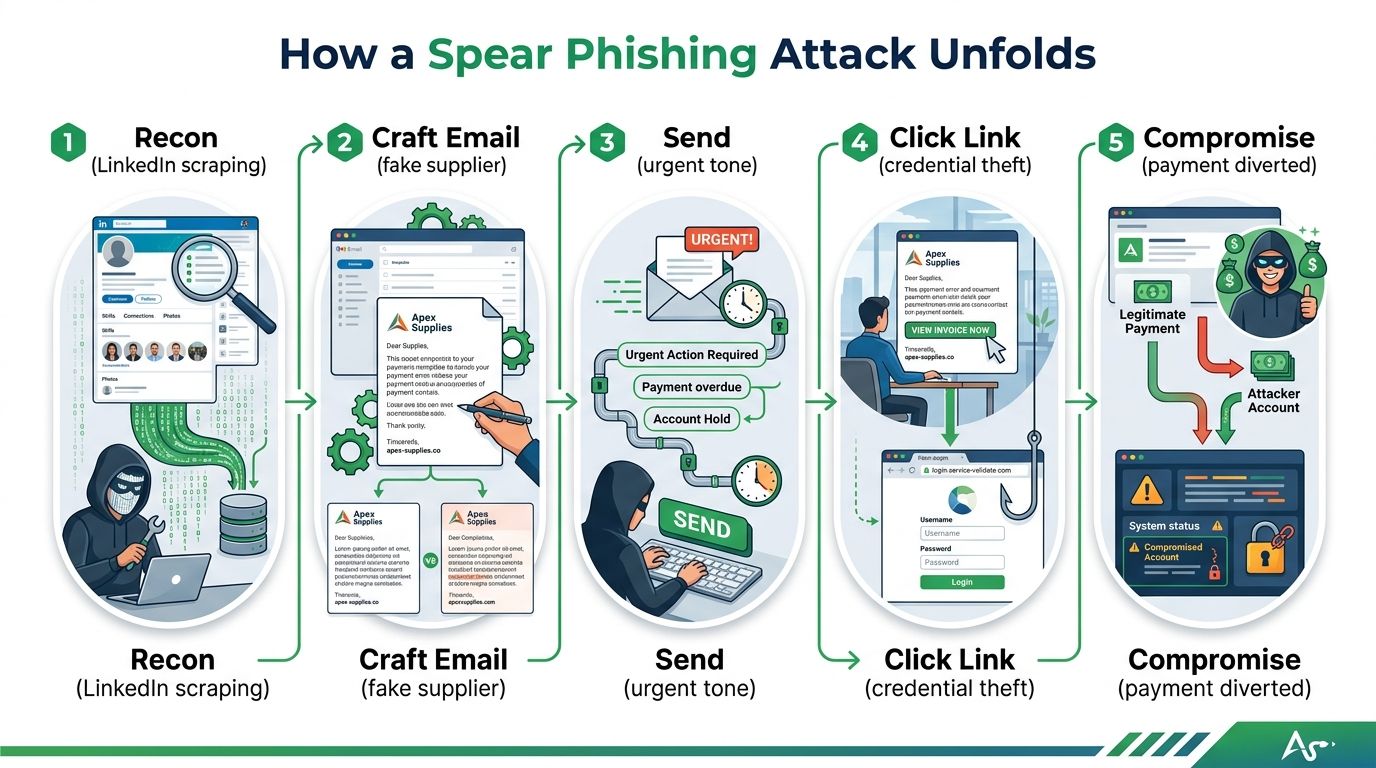
In a common version, an attacker replies inside a real supplier thread with a revised invoice and new banking details. Confirm any payment change through a known phone number, never through contact details in the request. Our guide to spear phishing walks through this scenario step by step.
Check whether your mail service alerts on new forwarding rules, unusual sign-ins, OAuth permissions, mass mailbox access, and sudden outbound volume. Review these events quickly, because a hidden rule can suppress warnings while the attacker works.
Ask your team one uncomfortable question: which of these attacks have you rehearsed, rather than merely discussed? If the answer is none, start with a mailbox compromise drill. It should cover session revocation, password reset, MFA reset, rule removal, payment review, evidence preservation, and notification decisions.
Sectors Most Targeted in Canada
Canadian organizations attract cyberattacks when their email accounts provide access to money, sensitive records, or trusted relationships. Healthcare holds personal information and depends on continuous access. Finance manages funds. Legal, accounting, payroll, and consulting firms protect information for many other organizations.
Small businesses face routine attacks as well. BDC reports that 73% of Canadian small businesses have experienced a cybersecurity incident, while email phishing was the most common reported event at 61%. (BDC analysis of small-business cyberattacks)
The sector changes the attacker's preferred route and the consequences of a compromised mailbox:
| Sector | Common Email Attack | Primary Data at Risk | Key Canadian Regulation |
|---|---|---|---|
| Healthcare | Credential phishing and ransomware | Health records, identities, clinical operations | Provincial health privacy laws |
| Financial services | BEC, credential theft, account takeover | Payment data, account records, identity information | PIPEDA and sector rules |
| Government and critical infrastructure suppliers | Spear phishing and vendor compromise | Operational data, credentials, service access | Federal and sector-specific requirements |
| Legal and accounting | Mailbox takeover and invoice fraud | Client records, financial documents, privileged information | PIPEDA and professional obligations |
| Retail and e-commerce | Malicious links, password theft, payment fraud | Customer accounts, payment and order information | PIPEDA and applicable provincial rules |
Where the pressure appears first
Healthcare teams often put patient care ahead of suspicious email activity. Attackers exploit that urgency with messages about clinical systems, appointments, or urgent administrative work. Require staff to verify unexpected requests through a separate channel, especially during busy periods.
Professional services face concentrated exposure. A compromised lawyer's or accountant's mailbox can reveal multiple client relationships, payment schedules, confidential documents, and trusted contacts. Review delegated access, forwarding rules, and sign-in alerts across every account with client-facing authority.
Critical infrastructure suppliers should monitor identity and management systems closely. Use layered containment, including protected backups, separated networks, and phishing-resistant authentication. Monitor for new forwarding rules, OAuth grants, unusual administrative logins, and abnormal outbound SMTP activity.
A small organization can be a high-value target when it holds trusted access to a larger one.
Recent High-Profile Canadian Incidents
Public incidents show why email security must connect to operational recovery. The details differ, but the pattern is familiar: attackers obtain access, organizations lose visibility, and staff must continue working while facts remain incomplete.

Healthcare incidents have demonstrated the cost of losing access to systems that staff use every day. The 2021 ransomware attack on Newfoundland and Labrador’s health network disrupted services and forced teams to work around unavailable systems. The lesson for a smaller clinic is practical: maintain downtime procedures, protect backups independently, and make sure staff can reach critical contacts without relying on one compromised platform.
The 2023 MOVEit breach at Nova Scotia Health also showed how sensitive information can create lasting consequences after the initial access event. When personal information may be exposed, the organization must investigate scope, preserve evidence, assess harm, and communicate carefully. A mailbox review should include forwarding rules, delegated access, search activity, downloads, and suspicious sign-ins.
Retail breaches create a different pressure. Customers expect access to orders and accounts, while the organization must investigate whether credentials, payment information, or personal data were exposed. A rushed public statement can create confusion, but silence can delay useful protective action for affected people.
The Canadian Centre for Cyber Security responded to more than 3,200 cyber incidents affecting federal institutions and critical infrastructure in 2025–2026. That’s up from 2,561 the year before. These totals reflect incidents detected or reported through its channels, not every attack.
The following video provides additional context on incident response and Canadian cyber risk.
These examples don't prove that every incident starts with email. They do show why identity protection, continuity planning, and clear reporting paths must work together.
How Canadian Regulations Respond
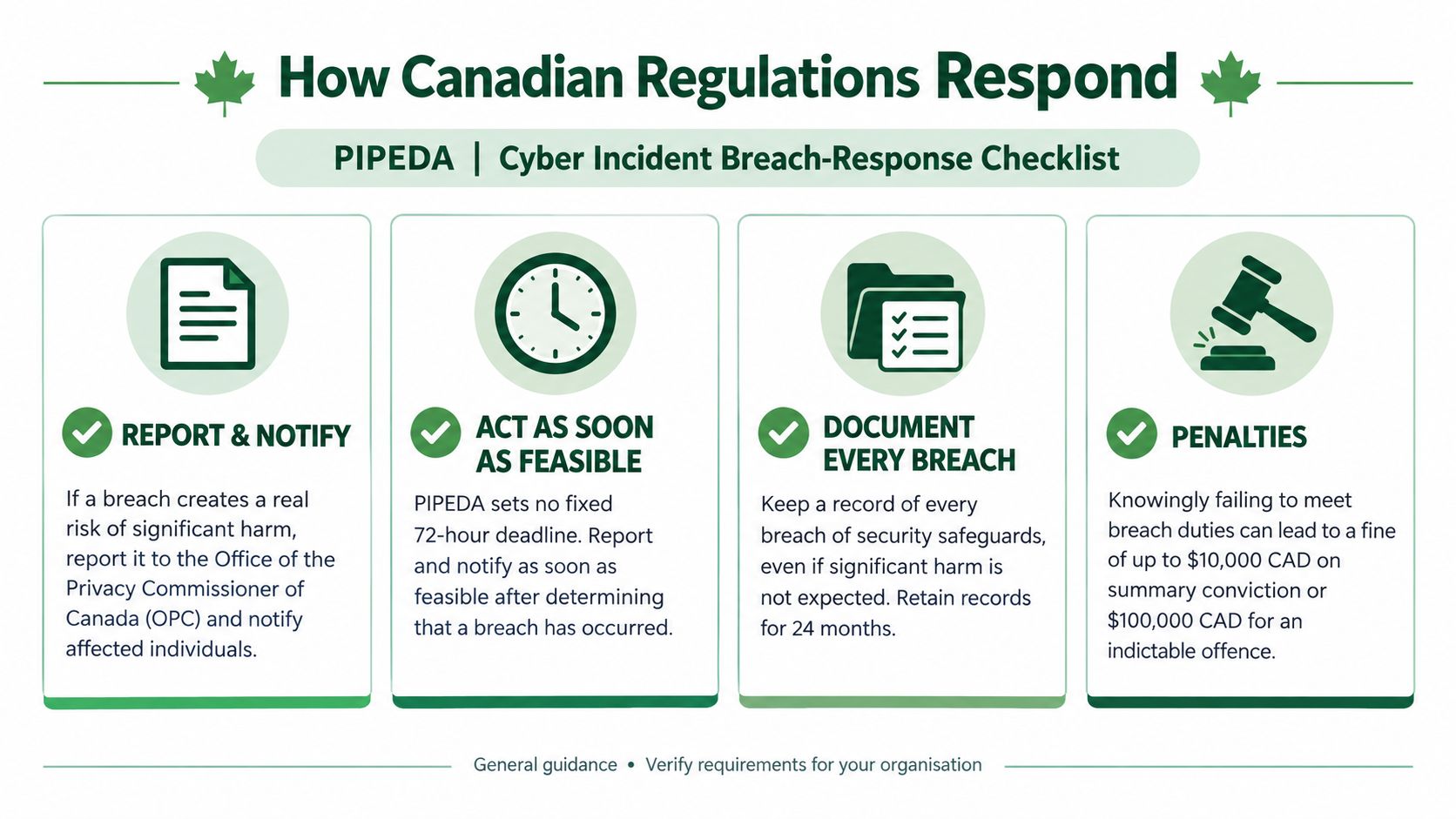
A cyber incident creates two separate jobs. You must contain the technical problem, and you must determine whether privacy, contractual, regulatory, or insurance duties apply.
Under Canada's federal private-sector privacy law, PIPEDA requires organizations to report a breach to the Office of the Privacy Commissioner of Canada when it poses a real risk of significant harm. Organizations must also notify affected individuals when that threshold is met, keep records of breaches, and cooperate with the Commissioner. The Commissioner's official PIPEDA breach guidance explains the assessment and documentation process.
What to preserve first
Don't wait for a perfect investigation before preserving evidence. Record the discovery time, affected accounts, suspicious messages, sign-in events, mailbox rules, OAuth approvals, endpoint findings, and actions taken. Preserve logs in a way that supports later review, and avoid deleting the original email before investigators can examine headers and content.
PIPEDA isn't the only rule that may apply. Provincial health privacy legislation can govern hospitals, clinics, and service providers. Organizations in British Columbia, Alberta, and Quebec may also have breach obligations under their provincial private-sector privacy laws. Banks, telecommunications companies, energy operators, and other regulated sectors may face additional obligations. Contractual duties can also require prompt notice to customers or suppliers.
Bill C-8 received Royal Assent in June 2026. It creates the Critical Cyber Systems Protection Act for designated operators in finance, telecommunications, energy, and transportation. Its obligations will come into force in phases. Don't assume a headline about new legislation automatically applies to your business. Ask counsel or your privacy lead to map the systems, information, and jurisdictions involved.
For a plain-language overview of Canadian privacy responsibilities, see what Canadian businesses need to know about PIPEDA compliance.
Choose the right reporting path
Contact the Cyber Centre for cyber incident guidance and federal coordination. When fraud, extortion, identity theft, or other crimes may have occurred, contact local police. Then report it online at reportcyberandfraud.canada.ca. Notify the relevant provincial privacy or health regulator when provincial law applies, and involve your insurer before taking steps that could affect coverage or forensic support.
Canadian hosting can simplify jurisdictional review because your provider operates under Canadian legal conditions, but it doesn't create automatic PIPEDA compliance. You still need a lawful purpose, access controls, retention rules, vendor oversight, and a breach process.
How to Protect Your Canadian Business
Start with the accounts that can move money or access other systems. Require multifactor authentication for administrators, finance, payroll, and mailbox access. Use phishing-resistant authentication where practical, because an attacker can steal passwords and relay weaker second factors through a convincing sign-in page.
Separate your email, authentication, management, and backup environments. Keep at least one backup copy offline or independently protected from the production domain. Test restoration, not just backup completion. A backup you can't restore during a busy incident is an archive, not a recovery plan.
Controls that pay off during a real incident
Monitor for changes that attackers commonly use to stay hidden:
Mailbox rules: Alert when a user creates a rule that moves, deletes, or forwards messages involving banking, payroll, or security.
OAuth permissions: Review new application grants and remove permissions that users don't need.
Administrative sign-ins: Investigate unusual locations, devices, user agents, and activity outside normal working patterns.
Outbound mail: Apply rate limits and recipient controls so one compromised account can't send a flood of malicious messages.
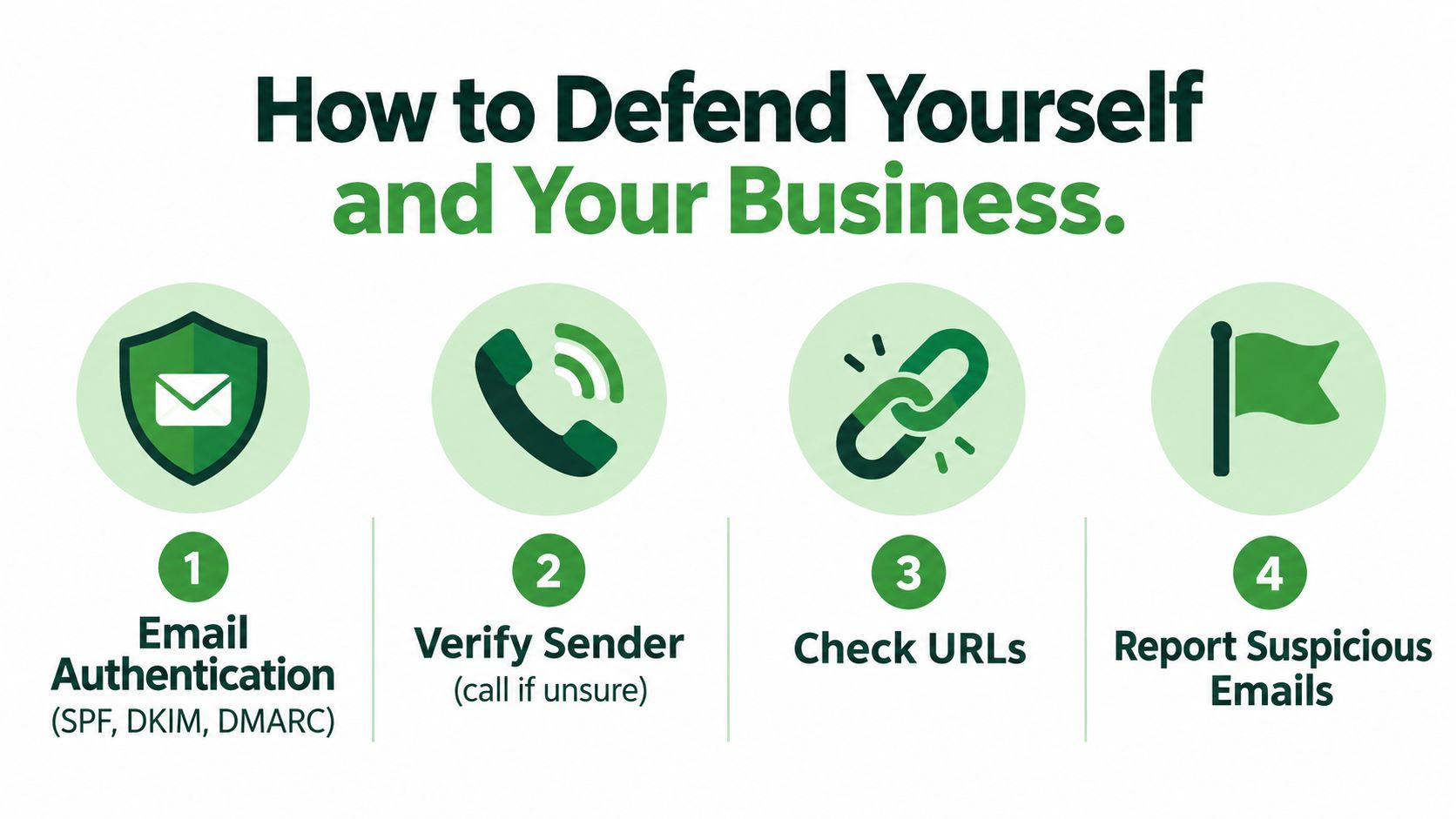
Payment requests: Require confirmation through a known second channel before changing supplier, payroll, or banking details.
Your incident playbook should name people, not just departments. The person who discovers a suspicious email should know who can revoke sessions, who contacts the bank, who calls the insurer, and who decides whether to notify customers.
Preserve the suspicious message and relevant logs. Revoke active sessions, reset credentials, remove unauthorized MFA methods, inspect mailbox rules, and check for forwarding or data access. Tell your provider and security partner what happened, including the time window and affected accounts.
Use the DMARC guide for simpler email security to understand how sender authentication helps prevent criminals from spoofing your domain. DMARC, which stands for Domain-based Message Authentication, Reporting, and Conformance, works with SPF and DKIM to help receiving systems evaluate whether messages claiming to come from your domain are legitimate.
Typewire is one email option for organizations that want Canadian hosting, encrypted mail, phishing detection, virus filtering, anti-spam controls, custom domains, and support for multifactor authentication. Those controls can reduce exposure, but they don't replace identity governance, staff training, backups, or payment verification.
What Canadian Organizations Should Do Next
The gap between perceived and actual risk deserves action. BDC found broad exposure among small businesses. Yet in an Insurance Bureau of Canada survey, only 6% of business decision-makers strongly agreed their organization could be vulnerable. Just 47% said it was prepared for an attack or breach. (BDC's analysis of small-business cyber risk)
Make three decisions this quarter. Require phishing-resistant MFA for privileged and financially sensitive accounts. Test mailbox-compromise recovery, including session revocation, rule inspection, payment review, and evidence preservation. Confirm backups can restore without relying on the same identity system an attacker may control.
A private, Canadian-hosted email stack can support data residency and reduce dependence on advertising-driven services. It will not make your organization immune to cyber attacks. Security comes from habits, monitoring, recovery, and decisions made before pressure arrives.
Typewire provides encrypted, ad-free email hosted in Canada, with phishing detection, virus filtering, anti-spam protection, custom domains, and multifactor authentication support. Start your 7-day free trial to set up privacy-focused email for your business.