Category: Uncategorized

  • Your Guide to Automatic Email Forwarding

    Your Guide to Automatic Email Forwarding

    Automatic email forwarding is a simple but incredibly useful trick. At its core, it’s just a rule you set up in your email account that automatically sends incoming messages to another address. Think of it as your personal digital mail clerk, sorting and rerouting messages so you don't have to. It's a fantastic way to consolidate several inboxes, make sure a team has coverage, or just manage multiple accounts without constantly logging in and out.

    Why You Should Use Automatic Email Forwarding

    Image

    Don't dismiss automatic forwarding as just another tech feature; it's a strategic move for anyone trying to master modern communication. I’ve seen this simple function become a complete lifesaver in countless real-world scenarios, helping people boost their productivity and build more resilient workflows. Instead of juggling three or four different inboxes every single day, you can funnel everything into one place.

    For a lot of professionals, this is a total game-changer. Take a small business owner, for example, who has separate email addresses for sales, support, and general inquiries. By setting up automatic forwarding, every single message can land in their main inbox. This simple setup is often the difference between catching a critical customer query and letting it fall through the cracks.

    Streamline Your Personal and Professional Life

    On a more personal level, forwarding is a great way to declutter your digital life. Most of us have old email accounts from college or a previous job that we rarely check but that still receive important updates. Setting up forwarding from these legacy accounts to your main email means you won’t miss old contacts trying to reconnect or important notifications, all without the hassle of remembering old passwords.

    This kind of organization is key to staying focused. When you create one central hub for all your email, you aren't constantly being pulled in different directions. It allows for better management, faster response times, and a much less fragmented day.

    A Growing Market for a Critical Need

    It's clear just how much we've come to rely on this. The global market for email forwarding services was valued at USD 2.5 billion in 2023 and is expected to more than double, hitting USD 5.7 billion by 2033. This surge shows just how essential good email management has become as we all try to handle a relentless flood of digital mail. If you're curious about the data, you can explore the full email forwarding service market research to see the trends for yourself.

    Key Takeaway: Automatic email forwarding isn't just a convenience—it's a productivity system. It helps you consolidate communication, ensure business continuity, and stay in control of your digital identity.

    Once you get the hang of it, you're not just rerouting emails. You're designing a smarter, more reliable communication system for yourself or your team. This is especially valuable when a colleague goes on vacation; forwarding their work email to someone covering for them ensures that client needs are handled without any delay. It’s a fundamental tactic for any well-organized digital workspace.

    How to Set Up Forwarding on Major Platforms

    Setting up automatic email forwarding is one of those tasks that sounds technical but is surprisingly simple once you know where to look. While the process is straightforward on most platforms, the exact clicks and menus can vary. Getting it right usually just takes a few minutes.

    I’ll walk you through how it’s done on the big three: Gmail, Outlook, and iCloud. Each one has its own little quirks, but they all share one critical security step: verifying the destination address. This ensures your emails are going exactly where you intend them to.

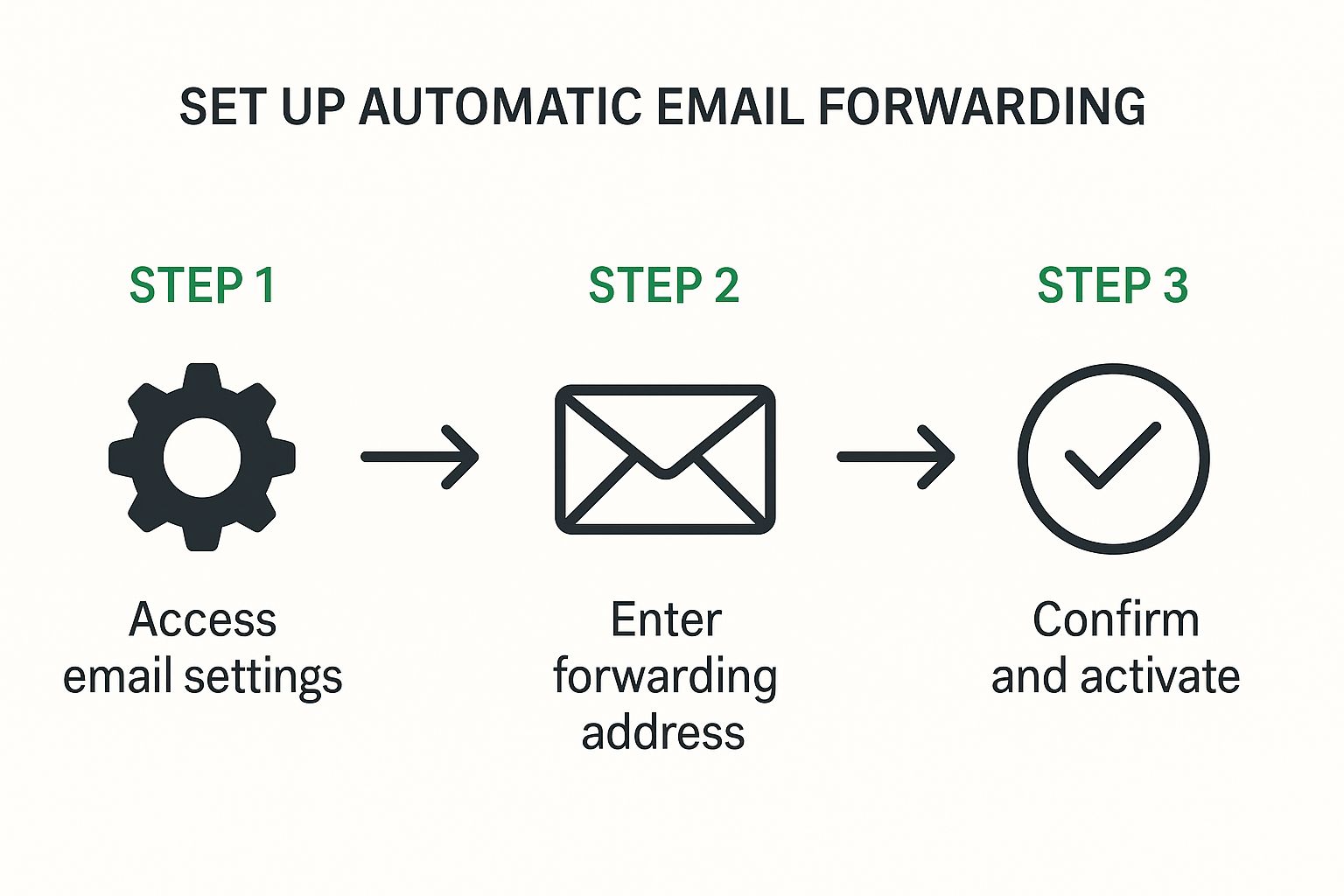
    The core idea is always the same: dive into your settings, pop in the forwarding address, and confirm it.
    Image

    This graphic really breaks down the workflow. No matter your provider, the fundamentals are consistent and accessible.

    Forwarding Emails in Gmail

    Gmail makes the setup process clear, but its settings are tucked away in a specific tab. First, log into the Gmail account you want to forward messages from.

    From your inbox, look for the gear icon in the top-right corner, then click "See all settings" to open the full dashboard. Your destination is the "Forwarding and POP/IMAP" tab. This is your command center for all things forwarding.

    In this section, click the button labeled "Add a forwarding address." A pop-up will appear, asking for the email address you want to send your mail to.

    Once you’ve entered the address, Gmail sends a verification email to that inbox. This is a non-negotiable security measure. You'll need to log into that second account, find the email from the Gmail team, and click the confirmation link inside.

    After you've verified it, head back to your original Gmail account’s "Forwarding and POP/IMAP" settings. You’ll now see the new address is available. Select it, and then decide what happens to the original email in your Gmail inbox.

    • keep Gmail's copy in the Inbox: This is the safest bet, essentially creating a backup.
    • mark Gmail's copy as read: Great for keeping a copy without it cluttering your unread count.
    • archive Gmail's copy: Moves the email out of the inbox but keeps it for your records.
    • delete Gmail's copy: Be careful with this one. It’s permanent and offers no backup.

    Always remember to hit "Save Changes" at the bottom of the page to lock it in.

    Enabling Forwarding in Outlook

    The process for Outlook.com is just as smooth, with the settings easily reachable from the main toolbar. After logging in, find the Settings icon (a gear) in the top-right.

    A sidebar will pop out. Down at the bottom, select "View all Outlook settings." This launches a more detailed settings window. From here, navigate to "Mail" and then click on "Forwarding."

    A Quick Tip from Experience: Before you hit save, double-check that forwarding address for typos. I've seen it happen—a single wrong letter can send your private emails to a complete stranger. It’s a two-second check that can prevent a massive privacy headache.

    In the forwarding menu, just check the box to "Enable forwarding" and type in the destination email. One crucial decision here is whether to "Keep a copy of forwarded messages." I almost always recommend keeping this box checked. It’s your safety net, ensuring a copy of every email remains in your Outlook account.

    Finally, click "Save." Outlook will start redirecting new incoming mail immediately. If you’re juggling accounts, it’s worth taking the time to compare email providers for your needs to see which one's features truly fit your workflow.

    Configuring Forwarding on iCloud Mail

    For those in the Apple ecosystem, forwarding is handled through the iCloud.com web interface. The setup is as clean and minimalist as you’d expect from Apple.

    Start by logging into your account at iCloud.com and opening the Mail app. Inside, find the Settings icon (another gear) in the sidebar and choose "Preferences…" from the menu that appears.

    In the Preferences window, make sure you're on the "General" tab. You'll see a checkbox labeled "Forward my email to." Tick this box and type your destination address into the text field right next to it.

    Just like the others, iCloud gives you an important choice: "Delete messages after forwarding." In my experience, leaving this unchecked is the best practice. It preserves a copy on iCloud’s servers, giving you a priceless backup if anything goes wrong. Once you’ve made your choice, click "Done" to save and activate the rule.

    Feature Comparison Across Major Email Providers

    Choosing the right email service for your needs often comes down to the small details. When it comes to something as specific as email forwarding, the options can differ just enough to make one platform a better fit for you than another.

    Here’s a quick side-by-side look at how Gmail, Outlook, and iCloud handle forwarding features.

    Feature Gmail Outlook iCloud
    Verification Required Yes, via confirmation link No, but recommended to check No, but recommended to check
    Keep Original Copy Yes, with multiple options (read, archive, delete) Yes, simple on/off toggle Yes, simple on/off toggle
    Conditional Forwarding Yes, using advanced filters Yes, using inbox rules No, forwarding is all-or-nothing
    Forward to Multiple Addresses No, only one primary forwarding address No, only one primary forwarding address No, only one primary forwarding address

    This table highlights that while all three get the basic job done, Gmail offers the most granular control over what happens to the original email. If you need more complex rules, like only forwarding emails from a specific sender, you’ll need to explore the filters in Gmail or the rules in Outlook. iCloud, on the other hand, keeps it incredibly simple: it's either all on or all off.

    Using Rules and Filters for Smart Forwarding
    Image

    Basic email forwarding is useful, but it's a blunt instrument—it sends everything. The real game-changer is when you start using rules and filters for conditional forwarding. This is where you can get incredibly specific, turning a chaotic inbox into a finely tuned, automated machine that works for you.

    Think of it this way: instead of just dumping all your mail into a new box, you're telling your inbox, "If an email looks like this, send it over there." For instance, I once worked with a freelance designer who set up a rule to instantly forward any email from a major client's domain (let's say "BigProject.com") to a special project management address. Simple, but brilliant. It kept all their critical communications in one place without touching their main inbox.

    This isn't just a neat trick; for many of us, it's a survival tactic. With global email traffic expected to reach nearly 376 billion messages a day by 2025, the flood of information is only getting worse. I've seen reports that some finance professionals get more than 135 emails daily. You can discover more insights about these email usage trends to see just how big the problem is. Smart forwarding is how you stay afloat.

    Crafting Your First Smart Forwarding Rule

    Building a rule is actually pretty straightforward. It’s all based on a simple "if/then" logic: if an email meets certain conditions you set, then your email client performs a specific action. All the major players, like Gmail and Outlook, have powerful rule-creation tools tucked away in their settings.

    Here are a few real-world scenarios to get you started:

    • Taming Invoices: Automatically forward any email with "invoice" or "receipt" in the subject line straight to your bookkeeper or an accounting email address. No more manual sorting.
    • Curating Newsletters: Tired of newsletters cluttering your primary inbox? Create a filter that catches them all and forwards them to a read-later service like Pocket or a dedicated "reading" email address.
    • Boosting Team Response: A project manager could set a rule to forward emails containing "urgent support ticket" to the entire support team's group email. This ensures the right people see it instantly.

    The best part is that you can stack conditions for even more precision. For example, you could create a rule that only fires if an email is from a specific sender AND contains a certain keyword in the message body.

    My Personal Tip: Start small and simple. The first rule I always recommend people create is for financial documents. Set one up to forward all your Amazon receipts to a dedicated folder or email. It’s a low-risk, high-reward automation that proves the concept beautifully.

    Key Conditions to Build Your Rules

    To really get the hang of this, you need to know what your building blocks are. These are the most common triggers you'll find in any email platform's filter settings.

    Common Rule Triggers:

    • From (Sender): This is the most popular one. Forward emails from a specific person, an entire company domain (@client.com), or a predefined contact group.
    • Subject Contains: This lets you grab emails based on words in the subject line, like "Project Update" or "Action Required." It's incredibly reliable.
    • Has the words (Keywords): This trigger scans the actual body of the email for certain words. It's a lifesaver for categorizing messages that don't have predictable subjects.
    • Has an attachment: You can automatically forward every email that includes an attachment, which is a great way to create a centralized repository for important documents.

    As you begin setting up these automations, always think about the sensitivity of what you're forwarding. For anything confidential, it's worth taking a moment to understand your options for security. You might want to read our article on the top benefits of encrypted email you need to know to make sure your data is protected as it moves between accounts.

    Navigating Security Risks and Privacy Concerns

    Automatic email forwarding is a fantastic tool for convenience, but it comes with some serious strings attached. If you’re not careful, the very feature that consolidates your inboxes can become a major security blind spot. It’s a powerful capability, but using it safely requires a bit of foresight.

    The most common trap I see people fall into is forwarding a secure work email to a less-secure personal account, like a standard Gmail or Yahoo address. Think about it: your company email is likely wrapped in layers of enterprise-grade security. Your personal account? It might just have a single password guarding the gate.

    When you forward emails containing financial data, client details, or confidential company strategy, you're essentially making a copy of that sensitive information and moving it outside your organization's protected environment. This one simple action can easily spiral into a compliance nightmare and a huge data governance headache.

    The Corporate Crackdown on Forwarding

    It’s no surprise that organizations are waking up to these dangers. We're seeing a clear trend where companies are putting strict policies in place to either ban or severely limit automatic forwarding to outside email addresses. These aren’t just friendly suggestions—they are hard-and-fast rules designed to stop data leaks before they happen.

    For a real-world example of this, look at how some large institutions are responding. A major U.S. university system, for instance, is banning all rule-based automatic email forwarding from its Microsoft 365 platform to external services, effective October 1, 2025. This policy specifically targets automated rules to prevent data from slipping through the cracks, while still allowing people to manually forward individual messages when necessary. You can get a better sense of this trend by reading more about how institutions are changing their forwarding policies.

    Key Takeaway: Unchecked email forwarding creates a data trail that you might not control. Once an email leaves its original secure environment, it's subject to the security policies—or lack thereof—of the receiving service.

    Getting a handle on these issues is critical. For a deeper look into keeping your accounts locked down, our complete defense guide to email security threats is a great resource.

    Best Practices to Mitigate Forwarding Risks

    If you still decide that automatic forwarding is right for you, it's absolutely crucial to do it safely. A few smart practices can make a world of difference in reducing your exposure to privacy breaches and security incidents.

    Here’s what I recommend:

    • Audit Your Rules Regularly: Don't just set it and forget it. Make it a habit to check your forwarding rules every few months. If a rule is no longer needed, turn it off. Simple as that.
    • Forward to Secure Destinations: If you must forward, send those emails to an address that has equally strong security. Ideally, this would be another account on a private, secure platform like Typewire, not a free, ad-supported service.
    • Use Conditional Forwarding: Instead of a blanket forward-all rule, get specific. Create filters that only forward non-sensitive emails, like newsletters or system notifications. You can set them to block anything with sensitive keywords like "invoice" or specific client names.
    • Keep a Copy: This one is non-negotiable. Always, always configure your forwarding to keep a copy of the message in the original inbox. This serves as your primary record and a crucial backup.

    How to Fix Common Forwarding Problems
    Image

    Even the most carefully configured automatic email forwarding can hit a snag. One minute everything is working perfectly, and the next, a crucial message goes missing. When things go wrong, the solution is usually straightforward—you just have to know where to look.

    Most forwarding issues boil down to a few usual suspects, from emails getting flagged as junk to them vanishing into thin air. Let's walk through how to troubleshoot these frustrating hiccups.

    Pinpointing Where Emails Are Going

    The most common panic-inducing moment is when you realize, "My forwarded emails aren't arriving!" Before you jump to conclusions, your first stop should always be the spam or junk folder in the receiving account. Honestly, overeager spam filters are the culprit more than 90% of the time.

    If you come up empty in the spam folder, it's time to check for typos. I can't tell you how many times I've seen a single misplaced letter in an email address cause weeks of important messages to be sent to a total stranger.

    • Check the Forwarding Address: Go back into your original account’s settings. Look very closely at the forwarding address you entered. Is every single character correct?
    • Confirm Verification: Services like Gmail won't start forwarding until you click a confirmation link sent to the destination address. Dig through that inbox to make sure the verification step was actually completed.
    • Review Your Rules: If you set up forwarding with specific conditions, your rules might be too narrow. For example, a filter looking for the word "invoice" will completely miss an email with the subject line "Your Receipt."

    A Quick Troubleshooting Tip: Grab a third email account and send a test message to your primary inbox. This simple action lets you trace the email's entire journey. If it lands in the primary account but never shows up at the destination, you know the problem is with your forwarding setup.

    Escaping a Forwarding Loop

    A forwarding loop is a rare but messy situation. It happens when two accounts are set to forward emails to each other, creating an endless, back-and-forth cycle of messages. This can crash both inboxes in a hurry and might even get your accounts temporarily suspended by your provider.

    The fix is simple and direct: log into one of the accounts and kill the automatic email forwarding rule immediately.

    To avoid this digital vortex in the first place, never set up two-way forwarding between accounts. A better strategy is to designate one inbox as your central hub. Forward emails to it from your other accounts, but never set up rules that forward from the hub back to those same accounts. This keeps your communication flowing in one clear direction and prevents a total system meltdown.

    Still Have Questions About Email Forwarding?

    Even with the best instructions, a few questions always seem to pop up when setting up automatic forwarding. Let's tackle some of the most common ones I hear from people trying to get their email workflow just right.

    Can You Automatically Forward Only Certain Emails?

    Absolutely. In fact, this is how you should be doing it for maximum efficiency. While you can create a blanket rule to forward every single thing that hits your inbox, it's rarely a good idea. That's a fast track to cluttering up another account.

    Instead, all the major players like Gmail and Outlook have powerful filtering tools built right in. You can get incredibly specific.

    Think about it this way: you could set up a rule that only forwards emails:

    • From a specific client, like any message from @bigproject.com.
    • With a keyword in the subject, such as "Invoice" or "Urgent Request."
    • That include an attachment, which is great for routing documents.

    Getting smart with filters is what separates a messy forwarding setup from a genuinely useful one.

    Do Auto-Forwarded Emails Show Up In My Sent Folder?

    This is a big one, and the answer is almost always no. Your email service doesn't see a forwarded message as something you sent. It sees it as an incoming message that's being rerouted based on a rule you created. Because of this, it won't appear in your "Sent Items."

    This is precisely why ticking the box to "keep a copy in the inbox" is non-negotiable.

    My Pro Tip: Always, and I mean always, keep a copy of the original message. If you don't, the first account will have zero record that the email ever existed. That setting is your safety net and your primary archive.

    Without it, if the email gets lost or deleted on the other end, it’s gone for good.

    Is Automatic Email Forwarding Instantaneous?

    It's fast, but not quite instant. Think of it as a near-immediate process. When an email hits your server, it has to be received, scanned, checked against your forwarding rules, and then re-sent to its new destination. The whole trip usually takes just a few seconds, maybe a minute or two at most.

    But sometimes, things can get held up. A few potential bottlenecks include:

    • Heavy server traffic on either your end or the recipient's.
    • Spam filters at the destination, which might quarantine the message for a quick scan.
    • The email's size—big attachments will naturally take longer to process and send.

    For 99% of what you do, you'll never notice the delay. Just don't bank on it being truly instantaneous for something that is hyper-time-sensitive down to the second.

    Can I Forward Emails to More Than One Address at Once?

    This is a common request, but most email platforms don't let you pop multiple addresses into a single forwarding rule. Services like Gmail, Outlook, or iCloud typically limit you to one destination address in their main settings.

    But there's a pretty slick workaround.

    Instead of forwarding to an individual, you can forward everything to a group distribution list. A Google Group is a perfect example. You set up the group, add all the email addresses you want, and then point your forwarding rule to that single group address. It's a fantastic strategy for teams that need to keep an eye on a shared project or client inbox.


    Ready to manage your communications in a completely private and secure environment? Typewire offers premium email hosting built on a foundation of privacy, with no ads, no tracking, and zero data mining. Take full control of your digital correspondence today.
    Explore Typewire's Secure Email Plans

  • The Ultimate Guide to an Email Alias Service

    The Ultimate Guide to an Email Alias Service

    At its core, an email alias service is a privacy tool that lets you create unique, disposable email addresses. These addresses act as middlemen, forwarding any messages they receive straight to your real inbox without ever exposing your primary email address.

    It helps to think of it as a digital P.O. box for your online life.

    What Is an Email Alias Service and Why Use One

    Your primary email address is a lot like your home address. You wouldn't just hand it out to every cashier, online form, or newsletter you come across, right? That would be an open invitation for junk mail, and if that list got into the wrong hands, it would expose a key piece of your identity and link all your activities together. An email alias service provides a powerful buffer against exactly that.

    Instead of sharing your real email, you generate a unique, random alias for every new site or service. For a pizza loyalty program, you might use something like pizzanight.zyx@myalias.com. For a new social media account, it could be newnetwork.123@myalias.com. Messages sent to these aliases show up in your main inbox just like any other email, but the sender never learns your actual address.

    A Modern Security Essential

    This simple layer of separation is surprisingly powerful. We all know data breaches are a constant risk, and our email addresses are prime targets. If a company you used an alias with gets hacked, the only thing that leaks is that one disposable alias.

    Your digital identity is made up of a lot of information, and it’s often attached to the personal email address you use all over the internet. Email aliases are a great way to protect your privacy and hide your personal email address and thus your digital identity.

    The benefits become clear almost immediately:

    • Spam Control: The moment an alias starts getting spam, you know exactly who sold or leaked your information. Better yet, you can just switch off that single alias and the spam stops instantly, without disrupting any of your other accounts.
    • Enhanced Privacy: Using random, non-identifying aliases makes it incredibly difficult for data brokers and advertisers to connect the dots and build a detailed profile on you.
    • Improved Security: A leaked alias can't be used to reset the password on your bank account or main email, because it’s not the address they have on file. It's a dead end for hackers.

    To put it simply, an email alias gives you control. Here’s a quick breakdown of how these services protect you.

    Benefit How It Works
    Spam Prevention When an alias is spammed, you can disable it instantly, cutting off the source without affecting other communications.
    Leak Identification Since each alias is unique to a service, you immediately know which company was breached or sold your data.
    Privacy Protection By masking your real email, you prevent data brokers from linking your online activities into a single, comprehensive profile.
    Security Shield A leaked alias is useless for trying to compromise your critical accounts (like banking) because it's not the real login credential.

    Using an alias is a simple yet effective strategy for taking back control of your digital identity.

    Growing Demand for Digital Privacy

    While the basic idea of email forwarding has been around for a while, the demand for dedicated privacy services has exploded. The market for these tools, valued at roughly USD 0.16 billion, is expected to nearly double to USD 0.32 billion by 2033.

    That’s a projected 8% compound annual growth rate, which sends a clear message: people are actively looking for ways to manage their digital footprint. If you're curious about the numbers, you can review the full market projections to see the trends for yourself.

    Ultimately, using an email alias service is a smart, proactive step toward better digital hygiene. It empowers you to decide who gets to contact you, pinpoint the source of data leaks, and keep your real inbox clean and secure.

    How Email Aliases Protect Your Digital Identity

    Image

    Think of an email alias service as your personal gatekeeper for the internet. Every time you sign up for a newsletter, create an account, or download a freebie, you're handing over a small piece of your identity. With an alias, you're not giving out your real address; you're providing a unique, disposable stand-in. This simple step creates a crucial buffer between your true identity and the countless websites that want your data.

    That buffer is a lifesaver when a company inevitably gets hacked. Data breaches have become a fact of life, and millions of email addresses are exposed every year. If a service you used an alias for gets breached, only that specific, disposable alias is compromised. Your real email address—the one connected to your bank, your work, and your family—stays completely untouched and out of harm's way.

    Pinpoint Leaks and Shut Down Spam

    Here's where using email aliases gets really powerful. By creating a unique alias for every single service, you build an incredibly effective diagnostic tool for your inbox. It gives you a level of clarity you just can't get otherwise.

    Let’s say you create a few different aliases for your online activities:

    • pizzadeals-24@myalias.com for that local pizza place's loyalty club.
    • fashionsale-19@myalias.com for a one-time purchase from a new clothing brand.
    • techupdates-03@myalias.com for a tech blog's newsletter.

    Suddenly, you start getting weird spam emails sent to fashionsale-19@myalias.com. You know with 100% certainty where the leak came from. The clothing store either sold your data or had a security breach. There’s no guesswork involved.

    “Most people have one primary email address that becomes their internet identity. [Creating] email aliases on the fly adds a line of privacy defense to online accounts.” – Son Nguyen Kim, Founder and CEO of SimpleLogin

    Armed with that knowledge, your next move is simple. You just log into your alias provider and switch off that one address. Just like that, the spam stops. The compromised alias becomes completely useless to shady marketers and scammers. This kind of surgical control is simply impossible when you use one email for everything.

    Compartmentalize Your Digital Life

    Using a unique alias for each service effectively compartmentalizes your online footprint. This means a security problem with one account doesn't spiral into a full-blown identity crisis. It's the same logic as having different keys for your house, your car, and your office—losing one doesn't mean everything you own is suddenly vulnerable.

    This strategy protects much more than just your inbox from spam. Your real email is often the username for your most important accounts, like banking and government portals. Keeping it private is a massive security upgrade. While aliases shield the address itself, it’s also smart to protect the content of your messages. You can define encrypted email and learn how to secure your actual communications in our guide.

    At the end of the day, an email alias service is all about taking a proactive stance on your own privacy. It puts the power back in your hands, letting you build a more resilient and private digital life, one alias at a time.

    Key Features of a Great Email Alias Service

    Image

    When you start looking at email alias providers, you'll quickly realize they aren't all created equal. Sure, the basic job is to forward emails, but the best services give you a whole toolkit for control, security, and real-world convenience. It’s about choosing a service that genuinely shields your digital life, not just one that pulls a thin curtain over it.

    The absolute baseline feature? The power to create unlimited aliases. Your privacy shouldn't come with a quota. A top-notch service will let you spin up a new, unique alias for every single website, app, or newsletter you sign up for. This is what lets you instantly identify which company got breached or sold your data when spam starts hitting a specific address.

    Of course, creating aliases is only half the battle. You also need one-click management. The moment an alias gets compromised and starts flooding you with junk, you need a quick way to shut it down. The best providers offer a simple dashboard or browser extension to turn off any alias with a single click, cutting off the spam at its source.

    Core Functionality and Control

    Once you get past the fundamentals, the real power lies in the advanced options. A truly great email alias service should be flexible enough for both personal organization and professional use cases.

    • Custom Domain Support: This is a game-changer for freelancers, consultants, or small business owners. It lets you create aliases using your own domain (like billing@mycompany.com or newsletter@mycompany.com), so you look professional while keeping all your communications neatly separated.
    • Two-Factor Authentication (2FA): Any service that holds the keys to your email needs to be locked down tight. Strong 2FA isn't just a nice-to-have; it's a mandatory security layer to keep anyone from getting into your alias dashboard and causing chaos.
    • Intuitive User Interface (UI): If a tool is clunky and confusing, you simply won't use it. Look for a clean, straightforward interface that makes creating, labeling, and deleting aliases feel effortless, not like a chore.

    These features are what elevate an alias service from a simple forwarder to a true command center for your online identity.

    Deliverability and Privacy Policies

    An alias is completely pointless if important emails don't get to you. High email deliverability is a crucial feature that often gets overlooked. You have to be confident that critical messages, like a password reset link or an order confirmation, will reliably land in your real inbox. While some providers struggle, a recent report on email deliverability statistics shows that the best services are consistently getting better at this.

    A transparent privacy policy is the bedrock of trust. If a service's policy is vague about logging, tracking, or selling your information, walk away. The entire point of using an alias is to increase your privacy, not just swap one data tracker for another.

    Ultimately, a quality alias provider is just one piece of your overall privacy puzzle. To see how it fits into the bigger picture, take a look at our roundup of the best email for privacy options on the market today. If you keep these key features in mind, you can find a service that delivers real, meaningful protection.

    Alright, you've got the essentials down—what an email alias is, why it's a game-changer for your privacy, and what features make a service worthwhile. Now for the fun part: picking the right one.

    The market for an email alias service has really blown up, and it's not a one-size-fits-all situation. Different services are built for different people. To figure out which one is your perfect match, let's stop thinking about a dry list of features and start thinking about what you actually need to do.

    What’s your main reason for using an alias? Are you a hardcore privacy advocate who wants to lock down every digital door? Maybe you're a freelancer or small business owner trying to look professional without juggling a dozen different email accounts. Or, like most of us, you just want solid, everyday protection without a lot of fuss. Your answer points you directly to the right kind of provider.

    Finding the Right Fit for You

    Let's break it down by who these services are really built for. This approach helps cut through the marketing jargon and gets you to the features that will genuinely make your life easier.

    • For the Privacy Purist: If your top priority is security, you'll want a service with a rock-solid, transparent privacy policy. Look for providers that are open-source and lean heavily into strong encryption. These services often trade flashy features for bulletproof security.

    • For the Small Business or Freelancer: The absolute must-have feature here is custom domain support. This is what lets you create professional aliases like sales@yourbusiness.com or projects@yourfreelancename.com that all funnel neatly into a single inbox you already use. It keeps you organized and reinforces your brand.

    • For the Everyday User: The sweet spot is usually a service that's simple to use and offers a generous free plan or an affordable subscription. You’re looking for something that lets you spin up new aliases in seconds, manage them easily, and just works.

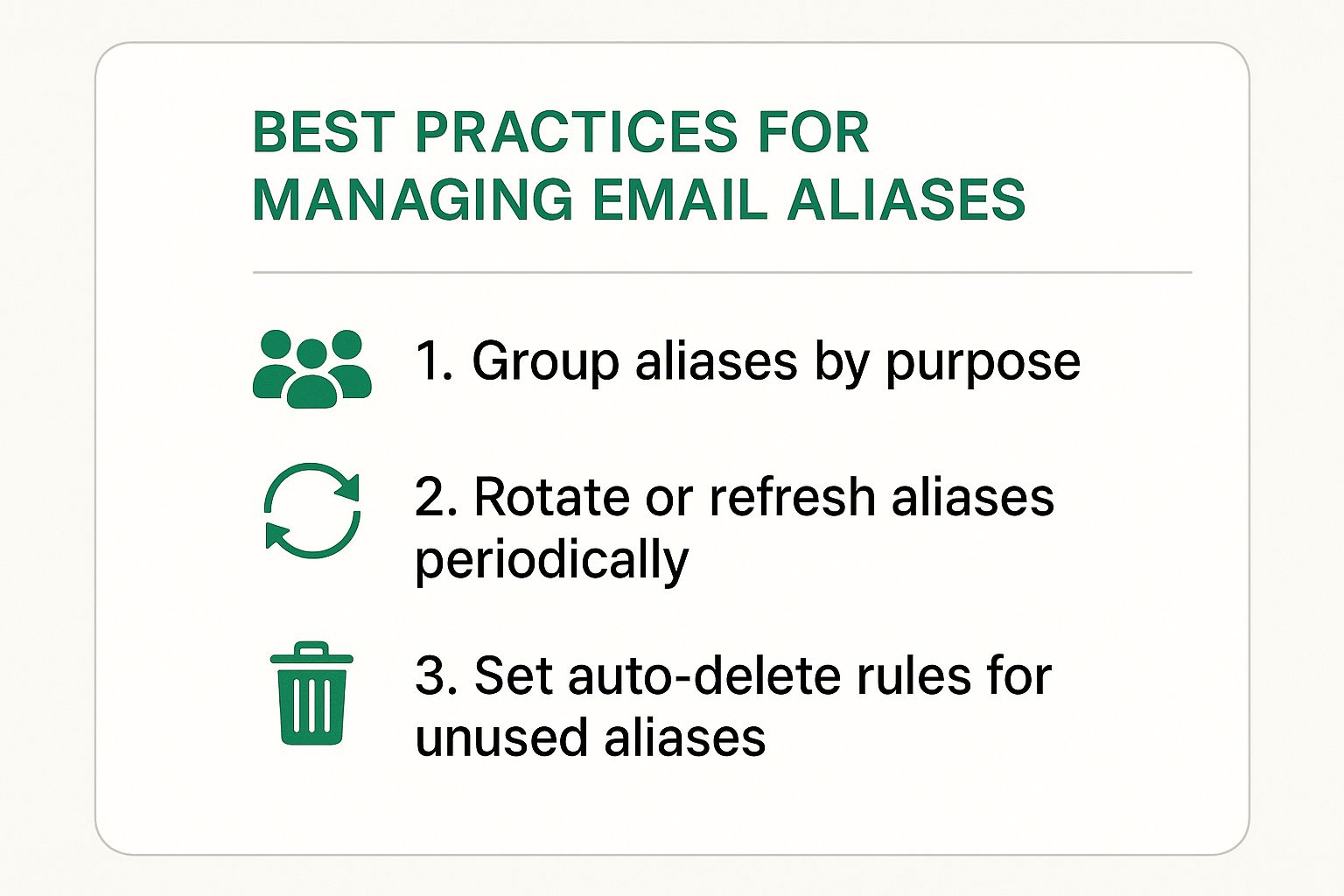
    Here’s a pro tip from someone who’s managed hundreds of aliases: get organized from day one. I like to create categories like "Shopping," "Social Media," and "Newsletters." It makes it incredibly easy to see where your email is coming from and instantly shut down a specific alias if it starts getting spammed.

    The image below gives you a quick visual on how to keep your aliases from turning into a chaotic mess.

    Image

    As you can see, a little bit of organization—grouping your aliases, rotating them for sensitive sign-ups, and deleting ones you no longer need—goes a long way in keeping your digital life clean and secure.

    To give you a clearer picture, here’s a table comparing some of the top players in the game, categorized by the user profiles we just discussed.

    And remember, while aliases protect your email address, they don't necessarily protect the contents of your emails. For that next layer of security, you might want to check out our guide to the top 10 best encrypted email services for privacy in 2025.

    Email Alias Service Feature Comparison

    This table offers a quick, side-by-side look at how some popular providers stack up for different needs.

    Provider Best For Alias Limit Custom Domain Price Model
    SimpleLogin Privacy Purists Unlimited (Paid) Yes (Paid) Freemium
    AnonAddy Value & Open Source Unlimited (Paid) Yes (Paid) Freemium
    DuckDuckGo Email Simplicity & Tracking Protection Unlimited No Free

    Ultimately, the "best" service is the one that fits seamlessly into your workflow. Whether you choose the robust privacy of SimpleLogin, the open-source flexibility of AnonAddy, or the dead-simple tracker blocking of DuckDuckGo Email Protection, you're taking a massive step toward reclaiming your inbox.

    Making an Alias Service Part of Your Daily Routine

    Image

    A powerful privacy tool is only useful if you actually use it. The real goal is to weave an alias service so seamlessly into your online habits that it becomes second nature. Honestly, the easiest way to get started is to install your provider's browser extension.

    This tiny addition makes privacy the default. When you land on a sign-up form, the extension pops up, ready to generate a unique, random alias with a single click. It completely removes the friction and the temptation to fall back on your real email address. You don't have to think, create, or remember anything—the tool does it all for you.

    Build a Self-Organizing Inbox

    Okay, so you’ve got aliases forwarding mail to your primary inbox. What now? The next step is to manage the flow so you don't end up with a chaotic mess. A simple system of filters and labels can transform that potential chaos into a perfectly organized, self-sorting archive.

    Here’s a practical way to set it up:

    1. Create Your Labels: Start by making a few labels for the kinds of emails you get, like Shopping, Newsletters, or Social Media.
    2. Set Up Filters: Now, create a filter for each alias. Tell your email client that any message sent to pizzadeals@myalias.com should automatically get the Shopping label.
    3. Automate the Actions: You can even take it a step further. Have the filter automatically archive promotional emails, so they skip your main inbox but are still saved if you need them later. Your inbox stays clean, and you stay organized.

    By creating email addresses with no identifying information, you make it harder for data brokers to learn anything about you or collect your data. Aliases are an essential tool in the fight for digital privacy, and we believe everyone should be using them.

    This kind of organization is incredibly powerful, especially with how email has evolved. The rise of alias services has gone hand-in-hand with the dominance of clients like Gmail. It’s no coincidence; Gmail's user base has exploded by nearly 60% in the last decade, largely because its powerful features, like advanced filtering, are a perfect match for an alias strategy. You can discover more about Gmail's growth and features to see just how well these platforms support a more private, organized digital life.

    Advanced Uses for Everyday Life

    Once you get the hang of it, you'll find uses for aliases everywhere. Freelancers I know create a unique alias for each client. It keeps all project communication separate and looks incredibly professional. If you're running a side hustle or a personal project, a dedicated alias gives you a distinct channel without the hassle or cost of a whole new email account.

    The real magic happens when using aliases becomes an automatic, effortless habit. It’s about building a digital lifestyle where privacy isn’t an afterthought—it's just how you do things.

    Common Misconceptions About Email Aliases

    Like any powerful privacy tool, a few myths have cropped up around email alias services. It's easy to misunderstand how they work, so let's clear the air and separate fact from fiction.

    The biggest mix-up is confusing a true alias service with the "plus addressing" feature you find in Gmail or Outlook. You know the trick: adding a + sign to your address, like myemail+pizzadeals@gmail.com, to create a filter.

    While that's handy for organizing your inbox, it does next to nothing for your privacy. Your real email address is still sitting right there in plain sight, completely exposed. Any marketer or data scraper can easily strip away the +pizzadeals part and add your core address to their list.

    A real alias service, on the other hand, creates a truly separate, unique email address that acts as a solid wall between a service and your actual inbox. If that alias ever gets spammed or leaked, you just delete it. The trail goes cold right there, and your personal inbox remains untouched.

    Aren't Aliases Just for Shady Activities?

    This is a common one, but it gets the purpose of aliases completely wrong. The idea that you only need an alias if you're doing something sketchy online is like saying you only lock your doors if you're a spy.

    In reality, using an alias is just good digital hygiene. It's the online equivalent of shredding your sensitive mail instead of tossing it in the public recycling bin. You're taking a simple, proactive step to shield your identity from the endless barrage of data breaches, spam campaigns, and invasive data brokers.

    “By creating email addresses with no identifying information, you make it harder for data brokers to learn anything about you or collect your data. Aliases are an essential tool in the fight for digital privacy, and we believe everyone should be using them.”

    Are They the Same as 10-Minute Emails?

    Finally, people often lump alias services in with those temporary, "10-minute email" sites. While they might seem similar at first glance, they're built for entirely different jobs.

    • Temporary Emails: Think of these as disposable paper cups. They’re perfect for a quick, one-time use, like signing up for a resource you'll never need to access again. After a few minutes, they're gone for good.

    • Email Aliases: These are more like permanent, unlisted phone numbers. They're designed for long-term use. You can receive and even reply to emails through them, maintaining a private connection with an online account for as long as you need. This makes an email alias service the right tool for managing all your online accounts without exposing your true identity.

    Got Questions About Email Aliases? We’ve Got Answers.

    Even after you get the hang of how email aliases work, a few practical questions always seem to pop up. Let's tackle some of the most common ones you might have as you start using them.

    Can I Actually Reply From an Alias?

    Yes, and this is where the magic really happens. Any decent alias service is built for two-way conversations.

    When an email gets forwarded to your main inbox and you hit "reply," the service is smart enough to intercept it. It then sends your message back out from the alias address. To the person on the other end, it looks like a normal email conversation, and your real email address stays completely hidden the entire time.

    This is a game-changer for things like dealing with online sellers, signing up for newsletters, or managing freelance projects without giving away your personal email.

    The ability to send and receive makes an alias feel less like a simple forwarder and more like a fully functional, disposable email address. It’s an active tool for communication, not just a passive shield.

    Is Using an Email Alias Service Even Legal?

    Of course. Using an email alias to protect your privacy is 100% legal. In fact, security experts actively recommend it.

    Think of it like getting a P.O. Box. You use it to keep your home address private and avoid a mailbox stuffed with junk mail. An email alias does the exact same thing for your digital life. These are legitimate privacy tools designed to help you fight back against spam, data brokers, and the endless wave of data breaches.

    What Happens If I Cancel My Subscription?

    This is a really important question, and the answer depends entirely on the provider. You absolutely need to read their policy on this before you sign up, because the experience can be drastically different.

    Here are the common scenarios:

    • Your Aliases Die Immediately: Some services will shut down your aliases the second your subscription ends. Any email sent to them will bounce, and you could lose access to whatever accounts are tied to them.
    • You're Moved to a Free Plan: A friendlier approach is downgrading your account to a free tier. You might be able to keep a few aliases active, but with new limits on how many you can have or how much traffic they can handle.

    Knowing the exit plan ahead of time is crucial. It ensures you don't get locked out of important accounts if you ever decide to switch to a different service down the road.


    Ready to take control of your inbox with a secure, private email solution? Typewire offers robust email hosting with advanced anti-spam filters, custom domain support, and a commitment to zero tracking. Explore our powerful features and start your 7-day free trial today.