Category: Uncategorized

  • 8 Best Way to Organize Email Methods for 2025

    8 Best Way to Organize Email Methods for 2025

    Is your inbox a source of constant stress? You're not alone. The average professional receives over 120 emails per day, turning what should be a communication tool into a digital vortex of distraction and overwhelm. Simply creating a few folders isn't enough to combat this modern-day challenge. The solution lies in adopting a systematic approach, a true methodology for processing, sorting, and acting on your messages.

    Finding the best way to organize email isn't just about achieving a tidy inbox; it's about reclaiming your focus, reducing cognitive load, and transforming your relationship with email from reactive to proactive. This guide moves beyond generic advice to explore eight proven systems, each offering a unique philosophy and actionable framework.

    We will cover powerful methods including:

    • The rigorous Inbox Zero for a clean slate.
    • The project-focused PARA method for resource management.
    • The classic Getting Things Done (GTD) system for task-oriented workflows.

    You will learn specific implementation details, see real-world examples, and discover how to use the features of secure email platforms to support your chosen system. Get ready to find the structured approach that will finally put you in control of your inbox.

    1. GTD (Getting Things Done) Email System

    The Getting Things Done (GTD) method, created by productivity expert David Allen, isn't just for task lists; it provides a powerful framework for taming your inbox. This system treats your email not as a never-ending to-do list, but as an "in-basket" to be processed systematically. The core principle is to make quick, decisive choices about every single message, moving it out of your inbox and into its rightful place, ultimately achieving the coveted "inbox zero."

    This approach is highly effective because it prevents decision fatigue and ensures no task falls through the cracks. By processing emails into distinct categories like "Actionable," "Reference," or "Trash," you transform a chaotic feed into an organized command center. This is the best way to organize email if you struggle with constant notifications and the mental weight of an overflowing inbox.

    How the GTD Workflow Works

    The GTD email workflow is a clear, step-by-step process designed to eliminate clutter and clarify your next steps. It forces you to handle each email only once before moving it out of the inbox.

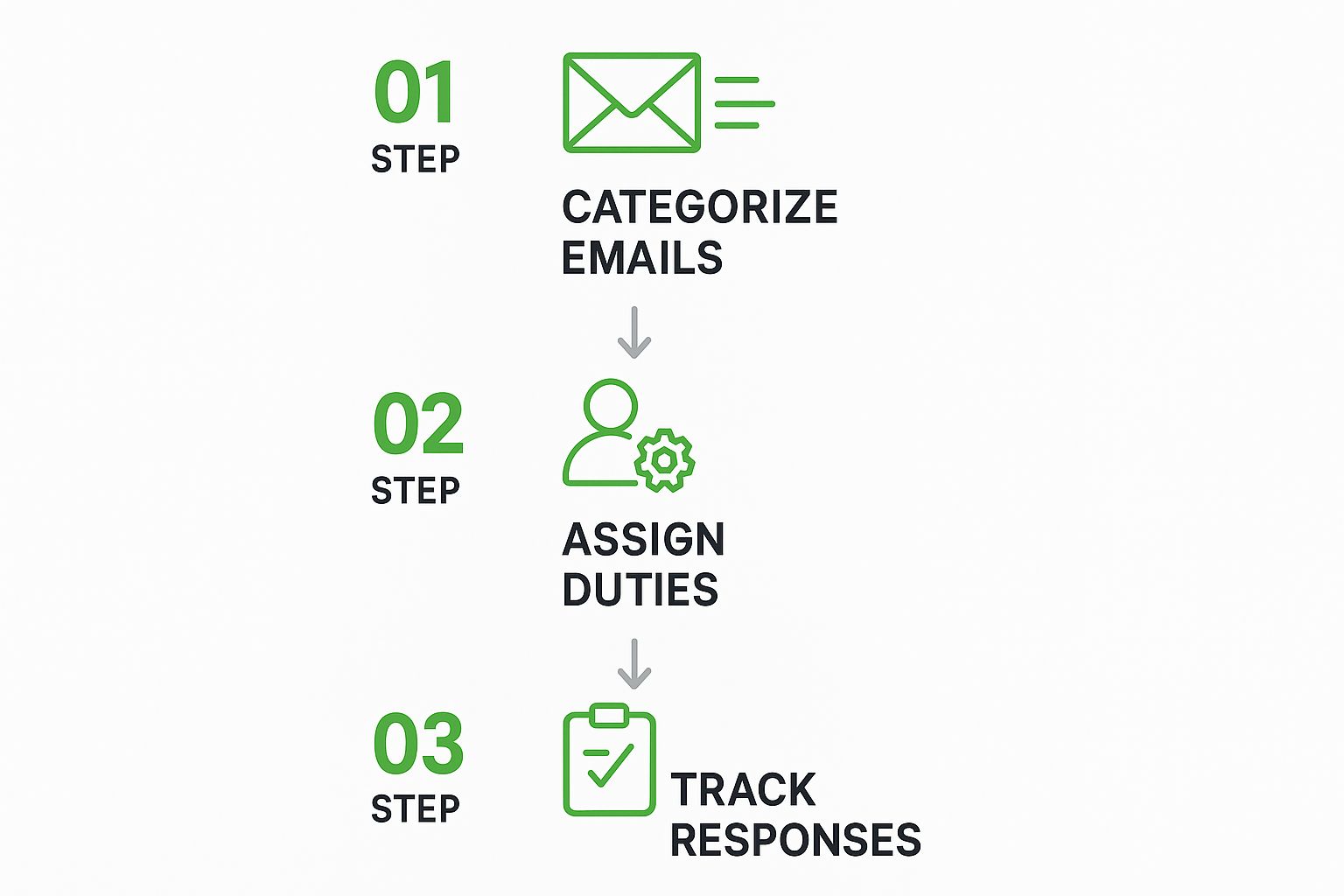
    This infographic illustrates the foundational three-step flow of processing your inbox with the GTD method.

    Infographic showing key data about GTD (Getting Things Done) Email System

    This simple flow from capture to organization ensures every email is processed deliberately, preventing it from languishing in your inbox.

    Practical Implementation Tips

    To get started with GTD for email, consider these actionable tips:

    • Process, Don't Check: Schedule specific blocks of time to process your email rather than checking it constantly.
    • Use the Two-Minute Rule: If an email requires an action that will take less than two minutes, do it immediately.
    • Create Action Folders: Set up a few simple folders, such as "@Action," "@Waiting For," and "Reference," to organize emails after clarification.
    • Filter Aggressively: Automate the sorting of newsletters, notifications, and non-urgent communications so they bypass your inbox entirely.

    2. Inbox Zero Method

    The Inbox Zero method, a philosophy popularized by productivity expert Merlin Mann, is a rigorous approach to email management. Its primary goal is to keep your inbox completely empty, or as close to it as possible, at all times. This system redefines the inbox from a cluttered storage cabinet into a temporary processing station where every email is handled decisively. The core principle is to take immediate action on each message, preventing them from piling up and creating digital and mental clutter.

    This method is highly effective because it transforms email from a source of constant distraction into a manageable task. By processing every message with one of five actions (delete, delegate, respond, defer, or do), you regain control and ensure nothing important is overlooked. This is the best way to organize email for professionals who feel overwhelmed by high email volumes and want to create a more focused and less reactive workflow.

    Inbox Zero Method

    How the Inbox Zero Workflow Works

    The Inbox Zero workflow is built on a simple, repeatable process for handling every email that arrives. Rather than letting messages sit, you immediately categorize them and move them out of the inbox, ensuring a clean slate after each session. This system prevents your inbox from becoming a de-facto to-do list.

    The key is to apply one of the five core actions to every single email:

    1. Delete/Archive: If no action is needed, get it out of sight.
    2. Delegate: If it's someone else's task, forward it.
    3. Respond: If it takes less than two minutes, reply immediately.
    4. Defer: If it takes longer, move it to a dedicated "Requires Response" folder or task list.
    5. Do: If it's a quick task, do it right away.

    Practical Implementation Tips

    Adopting the Inbox Zero method requires discipline, but these tips can make the transition smoother:

    • Schedule Processing Time: Dedicate specific blocks in your calendar for clearing your inbox, rather than reacting to every new email notification.
    • Start with Old Emails: When clearing a backlog, archive or delete all emails older than a month to get a head start.
    • Utilize Keyboard Shortcuts: Learn your email client’s shortcuts for archiving, deleting, and moving messages to rapidly process your inbox.
    • Create Quick-Action Folders: Set up folders like "Follow-Up" or "Read Later" to quickly defer emails that can't be handled immediately.

    3. PARA Method for Email

    Adapted from Tiago Forte's renowned "Building a Second Brain" framework, the PARA method offers a powerful system for organizing digital information, including your email inbox. PARA stands for Projects, Areas, Resources, and Archives. This system categorizes emails based on their actionability, aligning your inbox directly with your current goals and responsibilities.

    The PARA method transforms your email client from a cluttered repository into a dynamic workspace that mirrors your real-world workflow. By organizing emails into these four top-level categories, you create a clear hierarchy that separates urgent, project-specific tasks from ongoing responsibilities and general reference material. This is the best way to organize email if you're a project manager, consultant, or anyone juggling multiple active initiatives at once.

    How the PARA Workflow Works

    The PARA workflow is built on the principle of actionability. Instead of creating dozens of granular folders, you sort every relevant email into one of four primary folders. This streamlined approach makes it easy to find what you need, when you need it, by linking information directly to an outcome.

    • Projects: Emails related to a specific goal with a defined deadline (e.g., "Q4 Marketing Campaign," "Website Redesign").
    • Areas: Emails connected to your ongoing roles and responsibilities that have no end date (e.g., "Client Management," "Personal Finance").
    • Resources: Emails containing useful information or topics of interest that are not tied to a specific project or area (e.g., "Swipe Files," "Industry Reports").
    • Archives: Completed projects, inactive areas, and old resources. This is where emails go once they are no longer relevant to your active work.

    This structure ensures that the most time-sensitive and actionable emails are always prioritized at the top of your folder hierarchy.

    Practical Implementation Tips

    To effectively implement the PARA method in your email, follow these practical steps:

    • Create Your Four Folders: Start by creating the four main folders: 1. Projects, 2. Areas, 3. Resources, and 4. Archives. You can use numbers to enforce the correct order.
    • Nest Projects: Within your "Projects" folder, create sub-folders for each active initiative you're currently working on.
    • Review and Archive Regularly: At the end of a project, move its entire folder from "Projects" to "Archives." This keeps your active workspace clean and focused.
    • Conduct a Monthly Review: Set aside time each month to review your Areas and Resources, ensuring they are still relevant and organized. This prevents digital clutter from building up over time.

    4. Email Threading and Conversation View

    Instead of treating each email as a separate, isolated message, email threading groups related replies into a single, collapsible conversation. This approach, also known as conversation view, transforms your inbox from a chronological list of individual emails into a collection of ongoing dialogues. The core principle is to keep the entire context of an exchange together, making it easy to follow complex discussions without hunting for previous messages.

    This method is highly effective because it streamlines communication and reduces inbox clutter. By consolidating back-and-forth replies, you can quickly grasp the full story of a conversation, see who said what, and avoid missing crucial details. For anyone who manages project communications or engages in lengthy discussions, this is the best way to organize email to maintain clarity and momentum.

    How Email Threading Works

    Email threading uses the subject line and hidden message headers to identify and group related emails. When someone replies to a message, the email client recognizes it as part of an existing conversation and stacks it with the original. Modern clients like Gmail and Outlook do this automatically, presenting the entire thread as one line in your inbox.

    This organizational flow keeps your main inbox view clean and focused on distinct topics rather than every single reply. You can expand a thread to see all messages in sequence or collapse it to save space, giving you complete control over how you view your communications.

    Practical Implementation Tips

    To get the most out of email threading, consider these actionable strategies:

    • Use Clear Subject Lines: Start conversations with specific and descriptive subject lines. Avoid generic titles like "Question" or "Update," as they can cause unrelated emails to be threaded incorrectly.
    • Start New Threads for New Topics: If a conversation’s topic changes significantly, start a new email with a new subject line. This prevents a single thread from becoming bloated and confusing.
    • Archive Entire Conversations: Once a project or discussion is complete, archive the entire thread. This clears it from your inbox while keeping the full context available for future searches.
    • Customize Your View: Explore your email client’s settings. Most platforms, including Microsoft Outlook and Gmail, allow you to turn conversation view on or off and customize how threads are displayed.

    5. Time-Based Email Management

    Time-Based Email Management is an organizational approach that shifts the focus from what is in your inbox to when you handle it. Instead of treating email as a constant stream of interruptions, this method frames it as a scheduled activity. Popularized by productivity experts like Tim Ferriss and Cal Newport, this system prioritizes deep work by batching email processing into specific, predetermined time blocks.

    This strategy is highly effective because it reclaims your focus and prevents your schedule from being dictated by incoming messages. By structuring your day around your own priorities, you treat email as just another task to be completed. This is the best way to organize email if you find constant notifications are derailing your productivity and you need to protect your most valuable asset: your time.

    How the Time-Based Workflow Works

    The core of this workflow is simple: schedule specific times to process email and ignore it completely outside of those windows. Instead of a project-based folder system, you might use time-oriented folders like "This Week" or "Next Month" to defer items that don't require immediate attention. This transforms email from a reactive chore into a proactive, managed task.

    This approach stops the cycle of continuous checking, which fragments attention and reduces cognitive performance. By setting clear boundaries, you also manage others' expectations about your response times.

    Practical Implementation Tips

    To get started with Time-Based Email Management, consider these actionable tips:

    • Schedule Email Blocks: Designate 2-3 specific times per day (e.g., 9:30 AM, 1:00 PM, 4:30 PM) for checking and responding to emails. Put these blocks on your calendar.
    • Turn Off All Notifications: Disable desktop and mobile email alerts to eliminate the temptation to check your inbox outside of scheduled times.
    • Use an Auto-Responder: Set up an automatic reply that informs senders you check email at specific times and provides an alternative contact for truly urgent matters.
    • Create Time-Based Folders: Organize emails that require future action into folders like "@This Week," "@This Month," or "@Next Quarter" to keep your main inbox clear. For more guidance, you can explore a variety of email management tips to boost your productivity.

    6. Email Filters and Rules Automation

    Email filters and rules automation is a systematic approach that leverages your email client's built-in logic to manage your inbox for you. Instead of manually sorting messages, you create automated rules that categorize, prioritize, and even respond to emails based on criteria you define, such as the sender, subject line, or specific keywords. This method essentially builds a self-managing inbox that works tirelessly in the background.

    This strategy is one of the best ways to organize email because it dramatically reduces manual effort and maintains order consistently. It's perfect for anyone who receives a high volume of predictable emails, like newsletters, notifications, or standard client inquiries. By automating the sorting process, you ensure your main inbox is reserved only for high-priority messages that require your immediate attention.

    Email Filters and Rules Automation

    How Rules Automation Works

    The core of this system lies in creating "if-then" commands for your email client. For example, if an email arrives from a specific client, then move it to that client's dedicated folder and mark it with a colored label. This simple logic, when applied across various scenarios, prevents clutter before it even starts. Project managers can automatically sort emails by project codes, while customer service teams can route support tickets to the appropriate department without human intervention. The goal is to touch fewer emails while ensuring everything ends up in its proper place.

    Practical Implementation Tips

    To effectively implement email automation, follow these practical steps:

    • Start Simple: Begin with one or two basic rules, such as automatically filing all newsletters into a "Reading" folder.
    • Layer Complexity: Gradually add more sophisticated rules. For instance, create a rule that flags emails containing the word "urgent" or "invoice" and moves them to a high-priority folder.
    • Test and Refine: Always test a new rule to ensure it works as expected without unintentionally filtering important messages.
    • Regularly Review: Revisit your rules every few months to delete outdated ones and create new ones that reflect your current workflow. For more advanced options, you can explore the top email filtering solutions for enhanced inbox security and control.

    7. Priority-Based Email Organization

    A priority-based email organization system shifts the focus from chronological order to strategic importance. Inspired by principles from time management experts like Stephen Covey, this method involves processing emails based on their urgency and significance. Instead of treating every message equally, you categorize communications into distinct priority levels, ensuring your most critical tasks and relationships receive immediate attention.

    This approach is the best way to organize email for professionals who are constantly juggling high-stakes communications, such as executives managing board updates or sales teams handling high-value prospects. By creating a clear hierarchy, you can cut through the noise, allocate your energy effectively, and ensure that your most important work drives your day, not the constant influx of low-priority messages.

    How Priority-Based Workflow Works

    The core of this system is a rapid assessment process. As each email arrives, you evaluate it against a predefined set of criteria to assign a priority level. This triage system dictates when and how you will handle the message, moving it from the inbox into a designated workflow based on its importance.

    For example, a CEO might prioritize emails from investors and direct reports above all else, while a healthcare professional would prioritize patient communications. The goal is to create a clear, repeatable system for identifying and acting on what truly matters first.

    Practical Implementation Tips

    To effectively implement a priority-based system, consider these actionable steps:

    • Establish Clear Criteria: Define what makes an email high, medium, or low priority for your specific role. Write these rules down to ensure consistency.
    • Use Visual Indicators: Leverage flags, stars, or color-coded labels to make priority levels instantly recognizable in your inbox. For example, red for high priority, yellow for medium, and blue for low.
    • Create Priority Folders: Set up folders like "P1-Urgent," "P2-Important," and "P3-Later" to move emails into after you've triaged them.
    • Leverage VIP Lists: Most email clients allow you to create a "VIP" list that automatically flags emails from specific senders, ensuring you never miss a message from key contacts.
    • Process High Priority First: Always dedicate your initial energy to clearing out your high-priority emails before moving on to less critical tasks.

    8. Topic-Based Folder System

    The Topic-Based Folder system is a classic and intuitive method that brings the logic of a physical filing cabinet into your digital inbox. This approach involves creating a hierarchical folder structure based on specific topics, projects, clients, or business functions. By sorting emails into these predefined categories, you create a tidy, predictable environment where every message has a designated home. This system mirrors how many people naturally organize information, making it easy to adopt.

    This method is highly effective for professionals who manage distinct workstreams, such as a lawyer handling multiple cases or a consultant juggling several client projects. It provides a clear, at-a-glance overview of all communications related to a specific area. If you find value in structure and prefer manual organization over algorithmic sorting, this is one of the best ways to organize your email and maintain control.

    How the Topic-Based Workflow Works

    The workflow for a topic-based system is straightforward and manual, centered on disciplined filing. After reading an email, you decide which topic or project it belongs to and move it from the inbox to the corresponding folder. This action keeps your main inbox clear, reserving it for new, unprocessed items only.

    This approach transforms your email client into a searchable archive organized by context. For example, all communications for "Project Alpha" are neatly stored in one place, making it easy to retrieve historical information without sifting through a crowded inbox.

    Practical Implementation Tips

    To effectively implement a topic-based folder system, consider these actionable guidelines:

    • Keep It Simple: Design a folder hierarchy that is no more than two or three levels deep to avoid complexity and confusion.
    • Use Consistent Naming: Establish a clear naming convention for your folders (e.g., "Client – [Client Name]" or "Project – [Project Name]") and stick to it.
    • Archive Regularly: Periodically review your folders and archive completed projects or outdated topics to keep your active folder list manageable.
    • Leverage Search: Instead of clicking through deep folder structures, use your email client’s search function to find emails within a specific folder to save time.

    For a deeper look into structuring your inbox, you can explore more strategies to master your email inbox management.

    Best Practices Email Organization Comparison

    Method Implementation Complexity 🔄 Resource Requirements ⚡ Expected Outcomes 📊 Ideal Use Cases 💡 Key Advantages ⭐
    GTD (Getting Things Done) Email System High – requires setup and discipline Moderate – needs ongoing reviews Clear workflow, reduced email anxiety, scalable inbox zero Knowledge workers, executives, entrepreneurs Integrates with overall productivity; scalable; clear action steps
    Inbox Zero Method Moderate to High – consistent discipline needed Moderate – scheduled processing time Reduced overwhelm, faster responses, inbox emptied regularly Busy professionals, fast-paced industries Prevents email backlog; improves focus; clear inbox at all times
    PARA Method for Email Moderate – requires PARA knowledge and maintenance Moderate Work-aligned organization, reduces search time Project managers, consultants, researchers Mirrors project workflows; supports knowledge management
    Email Threading and Conversation View Low – usually built-in feature Low Maintains context, reduces clutter Corporate users, teams, anyone with ongoing threads Easy tracking of conversations; improves collaboration
    Time-Based Email Management Moderate – needs schedule adherence Low to Moderate Less interruptions, better focus, prioritized email handling Executives, academics, entrepreneurs Reduces constant checking; improves time management
    Email Filters and Rules Automation Moderate to High – technical setup involved Low (after setup) Automated sorting, reduces manual work Marketing, customer service, project managers Continuous automation; highly efficient; reduces errors
    Priority-Based Email Organization Moderate – requires ongoing prioritization Low to Moderate Faster handling of important emails CEOs, sales teams, healthcare professionals Focuses on critical tasks; improves response times
    Topic-Based Folder System Low to Moderate – manual folder setup Low Predictable email retrieval, long-term storage Legal, academic, consulting professionals Familiar system; highly customizable; supports filing discipline

    Choosing Your System and Putting It into Action

    We have explored a powerful collection of strategies, from the action-oriented GTD method to the comprehensive PARA framework. Each approach offers a unique lens through which to view your inbox, transforming it from a source of chaos into a well-oiled machine for communication and productivity. The journey to find the best way to organize email is not about finding a single, universally perfect solution. Instead, it is about discovering the system that resonates most deeply with your individual workflow, cognitive style, and professional demands.

    The most effective email organizers are not rigid adherents to one doctrine. They are tinkerers and innovators who blend different concepts to create a personalized, hybrid system. Consider the possibilities: you might adopt the core principle of Inbox Zero while using a Topic-Based folder structure for long-term archiving. Or, you could implement the GTD two-minute rule for rapid-fire responses while using sophisticated automation to sort incoming messages into Time-Based folders like "This Week" and "This Month."

    Your Action Plan for Email Mastery

    The true value of these methods is unlocked not by simply reading about them, but by putting them into practice. The transition from a cluttered inbox to a streamlined one requires a conscious, initial effort, but the long-term rewards are immense. The feeling of control, the reduction in cognitive load, and the reclaimed hours in your day are well worth the investment.

    Here is your clear, actionable path forward:

    1. Select Your Starting Point: Review the methods we have covered. Which one feels most intuitive to you? Does the logic of the PARA method appeal to your project-focused mind, or does the simplicity of Inbox Zero feel like the fresh start you need? Choose one primary framework to begin.
    2. Schedule the Setup: Block out a 1-2 hour window in your calendar. This is your dedicated "Email Reorganization" session. Use this time to create your new folder or label structure, set up initial filters and rules, and perform a major cleanup of your existing inbox according to your chosen system’s principles.
    3. Commit to a Trial Period: Consistency is crucial for building new habits. Commit to using your new system diligently for at least two full weeks. This gives you enough time to move past the initial awkwardness and begin to experience the benefits.
    4. Reflect and Refine: After the trial period, take a moment to assess what is working and what is not. Are certain folders going unused? Are your automation rules too aggressive or not specific enough? Make small adjustments to fine-tune your system for optimal performance.

    Ultimately, the best way to organize email is the one you will actually use. By taking these deliberate steps, you are not just cleaning a digital space; you are building a sustainable habit that will serve you for years to come, enhancing your focus and professional effectiveness.


    Ready to build your perfect email system on a foundation of security and speed? Typewire provides the advanced filtering, fast interface, and ad-free, private environment you need to implement any of these strategies effectively. Take control of your inbox today by visiting Typewire and discover how a truly modern email platform can amplify your organizational efforts.

  • 7 Best Email for Privacy Options in 2025: A Full Roundup

    7 Best Email for Privacy Options in 2025: A Full Roundup

    In an era of rampant data mining and invasive tracking, standard email services like Gmail and Outlook have turned your private conversations into a commodity. Every link you click, every message you open, and every contact you save is analyzed to build a detailed profile for targeted advertising. But what if you could reclaim your digital sovereignty? The solution lies in choosing the best email for privacy, a service built from the ground up to protect, not exploit, your data.

    This guide dives deep into the world of secure email, moving beyond surface-level features to explore what truly makes a provider private. We compare the top 7 contenders, from established names like ProtonMail and Tuta to innovative platforms like Typewire, providing actionable insights to help you choose a service that puts your privacy first.

    You won’t just find a list. You’ll get a detailed breakdown of what matters most.

    Not all private email is created equal. Before diving into the providers, it’s worth understanding what actually separates a genuinely private email service from one that simply uses the word, because the differences are more significant than most people expect.

    What Makes an Email Provider Truly Private?

    Let’s take Gmail as a baseline. It scans your inbox to build an advertising profile, tracks purchases from your email receipts, holds the encryption keys to your messages, and complies readily with government data requests. 

    Even its “Confidential Mode” is misleading. Google retains full access to those emails. Most people switching to private email are coming from Gmail, and understanding exactly what they’re leaving behind helps clarify what to look for in a replacement.

    Here’s what a genuinely private email provider needs to get right:

    • End-to-end encryption: Only you and your recipient hold the keys
    • Subject line encryption: Most providers skip this, and it’s a significant gap
    • Jurisdiction: where is the data physically stored, and what law governs it?
    • Google dependencies: Does the provider use Google Push or other Google services on Android?
    • No-log policy: Does the provider log your IP address?
    • Anonymous signup: Can you register without a phone number or personal information?
    • Business model: Subscription-based means privacy-aligned; ad-based is a conflict of interest
    • Post-quantum readiness: Future-proofing against quantum computing attacks

    Now that you know what to look out for, we’ve designed this roundup to help you quickly identify and switch to a secure email provider that fits your specific needs, whether you’re an individual user, a small business, or a security-focused professional.

    The 7 Best Private Email Providers in 2026

    1. Typewire – Best Canadian Private Email

    Jurisdiction: Canada (Vancouver, BC)
    Encryption: End-to-end
    Free Trial: Yes, 7 days

    Typewire is the choice for Canadians seeking a ProtonMail-style private email experience governed by Canadian law. Unlike most privacy-focused providers that rely on Swiss or German infrastructure, Typewire operates on its own privately owned and managed data centres in Vancouver, BC, meaning your data is physically in Canada, governed by PIPEDA, and outside the reach of foreign data requests.

    The business model is subscription-based, so you won’t get any ads, tracking pixels, or be subjected to data mining. That alignment between how the company makes money and how it treats your data is the gold standard.

    Typewire

    Key Features and Strengths

    Typewire’s feature set is designed to provide a secure, clean, and efficient communication experience. The service excels in several key areas that set it apart.

    • Complete data sovereignty under Canadian law (PIPEDA)
    • Custom domain hosting for businesses
    • Clean, modern interface with light and dark modes
    • Advanced anti-spam and anti-virus filtering
    • Easy migration tools from Gmail and Outlook
    • Mobile apps for iOS and Android

    The Trade-Offs

    The primary trade-off is that its private infrastructure, while a major security benefit, may not offer the same hyperscalability as a global cloud provider for massive enterprise clients. However, for its target audience, Typewire’s focused approach to privacy, security, and user experience makes it a top-tier choice.

    Pricing and Plan Breakdown

    Plan Price (monthly) Storage Key Features
    Starter CA$1.00/mo 500 MB 1 user; 1 @typewire address; 50 emails/day; basic privacy & security
    Basic CA$6.39/mo (CA$5.75 annual) 20 GB 1 user; 5 aliases; 1 custom domain; IMAP/SMTP; iOS & Android apps
    Family CA$18.99/mo (CA$17.09 annual) 20 GB/user 6 users included; 5 aliases/user; 1 custom domain; calendar
    Premium CA$9.89/user/mo (CA$8.90 annual) 50 GB/user Unlimited users; 50 aliases; 5 custom domains; user management; calendar

    All plans include a free 7-day trial and an ad-free, no-tracking experience. Save up to 20% by choosing a 24 or 36-month term.

    Practical Use and Getting Started

    Getting started with Typewire is straightforward. For those migrating from providers like Gmail, ProtonMail, or Outlook, Typewire provides easy-to-use migration tools to transfer existing emails and contacts, minimizing downtime.

    For small businesses or teams, the user management dashboard is particularly useful. Administrators can easily add or remove users, manage aliases, and oversee account settings from a centralized location, making it a scalable solution for growing organizations.

    Visit Typewire

    2. ProtonMail

    Jurisdiction: Switzerland
    Encryption: End-to-end (PGP)
    Free Trial: Yes, 7 days

    ProtonMail is the benchmark private email provider. It’s the name most people know, and the service Canadians are most often trying to find a local equivalent of. Based in Geneva with some of the world’s strongest privacy laws, it uses end-to-end encryption and a zero-access architecture, meaning ProtonMail staff cannot read your messages.

    Paid plans add custom domains, more storage, and access to the broader Proton ecosystem, with VPN, Drive, Calendar, and a password manager.

    ProtonMail

    Key Features and User Experience

    • Self-destructing emails with a timer
    • Password-protected emails to non-Proton recipients
    • Anonymous signup, so no phone number required
    • Open-source mobile clients, independently audited

    The Trade-Offs

    • Does not encrypt subject lines, which is a meaningful gap most people overlook
    • Uses Google’s Firebase Cloud Messaging on Android, meaning Google learns when you receive messages, from what IP, and at what times, even if it can’t read the content. For a product built to escape Google’s reach, this is a notable contradiction
    • No native desktop clients; the paid “Bridge” for third-party clients stores data unencrypted locally
    • Free plan is restrictive; paid plans are among the more expensive here

    Pricing and Plan Breakdown

    Plan Price Storage Key Features
    Free Free 1 GB Basic personal use; daily send limits; no custom domains
    Mail Plus $4.99/mo 15 GB 1 custom domain, 10 aliases
    Proton Unlimited $12.49/mo 500 GB VPN, Drive, Calendar & Pass included; unlimited aliases

    Website: https://proton.me/mail

    3. Tuta (formerly Tutanota)

    Jurisdiction: Germany (GDPR)
    Encryption: End-to-end, including subject lines
    Free Trial: Yes, 7 days

    Tuta goes further than any competitor on encryption. It encrypts subject lines, attachments, contacts, and calendar entries, not just the email body. It’s also the only major provider actively building post-quantum encryption, a hybrid protocol that will protect stored data from future quantum computing attacks.

    Fully open source since launch, and built with zero Google integrations, including its own proprietary push notification system for Android rather than relying on Google’s.

    Tuta (formerly Tutanota)

    Key Features and User Experience

    • Encrypts more data than any competitor, including subject lines
    • Quantum-resistant hybrid encryption in development
    • Fully open source, independently auditable
    • Zero Google integrations on any platform
    • No IP logging; anonymous signup without a phone number
    • Apps for Android, iOS, Windows, macOS, Linux
    • Free plan: 1 GB; paid from €3/month

    The Trade-Offs

    • No IMAP/POP3 support (by design, it would break the encryption model)
    • No cloud storage or enterprise integrations
    • Not Canadian

    Pricing and Plan Breakdown

    Plan Price Storage Key Features
    Free Free 1 GB Full encryption suite including subject lines
    Revolutionary €3.60/mo 20 GB Custom domain, unlimited aliases, offline mode, encrypted search
    Legend €9.60/mo 500 GB Priority support; suited to power users and small teams

    Website: https://tutanota.com

    4. Hushmail

    Jurisdiction: Canada
    Encryption: OpenPGP
    Free Plan: No

    Operating out of Vancouver since 1999, Hushmail has built its reputation in a specific niche: HIPAA-compliant email for healthcare providers, therapists, and legal professionals. If you need a signed Business Associate Agreement (BAA) and compliant communications workflows, it’s purpose-built for you. Secure web forms and built-in electronic signatures make it useful beyond just email.

    Hushmail

    Key Features and User Experience

    • HIPAA-compliant plans with a signed BAA
    • Encrypted web forms for securely collecting client or patient information
    • Built-in electronic signatures for document workflows
    • Custom domain support on all paid plans
    • Long operating history and established reputation in regulated industries

    The Trade-Offs

    • No free plan
    • Subject lines are not encrypted; encryption standards lag behind Tuta and ProtonMail
    • Pricing and feature set are oriented toward professional compliance, less suited for general personal or everyday business use

    Pricing and Plan Breakdown

    Plan Price Storage Key Features
    Healthcare Basic $16.99/mo 10 GB encrypted emails, HIPPA-compliant email, BAA included
    Healthcare Essentials $20.99/mo 15 GB Email templates and scheduling, 3 HIPPA-compliant forms
    Healthcare Growth $47.99/mo 15 GB full compliance suite, e-signatures, 25 HIPPA forms

    Website: https://hushmail.com

    5. Mailfence

    Jurisdiction: Belgium (GDPR)
    Encryption: OpenPGP
    Free Plan: Yes (500 MB)

    Mailfence bundles email with a calendar, contacts, document storage, and secure collaboration tools, making it the best option for users who want a full de-Googled productivity suite. Belgian law requires all disclosure requests to go through a court, adding a meaningful legal layer of protection.

    Mailfence

    Key Features and User Experience

    • Full productivity suite: email, calendar, contacts, and encrypted document storage
    • Digital signatures for proving message authenticity
    • Two-factor authentication (TOTP)
    • Custom domain support on paid plans
    • Free plan: 500 MB email + 500 MB file storage

    The Trade-Offs:

    • Logs IP addresses, which is a meaningful gap compared to Tuta or ProtonMail
    • Not open source, so code cannot be independently audited
    • Subject lines are not encrypted
    • The Android app has low adoption, suggesting the mobile experience lags the web interface

    Pricing and Plan Breakdown

    Plan Price Storage Key Features
    Free Free 500 MB email + 500 MB files Calendar, contacts, document storage
    Base $2.50/mo 5 GB email + 6 GB files Encryption, 10 aliases
    Entry $73.50/mo 40 GB email 2 Custom domain, 50 aliases

    Website: https://mailfence.com

    6. Posteo

    Jurisdiction: Germany (GDPR)
    Encryption: OpenPGP (optional)
    Free Plan: No

    Posteo distinguishes itself through radical anonymity and genuine sustainability. You can sign up with no personal information, and pay with cash sent by mail, meaning Posteo literally cannot link your payment to your account. At €1 per month for 2 GB of storage, it’s the most affordable option in this roundup, and it runs entirely on renewable energy from Greenpeace Energy.

    Posteo

    Key Features and Strengths

    • Anonymous signup and fully decoupled anonymous payment (cash, bank transfer)
    • Full mailbox encryption at rest
    • IMAP/POP3 support for use with third-party email clients
    • Two-factor authentication
    • Green energy operations

    The Trade-Offs

    • Emails are not automatically end-to-end encrypted. OpenPGP is available but requires manual setup, making it less accessible for non-technical users
    • No custom domain support (deliberate, to preserve anonymity — but a hard limit for businesses or professionals)
    • 2 GB base storage

    Pricing and Plan Breakdown

    Plan Price Storage Key Features
    Single Plan €1/mo 2 GB Calendar, address book, IMAP/POP3; extra storage €0.25/GB/mo

    Website: https://posteo.de

    7. StartMail

    Jurisdiction: Netherlands
    Encryption: PGP (one-click)
    Free Plan: No

    From the team behind Startpage, StartMail’s headline feature is unlimited disposable email aliases, i.e, temporary addresses you can create on the fly when signing up for any service, then discard when the spam starts. PGP encryption is available via a single-click toggle, removing the usual technical friction associated with PGP setup.

    StartMail

    Key Features and Strengths

    • Unlimited disposable aliases. The most generous implementation of this feature available
    • One-click PGP encryption for outgoing messages
    • Password-protected emails to any recipient, regardless of their provider
    • No ads, no tracking
    • 10 GB storage on the personal plan
    • Custom domain support on higher plans

    The Trade-Offs:

    • No free plan. A 7-day trial only
    • Not open source
    • Smaller brand footprint than Proton or Tuta. This matters if ecosystem trust is part of your decision
    • Custom domain requires the more expensive plan tier

    Pricing and Plan Breakdown

    Plan Price Storage Key Features
    Personal $6.99/mo  20 GB Unlimited disposable aliases, one custom domain
    Business $8.99/mo  30 GB Custom domain; unlimited aliases, 25% off additional accounts

    Website: https://startmail.com

    Privacy Features Comparison of Top 7 Email Services

    Provider Jurisdiction Five Eyes? Subject Line Encrypted Open Source Free Plan Canadian Data?
    Typewire Canada ⚠ Yes No No Trial (7d) ✓ Yes
    ProtonMail Switzerland No ✗ No Partial ✓ 1 GB ✗ No
    Tuta Germany No ✓ Yes ✓ Full ✓ 1 GB ✗ No
    Hushmail Canada ⚠ Yes No No ✗ No ✓ Yes
    Mailfence Belgium No ✗ No ✗ No ✓ 500 MB ✗ No
    Posteo Germany No No (optional) No ✗ No ✗ No
    StartMail Netherlands No No No Trial (7d) ✗ No


    Which Provider Should You Choose?

    Canadian and want Canadian data residency: Typewire is your ProtonMail equivalent, with data in Vancouver under PIPEDA. For healthcare or law, Hushmail is the right fit.
    Want the most advanced encryption: Tuta – subject lines, contacts, calendar, and post-quantum readiness. Nothing else comes close.

    Want the most established name: ProtonMail. Swiss jurisdiction and a proven track record. But go in aware of the subject line gap and Google push dependency.

    Want the cheapest option: Posteo at €1/month, though end-to-end encryption requires manual setup.

    Need disposable aliases: StartMail’s unlimited alias system is the best implementation of this feature available.

    Want a full productivity suite: Mailfence, if you’re replacing Google Workspace entirely.

    How to Make the Switch

    1. Define your threat model. Ad profiling, corporate data harvesting, and government surveillance all call for different priorities.
    2. Start a trial. Typewire and StartMail both offer 7-day trials. ProtonMail and Tuta have free plans. Test before committing.
    3. Migrate your data. Most providers include migration tools for Gmail and Outlook. Typewire’s support team can guide you through it.
    4. Update your contacts. Set up a forwarding rule from your old inbox while you transition.

    Choosing a private email provider is more than a technical decision; it’s a statement about the value you place on your personal information. By opting for a service that respects your data, you are actively participating in building a more private and secure internet for everyone.


    Ready to experience a service that combines state-of-the-art security with a transparent, user-first philosophy? Typewire is built from the ground up on privately owned Canadian infrastructure, ensuring your data remains sovereign and secure. 

    Explore Typewire’s plans today and take the definitive step toward owning your digital privacy.