Smishing is phishing delivered by SMS, where attackers send fraudulent text messages to steal credentials, payment details, or personal information. The Canadian Anti-Fraud Centre received 886 smishing reports in the first half of 2025. A centre spokesperson told The Canadian Press that smishing is likely increasing anyway. Reports understate the problem, since only 5% to 10% of fraud victims come forward.
You're halfway through a busy day when a text appears about a missed delivery, a locked bank account, or a tax refund. The message seems ordinary, but it asks you to tap a link before something goes wrong. The safest response is to pause, avoid the link, and verify the claim through the organization's official app, website, or phone number.
Smishing isn't just unwanted marketing. It's social engineering, which means someone is trying to influence your behaviour so they can obtain login details, banking information, passwords, personal identification numbers, or your Social Insurance Number. The message may lead to a fraudulent website or malware, creating a path to stolen data, financial loss, or identity theft.
What Smishing Actually Means
The word smishing combines SMS, the technology behind text messaging, with phishing, the practice of pretending to be trustworthy in order to steal information. Canada's national cyber authority formally defines it as SMS-based phishing that uses fraudulent texts and social engineering to persuade people to disclose sensitive information (Canadian Centre for Cyber Security guidance).
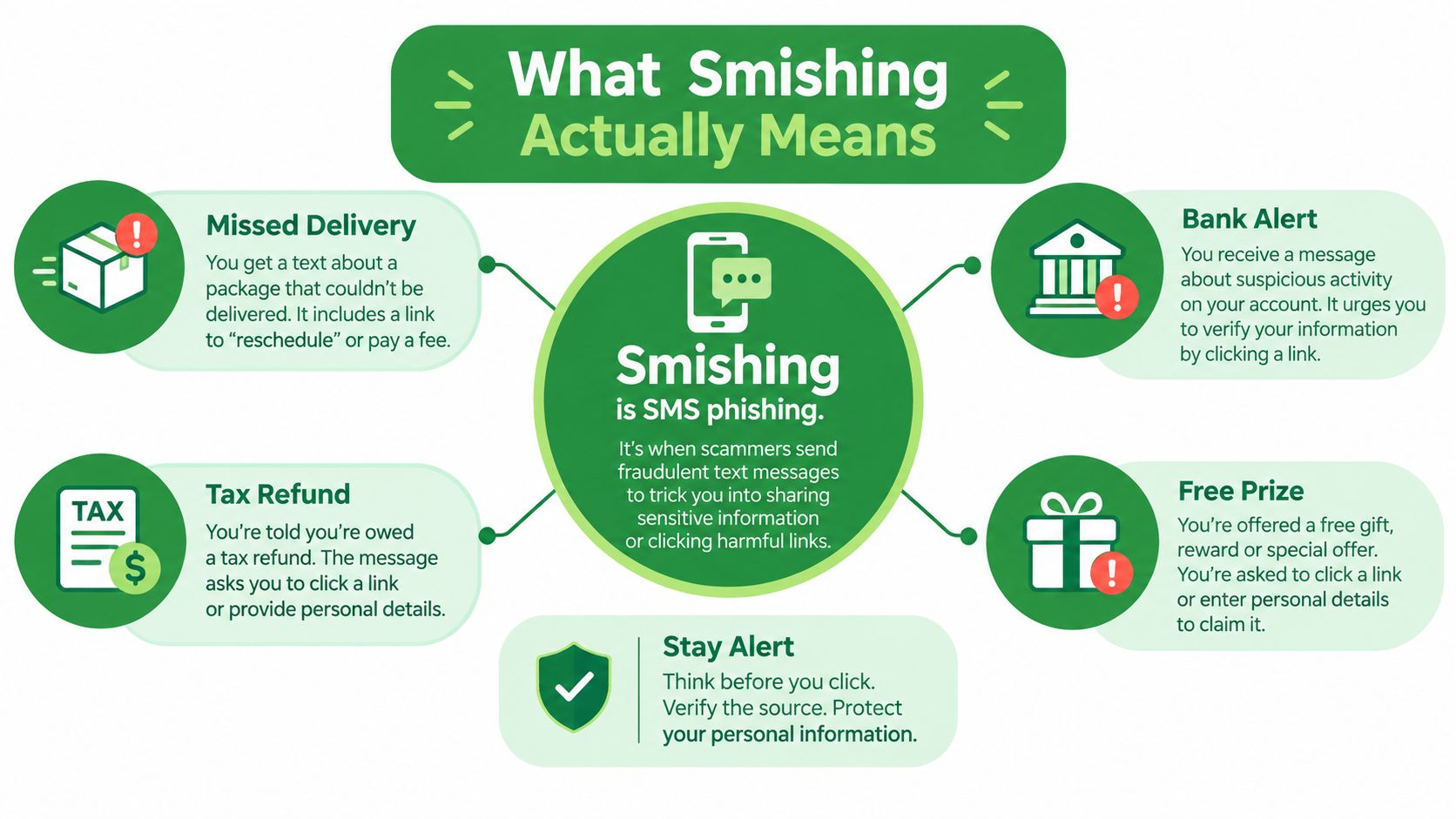
A typical message creates a short story and asks you to act. It might say that a parcel needs a delivery fee, your account has been locked, or a payment requires confirmation. The link then leads to a fake login page, a payment form, or a site that attempts to install malware.
SMS works well for criminals because people often treat texts as personal and immediate. A short message also gives you less context to inspect than a full email. You may see a familiar brand name, a convincing logo, or a link that appears to belong to a bank, courier, or government service.
Why SMS deserves the same caution as email
Many people have learned to question unexpected email attachments and login requests. They may not apply the same caution to a message that arrives in a familiar conversation thread or appears to come from a known contact.
That appearance isn't proof of safety. Canadian guidance warns that fraudulent messages can appear inside a legitimate-looking SMS thread, so the sender display and conversation history can't authenticate the message.
Plain-English definition: Smishing is a text message scam that tries to make you reveal information, send money, or install something harmful.
The distinction matters because a text can be the first step in a longer attack. Stolen credentials may later be used against your email account, workplace systems, banking services, or other accounts connected to the same password.
How a Smishing Attack Actually Works
A smishing attack follows a simple human pattern. A con artist pretends to represent a trusted company, creates a problem that needs immediate attention, and offers a convenient solution. The SMS version compresses that entire conversation into a few lines.
The Canadian Centre for Cyber Security warns that SMS blasters use cell-site-simulator-based systems to send fraudulent texts at scale within an area. Campaigns can be generic or customized to a particular organization, event, or authentication scenario (guidance on SMS blasters).
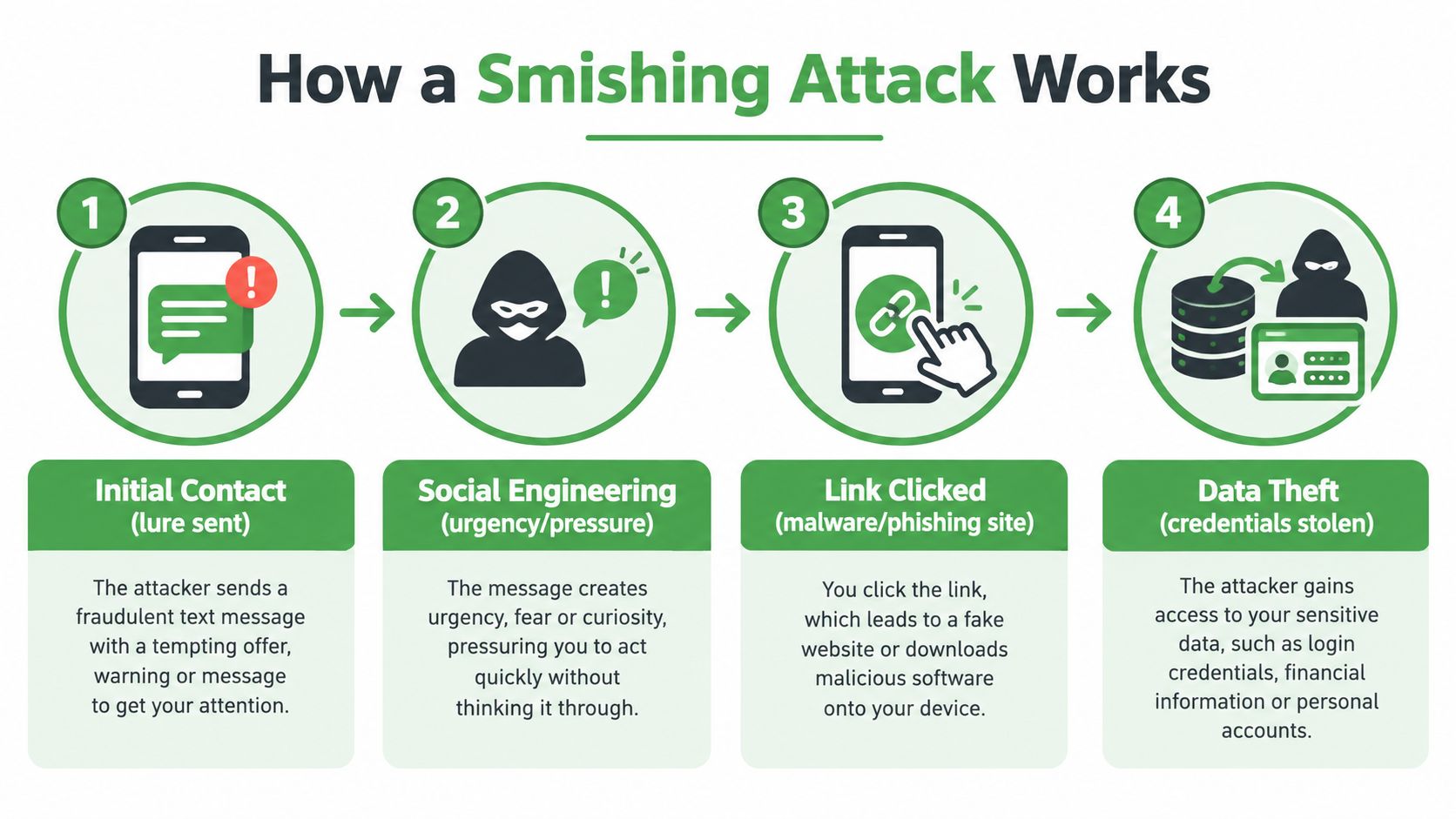
The attack pipeline
A believable lure arrives. The criminal chooses a situation you recognise, such as a delivery problem, suspicious bank activity, an account reset, or a benefits notice.
The message creates pressure. Words such as “urgent,” “locked,” or “final notice” push you towards a quick decision. The attacker wants you to solve the problem before checking whether it exists.
A link or contact route appears. The message may direct you to a lookalike website, a phone number, an app download, or a reply prompt. Shortened links and slightly altered web addresses can make inspection harder.
The page collects information. A fake site may request your username, password, card details, personal identification, or a one-time code. Some messages instead lead to malware that can affect the device.
The stolen information supports the next attack. Criminals may try to access an account immediately, or use the details to impersonate you, target your email, or approach your employer.
A sender can also be spoofed, which means the message is made to appear as if it came from another number or organization. SMS blasters make this problem harder because the campaign can reach many devices quickly, and a fraudulent message may blend into a real thread.
For a short technical explanation of the attack flow, this smishing attack video provides additional context.
The counter-move is simple. Slow down, leave the message, and verify through a channel the sender doesn't control.
Smishing Compared to Phishing and Other Channels
Smishing, email phishing, and voice phishing use different delivery methods, but they pursue the same result. The attacker wants credentials, payment information, access codes, or identity details.
| Attack type | Channel | Typical lure | Common impersonation | Safest defensive move |
|---|---|---|---|---|
| Smishing | SMS or text message | Delivery issue, locked account, payment request | Banks, couriers, government services | Open the official app or type the known website address yourself |
| Email phishing | Password reset, invoice, security alert | Employers, online services, financial institutions | Visit the service directly, without using the email link | |
| Vishing | Phone call or voicemail | Fraud alert, account problem, identity check | Banks, government agencies, technical support | End the call and use an official number to make contact |
Email gives you more visible information, such as the sender address and full link, but those details can still be forged. A text message feels more direct, while a phone call creates pressure through conversation and voice. The response should remain consistent: don't trust the contact route just because it feels familiar.
Smishing and phishing also overlap in their technical consequences. A fake page can capture a password regardless of whether the link arrived by text or email. If you reuse that password, the attacker may test it against your email account and other services.
Voice scams add another layer because the caller can react to your answers. They may ask for a code sent to your phone, guide you through a login, or encourage you to install remote-access software. We explain that pattern in our guide to vishing and voice phishing scams.
Modern fraud often moves between channels. A text might start the interaction, an email might provide a fake receipt, and a phone call might ask you to confirm a code. Defending only your inbox leaves the mobile and voice parts of the attack unprotected.
Real-World Smishing Examples Worth Recognising
The same story templates appear again and again because they fit ordinary routines. The details change, but the requested behaviour stays familiar: click, pay, log in, reply, or provide a code.
The delivery or customs message
You receive a text saying a parcel is waiting because of a small outstanding fee or an address problem. The message includes a short link to “reschedule delivery” or “pay customs.”
The link opens a courier-looking page that asks for your card number and billing details. The safest response is to open the courier's official website or app independently and check for a delivery notice there. Don't use the contact details supplied only inside the text.
This pattern can also appear as a QR-code scam, which we cover in our guide to quishing.
The bank or credit union warning
A message claims that your account has been locked or that a suspicious transaction needs approval. It may use the bank's name, a familiar logo, and a button that says “verify now.”
The pressure comes from the possibility of financial loss. Instead of tapping, open your banking app yourself or call the number printed on your bank card. The Financial Consumer Agency of Canada warns that banks won't ask for personal information, login credentials, or account information by email or text message (Financial Consumer Agency of Canada).
The tax or benefits notice
A text says that you're eligible for a refund, benefit payment, or account update involving the Canada Revenue Agency or Service Canada. It asks for personal identifiers, payment details, or a login.
Official branding doesn't make the message authentic. Type the known government website address into your browser, or use the official service you already trust. A real-looking story still needs independent verification.
Mental checklist: What problem does the message claim exists, what action does it demand, and what information would that action reveal?
How to Spot a Smishing Text in the AI Era
Perfect grammar no longer proves that a message is genuine. Criminals can create polished, personal-sounding text, and they can add local details that make a story feel connected to your life.
The more reliable test is behavioural. Ask what the message wants you to do, rather than judging how well it is written.
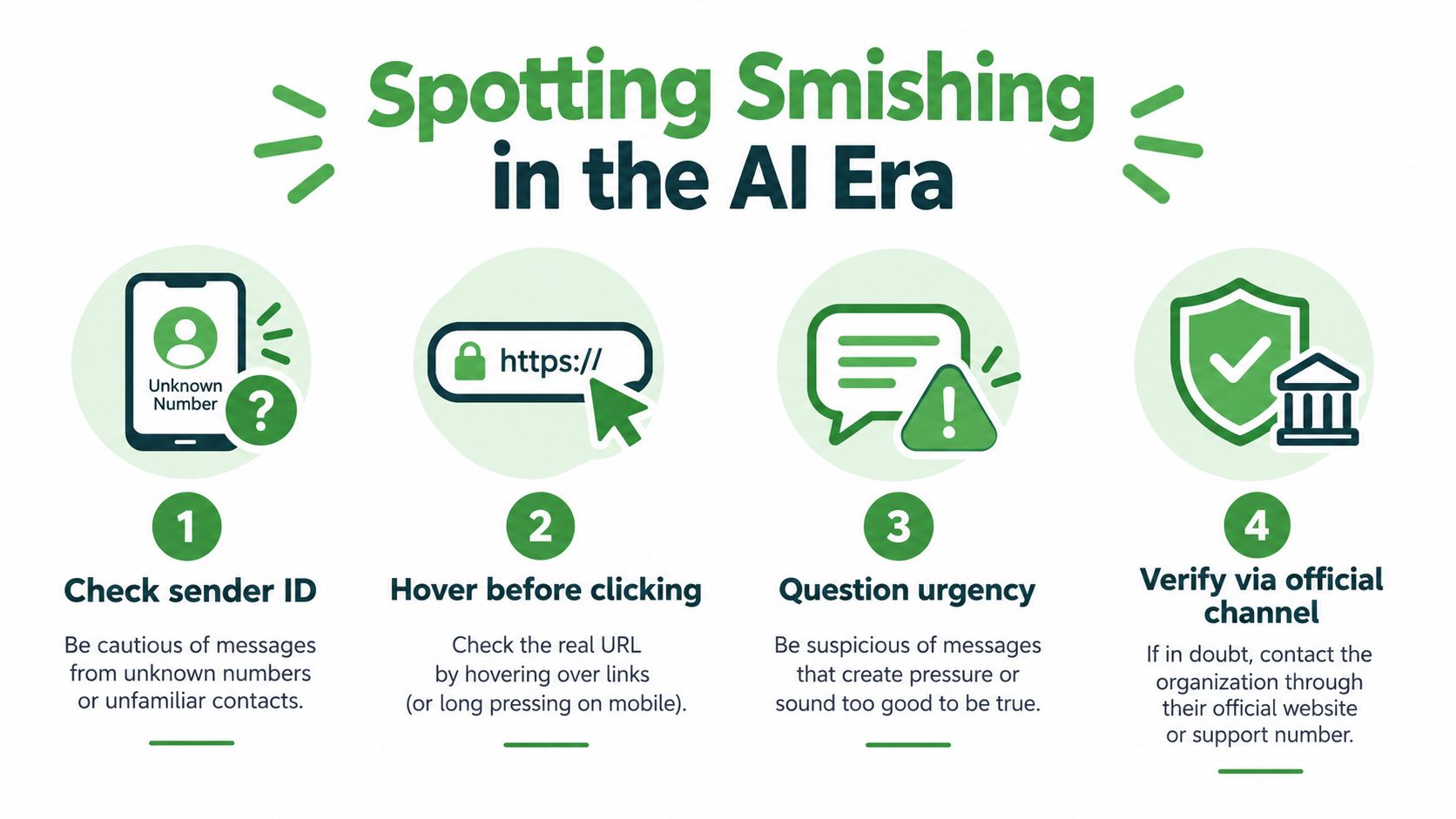
Watch for these requests:
Unexpected authentication: A text asks for a password, one-time code, personal identification number, or Social Insurance Number when you didn't begin the process.
A login through a message link: The branding may look perfect, but the safest approach is to open the official app or type the known website yourself.
Urgency around money or access: The message claims that a payment, delivery, account, refund, or benefit will fail unless you act immediately.
A reply or call: The sender asks you to respond, call a supplied number, or install an app. That gives the criminal another way to guide the conversation.
A sender name that looks familiar: A visible name or logo doesn't prove who sent the message. The Competition Bureau recommends stopping the interaction and using the organization's official app or known website instead (Competition Bureau guidance).
SMS blasters can also make the sender and thread appear more credible. That's why “it arrived in my bank thread” isn't a reliable reason to trust it.
You can read more about inspecting suspicious URLs in our guide to checking a phishing link. The central rule remains simpler than any visual checklist: verify the requested action through a separate channel.
What to Do If You Receive or Click a Smishing Text
Your next move depends on what happened. In every case, step outside the text thread so the sender cannot dictate what you do next. A suspicious SMS is often the doorway, while your email password and recovery options are the assets an attacker wants.
If you didn't click
Do not reply, including with “STOP” or “NO.” A response can confirm that your number is active and invite more messages.
Forward the suspicious text to 7726, which spells “SPAM.” Your mobile provider can investigate and help block similar messages. Delete the text afterward. If it claims to involve your bank, a courier, or a government service, check through the organization's official app, website, or phone number found independently.
If you clicked but didn't submit information
Close the page without downloading anything. If it asked you to install an app or configuration profile, remove it through your device's normal settings. Check for unfamiliar apps, permissions, or account changes.
A login page can still expose a password even if you stopped before completing another step. Change any password you entered, starting with email if that password is reused elsewhere. Your email account can reset other services and may let an attacker take over more than the account named in the text. Turn on multifactor authentication, and change it if you shared a code or approved a login you did not start.
If you shared information or lost money
Contact the impersonated organization through a verified channel. If you provided banking or card details, call your financial institution immediately and monitor the account for unfamiliar activity. Report the incident to the Canadian Anti-Fraud Centre through its online fraud reporting system, which creates a record for law enforcement and bank investigation teams. Reported numbers understate the true volume, so treat each suspicious text as part of a wider pattern.
Do not post screenshots containing your phone number, account details, names, addresses, or one-time codes. If you need assistance, remove those details first and use a trusted support channel. Keep the original message available for investigators, but share it only through that channel.
How to Protect Yourself and Your Team From Smishing
Durable protection comes from changing the default response to unexpected messages. Don't decide whether a text is safe based only on its spelling, logo, or sender name. Decide whether its requested action makes sense, then verify it somewhere else.
For personal devices, enable your carrier's SMS spam protection and keep your phone's operating system updated. Where your device supports it, consider disabling 2G, which can reduce exposure to certain downgrade and legacy-network techniques. Keep your phone number off public profiles where practical, and never share a one-time code in response to an unexpected text.
Small businesses need a clear rule for payment and account changes. A convincing text can bypass email filtering because the interaction starts on a mobile channel, so staff should use a known verification route for payroll changes, invoice requests, password resets, and MFA prompts.
Simple team controls
Separate work and personal contact details: This can reduce confusion when an unexpected request arrives.
Verify payment changes verbally through a known number: Don't call the number supplied in the message.
Treat unexpected MFA prompts as suspicious: A prompt you didn't initiate may signal an attempted account takeover.
Report near-misses internally: Security teams can identify repeated messages without asking staff to forward sensitive screenshots publicly.
Protect the email account behind the phone number: Use multifactor authentication, unique passwords, and phishing-resistant methods where available.
The connection to email matters. An attacker may begin with an SMS, collect enough information to impersonate a colleague, and then target a business mailbox. Email protections such as phishing detection, virus filtering, blocked tracking pixels, and limited personal data exposure can reduce what the attacker learns and how far the campaign travels.
Canadian reporting data shows why this deserves attention. During the 2023–24 reporting period, the Canadian Anti-Fraud Centre received 5,395 reports of phishing text messages, and Canadians lost nearly $24 million in fraud cases where a text was the first point of contact (Canada's Anti-Spam Legislation performance report). Those reported cases don't capture every incident, but they show that a text can open a much larger fraud.
Forward suspicious messages to 7726 and report suspected fraud to the Canadian Anti-Fraud Centre. For email accounts, choose services and settings that limit tracking and unnecessary data collection, while recognising that no provider can remove every social-engineering risk.
Frequently Asked Questions
What is the difference between smishing and phishing?
Phishing is the broad term for scams that impersonate a trusted organization to steal information. Smishing is phishing delivered by text message. Email phishing arrives in your inbox, while smishing arrives as an SMS on your phone. Both aim to get your passwords, payment details, or personal information. Texts can feel more urgent and personal, and they show less detail to inspect. That makes smishing easier to fall for, even for people who spot phishing emails easily.
What should I do if I clicked a link in a smishing text?
Close the page right away and don’t enter any information. If the site asked you to install an app or profile, remove it through your device settings. If you entered a password, change it immediately, starting with your email account. Turn on multifactor authentication wherever you can. If you shared banking or card details, call your financial institution using the number on your card. Then report the incident to the Canadian Anti-Fraud Centre.
Should I reply STOP to a scam text?
No. Replying to a scam text, even with STOP or NO, confirms that your number is active. That can lead to more scam messages. Instead, forward the text to 7726 so your mobile provider can investigate, then delete it. Replying STOP is only safe with businesses you know and have dealt with before. Under Canada’s anti-spam law, legitimate senders must honour unsubscribe requests. Scammers ignore the law and use replies to target you again.
How do I report a smishing text in Canada?
Start by forwarding the text to 7726, which spells SPAM on most keypads. Your mobile provider uses these reports to block similar messages. You can also report the message to the CRTC’s Spam Reporting Centre. If you lost money or shared personal information, report it to the Canadian Anti-Fraud Centre. You should also contact your bank directly. Delete the text after reporting it, but keep a screenshot in case investigators need it.
Can a smishing text come from a number I recognize?
Yes. Scammers can spoof phone numbers so a text appears to come from your bank, a government agency, or a known contact. Some use devices called SMS blasters, which imitate cell towers to send fake texts to nearby phones. A familiar number or an existing message thread doesn’t prove a text is real. If a message asks you to log in, pay, or share a code, verify it first. Use the organization’s official app, website, or a phone number you already trust.
Typewire provides ad-free, encrypted email hosted on infrastructure we operate in Canada, with phishing detection, virus filtering, tracking-pixel blocking, aliases, and custom-domain support. If you want to reduce data exposure and keep email security part of your broader smishing defence, visit Typewire to learn about our plans and free trial.