Think of your standard business emails like postcards. As they travel across the internet, anyone who intercepts them can read the contents. An encrypted email service for small business changes that. It's like putting that postcard inside a locked, tamper-proof safe before sending it, ensuring only you and your intended recipient hold the key.
This isn't just about security; it's about fundamental email privacy. It’s about protecting the lifeblood of your company—client data, financial details, and confidential strategy—from prying eyes and ensuring your communications remain confidential.
Why Standard Email Puts Your Business at Risk
A standard email account, especially a free one from a major tech company, is a massive liability. Every time you send an invoice, discuss a project, or share employee information, you're essentially sending that postcard in plain sight. This lack of inherent email privacy is an open invitation for trouble.
Cybercriminals love this. They often target small businesses precisely because they assume security isn't a top priority. A single intercepted email can be all it takes to cause a full-blown data breach, drain your bank account, or ruin the reputation you've worked so hard to build.
The Unseen Dangers of Unsecured Communication
The daily back-and-forth of emails feels routine, but it's where your most sensitive information lives. Relying on a hosted email platform without built-in, end-to-end encryption is a huge gamble with your email privacy. It’s important to see how this one vulnerability fits into the broader cybersecurity landscape.
The infographic below shows a scenario that's all too common for small business owners: working from a public space, sending critical information over an unsecured network.
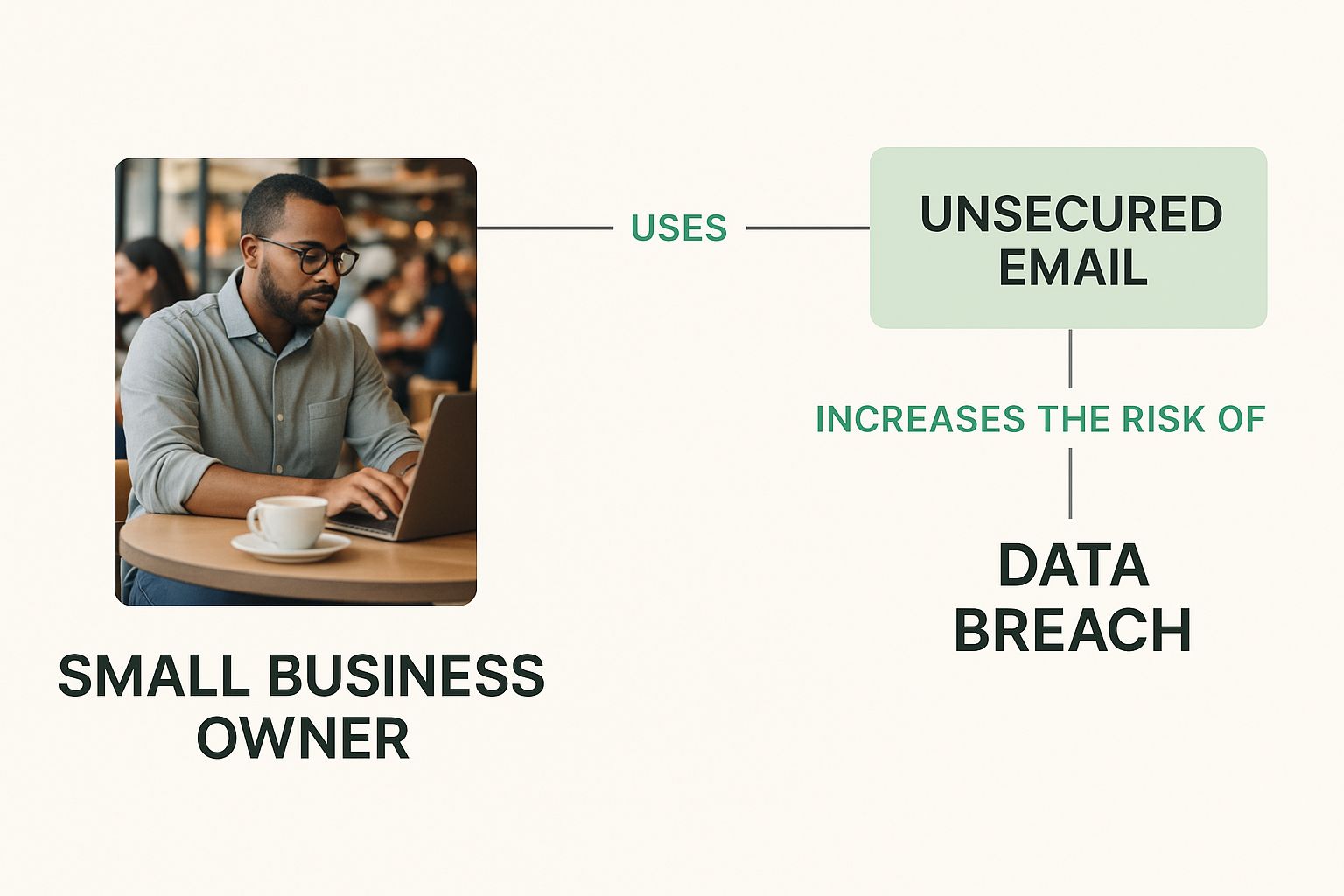
This visual is a stark reminder of how everyday activities can become major email security weak points without the proper safeguards.
Standard vs. Encrypted Email At a Glance
The difference between a standard email account and a truly secure one is night and day. This table breaks down what that really means for your business's email privacy and security.
| Feature | Standard Email (e.g., Free Gmail) | Encrypted Email Service |
|---|---|---|
| Data in Transit | Sometimes encrypted (TLS), but can be intercepted at servers. | Always end-to-end encrypted; unreadable if intercepted. |
| Data at Rest | Stored on provider's servers, often accessible to them. | Stored in an encrypted state, inaccessible to the provider. |
| Email Privacy | Provider can scan emails for advertising and data collection. | Zero-knowledge architecture; provider cannot access content. |
| Vulnerability | High risk of man-in-the-middle attacks and data breaches. | Significantly lower risk; content is scrambled. |
Ultimately, a dedicated encrypted email service closes the security and privacy gaps that free platforms leave wide open.
From Postcard to Sealed Envelope
Switching to an encrypted email service is the single most effective way to turn your vulnerable postcards into locked safes. It guarantees that even if a message falls into the wrong hands, the content is nothing more than unreadable gibberish. This isn't just a "nice-to-have" feature; it's a modern business necessity for true email privacy.
The market is waking up to this reality. Valued at $4.35 billion in 2025, the email encryption software market is projected to explode to nearly $14.09 billion by 2034, all because cyber threats are on the rise.
The core issue with standard email is the assumption of privacy where none exists. Every unencrypted message is a potential liability waiting to be exposed, making a dedicated encrypted email service for small business a foundational layer of defense.
Protecting your conversations is the first step toward building a resilient business. To get a better handle on what you're up against, take a look at our complete guide to email security threats. Making the switch to encryption is about protecting your assets and earning your clients' trust.
How Email Encryption Actually Works
To really see why an encrypted email service is so important for a small business, it helps to peek under the hood at the technology making it all possible. The concepts might sound technical, but they’re actually built on simple, powerful ideas about email privacy and email security.
Think of it this way: instead of sending a postcard that anyone can read along the way, you’re sending a letter locked in a box, and only your recipient has the key. That’s the core idea behind securing your emails.
Understanding End-to-End Encryption
The absolute best way to keep your emails private is with end-to-end encryption (E2EE). Imagine you and a colleague are talking in a secret language that only the two of you know. The mail carrier—your email provider—can see a message is being delivered, but they can't understand a single word of it.
That’s exactly how E2EE operates. Your email gets scrambled the moment you hit "send" and stays scrambled until your recipient opens it with their unique digital key. No one in the middle, not even your email provider, can read what’s inside. It's the only way to ensure your conversation is truly private from your screen to theirs.
If you want to get into the nitty-gritty, we have a complete guide on what is end-to-end encryption explained simply.
The Power of Zero-Knowledge Architecture
Okay, so your emails are scrambled. But where are they stored? This is where a zero-knowledge architecture comes into play, and it’s a game-changer for email privacy.
Think of it like a bank's safe deposit box. The bank provides the secure vault, but they don't have a copy of your key. They can't open your box and look at your valuables—only you can.
A zero-knowledge email service is built on the same principle. The provider gives you a place to store your encrypted emails, but they never possess the keys to unlock them. This design makes it structurally impossible for them to access, scan, or sell your data.
This is a world away from many free hosted email platforms that often scan your messages to serve ads or collect data. With a zero-knowledge system, your email privacy isn't just a promise; it's built into the foundation.
Encryption in Transit vs. Encryption at Rest
Finally, let's talk about the two moments when your email needs protection: when it's moving and when it's sitting still. A solid email security plan has to cover both.
-
Encryption in Transit: This is all about protecting your email while it's traveling across the internet. It’s the digital equivalent of an armored truck moving money between banks. It prevents anyone from grabbing the message mid-journey.
-
Encryption at Rest: This protects your email when it’s stored on a server—sitting in your inbox or a sent folder. This is the secure vault where the armored truck parks. Without it, a server breach could expose all your past conversations.
For any business, having both is essential. A truly secure email platform bundles them together through end-to-end encryption, which automatically protects your data both on its journey and at its destination. This is how you turn your email from a potential risk into a secure, reliable tool for your business.
What to Look For in an Encrypted Email Service
So, you're sold on the "why," but what about the "what"? Choosing the right encrypted email service for your small business means looking past the basic promise of security. Not all hosted email platforms are created equal, and the features you pick will have a real impact on your company's email privacy, professionalism, and day-to-day workflow.
Think of it like buying a new truck for your business. Sure, they all haul things, but you need to check the towing capacity, fuel efficiency, and safety ratings to make sure it’s the right fit for your specific jobs. Your email service is no different—it needs more than just a lock on the door to be truly effective.
To help you cut through the noise, here's a breakdown of the non-negotiable features your service absolutely must have.
H3: The Unshakeable Core: Security and Privacy Foundations
First things first, let's talk about the bedrock of any secure service. These email security features are what separate a truly private platform from one that just talks a good game. Without these, everything else is just window dressing.
- End-to-End Encryption (E2EE): This is the gold standard, and frankly, it's non-negotiable. It means your message is scrambled the moment you hit send and only unscrambled when your recipient opens it. No one in between—not even the email provider—can read it.
- Zero-Knowledge Architecture: This takes E2EE a step further. It means the provider doesn't have the keys to decrypt your emails, so they can't access your data even if they were legally compelled to. Your email privacy is built into the system's design, not just based on a policy promise.
- Two-Factor Authentication (2FA): A strong password just isn't enough anymore. A critical security layer is implementing robust two-factor authentication (2FA), which requires a second form of verification (like a code from your phone) to log in.
If a service you're considering is missing any of these three, walk away. They are the absolute foundation of a trustworthy platform.
H3: Beyond Security: Professional Features for Your Brand
Your email platform has to do more than just protect you; it has to represent you. Sending critical business proposals from a generic, free email address can make your business look amateurish and erode client trust right from the start.
Using a custom domain isn't just about branding; it's a signal of authenticity and professionalism. It tells clients and partners that you are serious about your business and its security.
That's why custom domain support is essential. It lets you use your own professional email address (like contact@yourbusiness.com) while getting all the security benefits of the encrypted service. It’s the key to maintaining a credible brand identity in every conversation.
This isn't a niche concern, either. The email encryption market, valued at around $6.4 billion in 2025, is expected to explode to $31.1 billion by 2034. This growth is being driven by small businesses racing to protect themselves from fraud and keep their intellectual property safe.
H3: Making It Work: Essential Business Productivity Tools
Email security shouldn't feel like a chore. The best encrypted email services fit right into your existing workflow, offering tools that make you more productive, not less. A clunky, confusing interface will just gather dust.
Here are a few essential business tools that make a real difference:
- Secure Encrypted Attachments: Can you securely send that sensitive client contract or the latest financial report? The service must encrypt your files, not just your messages.
- Encrypted Contact Management: Your address book is a goldmine of data. A secure service will encrypt your contacts, keeping that information safe from prying eyes.
- Self-Destructing Messages: For those top-secret communications, being able to set an email to automatically delete after it's been read gives you an incredible amount of control over your email privacy.
- Intuitive Mobile Apps: Business doesn't stop when you leave the office. A good service needs to have polished, easy-to-use apps for both iOS and Android so you can stay secure and productive on the go.
Here's a quick checklist you can use when comparing providers to make sure all your bases are covered.
Essential Feature Checklist for Encrypted Email Services
Use this table as a scorecard when you're evaluating different hosted email platforms. It will help you quickly see which ones offer the comprehensive security and professional tools your business actually needs.
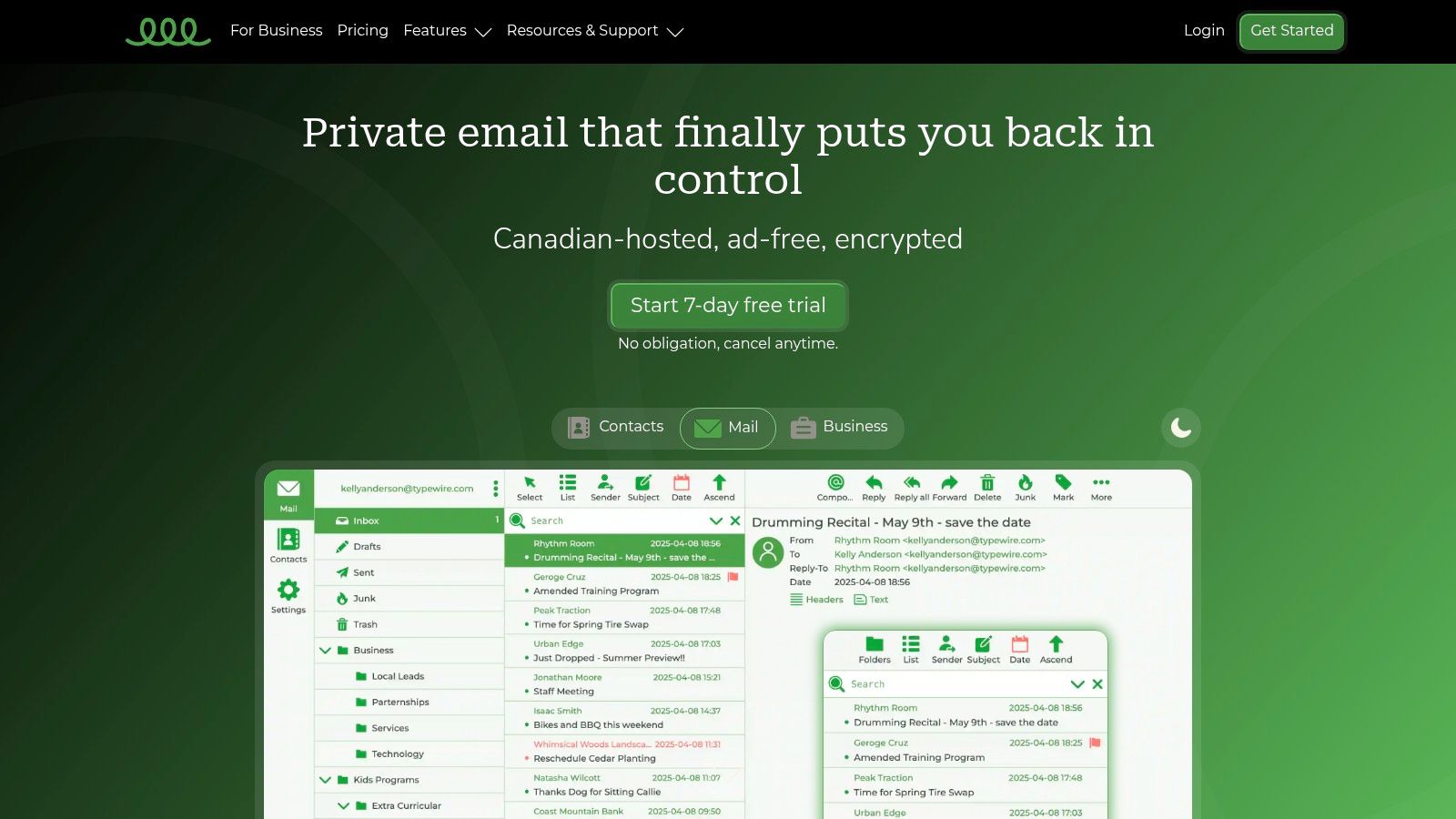
| Feature | Why It's Important for Your Business | Example Provider (Typewire) |
|---|---|---|
| End-to-End Encryption | Guarantees that only you and the recipient can read the message content, protecting it from all third parties. | Typewire uses E2EE by default for all messages, ensuring conversations are completely private. |
| Zero-Knowledge | Ensures the provider cannot access your stored emails, giving you sole control over your data and guaranteeing email privacy. | The platform is built on a zero-knowledge framework, meaning not even Typewire staff can access your encrypted inbox. |
| Custom Domain Support | Allows you to use your professional email address (e.g., you@yourbusiness.com) to maintain brand consistency and credibility. |
Seamlessly integrates with your business domain, reinforcing your professional identity in every email. |
| Two-Factor Authentication | Adds a critical layer of email security to your account, protecting it even if your password is compromised. | Offers robust 2FA options to secure your login and prevent unauthorized access. |
| Encrypted Attachments | Protects sensitive files like contracts, invoices, and intellectual property from being intercepted. | All file attachments sent through Typewire are fully encrypted, securing your most important documents. |
| Self-Destructing Emails | Gives you control over highly sensitive information by automatically deleting an email after a set period. | You can set an expiration timer on any email, ensuring the information disappears after it’s no longer needed. |
By prioritizing these features, you can confidently choose an encrypted email service that not only defends your sensitive data but also helps your business communicate professionally and work smarter.
Weaving Secure Email Into Your Daily Workflow
Bringing a new tool into the fold can feel like a huge undertaking, but switching to a secure, hosted email platform doesn't have to disrupt your business. The key to a smooth transition is breaking the process down into simple, manageable steps and focusing on building good habits from the get-go.

The real goal isn't just to install new software. It’s to make strong email security a natural part of how you work every day. With a user-friendly encrypted email service for small business, this shift can be surprisingly easy, making powerful protection an invisible and effortless part of your routine.
Getting the Technical Side Sorted
Before you can build secure habits, you’ve got to get the technical foundation in place. This part is all about moving your existing conversations and your brand identity over to their new, secure home. While that might sound intimidating, any good hosted email platform has made this process pretty painless.
The first few steps usually look something like this:
- Migrating Your Existing Emails: Most services offer tools or clear walkthroughs for importing your old emails. This is a big deal—it means you don't lose your entire communication history when you make the switch.
- Setting Up Your Custom Domain: This is a non-negotiable step for looking professional. A service like Typewire will walk you through pointing your domain (like
yourbusiness.com) to their servers. That way, you can send secure emails from an address that builds trust. - Creating User Accounts: Once the domain is ready, you can start adding your team. It's often as simple as popping their names and email addresses into a central dashboard.
This setup is usually a one-time thing. After it's done, your team can log in and start communicating securely, often with an interface that feels just as familiar as the less-secure platforms they're used to.
The real beauty of a hosted email platform is that it handles all the complicated server stuff for you. This frees you up to focus on what actually matters—running your business and training your people.
Building Secure Email Habits
The technology is only half the equation. The other half is people. A security tool is only as good as how it's used, so your team needs to understand the "why" behind this new way of doing things. This is how you turn a new tool into a core part of your company's email security culture.
It's critical to establish clear guidelines from day one. These rules don't need to be complex, but they do need to be consistent. Think of it as the digital version of locking the office doors at night—a simple, non-negotiable routine that keeps everyone safe.
Here are three foundational habits to drill into your team right away:
-
Get Serious About Passwords: Mandate long, unique passwords for all email accounts. Even better, make two-factor authentication (2FA) a requirement for every single team member. This one move gives you a massive security boost, stopping hackers in their tracks even if they manage to steal a password.
-
Define What Must Be Encrypted: Not every email is top-secret, but plenty of them contain sensitive information. Create a simple, clear list of what must always be sent through your encrypted service. This includes things like invoices, client contracts, financial reports, employee records, and strategic plans.
-
Train Everyone to Spot Phishing: Your new encrypted email service will catch a ton of spam and malicious messages, but clever phishing attempts can still get through. Hold short, regular training sessions to help your team recognize the red flags—like urgent requests for information, weird-looking links, or emails that just feel "off."
By focusing on these practical steps, you can bring a powerful encrypted email service into your workflow without causing chaos. Instead of adding complexity, you're building a stronger, more resilient business where security is just second nature.
Building a Culture of Email Security
Putting a powerful encrypted email platform in place is a huge first step, but the tech itself won't solve everything. The truth is, even the most advanced encryption can be cracked open by a single, simple human mistake. Your team is your biggest asset, but they're also your biggest potential vulnerability.
To really lock down your small business, you have to build a security-first culture. This means every single employee understands their personal role in protecting sensitive information and upholding email privacy. It’s about shifting from just having the right tool to actively using it correctly, day in and day out. When your team is on alert, your defenses become infinitely stronger than any software alone.
The Principle of Least Privilege
A cornerstone of any good security culture is the principle of least privilege. It sounds technical, but the idea is simple: people should only have access to the information they absolutely need to do their jobs. Nothing more.
Think of it like the keycard for your office. The folks in marketing don't need a key to the server room, and the IT admin has no business accessing HR files. Applying this same logic to email is a game-changer for shrinking your attack surface.
- Lock Down Shared Inboxes: Be stingy with access to general mailboxes like
info@yourbusiness.comorsales@yourbusiness.com. Only the people directly managing those functions should be able to get in. - Segment Your Data: Does a new hire really need to see five years of email archives? Almost certainly not. Limit access to historical data based on role and need.
- Run Regular Audits: Every so often, review who has access to what. When someone's job changes or they leave the company, their permissions must be updated or shut down immediately.
This approach means that if an account ever does get compromised, the damage is contained. The intruder can't just wander through your entire digital history.
Building a security-conscious culture isn't about creating distrust. It's about setting smart boundaries that protect the business and its employees, making secure habits the default, not an afterthought.
Make Two-Factor Authentication Mandatory
If you do only one thing to boost your email security, make it this: require two-factor authentication (2FA) for every single person. No exceptions.
A stolen password becomes almost useless to a hacker if they can't also get their hands on the employee's phone to approve the login. It’s one of the simplest and most effective defenses you can possibly deploy.
Training Your Human Firewall
Your team can be your best line of defense—a human firewall. But they need the right training to be effective. This doesn't mean you need to schedule boring, all-day seminars. Good training is about building simple, memorable habits that stick.
Focus your efforts on clear instructions for common situations:
- Handling Sensitive Files: Create a non-negotiable rule. Any document with financial data, client PII, or internal strategy must be sent through the encrypted platform.
- Emailing Outsiders: Show your team how to securely email clients who aren't using an encrypted service. Modern tools like Typewire make this easy by letting you send a password-protected link to a secure online portal where they can view the message.
- Spotting Phishing Scams: Don't just tell them what to look for—show them. Regularly share real-world examples of phishing emails to keep their detection skills sharp.
This kind of ongoing reinforcement is critical. The market for secure communication is exploding for a reason. Valued at around $500 million in 2025, the global encrypted email service market is expected to rocket to $2.5 billion by 2033, all thanks to the relentless rise in cyberattacks. You can discover more insights about this market growth on marketreportanalytics.com. This trend isn't just a statistic; it's a warning that making your people part of the solution is more important than ever.
How to Choose the Right Email Security Partner
Picking an encrypted email service for a small business isn't just about ticking boxes on a feature list. You're actually choosing a partner who will be responsible for protecting some of your most confidential information. This decision really comes down to trust, transparency, and whether their hosted email platform shares your commitment to email privacy.
The features are important, no doubt. But the company behind the tech? That's what really counts. Their philosophy, where they're based, and how they support their customers are the things that will ultimately determine how secure your data truly is.
Look Beyond the Code at Company Jurisdiction
You might not think about it, but where your email provider is located has huge implications for your email privacy. A company's servers fall under the laws of the country they're in. Nations like Switzerland or Germany have famously strong data privacy laws, which act as a legal shield against government snooping—a protection that providers in other countries just can't offer.
So before you sign on the dotted line, ask yourself one crucial question: Who can legally force this company to give them my data? Choosing a provider in a country with strict privacy laws adds a powerful layer of legal protection on top of all the technical encryption.
Your data's safety is directly tied to the legal environment where it's stored. Choosing a provider in a privacy-friendly jurisdiction is as important as choosing one with strong encryption.
Prioritize Transparency and Independent Audits
When it comes to email security, you can't just take a company's word for it. A trustworthy partner will be completely open about their security practices and welcome outside experts to check their work. Keep an eye out for providers that regularly bring in third-party auditors and, just as importantly, publish the results.
These independent checks confirm that a company isn't just talking a big game—they're actually secure and their systems are free from known weaknesses. It’s the difference between a company saying they're secure and proving it.
Evaluate Support and Scalability
Let's be real: when something goes wrong with your email, you need help, fast. Before you commit, give their customer support a quick test run. Send a question before you buy and see how long it takes them to respond and how helpful their answer is. This simple test speaks volumes about how they treat their customers.
You also need to think about where your business is heading. A good partner will have plans that can grow with you. You should be able to add new users, get more storage, and unlock advanced features without the headache of switching providers down the road. For a deeper dive into the infrastructure side of things, take a look at this detailed guide to secure email hosting. By thinking through these core partnership qualities, you can find a service that not only secures your email today but also grows with your business for years to come.
Your Top Questions About Encrypted Email, Answered
Making the jump to a more secure email system always brings up a few questions. It's only natural. Let's tackle some of the most common ones we hear from small business owners looking at an encrypted email service for small business.
Getting these answers straight will help you see how a hosted platform can lock down your communications without throwing a wrench in your day-to-day operations.
Can I Email People Who Don’t Use an Encrypted Service?
Yes, you absolutely can. This is probably the biggest worry people have, but modern secure platforms are built for the real world, where not everyone uses the same tools. When you send an encrypted message to someone on a standard email client, the system works a little magic.
Instead of sending the email directly, it creates a secure link protected by a password. You share that password with your recipient through another channel (like a text or phone call), they click the link, pop in the password, and view the message in a secure web portal. It’s a simple, elegant way to keep your conversation private from end to end, even when the other person isn’t on the same system.
The ability to securely communicate with any recipient, regardless of their email provider, is a critical feature. It bridges the gap between high security and real-world business needs, ensuring no client or partner is left out.
This approach makes it incredibly practical for a small business to adopt top-tier email security without asking clients to change how they work.
Is an Encrypted Email Service Hard for My Team to Use?
Not at all. The best services know that if a tool is clunky, people won't use it. They design their platforms to feel just as intuitive as the email clients your team already uses every day.
When your team members email each other within the same secure service, the encryption is completely automatic. It all happens in the background. They just type and send like they always have, while powerful security protocols do the heavy lifting silently.
The whole point is to give you robust email security and email privacy without adding friction or slowing your team down.
Is a Paid Encrypted Email Service Really Worth the Cost?
Without a doubt. Think of it as one of the smartest investments you can make in the health and reputation of your business. The cost of just one data breach—from financial penalties and legal bills to the loss of your clients' trust—can be devastating for a small company.
Those potential damages make the modest subscription fee for a secure, hosted email platform look like a bargain.
It's proactive protection. You're not just guarding your company's most sensitive information; you're also sending a clear message to your clients that you take their privacy seriously. In a crowded marketplace, that kind of commitment to email security is a huge differentiator that builds the kind of trust and loyalty that lasts.
Ready to protect your business communications with a service that puts your privacy first? Typewire offers a secure, private email hosting platform with zero ads, no tracking, and powerful security features built in. Start your 7-day free trial today and experience true email security by visiting https://typewire.com.