In an age of relentless data collection, providing your phone number just to open an email account is a significant privacy compromise. It directly connects your online activities to your real-world identity, exposing you to data breaches, targeted advertising, and surveillance. For many, this has become an unacceptable trade-off. This guide is your solution to breaking that link and achieving genuine digital privacy.
We've done the research for you, identifying and reviewing the best email services without phone verification. Our goal is to provide a clear, actionable resource that helps you choose the right platform based on your specific needs, whether for personal anonymity or secure business communication. The increasing demand for privacy extends beyond just email; many are now exploring other digital services without cumbersome verification processes to protect their information across the board.
In the list below, you will find a detailed breakdown of each provider. We cover their core features, privacy policies, and security measures. To make your decision easier, every entry includes direct signup links and screenshots of the user interface, allowing you to see exactly what you’re getting. Let's find an email service that puts your privacy first.
1. Typewire
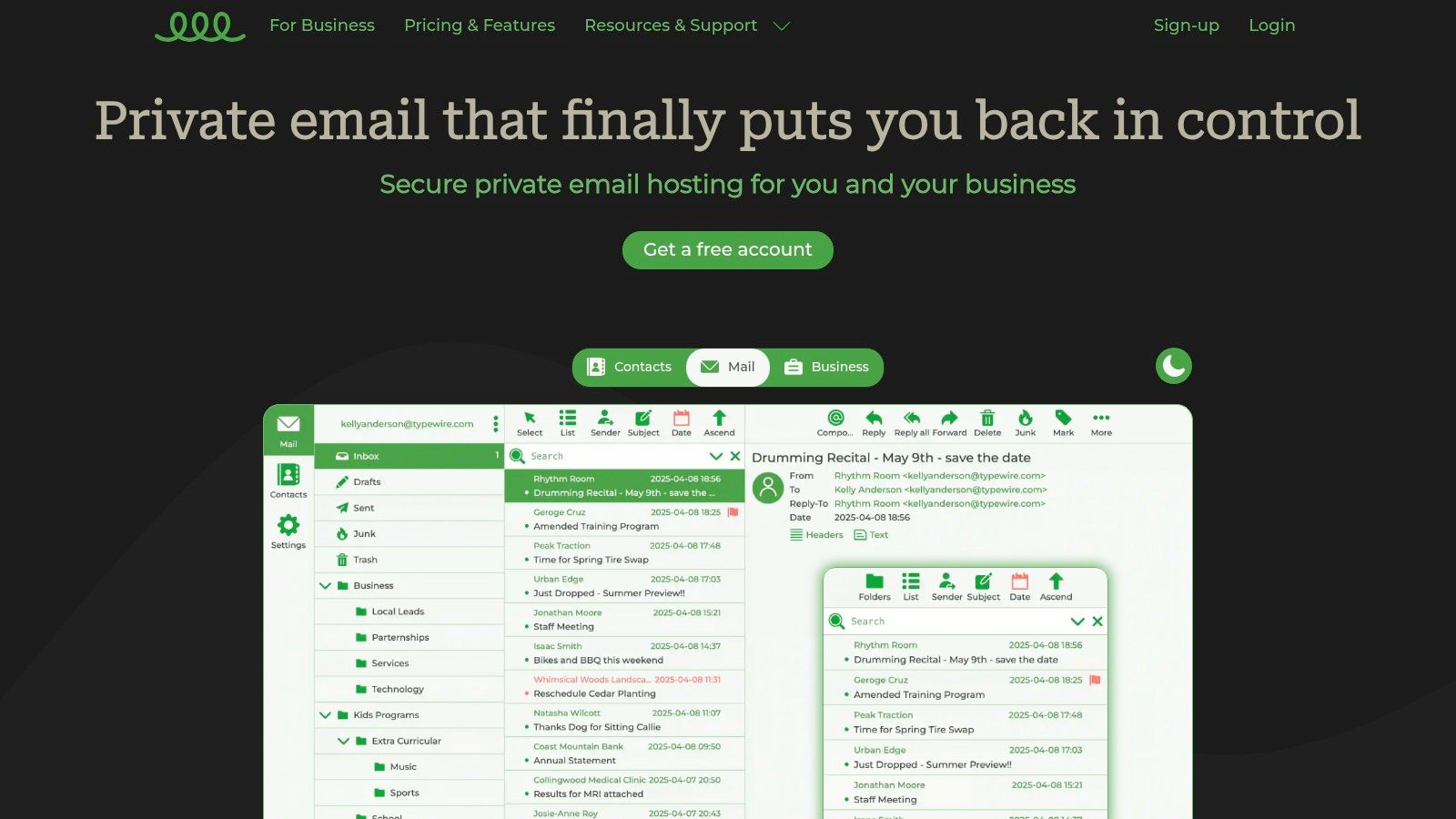
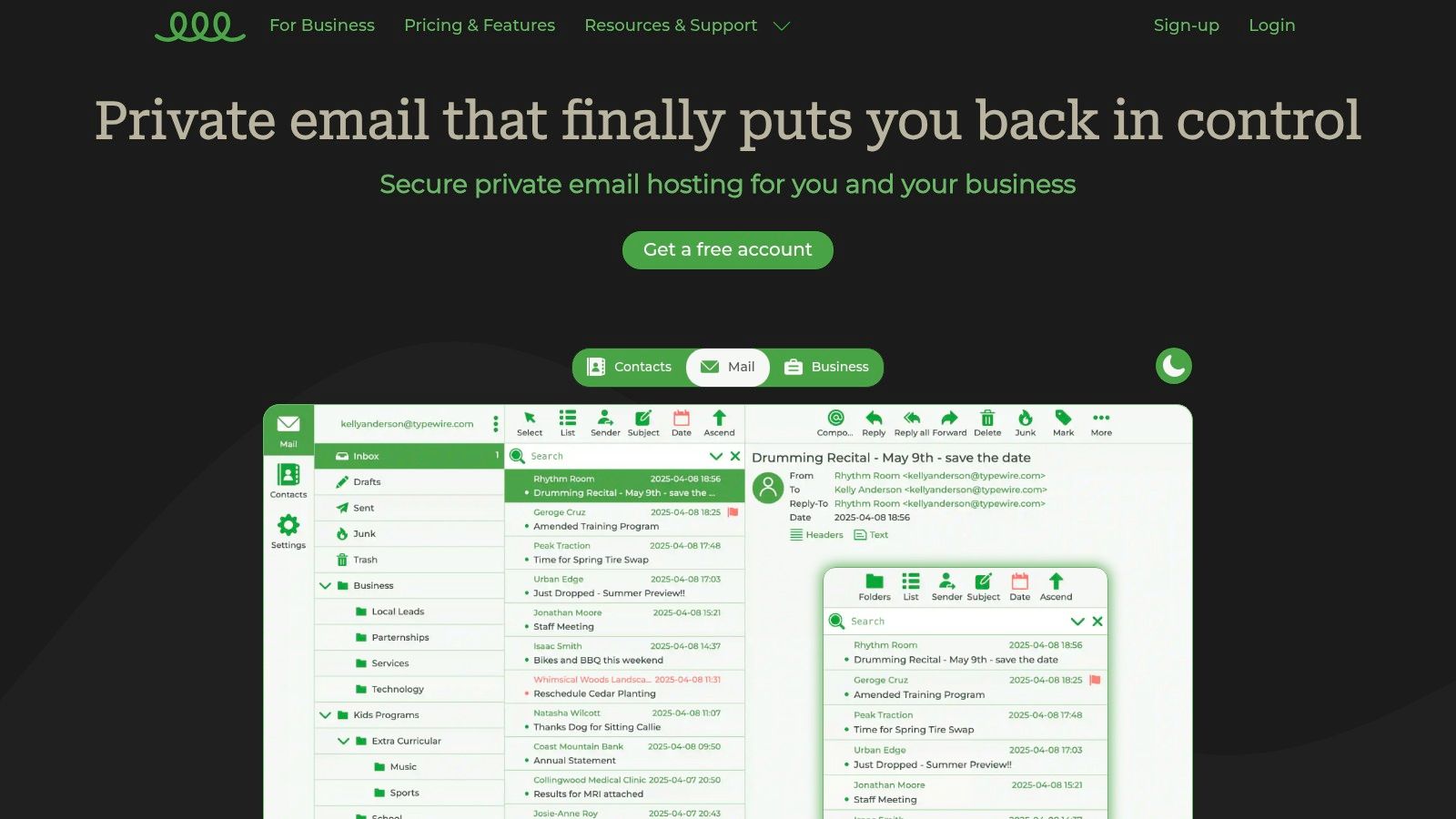
Typewire stands out as a premier choice for those seeking robust email services without phone verification, offering a comprehensive suite of privacy-first features. It is engineered from the ground up to prioritize user data ownership and security, making it an excellent fit for individuals, SMBs, and IT administrators who refuse to compromise on privacy. The platform’s core promise is a completely ad-free, no-tracking, and zero-data-mining email experience, which fundamentally distinguishes it from mainstream providers that often monetize user data.
Uncompromising Privacy and Security
What makes Typewire a top-tier option is its unique infrastructure. All user data is hosted exclusively on privately owned and operated data centers in Vancouver, Canada. This deliberate decision to avoid third-party cloud services like AWS or Google Cloud provides an additional layer of security and data sovereignty, ensuring that your communications remain shielded from external access and jurisdictional overreach.
- Private Infrastructure: By managing its own hardware, Typewire maintains full control over the security stack, from network to server.
- Zero-Knowledge Principle: The platform is built on a foundation that respects your privacy, guaranteeing your emails are not scanned or analyzed for advertising purposes.
- Advanced Protection: Integrated anti-spam and virus filters are highly effective, keeping your inbox clean and secure from malicious threats without invasive content scanning.
Features and User Experience
Typewire delivers a modern and intuitive user experience. The web interface is fast, responsive, and features both light and dark modes to suit user preferences. For businesses and professionals, premium plans unlock powerful capabilities like custom domain hosting, which allows you to brand your email address (e.g., contact@yourbusiness.com). The platform also simplifies user management for teams, making it easy for administrators to add or remove accounts as needed.
Users consistently praise the platform for its straightforward migration process from services like Gmail and Outlook, backed by reliable 24/7 customer support. This makes the transition to a more private email provider seamless and accessible even for non-technical users.
Pricing and Accessibility
Typewire offers flexible plans, including a free tier for basic use and a 7-day free trial for its premium features. While specific pricing details for higher-tier plans require signing up, this approach allows users to test the service thoroughly before committing.
| Pros | Cons |
|---|---|
| Privacy-first with no ads, tracking, or data mining | Premium pricing details are not fully public without an account |
| Hosted on privately owned Canadian data centers | Custom domain setup may require some technical knowledge |
| Flexible plans with custom domain support | Advanced user management features are reserved for paid tiers |
| Robust anti-spam and virus protection | |
| Modern, fast web interface with light/dark modes |
Website: https://typewire.com
2. Proton Mail
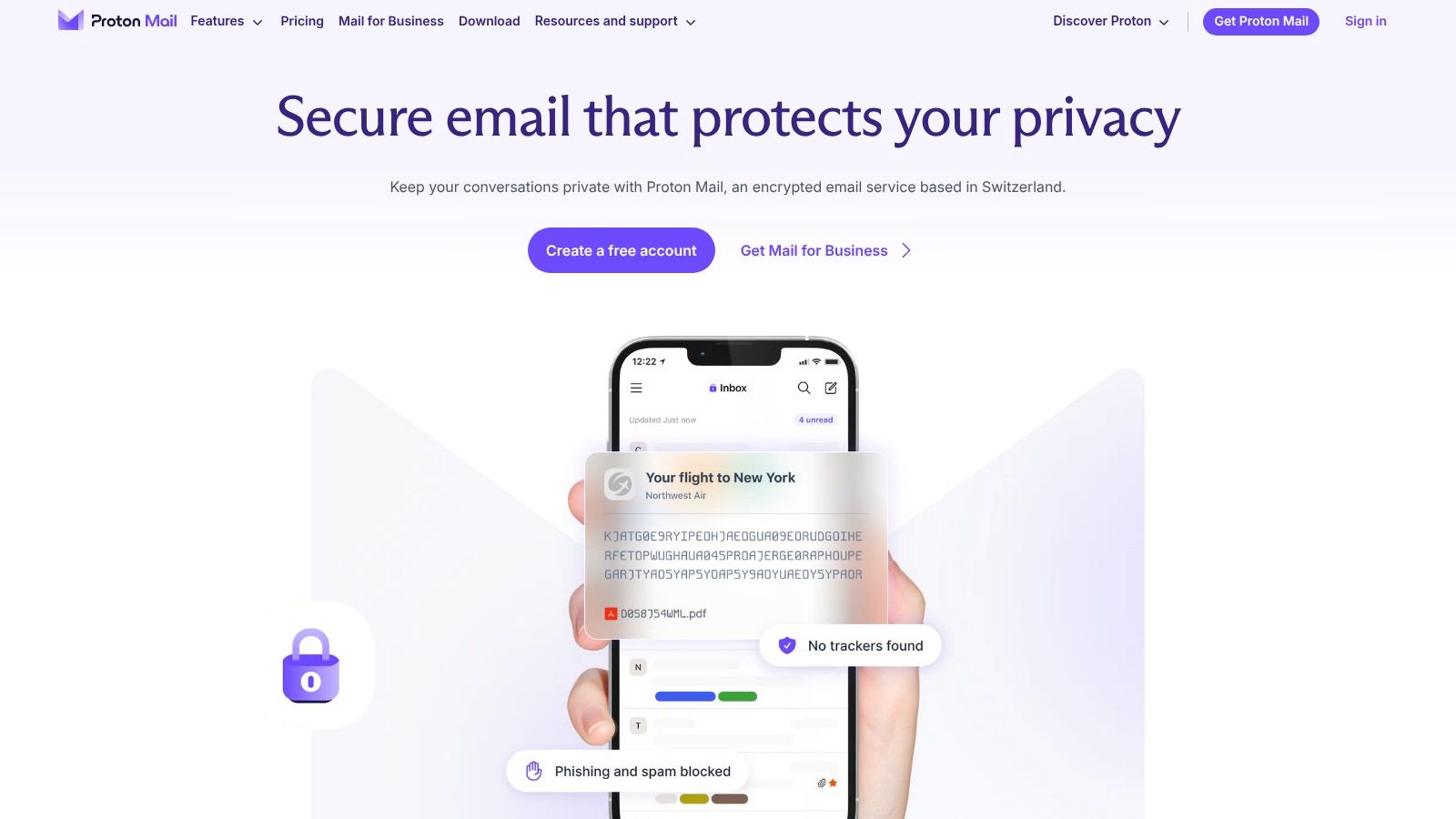
Proton Mail is a titan in the privacy-focused email space, renowned for its Swiss jurisdiction and robust security features. As one of the most mature email services without phone verification, it provides a straightforward signup process that respects user anonymity. Instead of demanding a phone number, Proton Mail uses alternative methods like a simple CAPTCHA or verification through an existing email address to prevent spam and bot registrations. This approach makes it exceptionally accessible for those prioritizing privacy from the very first step.
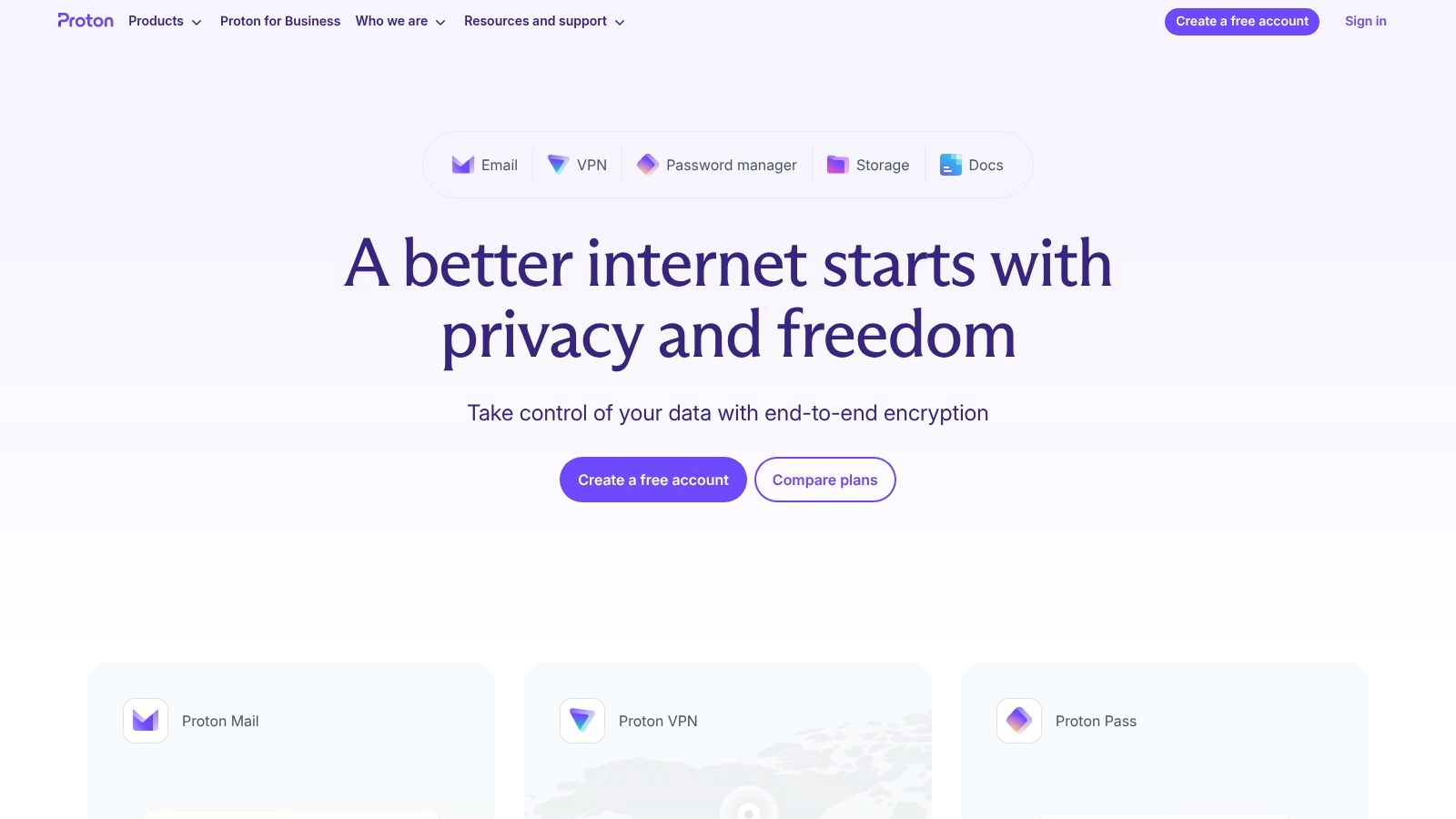
The platform is built on a foundation of end-to-end and zero-access encryption, meaning not even Proton can read your emails. Users can choose between a @proton.me or @protonmail.com address, and the service seamlessly integrates with Proton's expanding ecosystem, including Proton Calendar, Proton Drive, and Proton VPN. This integration offers a comprehensive suite of privacy tools under one account.
Key Features and Onboarding
Proton Mail’s user interface is clean, modern, and intuitive, making the transition from mainstream providers like Gmail seamless. The free plan is quite generous, offering 1 GB of total storage and one email address. For users needing more, paid plans unlock significant benefits.
| Feature Comparison | Free Tier | Mail Plus | Proton Unlimited |
|---|---|---|---|
| Storage | 1 GB | 15 GB | 500 GB |
| Email Addresses | 1 | 10 | 15 |
| Custom Domains | 0 | 1 | 3 |
| Phone Verification | Optional | Optional | Optional |
| Proton VPN Access | Limited | Full | Full |
Pros and Cons
Pros:
- Strong Privacy: Swiss-based with end-to-end encryption.
- No Phone Required: Utilizes CAPTCHA or email for verification.
- Mature Ecosystem: Includes calendar, cloud storage, and VPN.
Cons:
- May require a secondary email for verification if its system flags the signup.
- The free storage limit (1 GB) can be restrictive for heavy users.
For those looking to understand how Proton Mail stacks up against other secure options, you can explore an in-depth comparison to learn more about its place among the best email for privacy options.
Website: https://proton.me
3. Tuta (formerly Tutanota)
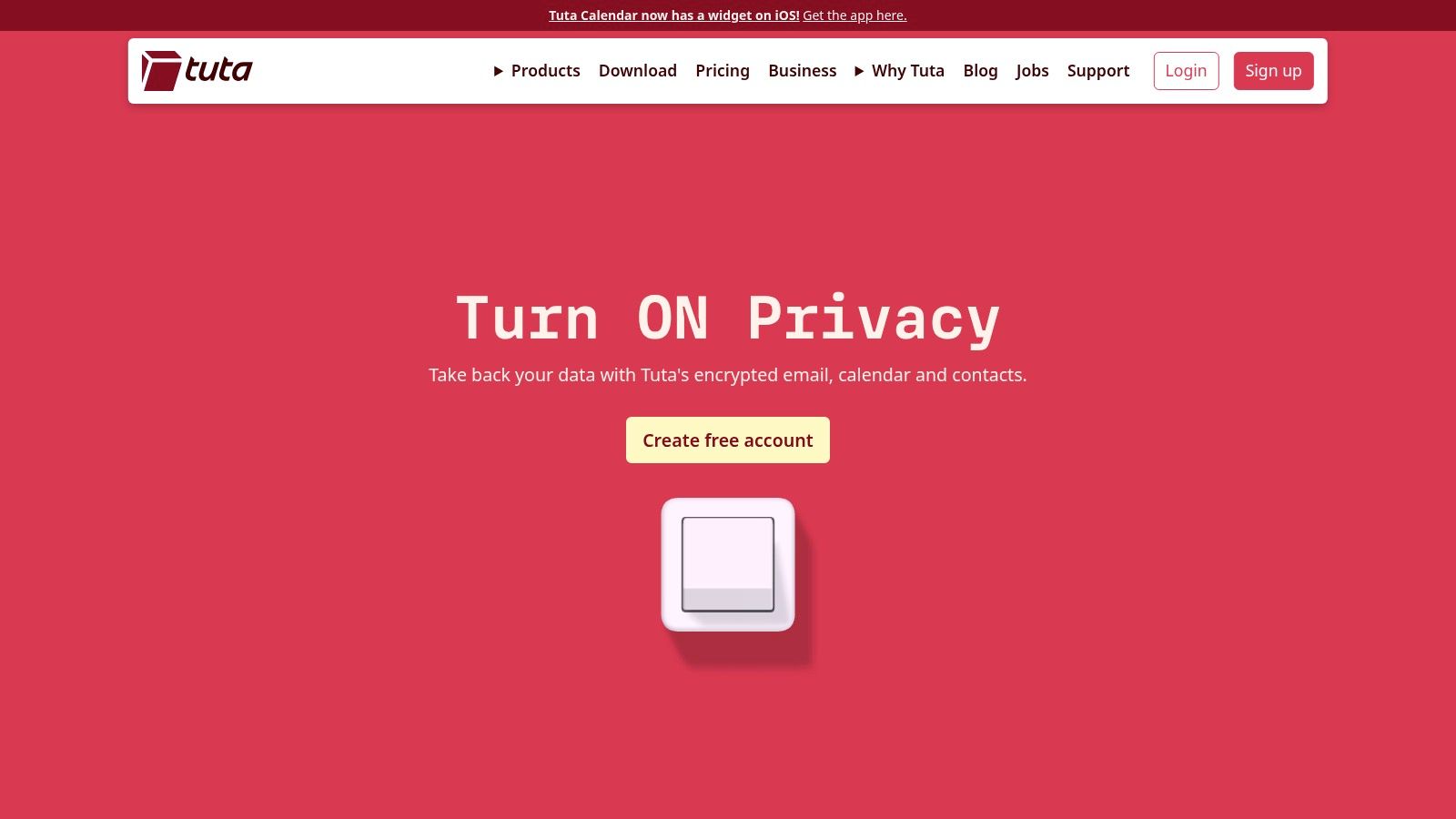
Tuta, formerly known as Tutanota, is a German-based email service with a steadfast commitment to privacy and anonymity. It has earned its place as one of the top email services without phone verification by designing its signup process to be completely anonymous. Tuta explicitly allows users to register without a phone number, even over networks like Tor, using only a simple CAPTCHA to verify the user is human. This makes it an ideal choice for journalists, activists, and anyone requiring maximum privacy from the moment of account creation.
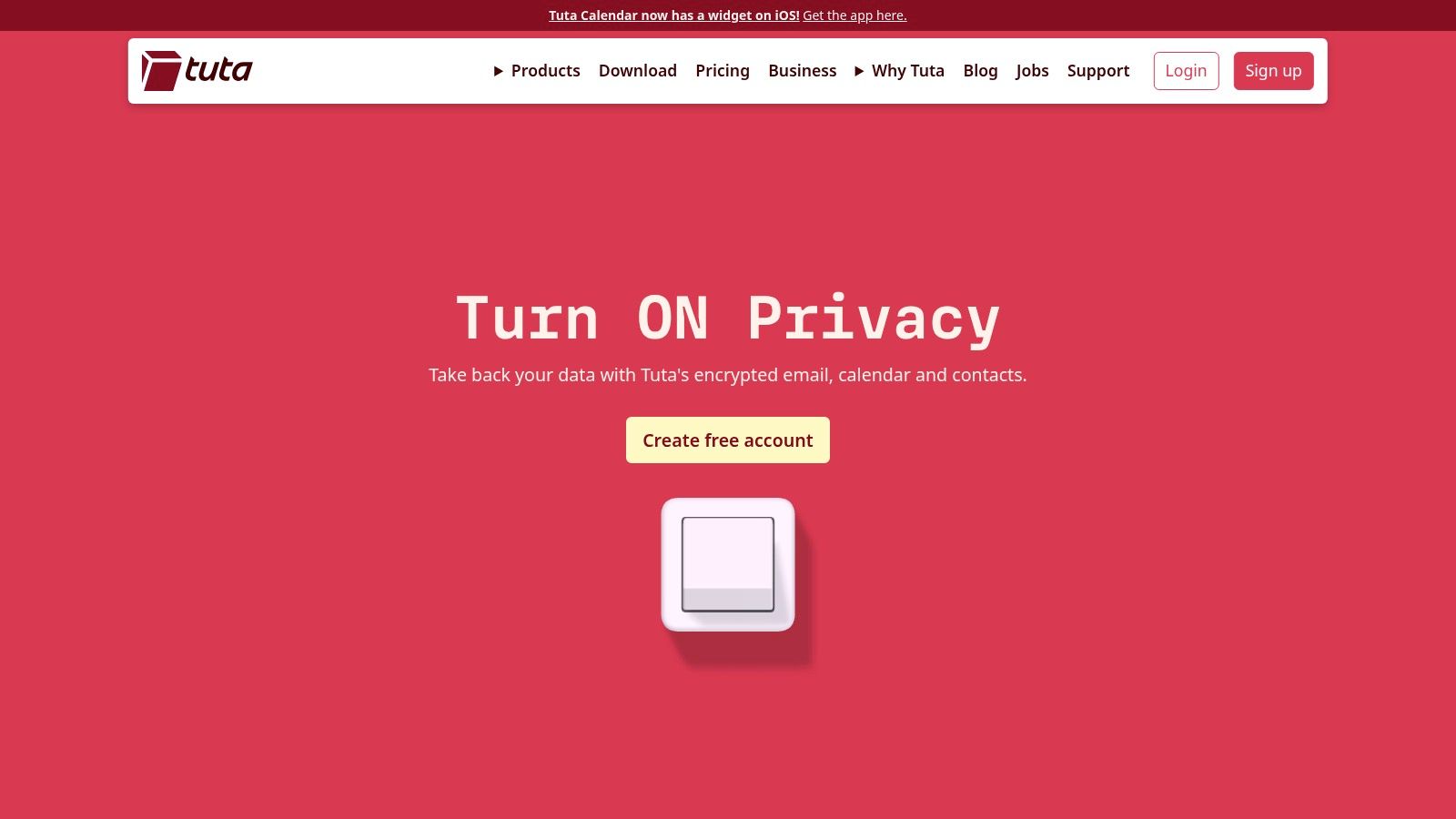
The platform’s security model is comprehensive, featuring automatic end-to-end encryption for the entire mailbox, including subject lines, the email body, and your address book. Tuta also enforces a strict no-IP-logging policy, further shielding user identity. The service offers several domains to choose from (@tuta.com, @tutanota.com, @tutamail.com, etc.) and accepts privacy-friendly payment methods like cryptocurrencies for its premium plans.
Key Features and Onboarding
Tuta’s interface is clean and functional, with all core privacy features enabled by default. The free plan provides a solid entry point, but paid plans unlock the service's full potential. It's important to note that accounts created via Tor or a VPN may undergo a manual approval process, which can take up to 48 hours to prevent abuse.
| Feature Comparison | Free | Revolutionary | Legend |
|---|---|---|---|
| Storage | 1 GB | 20 GB | 500 GB |
| Email Addresses | 1 | 15 | 30 |
| Custom Domains | 0 | 3 | 10 |
| Phone Verification | Not required | Not required | Not required |
| Encrypted Calendar | 1 | Unlimited | Unlimited |
Pros and Cons
Pros:
- Exceptional Anonymity: No phone number is required, and IP addresses are never logged.
- Strong Encryption: Automatically encrypts the entire mailbox, not just the content.
- Tor/VPN Friendly: Openly supports registration from anonymizing networks.
Cons:
- Free accounts registered over Tor/VPN may face a 48-hour manual approval delay.
- The user interface is more functional than feature-rich compared to mainstream providers.
Website: https://tuta.com
4. Posteo
Posteo stands out as a German-based email provider that combines a fierce commitment to privacy with a strong focus on sustainability. Established in 2009, it offers a completely anonymous signup process, making it a top-tier choice among email services without phone verification. The platform is designed from the ground up to collect zero personal data; it does not require a name, address, or phone number. Instead, registration is simple and direct, ensuring your identity remains unlinked to your email account from the very beginning.
What makes Posteo unique is its payment system, which is intentionally decoupled from user accounts to preserve anonymity. You can pay via bank transfer, credit card, PayPal, or even by mailing cash. This ad-free service is powered by 100% green energy, appealing to users who value both digital privacy and environmental responsibility. Its robust security includes strong transport layer encryption, two-factor authentication, and anonymized IP addresses for all users.
Key Features and Onboarding
Posteo offers a straightforward, all-inclusive plan for a very low monthly cost. The user interface is clean and based on the open-source Roundcube webmail client, providing a familiar and functional experience. There is no free tier, a deliberate choice to ensure the business model is supported by users, not by selling data.
| Feature Comparison | Standard Plan |
|---|---|
| Price | €1 per month |
| Storage | 2 GB (upgradable) |
| Attachments | Up to 100 MB |
| Email Aliases | 2 included |
| Phone Verification | Not required |
| Custom Domains | Not supported |
Pros and Cons
Pros:
- Total Anonymity: No personal data or phone number is required for signup or payment.
- Affordable and Simple: A single low-cost plan provides all features.
- Eco-Friendly: The service is 100% powered by sustainable energy.
Cons:
- There is no free tier available for users to test the service.
- It does not support the use of custom domains with its email accounts.
Website: https://posteo.de/en/
5. StartMail
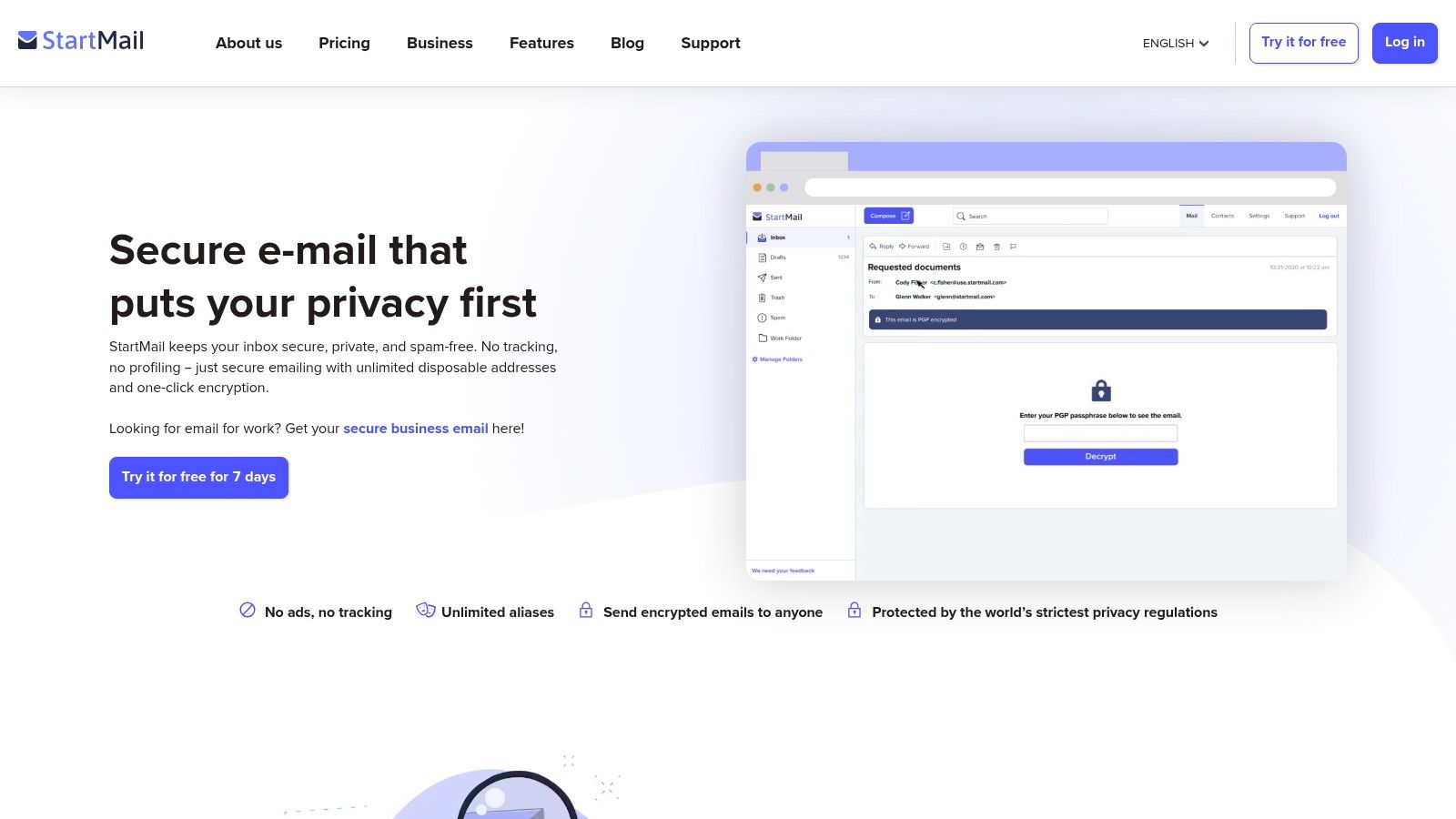
StartMail is a premium, privacy-focused email service from the Netherlands that emphasizes user control and anonymity. Developed by the team behind the private search engine Startpage, it stands out as one of the best email services without phone verification, allowing users to sign up without providing a phone number. Instead, it relies on payment details for its subscription-based model, which also supports Bitcoin for annual plans, further enhancing user privacy.
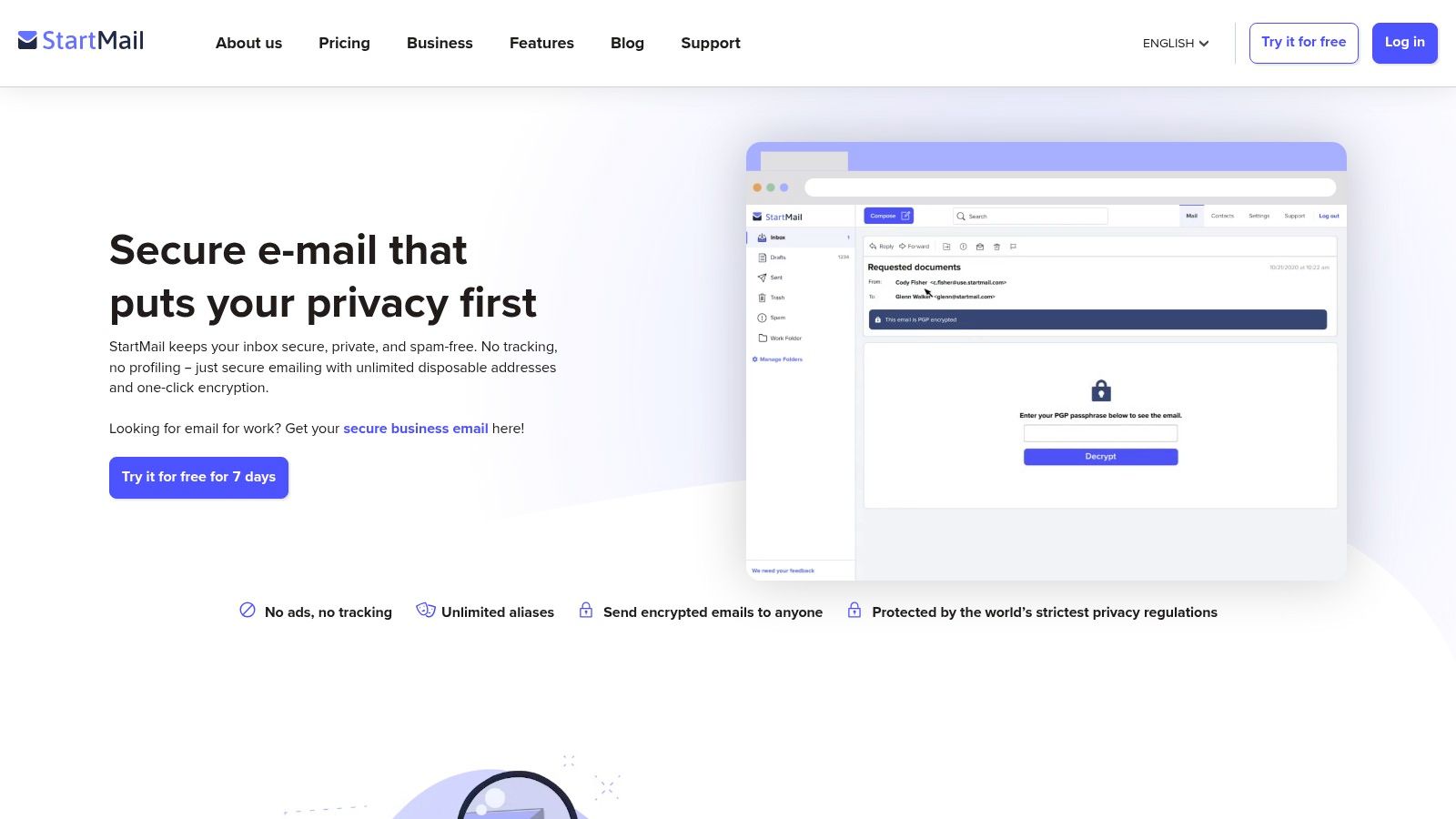
The platform's core strength lies in its powerful alias management system. StartMail allows users to create unlimited temporary or permanent email aliases, making it easy to mask their primary address when signing up for services, newsletters, or making online purchases. This feature helps protect your main inbox from spam and shields your real identity. The service also includes PGP encryption for secure communications and offers full IMAP/SMTP support, allowing you to use it with your favorite desktop or mobile email clients.
Key Features and Onboarding
StartMail’s interface is clean and straightforward, focusing on usability and security. While it doesn't offer a free plan, there is a 7-day free trial to test its features, though it requires payment information upfront. Its paid plans are structured to cater to both individual users and businesses needing custom domain support.
| Feature Comparison | Personal Plan | Custom Domain Plan |
|---|---|---|
| Storage | 20 GB | 30 GB |
| Email Aliases | Unlimited | Unlimited |
| Custom Domains | 0 | 1+ |
| Phone Verification | Not Required | Not Required |
| Bitcoin Payment | Yes (Annual) | Yes (Annual) |
Pros and Cons
Pros:
- Powerful Alias Management: Easily create and manage unlimited burner aliases.
- No Phone Verification: Signup is straightforward and respects your privacy.
- Privacy-Friendly Payments: Accepts Bitcoin for annual subscriptions.
Cons:
- No free plan is available, making it a premium-only service.
- The 7-day trial requires entering payment details.
- The cost is higher compared to providers that offer free tiers.
For users interested in maximizing their online anonymity, understanding how to leverage aliases is crucial. You can find comprehensive information in this ultimate guide to an email alias service.
Website: https://www.startmail.com
6. Mailfence
Mailfence is a comprehensive, privacy-oriented email suite based in Belgium, placing it squarely under the protection of strong EU privacy laws like the GDPR. It stands out as one of the most reliable email services without phone verification, offering a registration process that only requires a CAPTCHA. While an alternate email address can be provided for account recovery, it is not mandatory, allowing users to sign up with minimal personal data. This commitment to privacy is combined with a full suite of productivity tools, including a calendar, documents, and groups.
The platform is built around OpenPGP encryption, giving users full control over their keys and ensuring end-to-end security. Unlike some competitors that abstract this process, Mailfence provides an integrated keystore, which is ideal for those who want more hands-on control over their encryption. The service also supports two-factor authentication (2FA) and custom domains on its paid plans, making it a versatile choice for both individuals and businesses looking to escape the data-harvesting models of mainstream providers.
Key Features and Onboarding
Mailfence offers a clean and functional interface that integrates its core services seamlessly. The free plan provides a solid entry point, but its true power is unlocked with the paid tiers, which add essential features like POP/IMAP support for use with third-party email clients. The platform is transparent about its features and signup process, making it easy for users to get started without compromising their privacy.
| Feature Comparison | Free Tier | Entry | Pro |
|---|---|---|---|
| Storage | 500 MB Mail / 500 MB Docs | 10 GB Mail / 30 GB Docs | 25 GB Mail / 70 GB Docs |
| Email Addresses | 1 | 10 aliases | 50 aliases |
| Custom Domains | 0 | 1 | 3 |
| Phone Verification | Not Required | Not Required | Not Required |
| POP/IMAP/SMTP | No | Yes | Yes |
Pros and Cons
Pros:
- Strong EU Privacy: Based in Belgium and protected by the GDPR.
- No Phone Required: Simple CAPTCHA-based signup process.
- Integrated Suite: Includes calendar, documents, and groups.
Cons:
- The free tier storage (500 MB) is very limited.
- Essential features like POP/IMAP access are restricted to paid plans.
Website: https://mailfence.com
7. Runbox
Runbox is a Norwegian email provider that champions privacy, transparency, and environmental sustainability. It has earned its place among the top email services without phone verification by offering a straightforward and anonymous signup process. New users are not required to provide a phone number, instead relying on a simple form and a CAPTCHA to get started. This commitment to a phone-free experience makes it an excellent choice for users who want to create an email account quickly and privately.
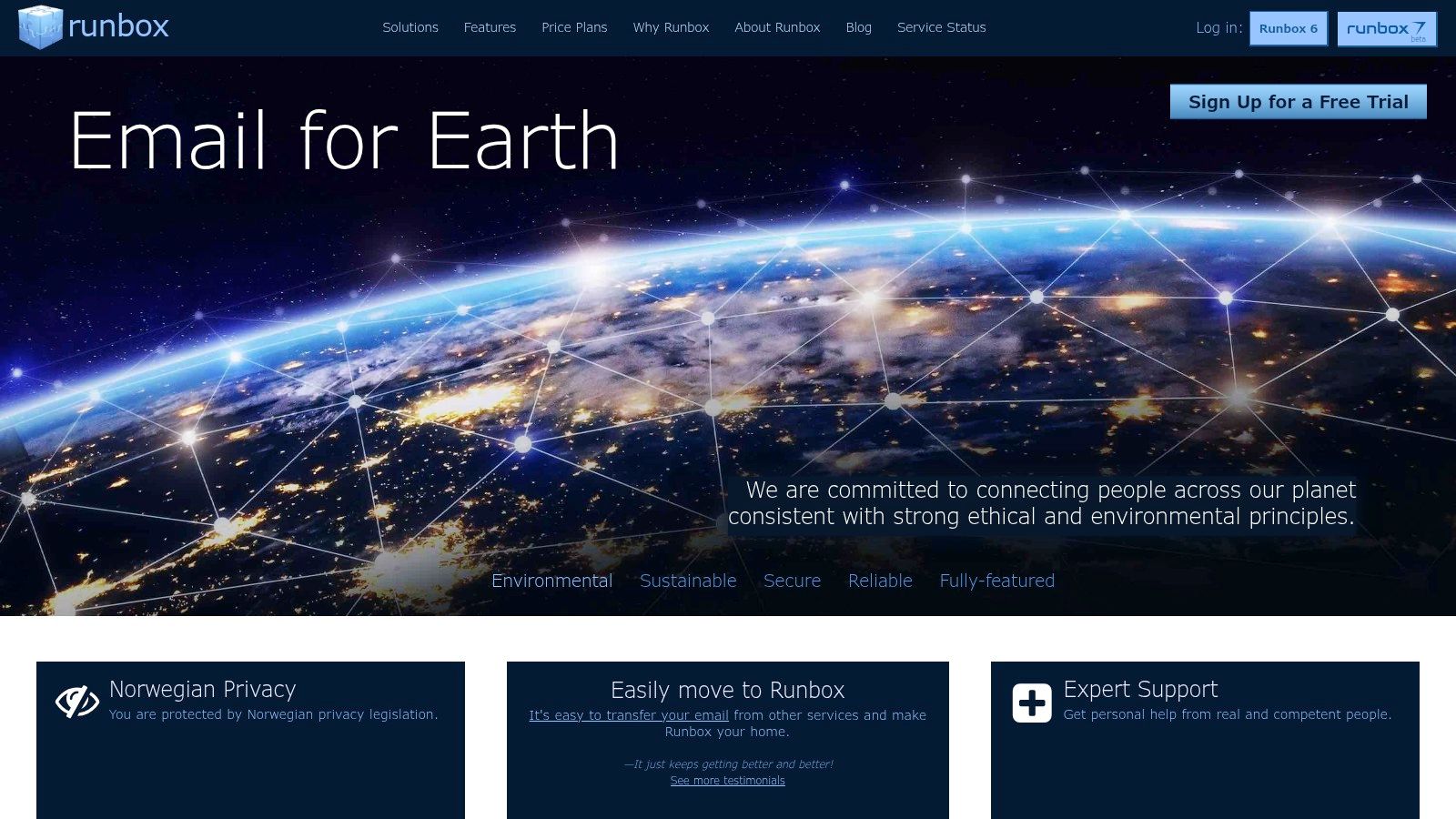
Operating under Norway's strong privacy laws, Runbox is an independent, employee-owned company, ensuring its focus remains on its users rather than external stakeholders. The service supports standard protocols like IMAP, POP, and SMTP, allowing for easy integration with third-party email clients. Its platform is powered by renewable hydroelectric energy, reflecting a unique commitment to sustainability that sets it apart from many competitors in the email space.
Key Features and Onboarding
Runbox’s webmail interface is functional and user-friendly, though it may appear more traditional than some modern alternatives. The service is primarily paid, but it offers a 30-day free trial and a 60-day money-back guarantee, giving users ample time to evaluate its features. Plans are affordably priced, with discounts available for multi-year commitments.
| Feature Comparison | Mini | Medium | Max |
|---|---|---|---|
| Storage (Mail) | 2 GB | 10 GB | 25 GB |
| Email Aliases | 100 | 100 | 100 |
| Custom Domains | 1 | 5 | 10 |
| Phone Verification | Not Required | Not Required | Not Required |
| IMAP/POP/SMTP | Included | Included | Included |
Pros and Cons
Pros:
- Strong Privacy: Based in Norway with a transparent, phone-free signup.
- Independent & Sustainable: Employee-owned and powered by renewable energy.
- Affordable Plans: Very low entry pricing with multi-year discounts.
Cons:
- No built-in end-to-end encryption; requires third-party PGP tools.
- Primarily a paid service, though a free trial is available.
For those interested in how Runbox compares to other providers focusing on user privacy, you can explore this guide to the best private mail services to see how Runbox measures up.
Website: https://runbox.com
Email Services Without Phone Verification Comparison
| Email Service | 🔄 Implementation Complexity | ⚡ Resource Requirements | 📊 Expected Outcomes | 💡 Ideal Use Cases | ⭐ Key Advantages |
|---|---|---|---|---|---|
| Typewire | Moderate – requires some technical skill for custom domains | Moderate – hosted on private Canadian data centers | High – strong privacy, no ads, reliable anti-spam | Privacy-conscious individuals, SMBs, IT/admins, remote teams | Privacy-first, no data mining, flexible plans, robust spam protection |
| Proton Mail | Low – simple signup, free and paid tiers | Low to moderate – cloud-based with mature ecosystem | High – end-to-end encryption, Swiss-based privacy | Users wanting strong privacy with easy setup and ecosystem integration | Strong encryption, no phone required, trusted Swiss jurisdiction |
| Tuta (Tutanota) | Moderate – anonymous signup including Tor | Low to moderate – strong encryption and IP privacy | High – anonymous, encrypted mailbox and metadata | Users valuing anonymity, Tor/VPN users needing encrypted email | Phone-free signup, no IP logging, VPN/Tor support |
| Posteo | Low – paid-only, simple signup without personal data | Low – hosted in Germany with strong transport security | Moderate – sustainable, ad-free, privacy-focused | Privacy and sustainability-conscious paid users | No personal data collection, anonymous payments, affordable pricing |
| StartMail | Moderate – paid plans require payment and setup | Moderate – includes IMAP/SMTP and alias management | High – privacy-focused with enhanced alias options | Privacy users needing alias management and standard mail apps | Unlimited aliases, Bitcoin payments, no SMS required |
| Mailfence | Moderate – free & paid tiers, supports standard protocols | Moderate – supports PGP, 2FA on paid plans | High – balanced privacy with productivity tools | Users wanting secure email plus calendars/docs | PGP support, no phone required, strong EU privacy |
| Runbox | Low to Moderate – easy signup, paid plans | Moderate – multiple storage tiers, custom domains | Moderate – privacy-focused but no built-in E2E encryption | Cost-conscious privacy users with sustainability focus | Employee-owned, transparent phone-free signup, sustainability |
Making the Right Choice for Your Digital Privacy
Navigating the landscape of digital communication reveals a critical truth: your personal data is a valuable asset. The common practice of requiring a phone number for email signup has normalized the linking of our online identities to our real-world selves, creating a comprehensive profile that can be tracked, monetized, and exploited. By exploring email services without phone verification, you have taken a decisive step toward severing this link and reclaiming control over your digital footprint.
This article has detailed seven powerful alternatives, each championing privacy from a unique angle. From the robust end-to-end encryption offered by Proton Mail and Tuta to the green, ad-free ethos of Posteo, the options are as diverse as the users they serve. We've seen how providers like Mailfence integrate a full suite of productivity tools and how StartMail prioritizes user-controlled PGP encryption. The common thread is a fundamental respect for user autonomy.
How to Choose Your Privacy-Focused Email Provider
Selecting the right service from this list isn't about finding the "best" one overall, but the one that best fits your specific threat model and daily workflow. Your final decision should be guided by a clear understanding of your priorities.
Consider these key questions to guide your choice:
- What is my primary goal? Are you seeking maximum anonymity, a secure replacement for a mainstream provider like Gmail, or a professional solution for your business with custom domain support? For instance, if you need a full business suite, Typewire and Mailfence are strong contenders. If untraceable communication is paramount, Tuta's design philosophy might be the best fit.
- How much technical control do I want? Services like StartMail and Mailfence offer granular control over PGP keys, which is ideal for technically proficient users. In contrast, Proton Mail and Tuta provide more automated, seamless encryption that is easier for beginners to adopt without sacrificing security.
- What is my budget? While some providers offer excellent free tiers, a paid subscription almost always unlocks crucial features like increased storage, custom domain support, and priority customer service. Assess the value of these premium features against their cost.
- Where is the service legally based? The jurisdiction of a provider dictates the privacy laws it must follow. Services based in Switzerland (Proton Mail) or Germany (Tuta, Posteo) benefit from strong data protection regulations, a factor that should not be overlooked.
By moving away from services that demand your phone number, you are not just choosing a new inbox. You are making a conscious statement that your privacy is not for sale. You are investing in a more secure, independent, and ethical internet where your communications remain truly yours. This choice empowers you to interact online with confidence, knowing that your personal information is protected by design, not as an afterthought.
Ready to make the switch to a truly private and professional email solution? For businesses and individuals who need reliable email hosting, custom domains, and robust security without compromising on privacy, Typewire offers a comprehensive platform built on Canadian servers. Explore how you can secure your communications today at Typewire.