For over a decade, Gmail has been the default choice for personal email, offering a seamless experience and massive storage at no cost. But this convenience comes with a hidden price: your privacy. Google’s business model relies on analyzing your personal data, from inbox contents to search history, to build detailed profiles for targeted advertising. If you're tired of being the product, it's time to explore other options. The demand for secure, private communication is growing, and plenty of excellent services are ready to meet it.
This guide explores the best email alternatives to Gmail, focusing on services that put your privacy and security first. We cut through the marketing copy to provide a detailed breakdown of providers that offer robust end-to-end encryption, ad-free experiences, and transparent business practices. You'll regain control over your digital identity without sacrificing modern features.
Inside, you'll find an honest assessment of each platform, complete with direct links and screenshots. We analyze their core features, weigh their pros and cons, and identify the ideal use case for each one. Whether you're an individual seeking privacy, a small business needing a custom domain, or a team requiring secure collaboration, this resource will help you find an email service that truly works for you, not for advertisers.
1. Typewire
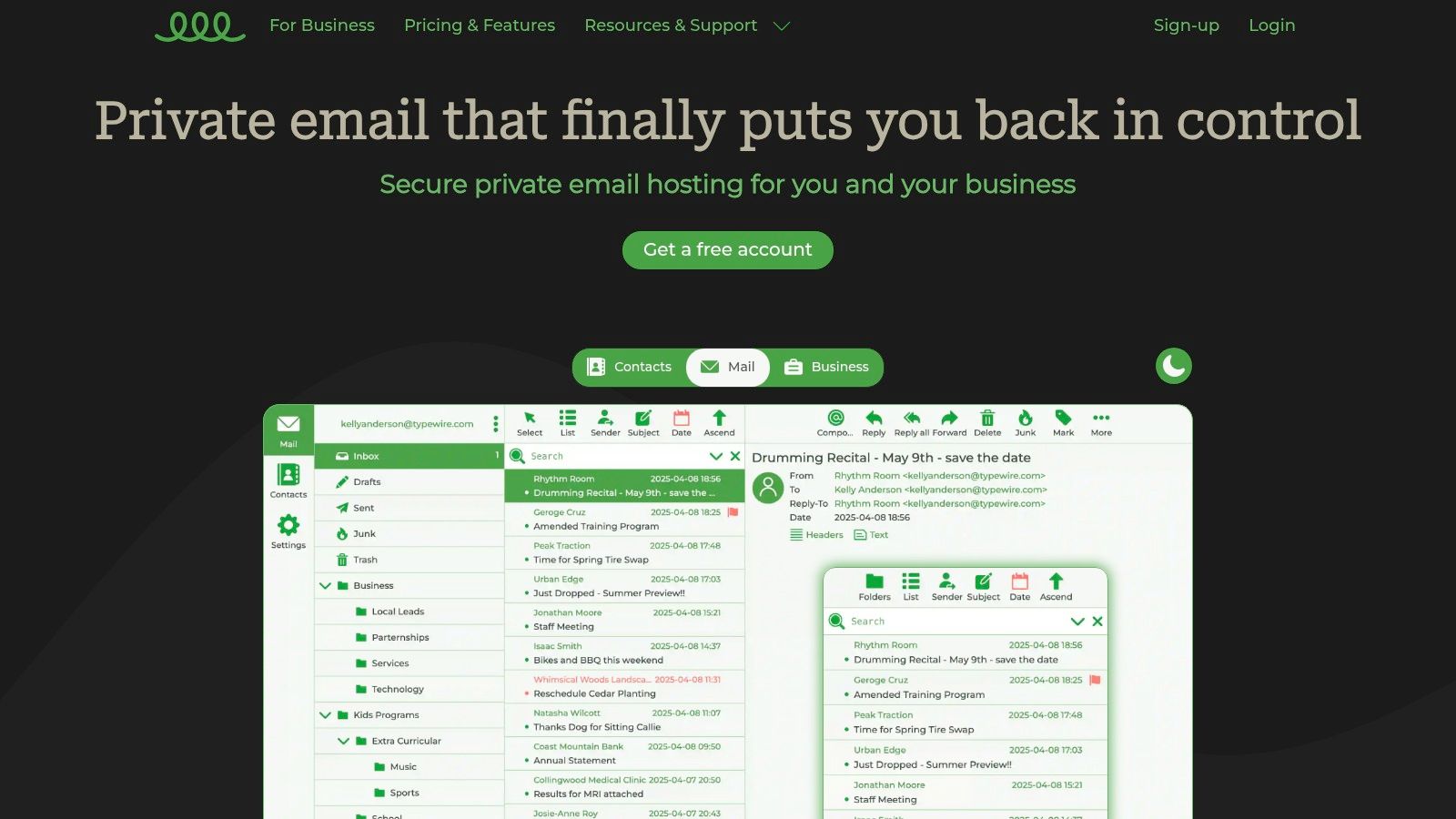
Typewire stands out as a formidable contender for those seeking robust, privacy-first email alternatives to Gmail. Designed for both individuals and businesses, it offers a secure, ad-free environment where user data is the priority, not the product. The platform’s core philosophy is built on zero data mining and complete user control, making it an excellent choice for anyone looking to reclaim their digital privacy.
Its infrastructure is a key differentiator. By operating on privately-owned data centers in Vancouver, Canada, Typewire sidesteps the privacy ambiguities associated with major third-party cloud services. This provides a level of data sovereignty and security that is increasingly rare in the email landscape.
Core Features & User Experience
Typewire’s user interface is clean, fast, and intuitive, clearly designed by power users for efficiency. It features a responsive web client with both light and dark modes, ensuring a comfortable viewing experience. The platform’s advanced anti-spam and virus protection is another highlight, using continuously evolving algorithms to keep your inbox clean and secure.
Expert Insight: The migration process from Gmail or Outlook is notably straightforward. Testimonials frequently praise the platform's speed and the refreshing absence of advertisements, which significantly enhances the daily user experience.
Pricing and Plans
Typewire offers a flexible pricing model designed to scale with your needs, from individual users to growing teams.
- Free Plan: A great entry point for individuals to test the core service.
- Basic & Premium Plans: These paid tiers unlock more storage, support for custom domains, and team management tools, making it a viable solution for small to medium-sized businesses.
A 7-day free trial on premium features allows you to fully evaluate the service without commitment.
| Pros | Cons |
|---|---|
| Complete Privacy: No ads, tracking, or data mining. | Limited Brand Recognition: Less known than major providers. |
| Data Sovereignty: Hosted on private Canadian servers. | No Dedicated Mobile App: Relies on web interface or third-party IMAP clients. |
| Advanced Security: Powerful, adaptive anti-spam/virus filters. | |
| User-Friendly: Fast, modern interface with useful modes. | |
| Flexible: Supports custom domains and team accounts. |
Best for: Privacy-conscious individuals, remote teams, and small to medium businesses needing a secure, professional email solution without the surveillance of Big Tech.
Website: https://typewire.com
2. Proton Mail
Based in Switzerland, a country known for its strong privacy laws, Proton Mail is one of the most prominent and trusted email alternatives to Gmail. Its core strength lies in its zero-access, end-to-end encryption, which means not even Proton can read your emails. This makes it an ideal choice for privacy-conscious individuals, journalists, and businesses handling sensitive information.
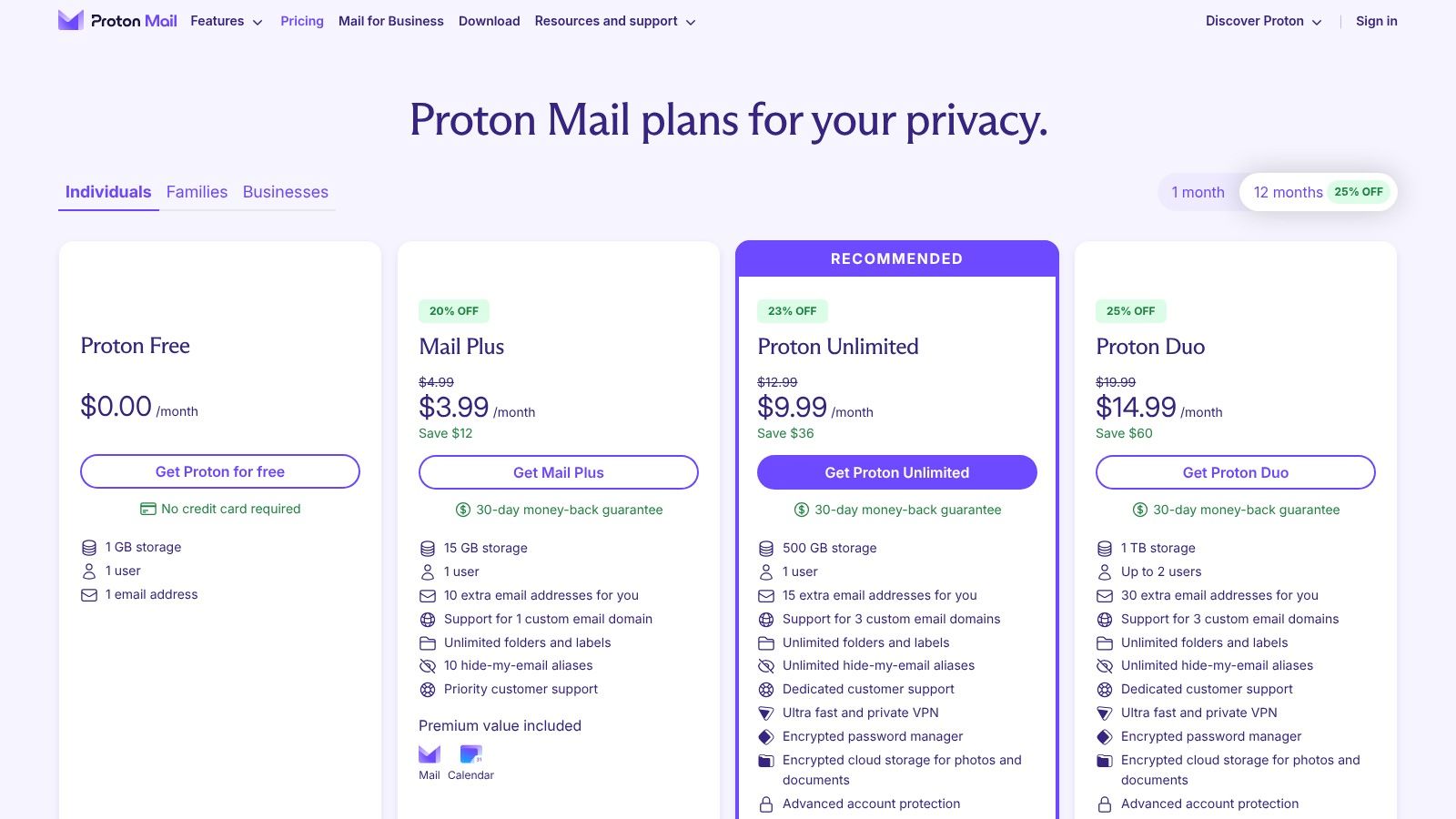
Proton's ecosystem extends beyond just email, offering a bundled suite with a VPN, cloud storage, password manager, and calendar. This integrated approach provides a comprehensive digital privacy solution under one roof. The user interface is clean and modern, ensuring a smooth transition for those coming from mainstream providers. A robust free plan offers a great entry point, while paid tiers unlock powerful features like custom domains and increased storage.
Key Features & Considerations
- Encryption: Automatic end-to-end encryption for emails between Proton users. You can also send password-protected, self-destructing emails to non-Proton users.
- IMAP/SMTP Access: The Proton Mail Bridge app is required to use the service with third-party desktop email clients like Thunderbird or Outlook, which adds an extra setup step.
- Pricing: A generous free plan is available. Paid plans start at around €3.99/month, offering more storage, custom domains, and access to the full ecosystem. Learn more about Proton Mail and other top privacy options on Typewire.
- Website: Proton Mail
3. Microsoft Outlook
For users deeply integrated into the Windows ecosystem, Microsoft Outlook presents itself as a natural and powerful email alternative to Gmail. Its tight integration with the Microsoft 365 suite, including OneDrive cloud storage and Office applications like Word and Excel, creates a cohesive productivity hub. This seamless connection makes it a top choice for professionals and individuals who rely on Microsoft's tools for their daily workflow.
Outlook offers a familiar interface for anyone who has used Microsoft products, ensuring a minimal learning curve. The free version provides a solid email and calendar service, while the paid Microsoft 365 subscription elevates the experience with an ad-free inbox, a much larger mailbox, and advanced security features. The platform’s robust import tools also simplify the migration process, a crucial consideration for those moving from another provider.
Key Features & Considerations
- Ecosystem Integration: Unmatched connectivity with OneDrive, Teams, and the full suite of Office applications, turning your inbox into a central command for productivity tasks.
- Migration Tools: Microsoft provides excellent, user-friendly tools for importing mail, contacts, and calendars from other services, which simplifies the transition. Discover how to smoothly switch email providers with our comprehensive migration guide.
- Pricing: A functional free version is available with ads and a 15 GB mailbox. Microsoft 365 plans start around $19.99/year for a single user, removing ads and boosting storage.
- Website: Microsoft Outlook
4. Yahoo Mail / Yahoo Mail Plus
For users deeply embedded in the Yahoo ecosystem or seeking a familiar interface, Yahoo Mail presents itself as a straightforward email alternative to Gmail. While its free version is ad-supported, the service stands out with its Yahoo Mail Plus subscription, which offers a clean, ad-free inbox and unlocks several practical features. This makes it a viable option for those who want a simple upgrade path without migrating to a completely new platform.
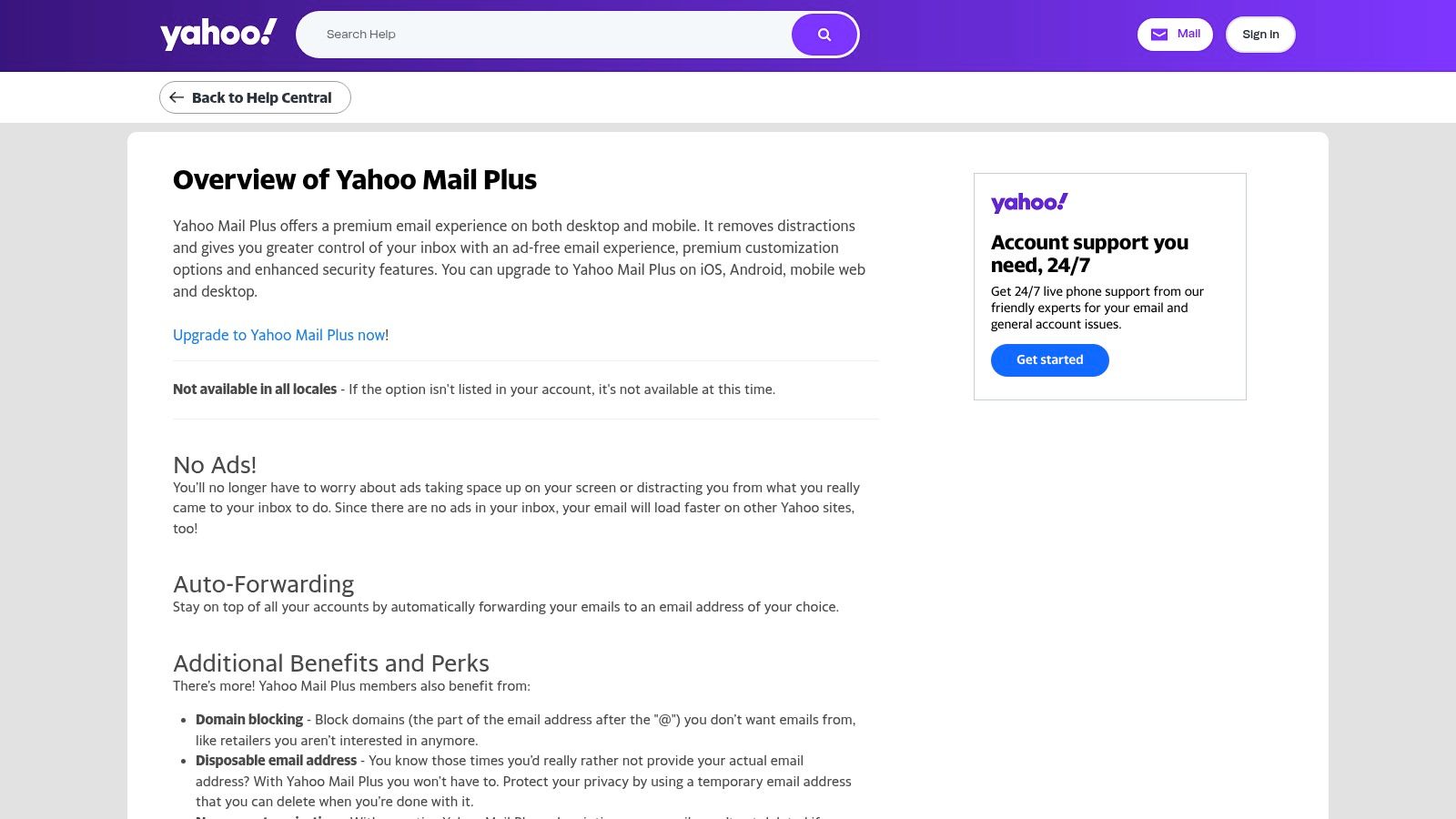
The primary appeal of Yahoo Mail Plus lies in its convenience features rather than advanced privacy. Subscribers gain access to automatic email forwarding, disposable email addresses for enhanced privacy on sign-up forms, and the ability to block entire domains to combat spam. With generous storage and priority customer support, it caters to users who value a clutter-free experience and direct assistance over the complex encryption suites of other providers.
Key Features & Considerations
- Ad-Free Experience: The Plus subscription removes all ads from your inbox, providing a cleaner and faster interface. Note that ads may still appear on other Yahoo properties.
- Enhanced Mail Management: Features like automatic forwarding to another account, domain blocking, and disposable addresses offer greater control over your inbox and digital footprint.
- Pricing: Yahoo Mail Plus is a subscription-based service, typically billed monthly. The plan provides a simple way for existing users to enhance their email experience.
- Website: Yahoo Mail Plus
5. Zoho Mail
Zoho Mail stands out as a powerful, ad-free email alternative to Gmail, particularly for businesses and professionals who need an affordable, full-featured productivity suite. Unlike providers focused solely on encryption, Zoho's strength is its deep integration with a vast ecosystem of business apps, including CRM, document management, and project tools. This makes it a comprehensive hub for professional communication and operations.
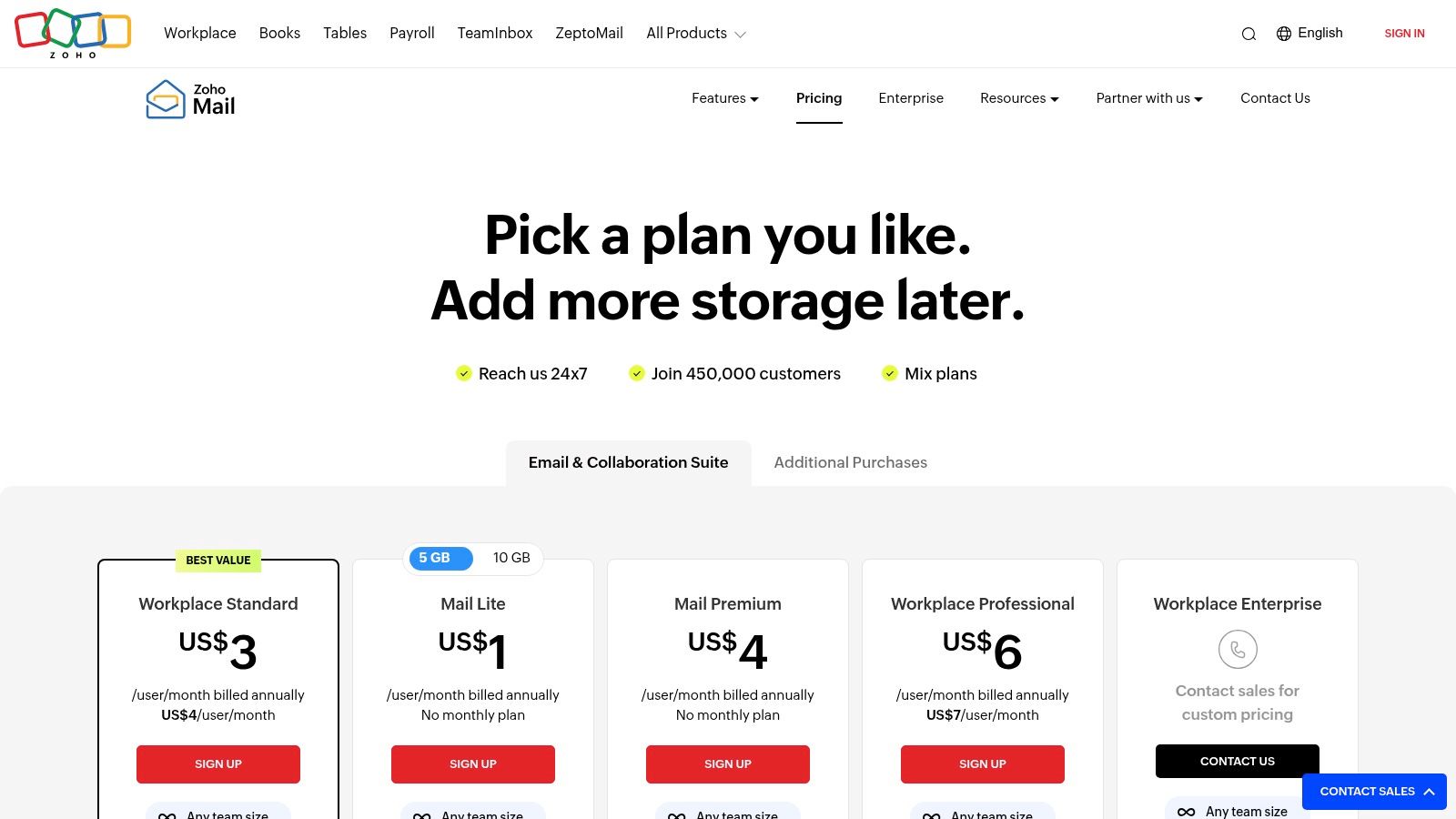
The platform is renowned for its robust admin panel, offering granular control over security policies, compliance, and user management. For organizations, this means seamless migration from other services and the ability to mix and match different plans for different users, optimizing costs. Its clean interface, combined with powerful features like S/MIME encryption and a 99.9% uptime guarantee, provides reliability and security without a steep learning curve or high price tag.
Key Features & Considerations
- Custom Domains: Excellent support for custom domains is a core feature, making it a top choice for businesses wanting a professional email address. Setting one up is straightforward. Learn how to set up a custom email domain with services like Zoho Mail.
- Admin & Migration Tools: Offers mature and extensive control panels for administrators, along with tools to easily migrate mailboxes, contacts, and calendars from other providers.
- Pricing: A limited free-forever plan is available. Paid business plans are highly competitive, starting at just $1/user/month (billed annually), making it one of the most budget-friendly options.
- Website: Zoho Mail
6. Fastmail
For users who prioritize speed, reliability, and a clean interface over complex encryption, Fastmail stands out as a premium email alternative to Gmail. It's an independent, paid-only service that has built its reputation on performance and user-centric features rather than a freemium model. Its business model is straightforward: you pay for an excellent, ad-free email experience, which ensures your data is never monetized or scanned for marketing purposes.
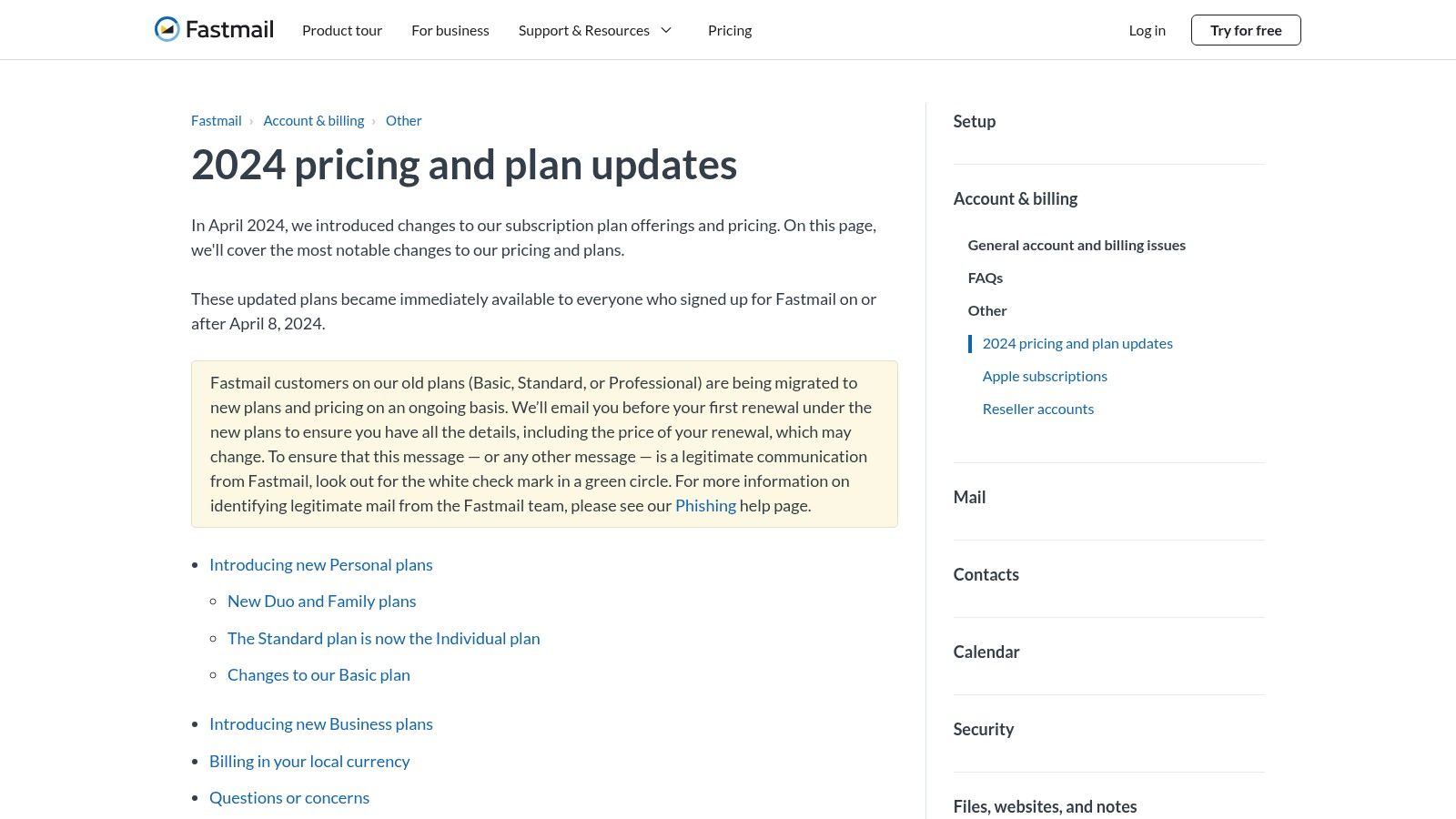
Fastmail excels in the fundamentals, offering incredibly fast search, robust calendar and contact syncing, and best-in-class support for industry standards like IMAP and JMAP. This makes it a workhorse for professionals and anyone who relies heavily on email for daily productivity. Its powerful alias and masked email features provide an effective layer of privacy and spam control, allowing you to manage your digital identity without the complexity of end-to-end encryption.
Key Features & Considerations
- Speed and Reliability: The platform is renowned for its fast web interface and near-instantaneous search capabilities across your entire mailbox.
- Custom Domains & Aliases: Exceptionally easy to set up and manage custom domains. It also supports masked emails via a partnership with 1Password, letting you create unique addresses on the fly.
- No Free Plan: Fastmail is a premium service and does not offer a free tier beyond its 30-day trial. Plans start at $3/month for the Basic tier.
- Website: Fastmail
7. Tuta (formerly Tutanota)
Operating from Germany, a country with strong data protection regulations, Tuta stands out as a formidable email alternative to Gmail for those prioritizing security and privacy above all else. It is renowned for its commitment to open-source principles and its pioneering use of post-quantum cryptography, ensuring your data remains secure against future threats. Tuta encrypts not just your emails but also your entire mailbox, including contacts and calendars.
Unlike services that require a bridge for desktop use, Tuta provides dedicated, open-source clients for Windows, macOS, and Linux, ensuring a seamless and secure experience across all platforms. This focus on first-party applications enhances security and simplifies the user experience, making it a great choice for individuals and businesses seeking a cohesive, encrypted communication suite. Its strict no-logging policy and anonymous sign-up process further cement its position as a top-tier privacy tool.
Key Features & Considerations
- Comprehensive Encryption: Automatic end-to-end encryption for the entire mailbox, including the subject line, address book, and calendar. Tuta also allows for sending encrypted emails to non-users via a shared password.
- Native Desktop Clients: Offers dedicated apps for all major desktop and mobile operating systems, eliminating the need for third-party bridges like IMAP/SMTP, which enhances security and usability.
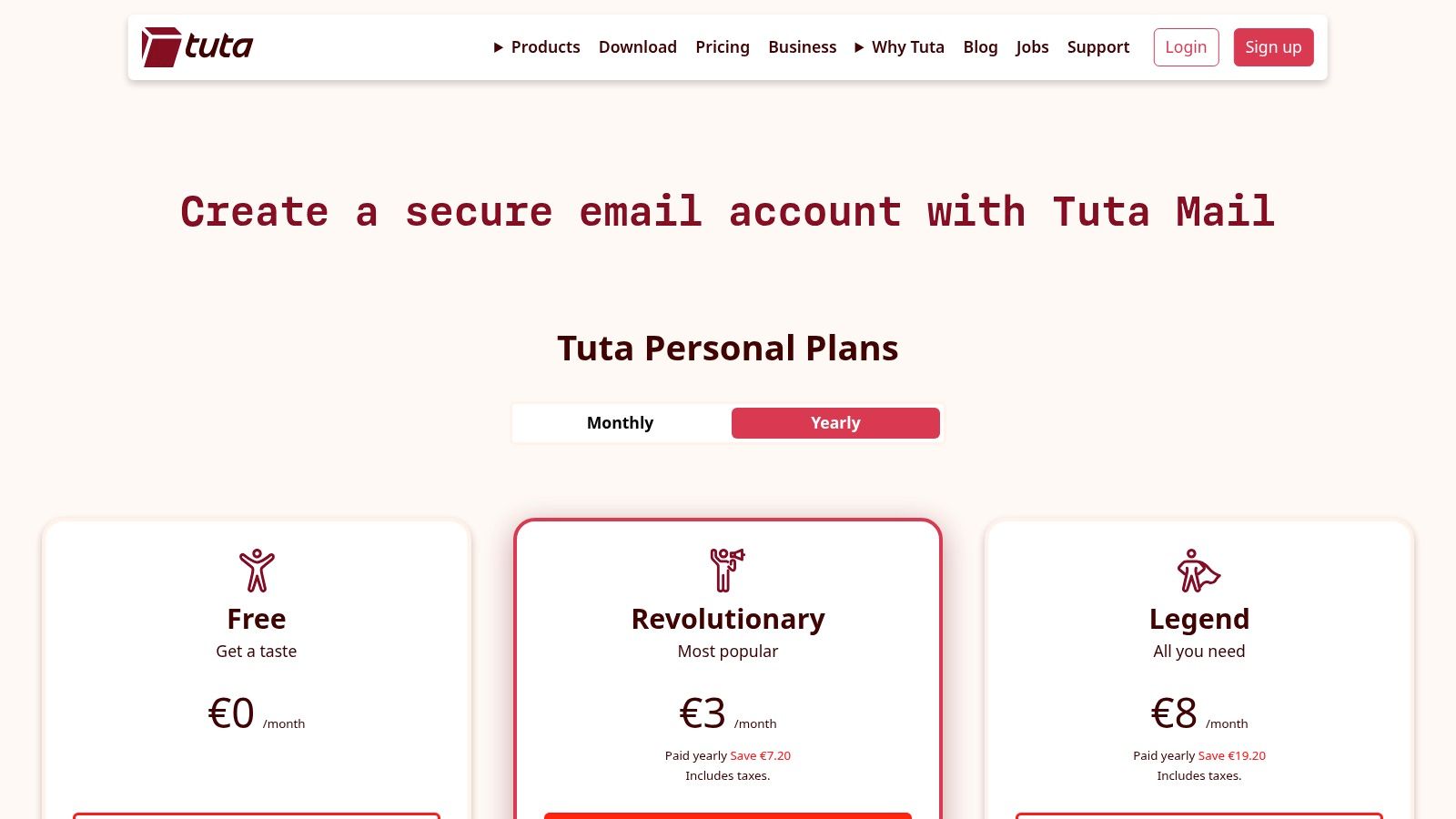
- Pricing: A free plan is available for personal use, though it has stricter inactivity rules. Paid plans are very affordable, starting at around €3/month, and unlock features like custom domains, aliases, and offline support.
- Website: Tuta
8. StartMail
Developed by the same team behind the private search engine Startpage, StartMail is a robust, paid email alternative to Gmail that prioritizes user control and privacy. Based in the Netherlands, it operates under strong EU data protection laws, including GDPR. Its standout feature is an incredibly flexible and unlimited email aliasing system, which allows you to create unique email addresses for every service you sign up for, effectively compartmentalizing your digital life and stopping spam at its source.
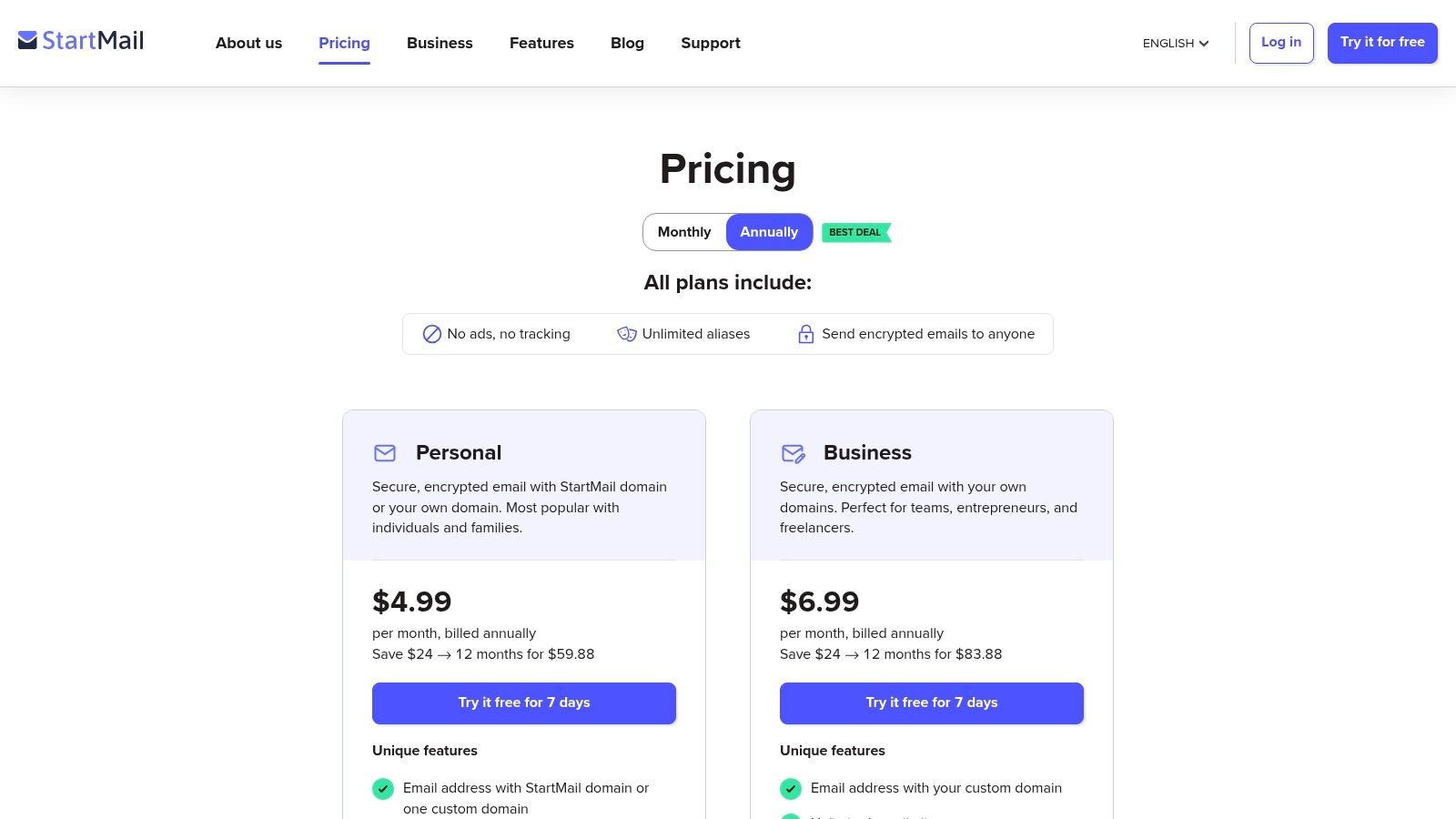
StartMail offers a straightforward, no-frills user experience focused entirely on secure communication. It integrates PGP encryption to make sending secure messages simple, even to non-users via password-protected emails. The service is entirely ad-free and does not track or scan your emails. For those who value anonymity, StartMail supports payment with Bitcoin. While it lacks a permanent free plan, its 7-day trial provides a solid opportunity to test its powerful privacy toolkit.
Key Features & Considerations
- Aliasing: Create unlimited, disposable email aliases on the fly. This is a game-changer for controlling spam and protecting your primary address from data breaches.
- Encryption: One-click PGP encryption is built-in, simplifying a traditionally complex process. You can also send password-protected emails to any recipient, regardless of their email provider.
- Pricing: A 7-day free trial is available. Paid plans start at $5.00/month (billed annually) for 20 GB of storage and support for custom domains.
- Website: StartMail
9. HEY by 37signals
HEY by 37signals offers a radical reimagining of email, not just as a tool but as a workflow. It's a highly opinionated email alternative to Gmail designed to combat inbox overload through a unique organizational system. Instead of a single inbox, HEY sorts messages into three distinct areas: the "Imbox" for important, immediate conversations; "The Feed" for newsletters and marketing; and "The Paper Trail" for receipts and transactional emails. This approach forces a mindful engagement with your email.
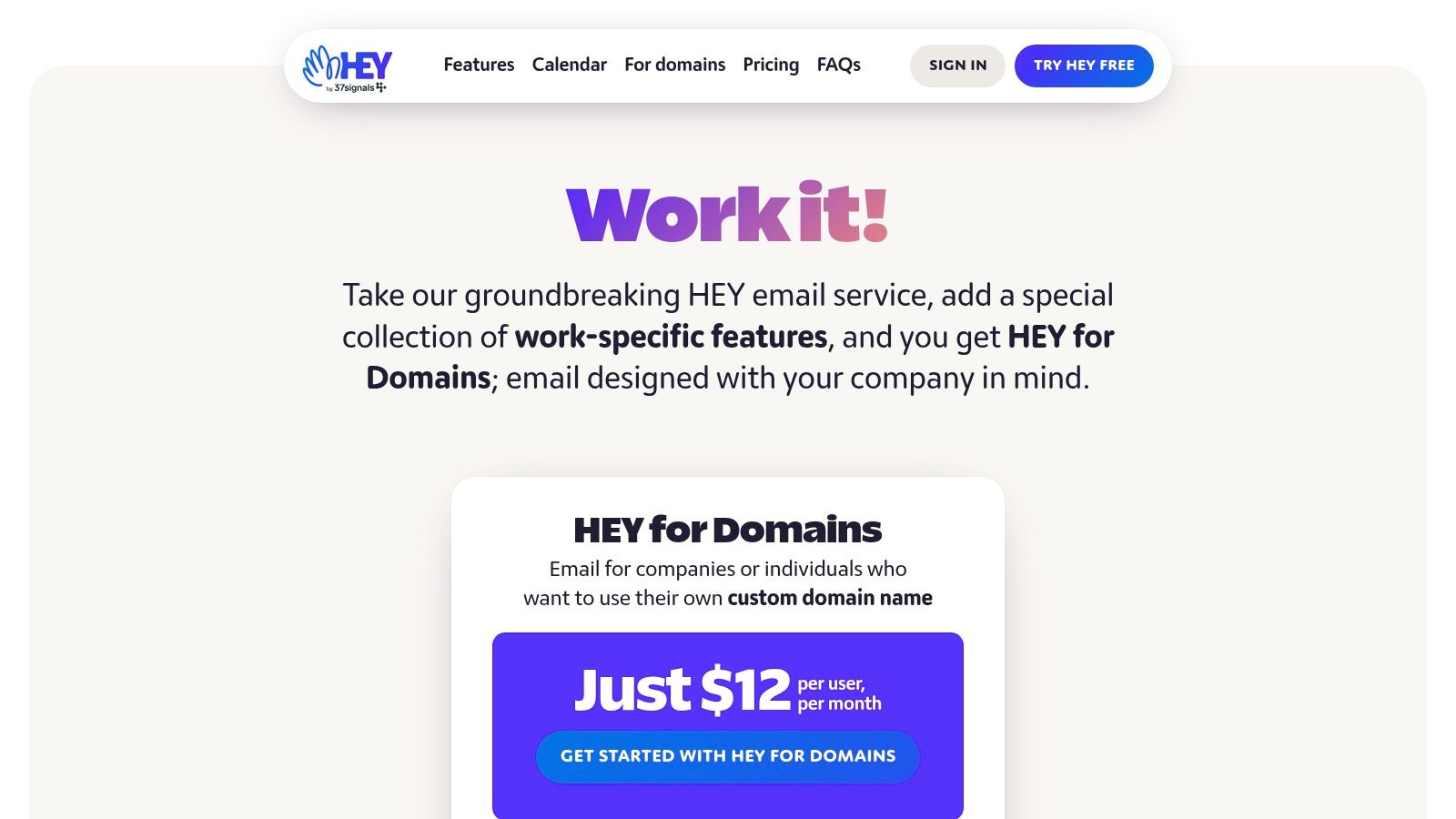
This platform is best for users who feel overwhelmed by traditional inboxes and are willing to adapt to a new, structured method of communication. Its standout feature is "The Screener," which requires you to approve or deny new senders before they ever reach your Imbox, effectively stopping spam and unsolicited mail in its tracks. Strong built-in spy pixel blocking further enhances user privacy, making it a solid choice for those looking to reclaim control over their digital correspondence.
Key Features & Considerations
- Workflow Model: The Imbox, Feed, and Paper Trail system is non-negotiable. This opinionated design is its greatest strength for some and a deal-breaker for others.
- Privacy First: HEY automatically blocks tracking pixels and doesn't mine your data for ads. The Screener gives you ultimate control over who can email you.
- Implementation: HEY for Domains (their business product) requires a fresh start; you cannot import your old emails. This is a deliberate choice to encourage a clean slate.
- Pricing: Personal plans are a flat $99/year. Business plans ("HEY for Domains") start at $12/user/month and include shared threads and private team comments.
- Website: HEY for Domains
10. GMX Mail
GMX Mail positions itself as a strong, free email alternative to Gmail by focusing on generous limits for storage and attachments. It’s a practical choice for users who need significant space for their inbox and the ability to send large files without hitting restrictive caps. While it is an ad-supported service, it bundles several useful features like online office tools and cloud storage, making it a versatile option for personal use.
GMX provides a straightforward, no-cost email solution with a user-friendly interface that feels familiar to those coming from other major webmail providers. The inclusion of up to 10 alias addresses on the free plan is a standout feature, allowing users to easily manage different aspects of their digital life from a single account. Security is bolstered by robust spam filters and optional two-factor authentication.
Key Features & Considerations
- Generous Limits: Offers up to 65 GB of email storage and a 50 MB attachment size limit, which is significantly more than many free competitors.
- Optional Encryption: Supports PGP encryption for secure messaging, but unlike privacy-first services, this requires manual setup by the user.
- Free Suite: The free account includes 2 GB of GMX Cloud storage and access to an online office suite for documents and spreadsheets, adding extra value.
- Website: GMX Mail
11. Posteo
Based in Germany and operating since 2009, Posteo is an independent, ad-free email service that places a huge emphasis on privacy, sustainability, and transparency. As one of the most affordable email alternatives to Gmail, it's powered entirely by green energy and allows for completely anonymous sign-up and payment, including sending cash by mail. This strong ethical stance, combined with robust security features, makes it a compelling choice for users who prioritize privacy and social responsibility.
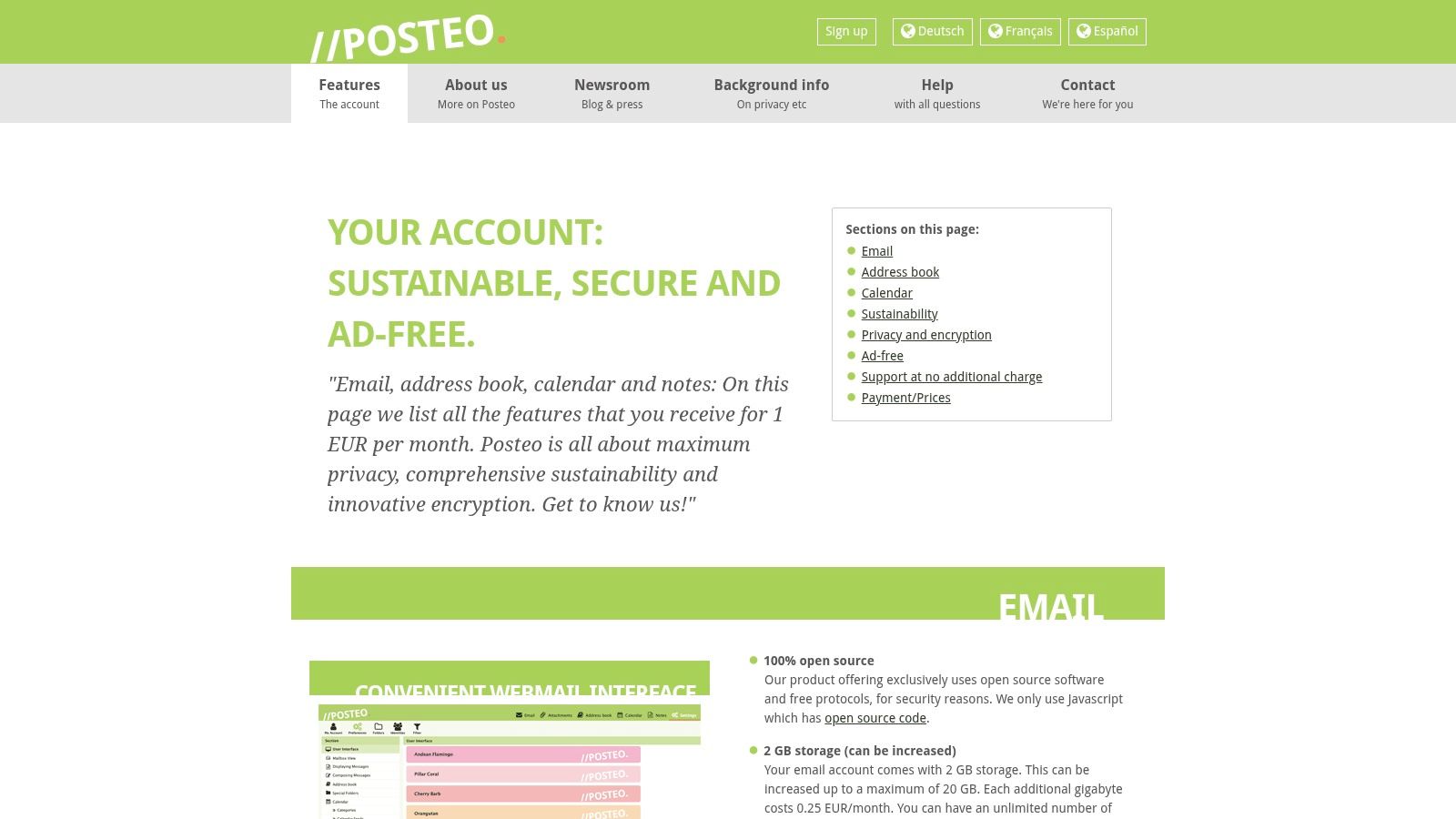
Posteo's model is simple: you pay a very low base fee and can add features like extra storage or aliases as needed, ensuring you only pay for what you use. The service offers comprehensive encryption for data in transit and at rest, and it fully supports open standards like IMAP and POP3, allowing seamless integration with third-party email clients. The payment system is prepaid, so your account is not directly linked to ongoing subscriptions, further enhancing user anonymity.
Key Features & Considerations
- Privacy & Anonymity: No personal data is required for sign-up, and payments are separated from your email account. They strip IP addresses from emails and do not keep connection logs.
- Sustainability: Posteo runs on 100% renewable energy from Greenpeace Energy and is committed to sustainable business practices.
- Pricing: There is no free tier. The service costs just €1 per month, paid via a prepaid credit system. Add-ons like extra storage (1GB for €0.25/month) or aliases are available for small fees.
- Website: Posteo
12. Mailfence
Operating from Belgium, another country with strong data protection laws (including GDPR), Mailfence positions itself as a secure and private suite of tools, making it a compelling email alternative to Gmail for both individuals and businesses. It offers an integrated solution that goes beyond just email, incorporating calendars, document storage, and contact management into a single, cohesive platform. Its foundation is built on OpenPGP-based end-to-end encryption, giving users direct control over their privacy without complex configurations.
What sets Mailfence apart is its strong focus on business-oriented features, even at accessible price points. Paid plans include robust admin controls, custom domain support with modern authentication standards like DKIM and DMARC, and full protocol access (IMAP/POP/SMTP and ActiveSync). This makes it an excellent choice for organizations and professionals needing a secure communication hub with collaboration tools. While its free plan is limited, the paid tiers provide a powerful, all-in-one privacy-focused workspace.
Key Features & Considerations
- Encryption: Integrated, browser-based OpenPGP encryption for emails and documents, allowing secure communication with other OpenPGP users. Password-protected messages are also available.
- IMAP/SMTP Access: Full support for standard protocols like POP, IMAP, SMTP, and Exchange ActiveSync is included in all paid plans, enabling seamless integration with third-party clients like Outlook or mobile devices.
- Pricing: A limited free plan is offered. Paid plans start from €3.50/month (billed semi-annually or annually) and unlock custom domains, increased storage, and full protocol access.
- Website: Mailfence
Email Alternatives: Feature & Privacy Comparison
| Email Service | Core Features & Security ✨ | User Experience & Quality ★★★★☆ | Value & Pricing 💰 | Target Audience 👥 | Unique Selling Points 🏆✨ |
|---|---|---|---|---|---|
| Typewire 🏆 | Ad-free, no tracking, zero data mining; Canadian-owned data centers | Fast, responsive web UI with light/dark modes | Free, Basic & Premium; transparent pricing; 7-day trial | Privacy-conscious individuals & SMBs | Full data control; advanced spam/virus filters; 24/7 support |
| Proton Mail | End-to-end encryption; zero-access architecture | Robust multi-platform apps; Bridge for IMAP | Free tier + paid plans; bundles with VPN, Drive | Privacy-focused users & businesses | Strong Swiss privacy; broad ecosystem |
| Microsoft Outlook | Free email + calendar; MS365 adds storage & Office apps | Familiar UI; integrated Office tools | Free + Microsoft 365 subscription | Windows/Office users; personal & business | Best integration with Microsoft ecosystem |
| Yahoo Mail / Plus | Ad-free with Plus; forwarding, domain blocking | Simple interface; priority support for Plus users | Monthly billed Plus subscription | Existing Yahoo users | Easy upgrade path; large storage |
| Zoho Mail | Custom domains; S/MIME encryption; productivity suite integration | Web & mobile apps; 99.9% uptime SLA | Budget-friendly tiers; flexible plans | Small to medium businesses; budget users | Integrated with Zoho apps; mature admin controls |
| Fastmail | Custom domains, aliases; IMAP & JMAP support | Fast search & reliable apps | Paid plans only; no free tier | Users valuing speed & privacy | Clear privacy policy; strong domain management |
| Tuta (Tutanota) | End-to-end encryption; post-quantum hybrid cryptography | Cross-platform desktop/mobile clients | Simple pricing; free with limits | Privacy advocates; open-source fans | Strong encryption; offline mode; open-source clients |
| StartMail | Unlimited aliases; PGP encryption | No ads, password-protected emails | Paid plans only; 7-day trial | Privacy-focused individuals | Bitcoin payment option; Netherlands-based servers |
| HEY by 37signals | Tracker blocking; unique inbox workflows | Native apps; team sharing/comments | Flat pricing; personal & domain business plans | Users seeking innovative email workflows | Distinct workflow; private team collaboration |
| GMX Mail | Large storage; optional PGP & 2FA | Basic apps; ad-supported | Free | Users wanting free service with large storage | Generous free limits; includes cloud & office |
| Posteo | Privacy-first; anonymous sign-up; green energy powered | Simple, no-frills interface | €1/month + add-ons | Privacy & sustainability-conscious users | Anonymous payments; focus on green energy |
| Mailfence | Encrypted mail, docs, calendar; OpenPGP | Apps & PWA; admin controls on paid tiers | Free limited; paid annually/semi-annually | Business & personal users seeking suite integration | All-in-one suite; nonprofit discounts |
Making the Switch: Your Final Checklist for Choosing an Email Provider
Navigating the landscape of email alternatives to Gmail can feel overwhelming, but making an informed choice is a powerful step toward reclaiming your digital privacy and productivity. We've explored a dozen distinct services, from the encryption-fortified walls of Proton Mail and Tuta to the feature-rich, professional ecosystems of Fastmail and Zoho Mail. Each platform represents a different philosophy on what email should be, whether it's a bastion of privacy, a hub for business collaboration, or a minimalist tool for focused communication.
The journey away from a data-hungry behemoth like Gmail isn't just about finding a new inbox; it's about aligning your communication tools with your personal or professional values. The "best" alternative is entirely subjective and depends on your unique needs. By now, you should have a clearer picture of which features matter most to you.
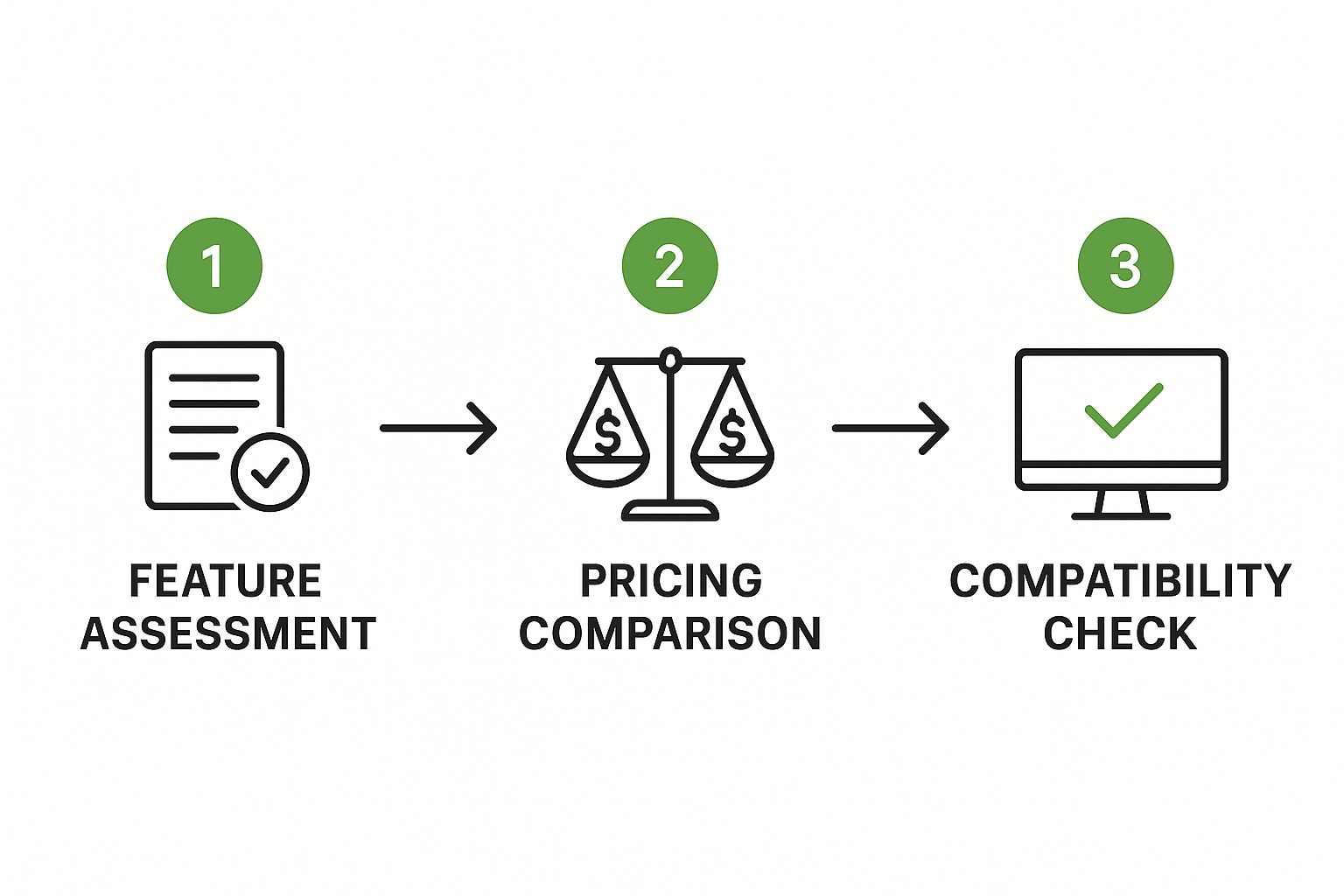
Your Decision-Making Checklist
Before you commit, run through this final checklist to solidify your choice. A few minutes of strategic thinking now can save you from a cumbersome migration process later.
- 1. What is my primary motivation? Is it privacy above all else? If so, prioritize services with end-to-end encryption and zero-access architecture like Proton Mail, Tuta, or StartMail. Is it professionalism and custom domains? Then Zoho Mail, Typewire, or Fastmail are excellent starting points.
- 2. What is my budget? Your financial commitment will narrow the field significantly. Free services like GMX or the basic tiers of Proton Mail and Zoho are great for personal use, but paid plans are essential for custom domains, increased storage, and business features.
- 3. What integrations do I need? Consider your workflow. Do you rely on a calendar and contacts that sync seamlessly? Services like Microsoft Outlook, Zoho Mail, and Mailfence offer integrated suites that rival Google's ecosystem. If you prefer a more focused, standalone email client, HEY or Posteo might be a better fit.
- 4. How important is data sovereignty? For users and businesses concerned about where their data is stored, understanding a provider's jurisdiction is crucial. European-based services like Typewire (Germany), Proton Mail (Switzerland), and Tuta (Germany) operate under strong privacy laws like the GDPR.
Taking the Leap and Mastering Your New Inbox
Once you've selected a provider, the implementation is your next step. Most services offer simple import tools to transfer your old emails, contacts, and calendar events from Gmail. Take advantage of any free trials offered, like those from Typewire or Fastmail, to test the user interface and core features before fully committing.
Finally, a new email platform is only half the battle. To truly leverage your new email alternative, mastering professional email writing tips will empower you to communicate more effectively and make a strong impression. Choosing a secure, private email is the foundation; building strong communication habits is how you construct a professional reputation on top of it. Taking back control of your digital communications is an empowering and worthwhile endeavor.
Ready to experience an email service that respects your privacy and enhances your productivity? Typewire is built in Germany under strict privacy laws, offering a secure, ad-free, and professional email experience with custom domain support. Try Typewire today and take the first step towards a better inbox.