Category: Uncategorized

  • How to Send Large Video Files via Email Securely

    How to Send Large Video Files via Email Securely

    We've all been there: you have a crisp, high-quality video ready to go, but your email client throws up an error the moment you hit send. It’s a common frustration, but the fix isn't as simple as just finding a way around the size limit. The real challenge is navigating the serious privacy and security risks that come with moving large, sensitive files online.

    To send large video files securely and reliably, you really have three solid options. You can compress the video to make it smaller, use a link from a secure cloud service, or split the file into more manageable chunks. Each method helps you bypass the restrictive attachment size limits of most email providers while also tackling some serious, often overlooked, privacy concerns tied directly to your email platform.

    The Real Reason Your Email Can't Handle Large Videos Securely

    When an email with a big video file bounces back, it’s not just a technical glitch—it's a sign of a much deeper problem with email privacy and security. The most immediate roadblock is, of course, the file size, but the real issue lies in how standard email platforms handle your data and the digital breadcrumbs you leave behind.

    It’s easy to forget just how big video files are. A single minute of standard 1080p video can easily take up 100 to 200MB. When you realise that most email services cap attachments at a tiny 25MB, you see why sending a high-quality video directly is a non-starter. This limitation forces everyone to look for workarounds, and that's exactly where the security risks start to creep in, often driven by the very email service you use.

    Attachment Size Limits on Popular Email Platforms

    To put it in perspective, here’s a quick look at the hard limits you're up against with some of the most common email providers.

    Email Provider Maximum Attachment Size
    Gmail 25MB
    Outlook/Hotmail 20MB
    Yahoo! Mail 25MB
    Proton Mail 25MB
    AOL Mail 25MB

    As you can see, none of these are remotely suitable for sending even a short, high-resolution video. This forces users into third-party services, which have their own set of privacy trade-offs. You can learn more about how these limits impact your data in our full guide exploring the maximum size of email attachments and what it means for your privacy.

    The Hidden Costs of "Free" File Sharing

    So, what do most people do? They turn to free, ad-supported file-sharing sites or the default cloud storage that comes with their email account. It’s convenient, sure, but these platforms often have privacy policies that give them permission to scan your files for targeted advertising and data analysis. Your hosted email provider is often the gateway to these services, and their business model is built on this data collection.

    Think about what you're sharing. Whether it's a confidential business strategy, a client's unreleased project, or a private family video, that content is now a commodity. This level of intrusion is a deal-breaker for anything remotely sensitive.

    The real problem isn't just the file size. It's that the most common solutions for large files—often tied to your "free" email service—were never built with user privacy as their top priority. They were designed for convenience and data collection, which are almost always at odds with genuine security.

    How Your Email Platform Itself Affects Security

    The security of your email service is the foundation of the entire process. If you’re using a free, ad-based provider, your digital life is already an open book. They monitor who you talk to and the context of your messages. Sending a link to a sensitive video, even if the file is stored somewhere else, still leaves a digital footprint in that insecure environment, which can be monitored, aggregated, and sold.

    It’s worth thinking about these built-in privacy challenges of mainstream hosted email platforms:

    • Third-Party Tracking: Many free email services embed trackers and spy pixels that report back on when and where you open messages, creating a log of your activity.
    • Data Mining: The words you write in your email—even the simple message accompanying a video link—can be scanned and used to build a detailed marketing profile on you and your contacts.
    • Lack of Encryption: If your email provider doesn't enforce end-to-end encryption for message content, the message containing your video link could be intercepted and read by third parties.
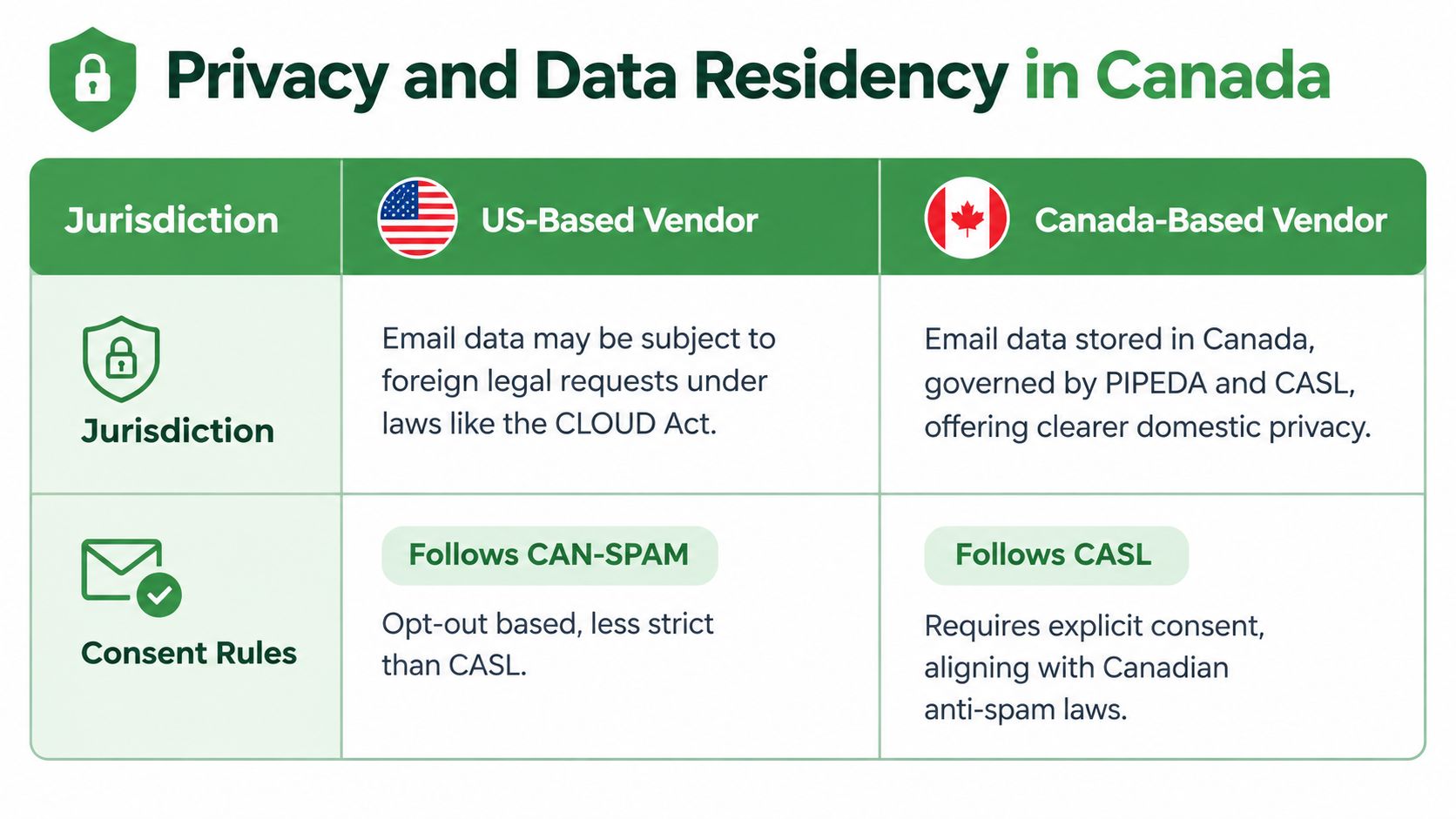
    • Data Residency: Where your data is physically stored is critical. Hosted email platforms that store data in jurisdictions with weak privacy laws or government surveillance programs cannot offer you meaningful protection.

    This is why a truly private email platform like Typewire is so important. By blocking trackers, refusing to mine data, and ensuring your communications are encrypted and hosted on private infrastructure in a country with strong privacy laws like Canada, it creates a secure foundation for everything you send and receive.

    Compressing Videos Without Losing Professional Quality

    We’ve all been there. You have a video file that’s just a bit too big for a standard email, and you'd rather send it as a direct attachment than mess around with cloud links. Compression seems like the obvious answer, but it's a double-edged sword.

    The real challenge isn't just making the file smaller. It’s about shrinking it without destroying the professional quality you poured so much effort into.

    Picture this: you've just wrapped up a powerful 150MB client testimonial video. It’s sharp, it’s persuasive, and it’s ready for your manager's final sign-off before a major campaign. But you’re up against a 25MB email limit, meaning you have to slash the file size by over 80%. One wrong move, and your crisp video turns into a pixelated, blurry mess. This is where smart, careful compression isn't just a technical task—it's a critical skill.

    Essentially, you're making a calculated trade-off between file size and visual clarity. The trick is knowing which technical levers to pull to strike the right balance.

    A laptop on a wooden desk displaying video compression software with a green coffee mug beside it.

    The Key Factors in Smart Compression

    To shrink a video without it looking terrible, you need to get familiar with three core settings: the codec, resolution, and bitrate. Getting this trio right is the secret to sending large videos as attachments when you absolutely have to.

    • Codec: This is the technology that does the heavy lifting of encoding and decoding your video. For years, H.264 has been the gold standard; it offers great compression and works everywhere. Its newer cousin, H.265 (HEVC), is even more efficient—offering up to 50% smaller files at the same quality—but isn't as universally supported yet. When you’re sending a video by email, H.264 is your safest bet for compatibility.

    • Resolution: This is simply the video's dimensions, like 1920×1080 (1080p). Dropping the resolution from 1080p down to 720p will make a massive difference in file size. Honestly, if you know the recipient will likely be watching on a phone or laptop screen, it’s a change they probably won’t even notice.

    • Bitrate: This setting controls how much data is used to encode each second of video. A lower bitrate means a smaller file, but it’s also where quality loss can become obvious, especially with blocky artifacts in fast-moving scenes. This is where you have the most fine-grained control, but also the most risk.

    A Real-World Walkthrough with HandBrake

    Let’s go back to that 150MB client testimonial and shrink it down using HandBrake. It’s a fantastic free tool that does all the processing locally on your computer, so you never have to worry about your private files being uploaded to a third-party server, which is a major privacy advantage.

    After opening your 150MB file in HandBrake, you're going to skip the generic presets and make a few deliberate tweaks.

    First, head to the "Video" tab and check that the codec is set to H.264. This guarantees your recipient can open and play it without any trouble.

    Next, pop over to the "Dimensions" tab. Here, you can downscale the video from 1080p to 720p. For a testimonial that’s mostly a talking head, this is a no-brainer. The file size savings are huge, and the visual difference is minimal on most screens.

    Finally, the most important part: bitrate. Instead of leaving it on auto, select "Average Bitrate." For a 720p video, a good starting point is somewhere between 2,000 to 2,500 kbps. Run a quick test encode on a small clip and see what file size you get. Still too big? Nudge the bitrate down a little more and try again until you land just under that 25MB target.

    By taking a hands-on approach, you're not just blindly shrinking a file. You're re-engineering it to meet specific constraints while protecting its professional look. You’re making an informed decision to trade a little bit of resolution for a huge gain in deliverability.

    When Is Compression the Right Move?

    So, when should you reach for the compression toolkit? It’s the perfect fix for sending drafts, quick updates, or short clips for review, especially when a minor dip in visual fidelity is an acceptable trade-off.

    However, if you're delivering a final, master-quality file for broadcast or a detailed technical demo where every single pixel matters, compression is the wrong tool for the job. In those situations, any quality loss is a dealbreaker. You’ll want to use a secure cloud link to share the original, untouched file. For those who frequently create and share videos, exploring different Software for short-form video creation can be worthwhile, as many come with sophisticated export settings that give you more control over the final file size.

    Using Cloud Links That Actually Protect Your Privacy

    Grabbing a link from your cloud storage is easily the most popular way to send a large video. It's quick, easy, and completely bypasses those frustrating email attachment limits. But there's a trade-off for all that convenience, and it usually comes at the expense of your privacy—an issue that starts with your email provider.

    Think about the default cloud service that comes with your free email account, like Google Drive for Gmail. Their business models often don't prioritize your security. Many services grant themselves permission to scan your files—not with human eyes, but with automated systems looking for data to fuel advertising, refine their products, or enforce content policies. When you send a link via your hosted email, you are creating a direct, trackable connection between your communication and your stored data.

    This becomes a real issue when the video you're sending is sensitive. Maybe it's a confidential corporate announcement, a video of a legal deposition, or even just a private family moment you don't want floating around. Using these mainstream services means you're implicitly trusting their data-handling practices, which are often built for data collection, not your privacy.

    The Difference Between Mainstream and Privacy-First Services

    The fundamental split between cloud platforms comes down to their philosophy. A true privacy-first service is built around a concept called zero-knowledge encryption. In simple terms, this means even the service provider can't see what's in your files. They have no key to unlock your data, so they can't scan or analyse your videos. You hold the only key.

    Let's break down what that looks like in practice:

    Feature Mainstream Cloud Services (e.g., Google Drive, Dropbox) Privacy-Focused Alternatives (e.g., Tresorit, Sync.com)
    File Scanning Often scan files for advertising, data analysis, and content policy enforcement. Typically do not scan user files due to end-to-end encryption.
    Encryption Model Files are encrypted on their servers, but the provider holds the keys. Employ end-to-end or zero-knowledge encryption, where only you hold the keys.
    Business Model Often supported by advertising and data collection from a free user base. Subscription-based, with revenue coming directly from users who value privacy.

    This isn't just a minor technical detail; it's everything. When you choose a privacy-focused service, you’re not just buying storage. You're paying for the guarantee that your data stays yours and yours alone. To make an informed choice, it helps to understand the principles behind cloud governance frameworks and controls.

    How to Configure Sharing Permissions for Real Security

    Just picking the right service isn't enough. How you share the link is just as critical, and it starts with the email you use to send it. Generating a public link and firing it off in a scanned, tracked email is like leaving a sensitive file on a public bench with a map pointing to it.

    Let's imagine a real-world scenario. You're a lawyer who needs to share video evidence with your client. That footage is incredibly sensitive, and any unauthorized leak could have severe consequences. A "public" link or "anyone with the link can view" setting is a complete non-starter. You need to lock it down tight.

    Here’s how you can create a truly secure sharing environment:

    • Always Use Password Protection: This is your first and most important line of defence. A strong, unique password ensures that even if the link gets forwarded or intercepted, the video remains unwatchable.
    • Set an Expiration Date: Does the recipient really need access to this video forever? Probably not. By setting an expiry date—whether it's 24 hours or seven days—you automatically revoke access after a certain time, dramatically shrinking the window of opportunity for a breach.
    • Disable Downloads When Possible: In many cases, especially for review-and-approval workflows, you don't want the recipient making their own copy. Many secure services let you create "view-only" links that prevent the video from being downloaded, copied, or redistributed.

    Key Takeaway: The whole point of secure sharing isn't just to get the file to the other person. It's to maintain absolute control over who can see it, what they can do with it, and for how long—long after you've clicked "send" from a secure email platform.

    Building these secure habits is crucial because the tools are only as secure as the process you create. You can dive deeper into building a rock-solid security workflow with our guide on how to encrypt and share files like a professional.

    Splitting Large Videos for High-Security Environments

    What do you do when your recipient is locked down in a high-security network? Think government agencies, secure research labs, or corporate partners with firewalls so strict they block every link from common cloud storage services. In these situations, simply compressing your video won't cut it, and cloud links are a complete non-starter.

    This is where a more old-school, technical method becomes your best friend: splitting the video file into smaller "chunks." It’s a process also known as creating a multi-part archive, and it lets you send one massive video as a series of smaller, numbered email attachments, each one flying safely under the size limit. The key benefit here is that the entire transfer happens within your email channel, bypassing third-party servers entirely.

    It’s a bit like taking apart a large piece of furniture to get it through a narrow doorway. You disassemble it, carry the pieces through one by one, and then reassemble it on the other side. This approach gives you direct control over the transfer, ensuring your video gets delivered without ever touching a third-party service.

    Why Splitting Is the Go-To for Secure Networks

    When cloud links are off the table, splitting a video file isn't just an option; it's often the only solution. It tackles the core problem—attachment size limits—without introducing the potential security flags that come with external platforms.

    Picture a scenario I've seen a few times: an engineer needs to send a 500 MB training simulation video to a secure government facility. The facility’s network, for very good reasons, blocks all incoming links from services like Google Drive or Dropbox.

    • The Problem: The engineer can't use a cloud link. And compressing a 500 MB high-resolution video down to 25 MB would render it a blurry, unusable mess.
    • The Solution: Using a file archiving tool, the engineer splits the 500 MB video into twenty individual 25 MB parts. They then send these chunks across a series of separate, encrypted emails from a private email account. On the other end, the recipient simply saves all the attachments and uses the same tool to automatically put them back together into the original, full-quality video.

    The entire transfer stays within the secure email channel, neatly sidestepping the network's restrictions.

    While the infographic below shows a fantastic workflow for secure cloud sharing, the splitting method is what you turn to when those steps just aren't possible.

    An infographic showing four steps to securely send large video files using privacy-focused cloud storage services.

    Think of splitting as the essential workaround for when your recipient's security policies make step one of that infographic—choosing a cloud service—impossible.

    How to Split and Reassemble a Large Video

    Creating a multi-part archive might sound daunting, but it’s surprisingly straightforward with free and trusted tools like 7-Zip for Windows or Keka for macOS.

    Here’s a quick walkthrough using 7-Zip as an example.

    On Your End: Splitting the File

    First, if you don't already have it, download and install 7-Zip. It's a lightweight and powerful tool.

    Once installed, find your large video file. Right-click it and navigate through the context menu to 7-Zip > Add to archive.... This opens up the main control panel.

    In the "Add to Archive" window, look for the option at the bottom left labelled "Split to volumes, bytes." This is the key. You'll want to enter a maximum size for each chunk. I always suggest 20M (for 20 megabytes). This gives you a nice buffer to stay well under the typical 25 MB email attachment limit.

    Click "OK," and 7-Zip will work its magic, creating a series of numbered files in the same folder (e.g., video.zip.001, video.zip.002, and so on). You’re now ready to attach each of these files to separate emails.

    Pro-Tip: Always let your recipient know how many parts to expect. A simple note like, "Sending the file in 20 parts. This is email 1 of 20," helps them keep track and ensures they have all the pieces for a successful reassembly. Sending this from a secure, private email ensures the instructions themselves aren't being tracked.

    For Your Recipient: Putting It Back Together

    You need to give your recipient clear, simple instructions. It’s their first time doing this, so don’t assume anything.

    • Step 1: Download All Parts. They must save every single numbered attachment into the same folder on their computer. It's critical that no pieces are missing.
    • Step 2: Find the First File. Have them locate the first file in the sequence, the one ending in .001.
    • Step 3: Extract and Rebuild. All they have to do is right-click that .001 file and choose 7-Zip > Extract Here. The software is smart enough to automatically find all the other parts in the folder and seamlessly merge them to recreate the original, full-sized video.

    Your Secure Workflow Needs a Private Email Foundation

    So, you’ve password-protected your video and split it into manageable chunks. That’s great, but it's only half the job. The real vulnerability often lies in the conversation around the file—the link, the password, the project details. If all that happens in a standard hosted email inbox, you’ve basically left the digital front door unlocked.

    Think about it. Most free, ad-supported email services constantly scan your messages for keywords to build marketing profiles. Even if your video sits securely on a zero-knowledge cloud server, the email containing the link and password can create a breadcrumb trail straight back to you and your project. That’s a privacy risk most people don’t even realise they’re taking.

    This is precisely where a privacy-first email platform becomes your most important tool, acting as the secure hub for all your sharing activities.

    Think of Email as Your Secure Command Centre

    Your inbox is the command centre for your entire file-sharing operation. It's where you grant access, share sensitive information, and manage the whole exchange from start to finish. When that command centre is being monitored by third-party trackers and data miners, your entire workflow is compromised.

    A private email provider like Typewire establishes a secure perimeter around these critical conversations. Here’s what that looks like in practice:

    • A True Zero-Tracking Environment: Spy pixels and tracking scripts are blocked automatically. No one can see when or where you open an email containing a secure link, keeping your activity truly private.
    • No Ads, No Data Mining: Your messages are never scanned to sell ads. The context of your work, your collaborators' identities, and the details of your file transfer remain completely confidential.
    • Protection Under Canadian Law: With all data hosted on private infrastructure in Canada, your communications are shielded by robust national privacy laws like PIPEDA. This is a legal safeguard that many US-based platforms simply can't match.

    A digital tablet displaying a secure messaging inbox application on a wooden desk background.

    When you manage your video share from a private inbox, you’re securing the entire process, not just the file itself. As a side note, if you’re frequently dealing with large videos, it’s worth exploring a video content repurposing workflow to make them more manageable from the start.

    To see the difference in action, let's compare a standard approach to a secure one.

    Standard vs Secure Video Sharing Workflow

    This table breaks down how a secure workflow with a platform like Typewire adds layers of protection at every step compared to using conventional tools.

    Workflow Step Standard Approach (e.g., Gmail + Google Drive) Secure Typewire Approach
    Email Communication Messages scanned for ads; tracking pixels monitor opens and clicks. No message scanning; spy pixels blocked by default.
    Sharing the Link Link and context are in a scanned email, creating a data trail. Link is sent from a private, untracked inbox.
    Sharing the Password Often sent in the same email thread, a major security risk. Password sent via a separate encrypted channel (e.g., secure message).
    Recipient Identity Your primary email is exposed to all recipients. Use a temporary email alias to shield your main address.
    Data Residency Data is often stored in the US under less stringent privacy laws. All data is stored in Canada, protected by PIPEDA.

    The contrast is clear. A secure workflow is about deliberate, privacy-conscious choices at every stage of the process, not just a single password on a file. The foundation of this secure workflow is the private, hosted email platform you choose.

    Actionable Tips for Sharing from a Private Inbox

    Switching to a private email platform gives you powerful tools to work with. For instance, a lawyer sharing sensitive deposition footage with an expert witness can use these features to add critical layers of security and control.

    Here are a few practical tips for building a more secure workflow:

    • Create an Alias for One-Time Shares: Need to send a file to a new contact? Don't hand out your primary email address. Create a disposable email alias instead. This protects your main inbox from being exposed and helps you avoid future spam.
    • Separate the Lock from the Key: Never, ever send a password in the same email as the file link. It’s a classic mistake. The best practice is to email the link from your secure inbox and then send the password through a completely different encrypted channel, like a secure messaging app.
    • Give Clear, Secure Instructions: If you've split a file, use your private email to clearly explain how many parts the recipient should expect. You can also provide simple reassembly instructions without worrying that your message will be flagged or misread by automated scanners.

    By combining a secure file-sharing method with a private communication channel, you create a complete, end-to-end secure workflow. This approach ensures that both your valuable video content and the sensitive conversation around it are fully protected from surveillance and unauthorized access.

    Ultimately, knowing how to send large video files securely is about more than just technology—it's about having a smart process. If you're serious about protecting your digital communications, you may find it useful to see why Typewire is a strong private email alternative.

    Answering Your Top Security Questions

    You've got the methods down for sending large videos, but let's be honest—security questions always come up. It's one thing to know how to send a file, but it's another to feel confident that you're doing it safely. Let's tackle some of the most common questions I hear from people dealing with sensitive video files.

    Getting these answers straight is a huge part of protecting your work and your clients' data.

    Are Free Online Video Compressors and Transfer Sites Safe?

    I'll be direct: most of the time, they aren't. While the convenience of a "free" online tool is tempting, it often comes at the price of your privacy. The moment you upload your video to one of these web-based services, you're handing it over to their servers.

    Take a look at their privacy policies. You’ll often find they grant themselves the right to scan, analyse, and even keep your data. This information can be used for targeted ads or other data-mining purposes. While that might not feel like a big deal for a personal vacation clip, it's an unacceptable risk for any confidential business project.

    A good rule to remember is that if you aren't paying for the product, you likely are the product. Your data becomes the currency. This makes free online tools a poor choice for any video that needs to stay private. Stick with local, offline software like HandBrake for compression or a trusted, encrypted file-sharing service.

    What Is the Most Secure Way to Share a Password?

    This is where I see people make a critical mistake all the time. Never send a password in the same email as the link to the file it protects. It's the digital equivalent of locking your front door and leaving the key taped right beside the handle. If that one email is intercepted or your recipient’s account is compromised—which is more likely if they use a standard, less secure email provider—the attacker gets everything they need.

    The only truly secure approach is to use a completely separate channel for the password.

    • Email the Link: Send the link to the video file using a secure email platform like Typewire.
    • Use a Different Channel for the Password: Share the password using an end-to-end encrypted messaging app like Signal, tell them over the phone, or even send it in a separate, encrypted email to a completely different address.

    This principle of separation is incredibly effective. It means that compromising one channel doesn't automatically unlock the other, giving you a simple but powerful security layer for your shared files.

    Can My Recipient Tell I Compressed a Video?

    Yes, they probably can. A discerning eye, especially that of a video professional, will notice the tell-tale signs of heavy compression. They might spot slight motion blur, blocky artifacts in dark areas of the picture, or just a general softness that wasn't in the original footage.

    But does it matter? That all depends on the context and how you frame it. If you're sending a draft for a quick review of the editing, a bit of compression is perfectly normal and even expected. The focus is on the content, not a pixel-perfect quality check.

    The key is simply to manage expectations. Be upfront about it. A quick note like, "I've compressed this file to send it over for a quick review of the edit," immediately sets the right context. This kind of transparency shows you made a deliberate choice for convenience, and it implies you have the high-quality original ready for final delivery. It’s professional and keeps you in control of the conversation around your video’s quality.


    Ready to build a truly secure workflow from the ground up? It all starts with a private email foundation. Typewire provides ad-free, zero-tracking, and encrypted email hosted securely in Canada, giving you a safe command centre for all your communications. Try Typewire free for 7 days and experience what private email feels like.

  • Domain Name Expired: How to Secure Your Email and Business

    Domain Name Expired: How to Secure Your Email and Business

    Your inbox is quiet. Then the bounces start.

    A customer replies to a quote and gets an error. A supplier says their invoice email came back undeliverable. Your team can't send from the company address. Someone checks the website and finds that gone too. What looked like a routine admin miss is now a business continuity incident.

    When a domain name expired, most guides talk about website downtime, search rankings, or the hassle of buying it back. For Canadian businesses, that's only part of the problem. The more serious failure often hits email first: messages stop routing, sender reputation gets damaged, and if someone else later acquires the domain, sensitive mail can end up in the wrong hands.

    That risk isn't theoretical. In Canada, CIRA manages the .ca registry, and 348,389 .ca domains expired in 2023, about 9.5% of the 3.66 million .ca domains under management. CIRA also notes that 65% of those expirations came from forgotten renewals, which makes this less a technical edge case and more an operational control problem for any business using email on a custom domain (CIRA domain expiry context).

    For organisations subject to PIPEDA, the issue goes beyond inconvenience. If your business loses control of the domain attached to staff mailboxes, aliases, invoices, support addresses, or customer correspondence, you may also lose control over where personal information is sent, who can impersonate your brand, and how quickly you can contain the fallout.

    What Happens When Your Domain Name Expired Suddenly

    The first sign usually isn't a registrar notice. It's a business function that breaks.

    A sales rep can't send proposals. A shared mailbox stops receiving support requests. Password reset emails tied to staff accounts don't arrive. Someone assumes the mail host is down, but the underlying problem sits one layer above it: the domain registration has lapsed, so the identity your email depends on no longer resolves the way it should.

    Why this becomes an email emergency

    A domain isn't a one-time purchase. It's a time-limited registration. If renewal fails, your website may disappear, but your email environment can fail in a more disruptive way because so many business processes still rely on address continuity.

    That includes:

    • Client communication: replies to previous conversations still go to the old address
    • Operational workflows: invoices, purchase orders, notifications, and shared inboxes rely on the domain
    • Identity and trust: customers recognise the address and assume it's still under your control
    • Privacy obligations: personal information may still be sent to that domain even after you've lost it

    For a Canadian SMB, this creates a messy overlap of IT operations, security, and privacy compliance. You aren't just restoring a website. You're trying to restore control over a communication channel that may contain employee data, customer records, contract details, and financial information.

    Practical rule: Treat an expired business domain as a security incident first and an admin issue second.

    Why the usual advice falls short

    A lot of generic guidance says to renew the domain, wait for propagation, and move on. That isn't enough if the domain carried live mailboxes, aliases, mailing lists, or archived correspondence.

    Email systems depend on the domain's DNS records, and once registration status changes, those records can stop functioning or become vulnerable to abuse. Even after you recover the domain, you still need to confirm that your mail routing, authentication, and policy records are correct. If you skip that work, mail may resume in a degraded or unsafe state.

    For privacy-focused organisations, the consequences are more severe. A lapsed domain can interrupt encrypted communications, break anti-spoofing protections, and expose customers to convincing impersonation attempts. That's why the response has to be precise and fast.

    The Domain Expiration Lifecycle from Grace to Deletion

    Think of domain expiry like a commercial lease. While the lease is active, you control the premises. Miss the renewal and you don't lose the property instantly, but your rights weaken quickly. Fees go up, access narrows, and after a certain point the space can be handed to someone else.

    For .ca domains, the timeline matters because email doesn't wait for admin clean-up. Once the domain status changes, your mail flow is directly affected.

    A visual guide showing the six stages of the domain expiration lifecycle from registration to public release.

    Expiration day

    The registration term ends, and the domain moves out of normal active service.

    For Canadian .ca domains, expiration can trigger clientHold, which suspends MX records and stops email flow. Registrants then have a 40-day Grace Period for standard renewal. If they miss it, a 30-day Redemption Period follows, often with a CAD $100+ fee on top of renewal, and restoration can take 3-5 business days (Canadian domain expiration timeline).

    In practical terms, that means your website problem may be obvious, but your email problem is immediate. Messages can start bouncing while staff are still trying to determine whether the issue is with Microsoft 365, Google Workspace, a hosted email platform, or DNS.

    Grace period

    This is the cheapest and simplest recovery window.

    If your domain is still in grace, the registrar usually lets you renew at the normal rate. That's the best-case outcome because the name is still recoverable without the friction of registry restoration. It doesn't mean you're unaffected, though. Mail can remain disrupted until DNS stabilises and your old records are published again.

    Use this phase for two tasks at once:

    1. Renew the domain immediately
    2. Audit every email-related record before declaring the incident resolved

    A lot of businesses stop after the payment confirmation. That's where trouble starts. If stale DNS values, broken MX entries, or missing authentication records remain, your team may think the issue is fixed while customers still see bounces or spam-folder placement.

    If you need a registrar-side reference for managing custom domains and renewal settings, Typewire's domain help documentation is a useful example of the kind of operational checklist teams should keep on hand.

    Redemption period

    This is the expensive, slower recovery window. Your options narrow, and downtime gets longer.

    Once a domain enters redemption, the registrar often has to coordinate restoration through the registry. That adds cost and delay. Even if you pay promptly, service doesn't usually return instantly. For an email-dependent business, those extra days matter because customers and counterparties won't pause their communications while you sort out domain status.

    A quick comparison helps:

    Phase What you can usually do Email impact Recovery difficulty
    Grace Renew through the registrar at standard cost Mail may be down or unstable Lower
    Redemption Request restoration and pay added fee Ongoing interruption Higher
    Pending deletion Wait. Recovery is generally no longer available Mail remains offline Critical

    Pending deletion and release

    This is the point where the process stops being an internal recovery problem and becomes an asset loss problem.

    Once the domain reaches pending deletion, it's effectively on its way out of your hands. After release, another party can register it. At that stage, the question changes from "How do we restore service?" to "Who controls our old identity now?"

    A domain in pending deletion should be treated the same way you'd treat a lost signing key or compromised company letterhead. The danger isn't just downtime. It's misuse.

    That shift is why domain management belongs on the security checklist, not just in finance or marketing. If the domain underpins business email, the expiry lifecycle is part of your incident response planning.

    The Hidden Dangers an Expired Domain Poses to Email Security

    The obvious failure is that email stops working. The less obvious failure is that your old domain can become useful to an attacker.

    A conceptual abstract representation of digital security risk showing a crumbling circular structure with light beams.

    When a business domain expires, staff usually focus on restoring outbound mail and getting the website back online. Attackers think differently. They look at what trust still exists around that domain: old contacts, cached email authentication history, partner address books, invoice threads, supplier records, and the brand recognition built over time.

    Email failure is only the first problem

    A lapsed domain doesn't just interrupt mailboxes. It can disrupt the controls that prove your messages are legitimate.

    That matters because customers don't inspect DNS. They remember the address they've always used. If someone later acquires the domain and starts sending from familiar-looking mailboxes, many recipients will assume the messages are genuine. Finance teams, vendors, and clients are especially exposed because they often work from prior threads and stored contacts.

    The sequence usually looks like this:

    • Mail flow stops: inbound and outbound messages fail or bounce
    • Users improvise: staff switch to personal addresses or temporary mailboxes
    • Trust fragments: customers no longer know which address is legitimate
    • Attackers exploit confusion: spoofing and impersonation become easier
    • Reputation suffers: once the domain is restored, deliverability may still be weak

    Why expired domains attract phishing abuse

    The risk materializes. CIRA data shows that 28% of redeemed .ca domains in 2024-2025 were repurposed for phishing within 90 days of re-registration. Attackers use the domain's historical authority and legacy email configuration, including cached SPF and DKIM context, to impersonate legitimate Canadian businesses and bypass trust signals that users rely on every day (expired .ca phishing risk).

    For a PIPEDA-covered organisation, that's not just a brand issue. If personal information is sent to a domain you no longer control, or if a third party uses your former domain to trick customers into disclosing data, you may be dealing with a privacy incident as well as a security one.

    Businesses often think, "Our email is hosted elsewhere, so the registrar problem is separate." It isn't. The domain is the trust anchor for the mail system.

    Deliverability damage after recovery

    Even when you recover the domain in time, don't assume your sender reputation comes back cleanly. Any interruption in DNS, mail authentication, or routing can affect how receiving servers classify your mail.

    Three checks matter immediately after restoration:

    1. MX records need to point to the correct mail provider.
    2. SPF and DKIM need to match your current sending setup.
    3. DMARC needs to reflect the policy you intend to enforce.

    If you want a fast validation step, use a tool to check DMARC record before reopening high-risk workflows like invoicing, contract delivery, or executive mail forwarding.

    A broader anti-spoofing review also helps. This guide on preventing email spoofing and hardening email security covers the policy side many teams overlook after a domain lapse.

    The PIPEDA angle many teams miss

    PIPEDA expects organisations to protect personal information with appropriate safeguards. If your domain expires and staff continue using fallback channels without a plan, you can create multiple privacy problems at once:

    Risk area What can go wrong
    Customer correspondence Personal data gets sent to dead or wrong addresses
    Support mailboxes Intake of sensitive requests becomes unreliable
    Vendor communication Payment instructions and invoices are easier to spoof
    Employee workflows Staff adopt unsanctioned tools to keep work moving

    That doesn't mean every domain lapse automatically becomes a reportable breach. It does mean you should treat it like a serious control failure, document what happened, assess exposure, and verify exactly where email was routed during the incident.

    How to Recover Your Expired Domain Name Step by Step

    Recovery gets harder the longer you wait. The right approach is to identify the domain's current status, recover it through the registrar if that's still possible, and then verify that email security is fully restored rather than just partially working again.

    A person using a stylus on a tablet screen showing a step-by-step domain recovery checklist.

    Step 1: Confirm the domain's status

    Start with the registrar account. If no one on your team has access, identify who owns the billing relationship and who receives renewal notices. In many SMBs, the original admin has left, the domain sits under a personal login, or finance changed cards without telling IT.

    You're trying to answer four questions:

    • Is the domain still in grace
    • Has it moved into redemption
    • Is it already in pending deletion or gone
    • Which registrar currently controls it

    Don't rely on memory. Use the registrar portal and current registration data. Internal assumptions are one of the main reasons recoveries drag on.

    Step 2: If it's in grace, renew first and stabilise second

    If the domain is still in grace, renew it immediately through the registrar. Don't pause to clean up DNS first. Get the registration active again while the low-friction option still exists.

    Then work through a short restoration checklist:

    • Reconfirm MX records: make sure mail is pointed at the correct provider
    • Review sender authentication: verify SPF, DKIM, and DMARC entries against your live setup
    • Test critical addresses: send and receive through finance, support, sales, and executive mailboxes
    • Check aliases and forwarding: these often break unnoticed, even when main inboxes return
    • Watch for bounce messages: they tell you which workflows are still failing

    A lot of businesses stop at "mail is sending again." That's too early. You need to confirm that the domain supports the full mail environment, not just one visible mailbox.

    Step 3: If it's in redemption, expect friction

    For businesses under PIPEDA, timing matters. CIRA policies allow a 42-day redemption period with fees up to CAD $100 plus renewal. If you miss that window, the domain can be auctioned, and 15% of expired .ca domains in 2025 showed prior spam abuse history, which can complicate secure recovery if the name later changes hands (Canadian expired domain recovery and abuse risk).

    In redemption, contact the registrar directly and ask for restoration, not just renewal. Those are not always handled the same way operationally. Ask for written confirmation of:

    • current status
    • restoration fee
    • expected completion timeline
    • whether DNS records will be preserved or need rebuilding

    Recovery priority: Restore legal control of the domain first. Restore convenience features second.

    That matters because teams often burn time rebuilding mail settings before the registrar has completed restoration.

    A separate best-practice reference on setting up domain email for better security and privacy is useful after the domain is back under your control and you're ready to harden the environment.

    A short walkthrough can also help your team align on the process:

    Step 4: Assume email settings need validation

    Even if the registrar says the restoration is complete, verify everything manually inside your mail platform and DNS manager.

    Use this post-recovery checklist:

    Check Why it matters
    Mailbox login tests Confirms users can access hosted accounts
    Inbound mail tests Verifies customers can still reach you
    Outbound tests Shows whether receiving servers accept your mail
    Authentication review Reduces spoofing and spam-folder placement
    Temporary workarounds audit Finds personal inboxes or ad hoc forwarding used during the outage

    Step 5: Document the incident

    This is the step many teams skip, and it matters under PIPEDA.

    Record when the domain expired, how long email was affected, which addresses were impacted, whether any messages may have been misdirected, what temporary controls were used, and what preventive changes are now in place. If privacy exposure is possible, involve the person responsible for privacy oversight inside your organisation.

    Proactive Domain Management to Prevent Expiration

    The easiest expired domain incident to manage is the one that never happens.

    That sounds obvious, but domain expiry still catches well-run businesses because renewal responsibility is often split across finance, IT, marketing, and an old registrar account nobody has touched in years. Prevention works when one team owns the process and the controls are layered, not assumed.

    A person holding a smartphone displaying a calendar app with a reminder for May 27, 2025.

    Build a renewal system, not a reminder habit

    Calendar reminders help, but reminders alone aren't enough. People go on leave. Cards expire. Notice emails land in an abandoned mailbox. The control has to survive staff changes and billing changes.

    The core controls are simple:

    • Enable auto-renew: this removes the most common human failure
    • Use a shared admin identity: never leave a critical domain under one person's personal account
    • Store renewal dates in your asset register: treat domains like other production systems
    • Keep payment details current: failed card charges are a common trigger
    • Review contact mailboxes: registrar notices should go to monitored addresses, not a former employee

    A useful broader read on renewal discipline frames this as protecting your digital asset, which is exactly the right mindset. The domain isn't just branding. It's the control plane for email identity.

    Reduce the number of ways things can fail

    Fragmentation is a hidden risk. One domain sits with one registrar, another with a web agency, another with a founder's personal account, and email is hosted somewhere else. That arrangement works until something needs urgent action.

    Consolidation helps because it makes ownership clearer:

    Practice What it reduces
    Single trusted registrar Lost credentials and scattered billing
    Shared documentation Tribal knowledge and staff dependency
    Named owner inside the business "I thought someone else handled it" failures
    Periodic domain audits Surprise renewals and orphaned assets

    Monitor domains like security assets

    Many SMBs underinvest. They monitor endpoints, backups, and firewalls, but not the namespace that their mail identity depends on.

    That gap matters in Canada. 30% of premium lapsed domains are re-registered by squatters within hours of release, and reactive recovery through CIRA's dispute process can cost CAD $1,500-5,000. Regional monitoring tools such as ExpiredDomains.net's .ca droplists can help teams watch for release activity and spot exposure before it turns into a legal problem (Canadian domain squatting and recovery costs).

    That doesn't mean every SMB needs a complex portfolio management platform. It does mean you should have a repeatable check built into operations.

    A practical quarterly review

    Run this every quarter, or after any staffing or payment-system change:

    1. List every domain the business uses, including parked and redirect domains.
    2. Confirm who holds the registrar login and whether access is shared.
    3. Verify billing details and payment method validity.
    4. Check renewal settings for each domain.
    5. Review where registrar notices are sent.
    6. Confirm which domains support live email and treat those as highest priority.
    7. Remove one-person dependencies from admin access and documentation.

    If losing a domain would stop email, expose customer data, or let someone impersonate the business, it belongs on your security register.

    What to Do If Your Domain Is Lost for Good

    Sometimes recovery fails. The redemption window closes, the domain is auctioned, or a third party registers it before you can act. At that point, spending energy on denial wastes time you need for containment and transition.

    You have two realistic paths.

    Rebrand cleanly and communicate hard

    The safer option is often to move to a new domain and handle the transition as a controlled change. That means updating staff addresses, customer-facing mailboxes, website references, contracts, invoices, and identity records in every system that sends or receives mail on your behalf.

    The operational work is heavy, but the security posture is clearer. You stop relying on a disputed or unavailable asset and rebuild trust around a domain you fully control. If you need a practical companion piece on the wider discipline of optimizing domain and DNS for web presence, that can help frame the transition beyond just the email layer.

    Buy another aged domain only with caution

    Some businesses look for an existing expired domain as a shortcut. That can work, but it carries inherited risk. An older domain may come with prior abuse history, junk backlinks, or a reputation problem that hurts mail acceptance from day one.

    Before using any replacement domain for business email, verify its history carefully. If you can't establish a clean past, don't attach customer communications to it. Email trust is much harder to rebuild than a web presence.

    The hard lesson is simple. Domain management isn't clerical overhead. It's part of privacy protection, identity control, and secure communications. If your business runs on email, your domain renewal process is a security control whether you've labelled it that way or not.


    If your business relies on private email, custom domains, and Canadian data residency, Typewire gives you a cleaner way to keep control of that stack. Its Canadian-hosted private email platform supports custom domains, guided migration, centralised management, and privacy-first mail handling designed for organisations that can't afford domain-related email failures.