Your standard email provider, whether it's Gmail, Outlook, or Yahoo, offers convenience at a significant cost: your privacy. These services often scan your emails to build advertising profiles, track your activity across the web, and are prime targets for data breaches. If you're tired of being the product, it's time to switch to a service that prioritizes your security and confidentiality. Finding the best secure email service means reclaiming control over your digital correspondence, ensuring your private conversations remain truly private.
This guide is designed to cut through the noise and provide a clear, comprehensive comparison of the top secure email providers available today. We'll move beyond marketing claims to evaluate the core features that matter most: end-to-end encryption, metadata protection, server jurisdiction, and usability. For each service, you'll find a detailed breakdown of its security architecture, pricing tiers, unique features, and potential drawbacks, complete with screenshots and direct links to help you make an informed decision.
We'll cover leading platforms like Proton Mail, Typewire, Tuta, and others, giving you the practical insights needed to choose a service that aligns with your specific needs, whether you're an individual seeking privacy or a business protecting sensitive client data. Beyond just encryption, it's also vital that your messages are received. When choosing a secure email service, it's not just about encryption; ensuring your messages actually land in the recipient's inbox is also paramount. You can learn more about how to improve email deliverability for better inbox placement. Let's find the right secure inbox for you.
1. Typewire
Typewire positions itself as a premier choice for the best secure email service, offering a comprehensive suite of features designed for individuals and businesses who prioritize absolute control over their digital communications. Its philosophy is built on a foundation of uncompromising privacy, completely eliminating ads, user tracking, and data mining from the email experience. This commitment ensures that your correspondence remains confidential and is never monetized.
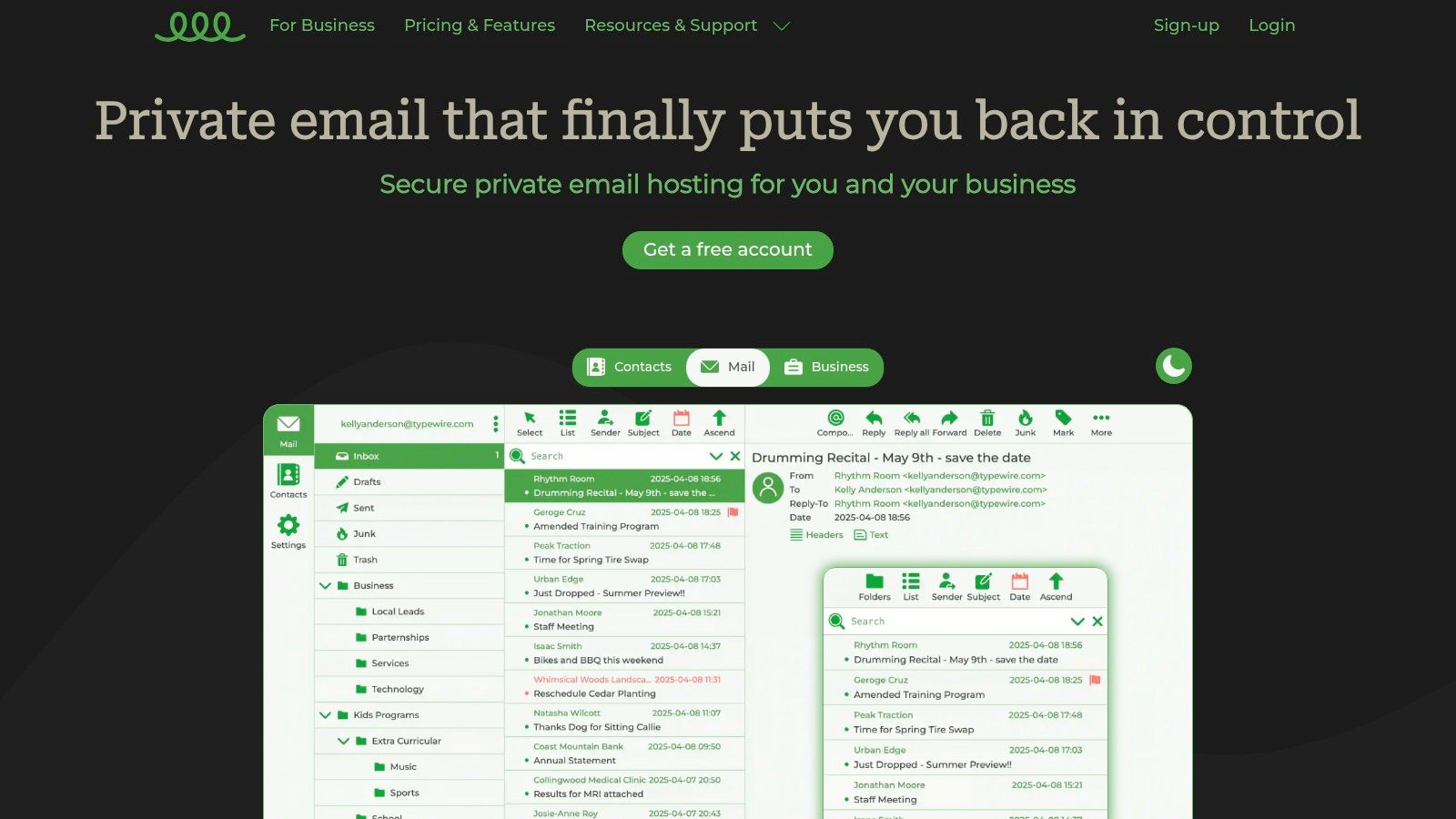
What truly distinguishes Typewire is its operational independence. The service runs on privately owned and managed data centers located exclusively in Vancouver, Canada. By avoiding third-party cloud infrastructure from providers like AWS or Google Cloud, Typewire maintains end-to-end control over its network and hardware, significantly reducing the risk of external data breaches and governmental overreach. This provides a robust layer of physical and digital security that is rare in the email hosting market.
Key Features & User Experience
Typewire’s platform is engineered for both security and usability. The responsive web interface is clean, intuitive, and offers both light and dark modes to suit user preferences. It delivers a fast, clutter-free environment that makes managing email efficient and pleasant.
- Advanced Threat Protection: The service incorporates sophisticated anti-spam and anti-virus filters that work proactively to keep your inbox clean and protect you from phishing attempts and malicious attachments.
- Custom Domain Hosting: For businesses and professionals, Typewire offers seamless custom domain integration. This allows you to use your own domain (e.g.,
you@yourbusiness.com) while benefiting from Typewire's secure infrastructure. - Team Management: Premium plans include straightforward tools for managing multiple users under a single organization, making it ideal for small to medium-sized teams that require a centralized, secure communication hub.
- Dedicated Support: Users have access to 24/7 customer support, ensuring that any technical issues or questions are addressed promptly.
Expert Insight: By operating its own data centers in Canada, a country with strong privacy laws, Typewire offers a level of data sovereignty that is critical for users handling sensitive personal or business information. This vertical integration of hardware and software is a key differentiator in the secure email space.
Pricing and Accessibility
Typewire offers several tiers to cater to different needs, including a free plan for individuals and paid plans for those requiring more storage, features, and custom domain support. While detailed pricing is provided after signing up for a free account, this structure allows users to explore the platform risk-free with a 7-day trial before committing. This approach is designed to ensure a good fit between the user's needs and the platform's capabilities. For those interested in a deeper comparison, Typewire provides valuable insights on their blog; you can discover more about privacy-focused email alternatives on Typewire.com.
Why It Stands Out
| Feature | Typewire's Advantage | Competitor Standard |
|---|---|---|
| Data Hosting | Privately owned data centers in Canada | Often relies on third-party cloud (AWS, Google) |
| Privacy Policy | No ads, no tracking, zero data mining | Free services often monetize user data |
| User Interface | Clean, fast, responsive with light/dark modes | Can be cluttered with ads or complex settings |
| Business Use | Integrated custom domains & team management | Often requires separate, more expensive business plans |
Pros:
- Strict privacy-first approach with a zero-tracking policy.
- Operates on privately owned Canadian data centers, enhancing security and data sovereignty.
- Advanced anti-spam and virus protection keeps inboxes secure.
- Supports custom domains and provides easy team management tools.
- Modern, user-friendly interface with light and dark modes.
Cons:
- Detailed pricing information requires signing up for an account.
- May offer fewer third-party integrations compared to mainstream providers like Gmail.
Website: https://typewire.com
2. Proton Mail
Proton Mail is a titan in the world of private communication, widely regarded as one of the best secure email service options available. Developed by former CERN scientists, it’s headquartered in Switzerland, a country renowned for its stringent privacy laws. This geographical advantage provides a robust legal framework that shields user data from broad surveillance requests, setting it apart from services based in other jurisdictions. Proton Mail’s core philosophy is built on end-to-end encryption (E2EE) and a zero-access architecture, meaning even Proton cannot read your emails or access your attachments.
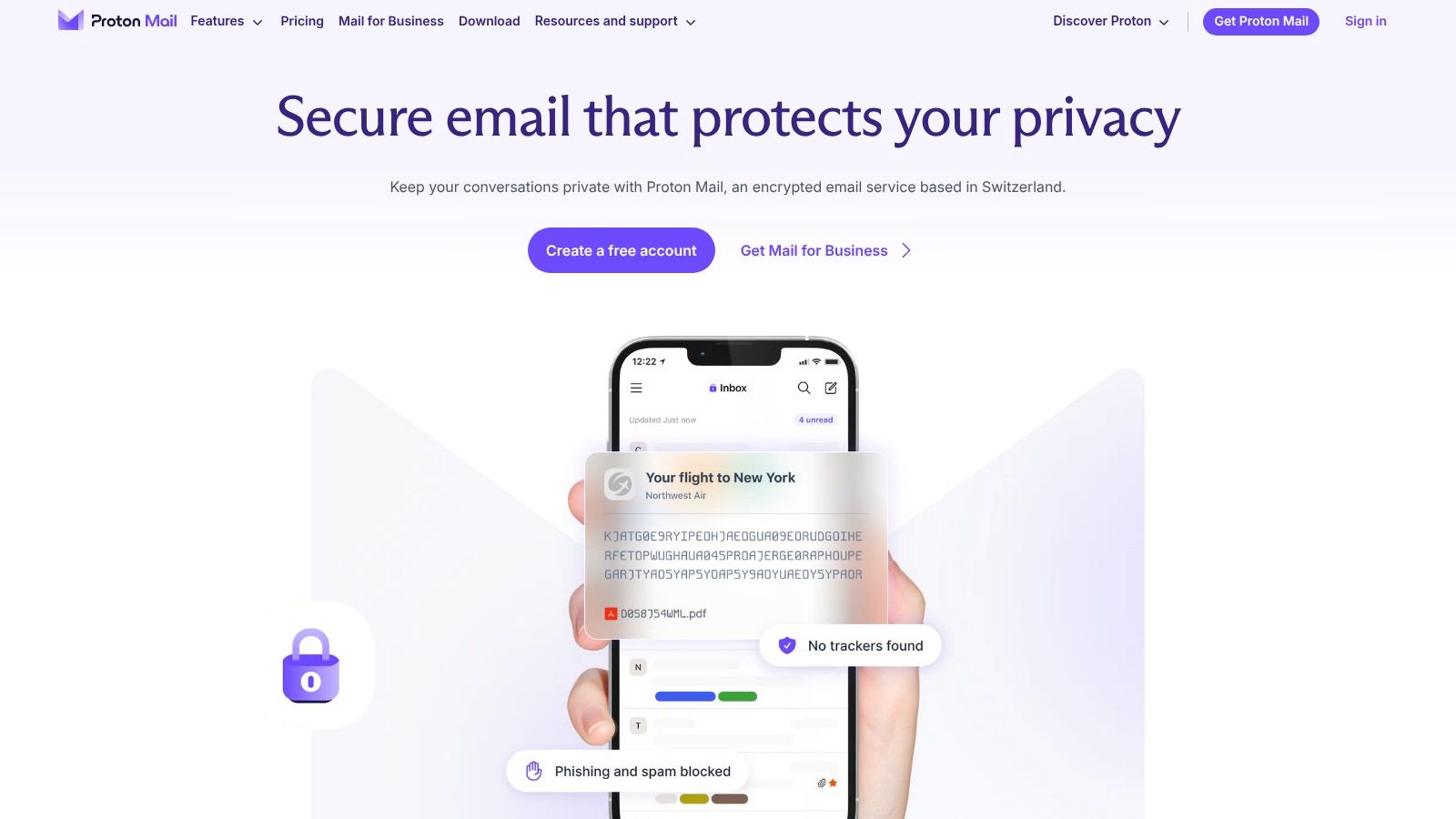
This commitment to privacy is backed by open-source applications that have undergone rigorous independent security audits. This transparency allows security experts worldwide to verify its code, ensuring there are no backdoors or vulnerabilities. The user experience is clean and intuitive across its web, desktop, and mobile apps, making the transition from a traditional provider like Gmail seamless for individuals and businesses alike.
Key Features and Ecosystem
What makes Proton truly unique is its evolution from a single email service into a comprehensive privacy ecosystem. A single Proton account can give you access to an entire suite of encrypted services, often bundled for better value.
- Proton Calendar: A private, encrypted calendar to securely manage your schedule.
- Proton Drive: Encrypted cloud storage for your files, ensuring your documents are as secure as your emails.
- Proton VPN: A high-speed, no-logs VPN that protects your internet traffic.
- Proton Pass: A secure password manager to safeguard your credentials.
This integrated approach allows users to de-Google their digital lives completely, all under one secure umbrella. Advanced features like custom domain support, email aliases for anonymity, and dark web monitoring (which alerts you if your email appears in a data breach) are available on paid plans, catering to power users and businesses.
Pricing and Plan Breakdown
Proton offers a tiered pricing structure that accommodates everyone from casual users to entire organizations. While the pricing pages can seem complex, they provide flexibility.
| Plan Tier | Key Offering | Ideal For |
|---|---|---|
| Free | 1 GB storage, 150 messages/day | Individuals testing the service or with light usage needs. |
| Mail Plus | 15 GB storage, custom domain, 10 aliases | Individuals and professionals needing more storage and features. |
| Proton Unlimited | 500 GB storage, access to all Proton services | Power users and families wanting the complete privacy suite. |
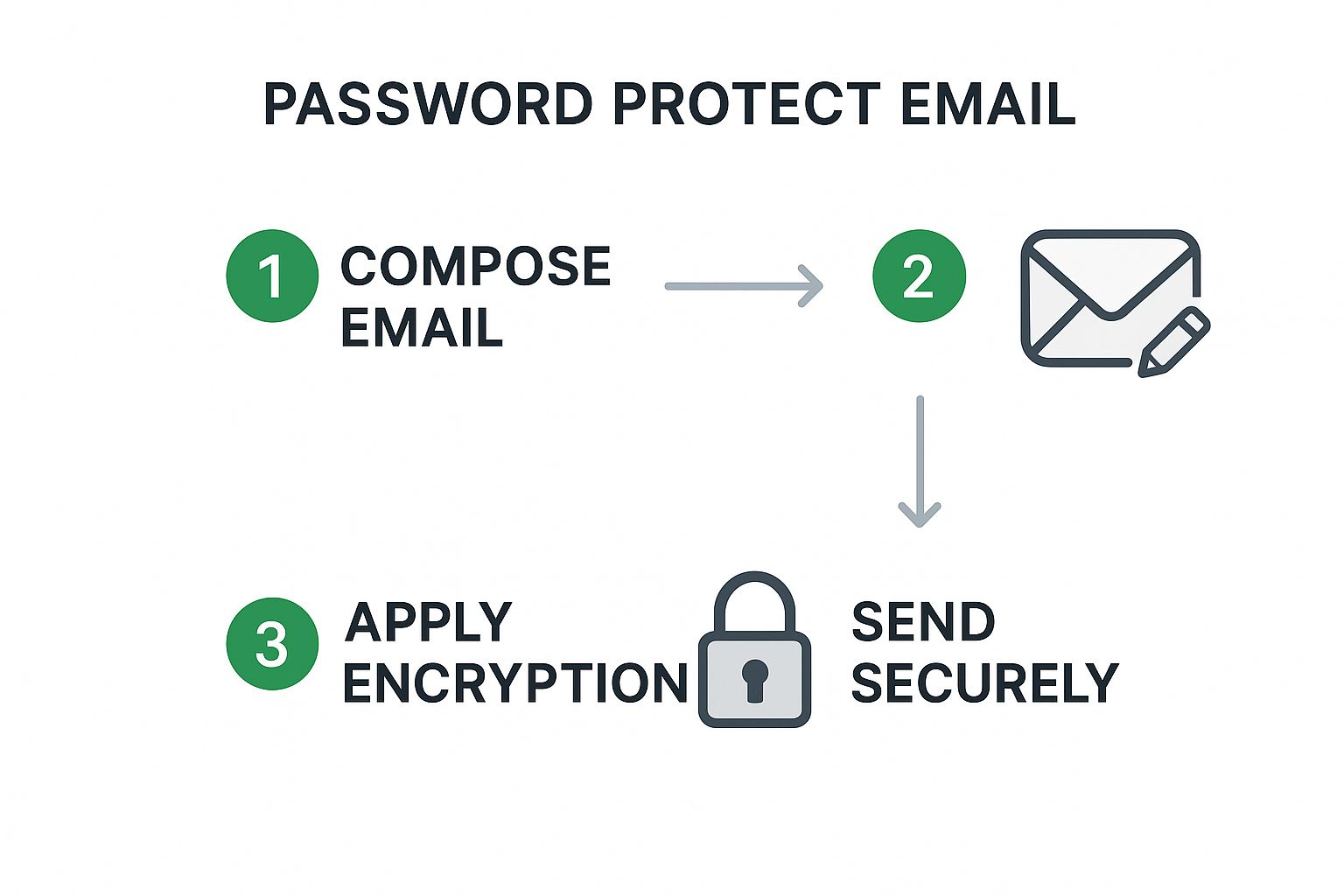
Pro Tip: When sending an encrypted email to a non-Proton user, use the "Encrypt for external" feature. This allows you to set a password for the message, which the recipient must enter to decrypt and read its content, ensuring privacy even outside the Proton ecosystem.
Pros and Cons
Pros:
- Top-Tier Security: End-to-end encryption and zero-access architecture protected by Swiss law.
- Mature Privacy Ecosystem: A comprehensive suite of tools (VPN, Drive, Calendar, Pass) under one account.
- Open-Source and Audited: High level of transparency and trust.
Cons:
- Higher Cost: Premium plans are more expensive than standard, ad-supported email providers.
- Complex Plan Navigation: The variety of individual, family, and business bundles can be confusing to new users.
Website: https://proton.me/mail
3. Tuta (formerly Tutanota)
Tuta, formerly known as Tutanota, is a formidable player in the secure email space, operating from Germany, a country with strong data protection laws. What makes Tuta a top-tier choice for the best secure email service is its uncompromising approach to encryption. It encrypts not only the body of your emails but also the subject line and calendar metadata, a level of protection that many competitors do not offer by default. This commitment to privacy is absolute, ensuring that your communications remain confidential from start to finish.
Tuta’s infrastructure is powered by 100% renewable energy, and its clients are entirely open-source, allowing for complete transparency and public scrutiny. This open-source philosophy builds a high degree of trust within the security community. The service is also forward-thinking, having implemented post-quantum resistant cryptographic algorithms to safeguard data against future threats from quantum computers. The user interface is clean, fast, and ad-free across all platforms, providing a focused and secure communication experience.
Key Features and Ecosystem
Tuta’s ecosystem is built on a foundation of holistic security. While it may not have as many integrated products as some rivals, its core offerings are robust and designed with privacy as the number one priority.
- Comprehensive Encryption: Automatic end-to-end encryption for all internal communications, extending to subject lines, attachments, and contacts.
- Secure Calendar: An integrated, zero-knowledge calendar where all data, including event details and attendees, is encrypted.
- Post-Quantum Cryptography: A unique protocol combining established algorithms with post-quantum secure ones to future-proof user data.
- No Third-Party Integrations: By design, Tuta does not support IMAP/POP3, preventing potential security leaks and ensuring the integrity of its end-to-end encryption model.
This strict focus on security means users get a streamlined, private environment. Its business plans offer excellent value with features like custom domains, unlimited aliases, and multi-user management, making it an ideal choice for privacy-conscious organizations.
Pricing and Plan Breakdown
Tuta offers an accessible freemium model with clear, affordable upgrades for individuals and businesses. The plans are designed to scale based on user needs for storage, aliases, and professional features.
| Plan Tier | Key Offering | Ideal For |
|---|---|---|
| Free | 1 GB storage, Tuta domains only | Individuals who want to try the service with basic secure email needs. |
| Private | 20 GB storage, 15 email aliases, 3 custom domains | Professionals and power users who need enhanced features and storage. |
| Business | 100 GB storage, custom login, branding, multi-user support | Small to medium-sized businesses requiring a comprehensive and secure email solution. |
Pro Tip: Use Tuta’s secure contact form feature for your website. It allows visitors to send you fully end-to-end encrypted messages directly from your site, ensuring that initial inquiries and sensitive data submissions are protected from the very first interaction.
Pros and Cons
Pros:
- Exceptional Encryption: Encrypts more data by default, including subject lines.
- Open-Source and Audited: Complete transparency with publicly available code.
- Affordable and Ad-Free: A strong commitment to an independent, user-funded business model.
Cons:
- No IMAP/POP3 Support: Cannot be used with third-party email clients like Thunderbird or Outlook.
- Smaller Ecosystem: Fewer integrated privacy tools compared to competitors like Proton.
Website: https://tuta.com
4. StartMail
StartMail brings a unique focus on privacy and anonymity to the table, developed by the same team behind the private search engine Startpage. This service is an excellent choice for users who prioritize control over their digital identity. Based in the Netherlands, StartMail benefits from strong European privacy regulations, including GDPR. Its core offering revolves around robust PGP encryption and a standout feature: powerful and unlimited email aliases.
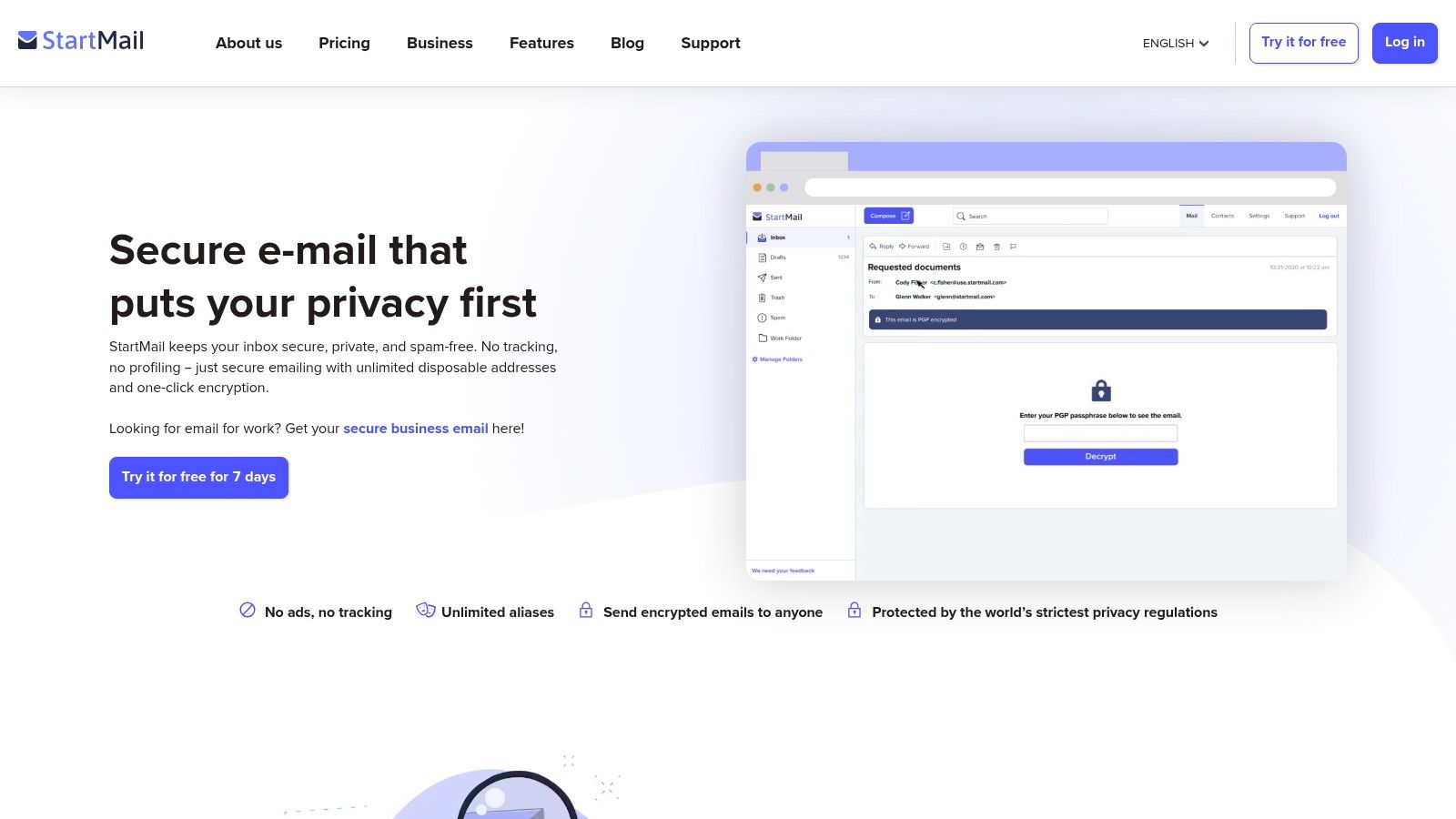
Unlike services with a zero-access architecture, StartMail gives users more direct control over their PGP keys, which will appeal to security-savvy individuals. The platform is designed to make encrypted communication simple, even with recipients who don't use a secure service. It also strips headers and hides the user's IP address from sent emails, adding an extra layer of protection against tracking and metadata analysis.
Key Features and Ecosystem
StartMail is less of a broad ecosystem and more of a highly specialized tool for anonymous and secure email. Its feature set is built to give users granular control over how their email address is used online, making it one of the best secure email service options for preventing spam and tracking. For those interested in a deeper comparison, you can learn more about other encrypted email services here.
- Unlimited Aliases: Create as many temporary or permanent aliases as you need to sign up for services without revealing your primary address.
- One-Click Burner Aliases: Instantly generate a temporary "burner" address for one-time use, perfect for untrusted websites.
- Encrypted Email to Anyone: Send a PGP-encrypted message to any recipient. Non-StartMail users receive a secure link to a one-time webpage where they can read the message and reply securely.
- Custom Domain Support: Use your own domain name for a professional and private email presence.
- IMAP/SMTP Access: Integrate StartMail with your favorite third-party email clients like Thunderbird or Outlook.
This focus on aliasing makes StartMail a powerful tool for compartmentalizing your digital life and drastically reducing the amount of junk mail that reaches your main inbox.
Pricing and Plan Breakdown
StartMail simplifies its offering by focusing on paid plans after a 7-day free trial, ensuring its business model is aligned with user privacy rather than advertising.
| Plan Tier | Key Offering | Ideal For |
|---|---|---|
| Personal | 10 GB storage, unlimited aliases, custom domain support | Individuals who need robust privacy and anti-spam features. |
| Business | User management, shared alias domain, custom branding | Small businesses and teams needing secure, private email hosting. |
Pro Tip: Use the "burner alias" feature when signing up for newsletters, online competitions, or any service you don't fully trust. If the alias starts receiving spam, you can simply delete it with one click, protecting your primary inbox.
Pros and Cons
Pros:
- Robust Aliasing Tools: Unlimited temporary and permanent aliases offer superior control over your digital identity and spam.
- Transparent and Secure: PGP-based encryption with servers in the privacy-friendly Netherlands.
- Excellent Ease of Use: The interface for sending encrypted mail to external users is straightforward and effective.
Cons:
- No Permanent Free Plan: A 7-day free trial is available, but continued use requires a paid subscription.
- Pricing Structure: The best value is in annual billing; monthly plans are significantly more expensive.
Website: https://www.startmail.com
5. mailbox.org
mailbox.org is a veteran in the secure email space, offering a robust, ad-free service rooted in Germany's strong data privacy laws. With a history stretching back decades, this provider combines time-tested security principles with a commitment to open standards and environmental responsibility. Its operations are powered by 100% green energy, and its entire infrastructure is located in secure German data centers. This jurisdiction provides significant protection under the EU’s General Data Protection Regulation (GDPR), ensuring user data is handled with the utmost care.
The service is highly regarded for its seamless integration of PGP (Pretty Good Privacy) encryption directly within its webmail client, making it one of the most user-friendly implementations available. This approach simplifies the process of sending and receiving end-to-end encrypted emails, a key feature for anyone seeking the best secure email service. The interface, while more utilitarian than flashy, is clean, fast, and focused on function over form, appealing to users who prioritize efficiency and security.
Key Features and Ecosystem
mailbox.org extends beyond simple email, providing a suite of office and productivity tools that are all secured under the same privacy-first philosophy. This makes it a compelling alternative to mainstream providers for users looking to manage their digital lives securely.
- Integrated PGP Encryption: Send and receive PGP-encrypted emails directly from the webmail interface with minimal setup.
- Secure Office Suite: Includes an online calendar, address book, tasks, and cloud storage (Drive), all secured and private.
- TLS-Enforced Alias: Use a special
@secure.mailbox.orgaddress to ensure your emails are only sent over an encrypted TLS connection. - Guest Inbox: Create temporary, secure mailboxes for external contacts to exchange encrypted files and messages without them needing an account.
- Open Standards: Full support for standard protocols like IMAP, POP3, and CalDAV/CardDAV, allowing you to use your favorite third-party apps.
This combination of powerful, accessible security tools and a full productivity suite provides a comprehensive and private digital workspace.
Pricing and Plan Breakdown
mailbox.org offers straightforward and affordable pricing, with a clear focus on providing value without compromising on features. All paid plans include the full suite of security and office tools.
| Plan Tier | Key Offering | Ideal For |
|---|---|---|
| LIGHT | 2 GB mail storage, 3 aliases | Individuals with basic secure email needs. |
| STANDARD | 10 GB mail storage, 25 aliases, 5 GB cloud storage | Professionals and everyday users needing more storage and flexibility. |
| PREMIUM | 25 GB mail storage, 25 aliases, 50 GB cloud storage | Power users and small businesses with significant storage demands. |
Pro Tip: When setting up your account, enable the "Encrypted Mailbox" option. This feature encrypts all incoming mail on the server using your public PGP key, ensuring that even unencrypted messages sent to you are secured at rest and inaccessible to anyone but you.
Pros and Cons
Pros:
- Excellent Security Tooling: User-friendly PGP integration and advanced TLS controls.
- Transparent and Affordable: Clear pricing with a strong commitment to privacy under German law.
- Full-Featured Office Suite: Includes calendar, contacts, and cloud storage for a complete solution.
Cons:
- No Dedicated Mobile Apps: Relies on third-party mobile clients, which require manual setup.
- Utilitarian Interface: The webmail design is functional but feels less modern than some competitors.
Website: https://mailbox.org
6. Mailfence
Mailfence positions itself as a comprehensive, secure email suite for privacy-conscious users and organizations, moving beyond just email to offer a complete alternative to big tech ecosystems. Based in Belgium, Mailfence operates under strong privacy laws, including GDPR, which legally protects user data from surveillance and unauthorized access. Its philosophy is centered on providing an integrated suite of tools with strong, transparent security, making it a powerful contender for anyone seeking the best secure email service.
The platform’s security is built on OpenPGP end-to-end encryption, giving users full control over their keys and ensuring that no one, not even Mailfence, can read their encrypted communications. It also supports two-factor authentication (2FA) and other email security standards like DKIM, SPF, and DMARC on paid tiers. This commitment to security provides users with confidence in their digital privacy, which you can explore further by understanding what secure email is and why it's essential.
Key Features and Ecosystem
Mailfence stands out by bundling its secure email with other essential productivity tools, creating a seamless and private workflow. This makes it an excellent choice for individuals, families, and small businesses looking to consolidate their digital tools without sacrificing security.
- Integrated Suite: The service includes an encrypted Calendar, Documents (for secure storage and editing), and Groups for collaboration.
- Full PGP Control: Users have full control over their encryption keys, allowing for import, export, and complete management.
- Business and Family Features: The platform offers custom domain support and a dedicated admin console for managing multiple users within a family or organization.
- Protocol Support: Paid plans include support for Exchange ActiveSync, IMAP, and POP3, enabling easy integration with third-party email clients.
This integrated approach is designed to replace services like Google Workspace or Microsoft 365 with a privacy-first alternative, all accessible from a clean and functional web interface.
Pricing and Plan Breakdown
Mailfence provides a clear pricing model focused on annual subscriptions, offering significant discounts for long-term commitments.
| Plan Tier | Key Offering | Ideal For |
|---|---|---|
| Free | 500 MB email storage, 500 MB documents storage | Individuals wanting to test the platform with basic features. |
| Entry | 5 GB email, 10 aliases, custom domain support | Professionals and individuals needing more storage and a personal domain. |
| Pro | 20 GB email, 50 aliases, ActiveSync & full protocol support | Power users and small businesses requiring the complete feature set. |
Pro Tip: When setting up your custom domain, make sure to configure the SPF, DKIM, and DMARC records provided by Mailfence. This dramatically improves your email deliverability and prevents spoofing, ensuring your messages land in the recipient's inbox.
Pros and Cons
Pros:
- Full-Featured Secure Suite: Integrated email, calendar, documents, and groups offer a complete productivity solution.
- Strong Belgian Privacy Laws: Operates under GDPR, providing a robust legal shield for user data.
- Ideal for Groups: Excellent tools for managing families, teams, and small organizations.
Cons:
- Limited Free Tier: The free plan has significant storage and feature limitations compared to paid options.
- Annual Billing Focus: Primarily uses annual billing in Euros, which may not be ideal for users preferring monthly payments.
Website: https://mailfence.com
7. Hushmail
Hushmail has carved out a distinct niche in the secure email space by focusing on the specific compliance needs of regulated industries. Headquartered in Canada, it offers encrypted email solutions that are particularly popular in the healthcare, legal, and finance sectors in the United States. Its main differentiator is its built-in compliance features, especially its readiness to sign a Business Associate Agreement (BAA), making it a go-to choice for organizations that must adhere to HIPAA regulations.
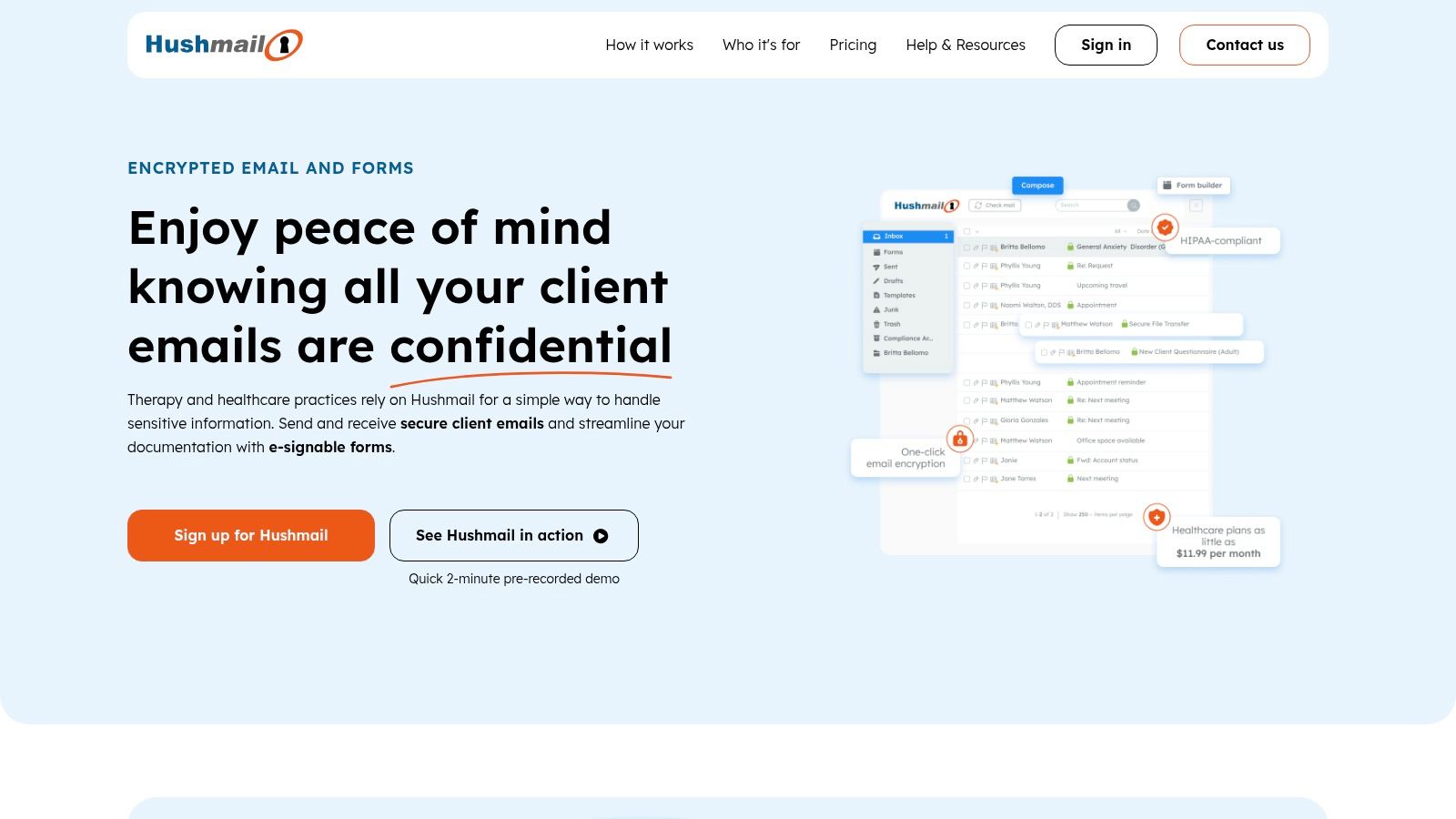
While it offers robust OpenPGP encryption for all communications, its core value proposition extends beyond simple email security. Hushmail integrates tools like secure web forms and electronic signatures directly into its platform, creating a seamless workflow for professionals who need to collect sensitive client information securely. This integrated approach simplifies compliance and reduces the need for multiple third-party services, making it a powerful tool for business operations.
Key Features and Ecosystem
Hushmail's ecosystem is tailored for professional use, combining secure communication with practical business tools. The features are designed to ensure both security and regulatory adherence, which is why it is often chosen as a top secure email service by professionals.
- HIPAA Compliance: Hushmail for Healthcare plans include a signed BAA, ensuring patient data is handled according to strict U.S. privacy laws.
- Secure Web Forms: Create and embed encrypted forms on your website to securely collect sensitive information like patient intake forms or client financial data.
- Electronic Signatures: Request and obtain legally binding e-signatures on documents directly through the secure email platform.
- Private Message Center: When sending an encrypted email to a non-Hushmail user, they receive a link to a secure web portal where they can read and reply to the message without needing their own encrypted account.
- Email Archiving: Business plans include automatic archiving, which is essential for legal and regulatory compliance in many industries.
Pricing and Plan Breakdown
Hushmail’s pricing is clearly segmented between personal and professional use cases, with a strong emphasis on its business offerings. The plans are designed to scale with organizational needs.
| Plan Tier | Key Offering | Ideal For |
|---|---|---|
| Hushmail Personal | 10 GB storage, @hushmail.com address | Individuals seeking a basic, private email account. |
| Hushmail for Small Business | Custom domain, secure forms, 15 GB storage | Small businesses and professionals needing compliant communication tools. |
| Hushmail for Healthcare | HIPAA compliance with BAA, secure forms, e-signatures | Therapists, clinics, and healthcare providers managing patient information. |
Pro Tip: Use the Secure Web Form builder to create templates for frequently used documents like client intake or consent forms. This streamlines your workflow and ensures all client data is collected and stored in a compliant, encrypted environment from the start.
Pros and Cons
Pros:
- Strong for Regulated Industries: A leading choice for U.S. healthcare and legal professionals due to its built-in HIPAA compliance and BAA.
- Integrated Business Tools: Secure forms and e-signatures are included, reducing the need for separate services.
- Generous Guarantees: Offers a 60-day money-back guarantee on personal plans and a free trial for healthcare plans.
Cons:
- Limited Personal Plan: The personal tier lacks the customization and advanced features found in many competitors.
- Can Be Expensive: Costs can increase significantly for businesses with multiple users or advanced feature requirements.
Website: https://www.hushmail.com
Secure Email Services Comparison Table
| Email Service | Implementation Complexity 🔄 | Resource Requirements ⚡ | Expected Outcomes 📊 | Ideal Use Cases 💡 | Key Advantages ⭐ |
|---|---|---|---|---|---|
| Typewire | Moderate – web interface, no extensive integrations | Low to moderate, private data centers operated in-house | High privacy, ad-free, secure inbox | Privacy-conscious individuals & SMB teams | Privacy-first, no tracking/ads, private data centers |
| Proton Mail | Moderate – apps, custom domains, ecosystem integration | Moderate – apps, open-source, Swiss hosting | Strong end-to-end encryption with ecosystem benefits | Individuals/families wanting bundled privacy tools | End-to-end encryption, Swiss privacy, multiservice |
| Tuta | Moderate – open-source clients, no IMAP/POP | Low to moderate – strong encryption, German servers | Very strong encryption, minimal metadata exposure | Users valuing highest privacy and metadata encryption | Post-quantum crypto, open-source, ad-free |
| StartMail | Moderate – PGP-compatible, IMAP/SMTP supported | Moderate – self-hosted servers, encrypted messaging | Robust aliasing, encrypted communication | Users needing aliases and external encrypted email | Unlimited aliases, PGP support, sender IP hiding |
| mailbox.org | Moderate – integrated PGP, TLS enforcement | Moderate – German infrastructure, no dedicated apps | Secure, ad-free with green energy | Privacy-focused users preferring open standards | Built-in PGP webmail, TLS enforcement, green energy |
| Mailfence | Moderate to high – full suite with OpenPGP, admin console | Moderate – multi-tool platform, ActiveSync support | All-in-one secure communication & collaboration | Families, small orgs wanting privacy suites | OpenPGP, integrated docs/calendar, admin console |
| Hushmail | Moderate – encrypted email plus forms, compliance | Moderate – HIPAA compliant infrastructure | Secure email with compliance features | Regulated US sectors like healthcare and legal | HIPAA compliance, secure forms, e-signatures |
Making the Final Choice: How to Select the Right Secure Email for You
Navigating the landscape of secure communication can feel complex, but by now you have a clear picture of the leading contenders in the private email space. We've explored the robust, Swiss-based security of Proton Mail and the comprehensive, open-source approach of Tuta. We’ve seen how StartMail prioritizes PGP simplicity, while providers like mailbox.org and Mailfence offer a full suite of productivity tools alongside enhanced privacy. Each service presents a unique combination of encryption, features, usability, and principles.
The central takeaway is that there is no single "best secure email service" that fits every single person or organization. The ideal choice is deeply personal and depends entirely on your specific threat model, technical comfort level, and daily workflow requirements. A journalist handling sensitive source communications has vastly different needs than a small business owner looking to protect client data and use a custom domain.
Your Personal Security Checklist
Before you make your final decision, revisit your core priorities. This self-assessment is the most critical step in choosing a service that you will not only trust but also enjoy using. Ask yourself the following questions:
- What is my primary goal? Is it to escape big tech data mining, protect sensitive business communications, or guard against targeted surveillance? Your answer will determine the level of encryption and anonymity you require.
- How much technical control do I want? Are you comfortable managing your own PGP keys, as some services allow, or do you prefer a system where encryption is seamless and automatic?
- What devices will I use? Check for dedicated, well-reviewed mobile apps for your specific operating system (iOS or Android). A great desktop experience means little if the mobile app is cumbersome.
- Do I need more than just email? If you need an encrypted calendar, cloud storage, or contact management, services like Proton Mail, Tuta, or mailbox.org offer integrated ecosystems that provide immense value.
- What is my budget? While free tiers are excellent for testing the waters, a paid plan is almost always necessary for features like custom domains, increased storage, and priority support. View this as an investment in your digital privacy.
From Decision to Implementation: Your Next Steps
Once you've identified a top contender, the journey doesn't end. The implementation phase is just as important for maximizing your security.
- Start with a Trial or Free Plan: Before porting over your entire digital life, use the free or trial version for a week. Send test emails, check out the user interface on all your devices, and import a few contacts. See how it fits into your daily routine.
- Plan Your Migration: Don't try to move everything at once. Start by updating your email address for your most important online accounts first: banking, government services, and password managers. You can set up forwarding from your old account to ease the transition.
- Explore Security Features: Dive into the settings. Enable two-factor authentication (2FA) immediately, preferably using an authenticator app rather than SMS. Learn how to send encrypted messages to non-users of the service, as this will be crucial for communicating securely with everyone in your network.
- Embrace the Ecosystem: If your chosen provider offers a calendar or cloud storage, try to use them. Keeping your data consolidated within one secure environment reduces your digital footprint and minimizes the risk of a breach from a less secure third-party service.
Ultimately, selecting the best secure email service is an act of digital empowerment. It's a conscious decision to reclaim control over your personal data and communications. By carefully weighing the features, assessing your own needs, and thoughtfully implementing your chosen solution, you are building a more private and secure foundation for your entire digital life.
If you're looking for a service that prioritizes a streamlined user experience without compromising on powerful security features, consider exploring Typewire. It's designed for professionals and teams who need robust, end-to-end encrypted communication that is both intuitive and easy to manage. Learn more about how Typewire can secure your inbox at Typewire.