
Last updated: October 5, 2026
You've checked your junk folder three times, searched for the invoice, and still can't find the client's reply. Then you notice the message was filtered because your mailbox didn't recognise the sender. Adding that address to your contacts can help, but it doesn't always create a true safe sender list.
To whitelist an email address, first verify the sender, then add the address or domain to your provider's trusted-sender controls. In Gmail, create a filter with Never send it to Spam. In Outlook, add the address under Safe senders and domains. In Apple Mail, use a contact, VIP, or rule. If you manage a business domain, also check authentication and server-side filtering.
The important detail is that whitelisting is only one layer of deliverability. Provider rules, sender reputation, authentication, security policies, and privacy obligations can still affect where a message goes.
What does whitelisting mean
Whitelisting means telling your email system that a specific sender is trusted. Many providers now use the term allowlisting, but the practical idea is the same. You add an email address or domain to a safe sender list so messages from that source receive more favourable treatment during filtering.
Adding someone to your contacts isn't always the same thing. A contact entry helps your address book recognise the sender, but it may not instruct the spam filter to bypass its normal checks. A filter or safe-sender rule usually has a stronger effect because it creates a direct instruction for matching messages.
Think of your inbox as a building with a reception desk. A contact is a name in the visitor book. An allowlist rule is a note telling reception to send a known visitor to a specific office. Neither instruction should replace checking identification, especially when an attacker can imitate a trusted name.
What happens when a message arrives
Your provider evaluates several signals before placing a message. These can include the sender address, domain reputation, message patterns, authentication results, links, attachments, and your own rules. A whitelist rule can influence that decision, but it doesn't rewrite the message or prove that the sender is legitimate.
That distinction matters when you add an entire domain. If you allowlist example.ca, you may trust every address using that domain. That can be useful for a company with several departments, but it also creates a wider permission than approving one known address.
For a clear explanation of the filtering layer behind these decisions, see how spam filtering protects your email security.
Practical rule: Approve the narrowest sender identity that solves the problem. Use a single address when you only need one person's messages, and use a domain only when you trust the organisation as a whole.
Before you add a sender, inspect the complete address, not just the display name. A message labelled “Your accountant” could come from an unrelated domain. Whitelisting should reduce false positives, not turn off your judgement.
Why whitelist a sender
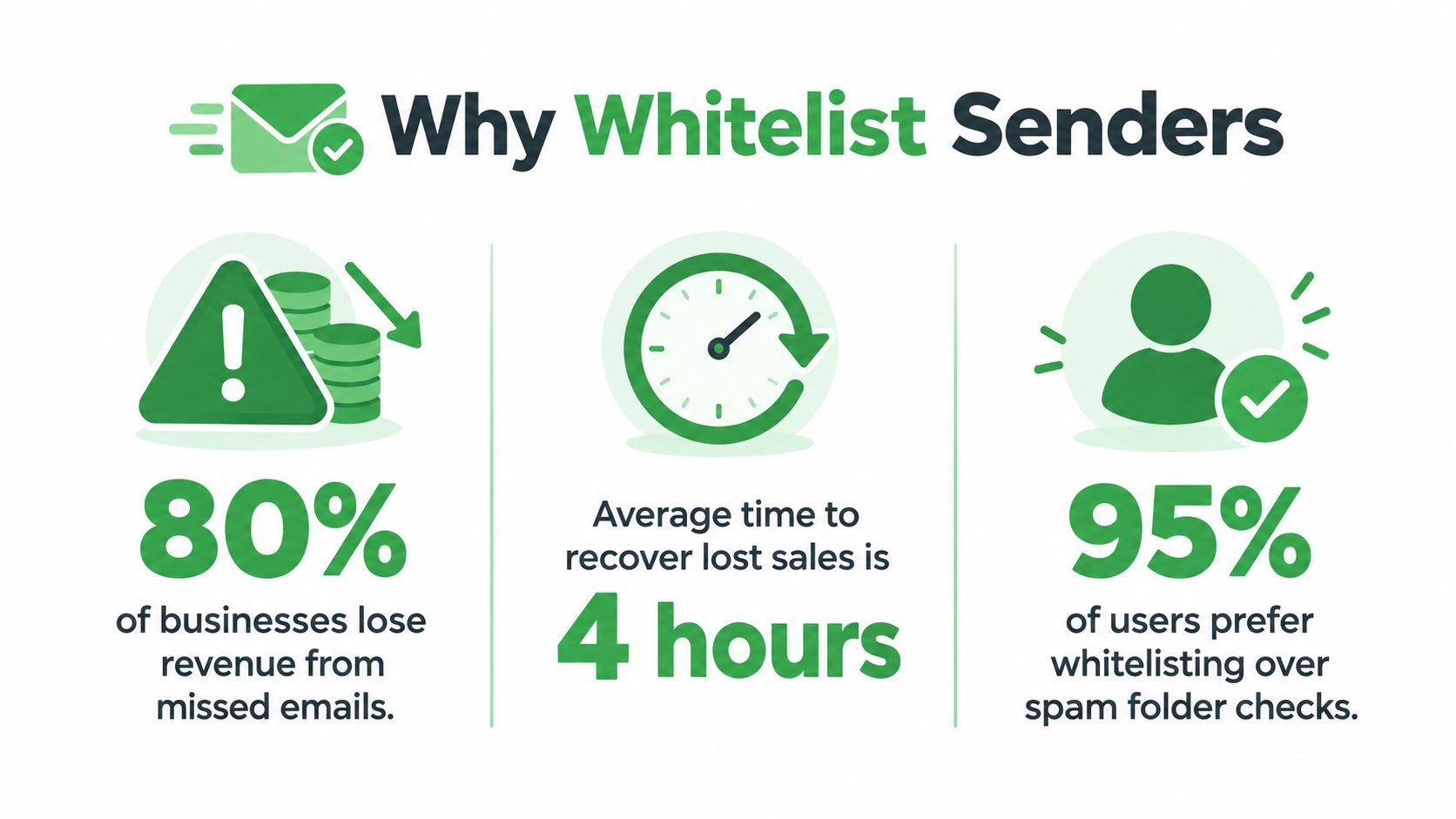
A customer is waiting for an invoice, but the billing platform sent it from an address your team does not recognise. Your provider sees an automated message, unfamiliar sender, or link-heavy template and moves it to junk. The business is legitimate, yet the message still misses the inbox.
Whitelisting can reduce that kind of false positive by giving your mailbox a clearer instruction about a sender you already trust. Its scope is narrow. It leaves a compromised account, a broken sender domain, and delivery from other addresses in the organisation untouched.
Canadian inbox placement isn't uniform
Mailbox providers apply different filtering rules. Validity's 2025 benchmark report found 86.7% inbox placement in Canada overall, with 5.4% of mail sent to spam and 7.9% missing. Microsoft performed worse, at 78.9% inbox placement and 10.6% spam.
The same report found that Shaw, Bell, Rogers, Videotron, and Teksavvy averaged 84.1% inbox placement, below the country benchmark. Those results explain why “just add us to your contacts” can be incomplete advice. A provider may still apply reputation, authentication, and security controls after a sender is added.
Convenience must not weaken security
A safe-sender rule suits recurring, legitimate communication, such as messages from a payroll service, known legal adviser, or customer who regularly sends project files. A broad rule for an unfamiliar marketing domain can grant more access than the business need requires.
The Canadian Consumer Handbook guidance on spam warns that opening spam can confirm an address is active because hidden code may report that the mailbox was opened. It recommends deleting spam without opening it and using your email software's filtering controls. Whitelist known senders, then review messages from them with the same care as any other email.
Privacy gives Canadian businesses another reason to keep rules narrow. PIPEDA doesn't regulate whitelists directly. Its safeguards principle does expect organisations to protect personal information with security suited to its sensitivity. A broad domain rule can let more unverified mail reach staff who handle client records. Approve a whole domain only when you have a clear business reason. Review your rules whenever a supplier, employee, or service changes.
A whitelist answers one question, “Should this sender receive more favourable delivery treatment?” It does not answer, “Is this particular message safe?”
For a practical explanation of common filtering causes, read why email goes to spam and how to fix it.
How to whitelist in Gmail, Outlook, Apple Mail
Start with the exact sender address from a message you trust. Don't copy only the display name, and don't add a whole domain until you understand who controls it. If a message is already in spam, mark it as Not spam or move it to the inbox before creating a permanent rule.
Gmail
Gmail doesn't provide a button named “whitelist,” so you create a filter:
-
Open Gmail in a browser.
-
Select the settings gear, then choose See all settings.
-
Open Filters and Blocked Addresses.
-
Select Create a new filter.
-
Enter the sender address in the From field. You can enter a domain if you intentionally trust the whole organisation.
-
Choose Create filter.
-
Select Never send it to Spam, then choose Create filter again.
Add the verified sender to Google Contacts as a second, narrower signal. On a phone, Gmail generally gives you actions such as Report not spam or Move to Inbox, while detailed filter creation usually requires the web interface.
Outlook
Outlook has a dedicated safe-sender control. In Outlook.com, open settings, choose View all Outlook settings, then go to Mail and Junk email. Under Safe senders and domains, select Add, enter the address or domain, and save.
In Outlook for Windows, open Home, select Junk, and choose Junk Email Options. Open Safe Senders, select Add, enter the address, and confirm. The web and desktop settings may not always behave identically if a workplace administrator applies additional policies.
Apple Mail
Apple Mail doesn't use one universal safe-sender list across every account. The underlying provider, such as iCloud, Gmail, or a business server, may control the actual filtering. In the Mail app, open a trusted message and add the sender to Contacts. You can also mark important people as VIPs so their messages receive priority in your mailbox.
For a stronger rule on a Mac, open Mail, go to Settings or Preferences, select Rules, and create a rule that matches the sender. Set the action to move matching messages to the inbox. Test the rule with a non-sensitive message before applying it broadly.
Typewire
We provide custom filters, anti-spam protection, phishing detection, and virus filtering. The practical result is that you can create a trusted-sender rule while keeping separate security checks active. Our ad-free service also avoids using message contents for targeted advertising or data mining, and paid plans support custom domains and unlimited sending.
That doesn't mean a trusted-sender rule should cover every message from an unknown domain. Keep the address specific, review older rules, and check the full sender identity before approving it.
How to whitelist on your own domain or server
A small business often needs more than personal inbox settings. If messages arrive through a company domain, a provider or administrator may filter them before an individual user ever sees them. A personal safe sender list cannot override every organisation-wide policy.
Start by separating inbound allowlisting from sender authentication. An allowlist tells your system which external sources it may trust more. Authentication helps receiving systems check whether a message was authorised by the sending domain.
Confirm the sending domain
Three common standards matter here:
-
SPF, or Sender Policy Framework, lists the servers authorised to send mail for a domain.
-
DKIM, or DomainKeys Identified Mail, adds a cryptographic signature that receiving systems can verify.
-
DMARC, or Domain-based Message Authentication, Reporting, and Conformance, tells receivers how to handle messages that fail authentication and helps domain owners monitor abuse.
These standards don't create a personal whitelist. They establish a technical identity for the domain, which helps receiving providers distinguish authorised mail from messages that merely claim to come from that domain.
For a practical explanation of SPF and its role in approved sending servers, see what an SPF record does.
Use domain rules carefully
If your team needs messages from a software vendor, ask for the exact sending domain and confirm that the vendor controls it. Avoid approving a broad parent domain when the vendor uses a narrower subdomain for transactional mail. Keep a record of who approved the rule and why.
A business should also review its email security gateway, mailbox policies, and antivirus filtering. A gateway rule may override a user's Outlook or Gmail setting. Ask your administrator to test a legitimate message and an unauthorised message, then confirm which layer made the delivery decision.
Keep privacy in the process
PIPEDA covers private-sector organisations that collect, use, or disclose personal information during commercial activity. Alberta, British Columbia, and Quebec have their own private-sector privacy laws for most activity within those provinces. PIPEDA still applies to federally regulated businesses, such as banks and telecoms, and to information that crosses provincial or national borders.
The Office of the Privacy Commissioner of Canada (OPC) sets out 10 fair information principles in its PIPEDA overview. Email addresses and message contents can count as personal information, depending on context. Your allowlist contains email addresses, so treat it as operational data. Limit who can edit it, remove entries you no longer need, and don't share message contents with a third party just to fix a filtering issue. See the Commissioner's PIPEDA overview for organizations.
Treat allowlist records as operational data. Limit access, remove obsolete entries, and don't share message contents with a third party just to resolve a filtering issue.
Troubleshooting
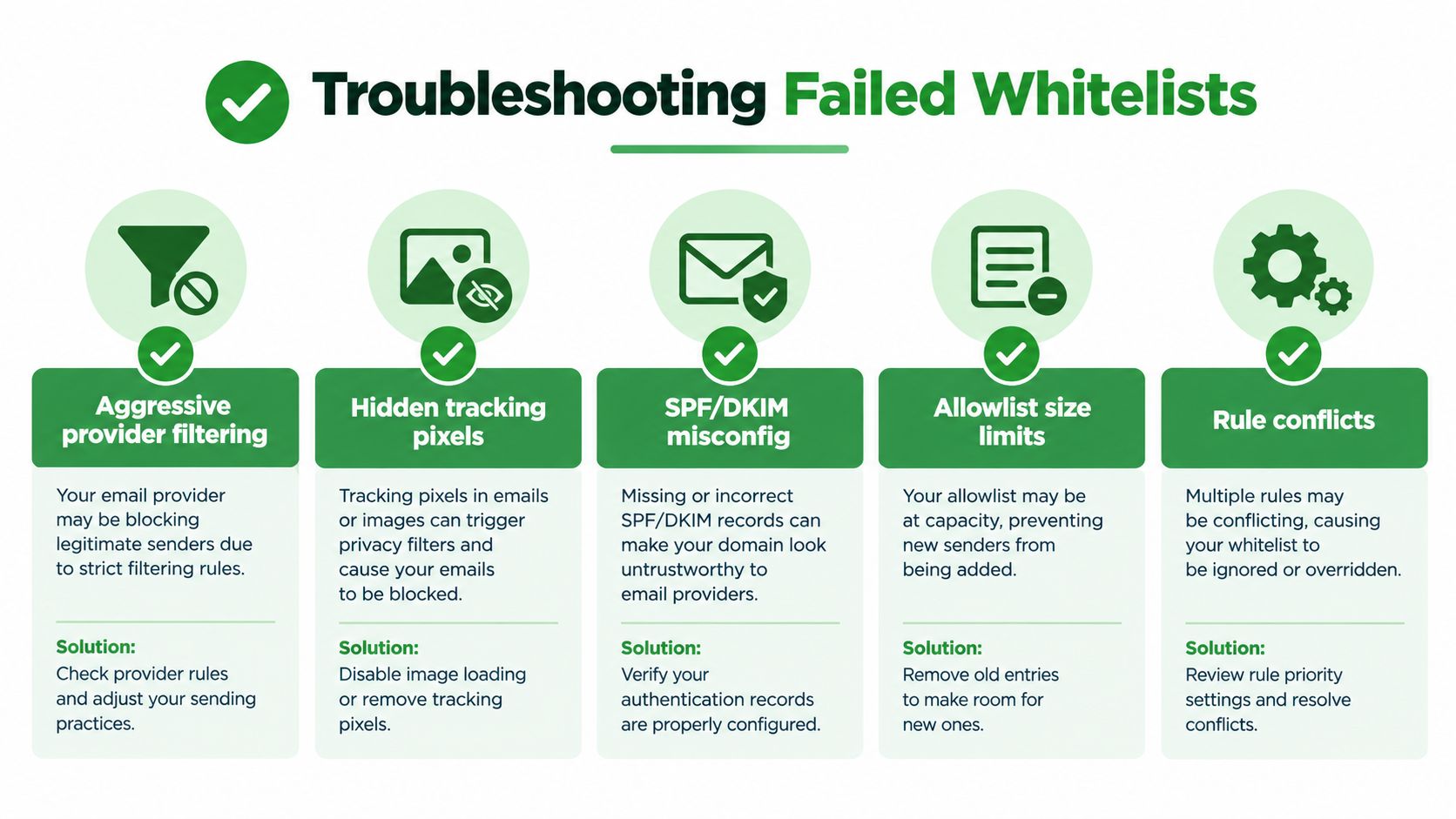
Adding a sender to Contacts does not guarantee inbox placement. Filtering may occur at the provider, organisation, gateway, or sender level, and a message may be rejected before it reaches your mailbox. Diagnose the failure in this order:
-
Search every folder. Check Spam, Junk, Trash, Archive, quarantine, and focused inbox views.
-
Inspect the exact address. Confirm the domain, spelling, and display name. A familiar name can mask an unrelated address.
-
Review rule priority. Delete, archive, forwarding, or quarantine rules may run before your allowlist.
-
Check provider policy. Work and school accounts can override personal settings.
-
Ask the sender to verify authentication. SPF, DKIM, and DMARC failures can affect delivery even when you trust the sender.
-
Test safely. Do not load images or click links in a suspicious message while investigating.
Don't approve an impersonator
A trusted display name can conceal a different address. Confirm the complete address and sending domain before approving a rule. Broad approvals can make phishing easier, particularly when an attacker copies a familiar brand or contact name.
Check the sender's identity against a source you already trust before you approve them. For example, compare the address with a signed contract, a past invoice, or the vendor's official website. Don't rely on contact details inside the suspicious message itself. The OPC's interpretation bulletin on safeguards makes a similar point for businesses. It expects organisations to authenticate people properly before granting access to personal information. Several OPC findings involve imposters who got through because checks were weak.
The OPC's spam guidance notes that most email providers filter spam before it reaches your inbox. Whitelisting works alongside those filters, not instead of them.
Frequently Asked Questions
Is whitelisting the same as adding someone to my contacts?
Not always. Adding a sender to your contacts helps your mailbox recognise them, but it may not override the spam filter. A whitelist rule gives the filter a direct instruction. Examples include a Gmail filter set to Never send it to Spam, or an Outlook safe sender entry. For the best result, do both. Add the verified sender to your contacts, then create a rule for their exact address.
Should I whitelist an email address or a whole domain?
Whitelist a single address when you only need messages from one person or service. Whitelist a domain only when you trust the whole organisation and have confirmed it controls that domain. A domain rule covers every address on it, including ones you've never seen. If a vendor sends invoices from a subdomain, such as billing.example.ca, approve that subdomain instead of the parent domain.
Why are emails from a whitelisted sender still going to spam?
A whitelist rule is one signal among many. Your provider may still filter messages that fail SPF, DKIM, or DMARC checks. A sender with a poor reputation can also be filtered. Workplace accounts may have server-side policies that override personal settings. To fix it, confirm the rule matches the exact sending address and check whether another rule runs first. Then ask your administrator or the sender to verify their authentication.
Can I whitelist an email address on my phone?
Partly. Most mobile email apps let you mark a message as not spam or move it to your inbox, which helps train the filter. Creating a permanent rule usually requires a browser or desktop app. Gmail filters need the web version. Outlook safe senders are easiest to manage in Outlook.com or the desktop app. Apple Mail rules require the Mail app on a Mac.
Is it safe to whitelist an email address?
Yes, if you verify the sender first. Check the full email address, not just the display name, since attackers often copy familiar names. If an approved account is hacked or spoofed, a whitelist rule can help phishing reach your inbox. Keep rules specific and remove ones you no longer need. Treat links and attachments from whitelisted senders with the same caution as any other email.
Typewire provides ad-free, encrypted email with Canadian hosting, custom-domain support, filtering controls, and no data mining. Visit Typewire for a private mailbox with trusted-sender rules alongside phishing and virus protection.