
Last updated: November 20, 2026
SMTP, or Simple Mail Transfer Protocol, is the standard set of rules that moves email from a sending app to a mail server and between mail servers. It's the outbound half of email, the part that carries a message away from you, which is why almost every sending problem you'll ever troubleshoot traces back to it.
You've met it already, probably without noticing. It shows up on a settings screen as a line like smtp.yourprovider.com next to a port number, or in a bounce message that quotes a three-digit code you didn't ask for.
That one line is where most delivery trouble lives. A wrong port, a password the server won't accept, or a domain that receivers don't trust will all stop a message before it ever reaches a mailbox, and none of them look like an email problem from the outside.
What Is SMTP?
Think of SMTP as the sorting and handoff process at a post office. You drop a letter in, a clerk checks the address, the letter moves through sorting centres, and each stage confirms it can take the next one. SMTP does that job for email. It takes the message your app hands over, checks what it can, and passes it along until it reaches the recipient's server.

SMTP is a sending protocol, not a mailbox protocol. It doesn't store your mail, and it doesn't show your inbox. Those jobs belong to IMAP and POP3, and mixing them up is the single most common source of confusion we see when people configure a new mail app.
Why does so much machinery sit around one protocol? Because sending is where abuse happens. Canada's anti-spam law, CASL, took effect in 2014 to police unsolicited commercial messages and related threats, and the volumes are large. In 2024–25 alone, Canadians submitted 414,630 complaints to the national Spam Reporting Centre, according to the CASL performance measurement report.
That pressure explains what mail servers must do beyond moving bytes. They authenticate senders, manage delivery failures, enforce rate controls, and cooperate with filtering systems.
Here's the correction worth internalizing early. SMTP alone is not secure email. It transports messages, while sender authentication, reputation checks, encryption, malware scanning and spam filtering all operate around the protocol. When sending breaks, you get an unsent message or a bounce notice, not a gap in your inbox.
How SMTP Works Step by Step
One email usually passes through two SMTP conversations. The first happens when your app hands the message to your outgoing server. The second happens when that server delivers it to the recipient's domain.
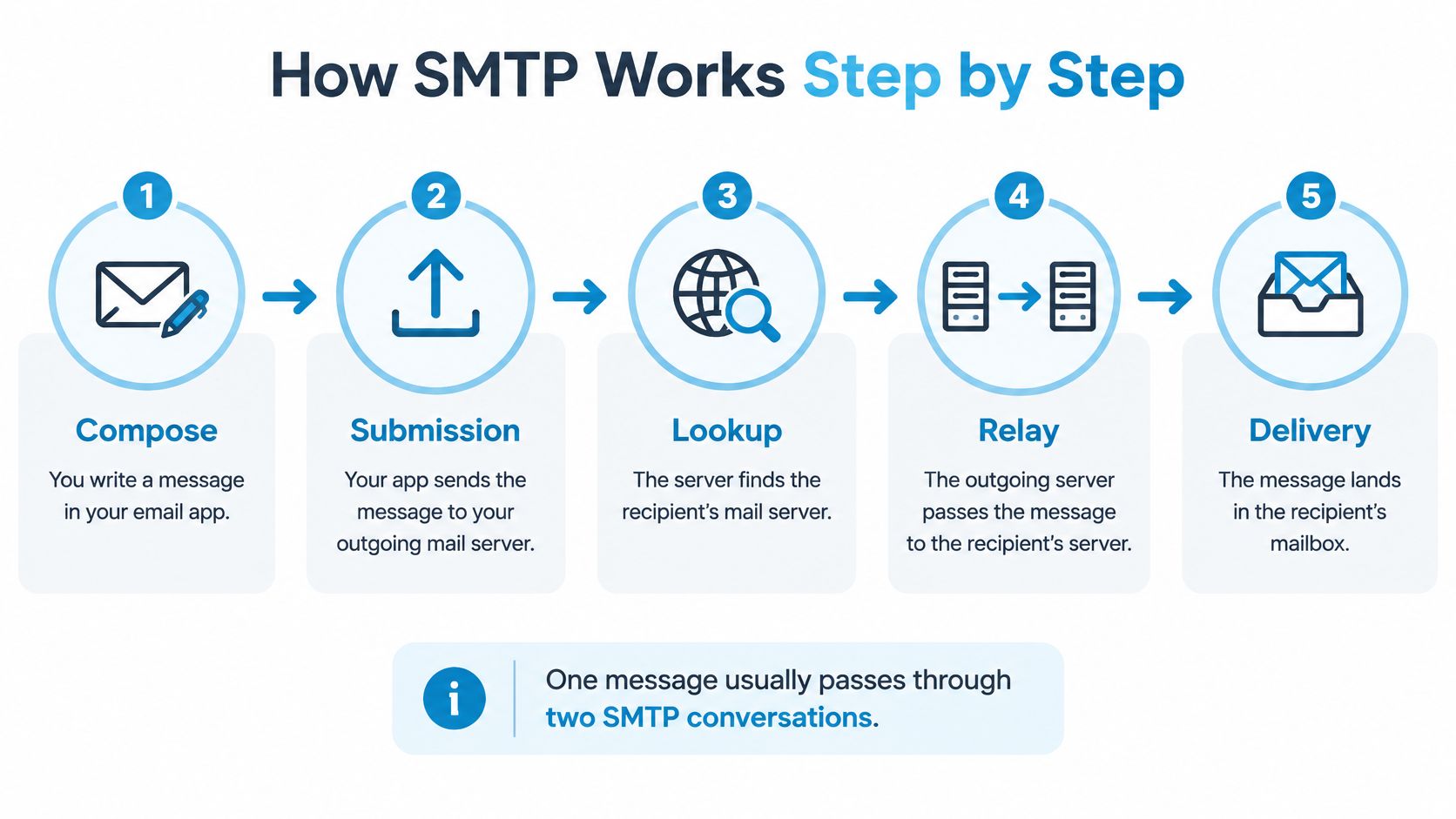
Here is the sequence in practice.
You compose and send. You write the message in a desktop client or webmail and press send. Nothing has left your machine yet.
Your client submits. It connects to the outgoing server, usually on port 587, and logs in. Authentication matters most here, because the service has to identify the account before it accepts anything.
The server accepts. It checks the sender, places the message in its outgoing queue, and replies with a 250 code. That means accepted for delivery, not delivered.
The server looks up the destination. It queries DNS for the recipient domain's MX record to learn which machine accepts mail for that domain. Our explainer on how MX records route email covers that lookup in detail.
It relays the message. It connects to the receiving server on port 25 and transfers the envelope addresses, then the message content.
The receiver checks it. SPF, DKIM and spam filtering run on the receiving side, and the message is either accepted or rejected.
It retries or bounces. If the receiver is down or over quota, the sender retries later. When the retry window runs out, a bounce notice comes back to you.
Submission and relay are different jobs. Canada's digital government team describes SMTP as one option for software that needs to send messages, alongside an API, which reflects the same split: an app authenticates to a submission service, and mail servers exchange messages afterwards.
Where the envelope ends and the header begins
Delivery uses the envelope addresses exchanged during the SMTP conversation. What you read in your mail app is the header. Those two can differ, which is why a booking system or mailing list can show one From address while delivering on behalf of another account. It's also why a message can carry your bank's name in the header and still fail an SPF check.
Reading the handoffs in your mail logs
Each stage leaves a different mark. A submission failure shows a login or connection error on your side. A relay failure shows a 4xx or 5xx reply from the receiving server. A filtering outcome often shows nothing in your logs at all, because the decision happened after acceptance.
If you'd rather watch the sequence, this walkthrough follows the same path from compose to delivery.
SMTP Ports and Encryption Options Explained
The port number tells the server what role you're asking it to play, and it usually sets the encryption style you'll get.
| Port | Main job | Encryption | Notes |
|---|---|---|---|
| 25 | Server-to-server relay | Usually opportunistic STARTTLS | Often blocked for client use by home internet providers |
| 587 | Client submission | STARTTLS required | Common default for email apps and devices |
| 465 | Client submission | Implicit TLS from the first byte | Encrypted from the first byte, with no plaintext greeting exchanged |
| 2525 | Alternate submission | Varies by host, usually STARTTLS | Non-standard, offered when other ports are blocked |
Port 25 carries mail between servers. It's also the port most residential internet providers block for outgoing client traffic, because compromised home machines were once a major spam source. If you're configuring a laptop, this isn't your port.
Port 587 is the submission port, and it's what you want in a mail app. The connection starts unencrypted and upgrades through STARTTLS before credentials go across. Port 465 runs TLS from the first byte, and RFC 8314 now recommends it over STARTTLS for submission. Port 2525 exists as a fallback for networks that block the standard ports.
Encryption expectations have tightened. The Government of Canada's security playbook for Microsoft 365 recommends encrypting data in transit by default with TLS 1.3, and allowing TLS 1.2 only where compatibility, audit or monitoring requirements justify it. That's a reasonable standard for any mail server you run or rent.
Practical rule: Use port 587 with STARTTLS or port 465 with implicit TLS, exactly as your provider specifies, and never send a password over a connection that isn't encrypted.
Where TLS stops matters just as much. It protects each connection hop by hop, not the stored copy of a message. A provider can still read mail sitting on its servers unless you encrypt the message itself, which our guide to how email encryption shields your inbox covers in depth.
SMTP vs. IMAP vs. POP3
| Feature | SMTP | IMAP | POP3 |
|---|---|---|---|
| Main job | Sending and relaying mail | Reading and syncing mail on the server | Downloading mail to one device |
| Direction | Outbound | Inbound | Inbound |
| Typical ports | 25, 465, 587 | 143 (STARTTLS), 993 (TLS) | 110 (STARTTLS), 995 (TLS) |
| Where mail is kept | Passes through, not stored for reading | Stays on the server | Usually copied down, then removed from the server by default |
| Multiple devices | Not applicable | Folders and read status sync | Poor, each device gets its own copy |
| Typical use | Apps, devices and servers sending mail | Phones, laptops and webmail sync | Single-computer setups |
The short version: SMTP sends, IMAP and POP3 retrieve. A useful analogy is a postal service and two kinds of letter box. SMTP is the carrier who picks up and drops off. IMAP is a shared box that everyone in the household can open, with the contents staying in one place. POP3 is a box you empty onto a single desk.
Sync is where the choice bites. IMAP keeps mail on the server, so folders, read status and sent items match across your phone and your laptop. POP3 downloads messages and by default removes the server copy, which suits one machine and one habit.
A common situation: someone sets up a new laptop with POP3 because it was the first option in a dropdown, then finds the same message on two devices, or discovers that deleting a message on the phone deleted nothing on the desktop.
Our recommendation: Pair SMTP for sending with IMAP for reading. Choose POP3 only when you deliberately want one device to hold the only copy.
That's a recommendation drawn from how most modern setups work, not a universal law. Plenty of people run POP3 happily for a single desktop, and the protocol isn't broken. It doesn't try to solve the multi-device problem.
What an SMTP Server Does
An SMTP server wears several hats, and knowing which one is under strain shortens every troubleshooting session.
Submission. It accepts outgoing mail from authenticated clients. This is the role your mail app talks to, and it's the one that fails when your password changes or your authentication method is wrong.
Routing. It reads the recipient domain from each message and checks DNS for where that domain accepts mail. No MX record, no delivery.
Queueing. Accepted messages wait in a queue, and failed attempts are retried with growing delays. That's why a message can sit for hours before a bounce arrives, and why a stuck queue is often the story behind "my email hasn't arrived".
Rate control. Providers cap how much a single account can send in an hour or a day to protect shared reputation and stop abuse. Consumer email accounts face daily recipient caps, so a large announcement to hundreds of addresses can stop partway through instead of reaching everyone at once.
Why a new server lands in spam
Reputation takes time to build. If a server's IP address appears on a blocklist, or has no sending history, receivers may reject or filter its mail even when the content is legitimate. A small business that moves a newsletter to a brand-new server often finds a large share of it in spam folders for the first few weeks.
Check queue status and server logs before you rewrite a single line of the message. They tell you whether the problem sits on your side or the recipient's.
That distinction saves hours. When the logs show a clean handoff and a 250 reply, the message left your infrastructure, and the next place to look is the receiving end. If you want the bigger picture of how these machines fit together, our guide to what a mail server does for privacy and security walks through the architecture.
SMTP Authentication and Security
Basic SMTP does not verify who the sender is. The address in a message can be set to anything by whoever sends it, which is why "it came from your domain" has never meant "it came from you".
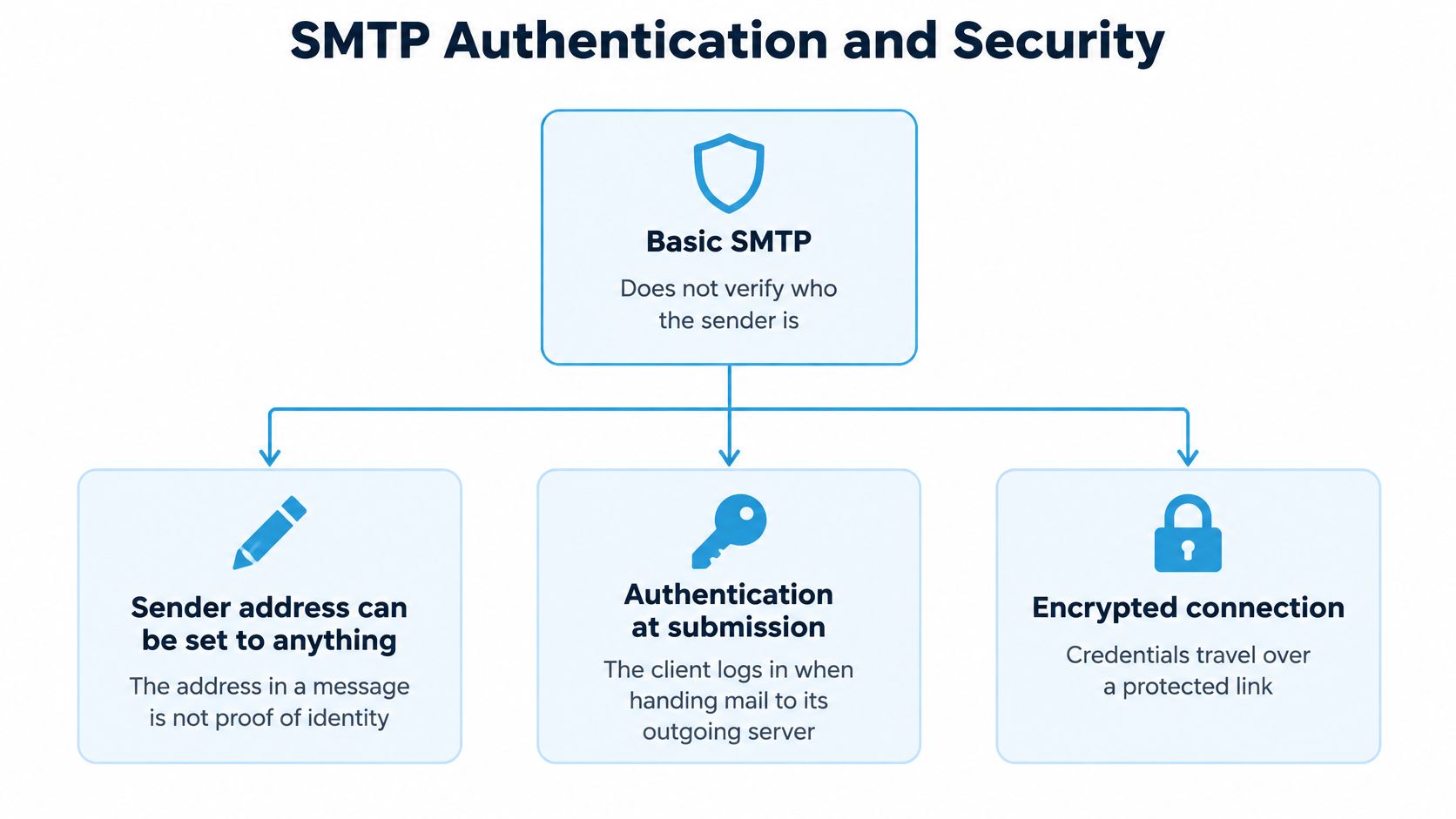
The layers that fix this sit at different points in the journey.
Authentication at submission happens when your client logs in before the server accepts mail, over an encrypted connection. A properly configured client also validates the server's certificate, so it never hands a password to an impostor.
Domain authentication happens on the receiving side. The Government of Canada's enterprise email configuration guidance lays out the three records and what each one does. SPF publishes the IP addresses authorized to send for a domain. DKIM adds a cryptographic signature to outbound messages. DMARC checks whether the authenticated domain aligns with the visible From domain, then tells receivers what to do when checks fail.
How SPF, DKIM and DMARC divide the work
Federal guidance sets a phased path that works for almost any organization. Authorize every sending IP address in SPF, sign all outbound mail with DKIM, and start DMARC at p=none to collect reports. Move to p=quarantine or p=reject only once every legitimate sending system is inventoried.
The order matters because each step can break mail if rushed. An incomplete SPF record causes legitimate messages to fail authorization, and enforcement before the inventory is complete can block real business email.
Monitoring first isn't caution for its own sake. A DMARC policy that rejects mail before you know all your senders is a self-inflicted outage.
The Canadian Centre for Cyber Security guidance on email domain protection treats SPF, DKIM and DMARC as complementary controls rather than substitutes for each other. It's also honest about the limit: DMARC raises the cost of spoofing, but it doesn't guarantee every fraudulent message gets blocked, because effectiveness depends on correct DNS records, domain alignment and whether the receiving server enforces anything at all.
End-to-end encryption with PGP or S/MIME is a separate choice that sits above all of this. Transport encryption protects the trip. Only end-to-end tools protect content from your own sending server onward.
There's also a legal layer that has nothing to do with deliverability. CASL requires consent, sender identification and an easily usable unsubscribe mechanism for commercial electronic messages. A message can pass every technical check and still break the law.
Common SMTP Errors
Every SMTP reply starts with a digit that tells you the outcome. 2 means success. 4 means a temporary failure, so the server will retry. 5 means a permanent failure, so retrying changes nothing until you fix something.
| Code | Meaning | Common cause | First fix |
|---|---|---|---|
| 421 | Service unavailable, closing connection | Server overload or restart | Wait, then check server status |
| 450 | Mailbox temporarily unavailable | Greylisting or a busy mailbox | Retry later |
| 535 | Authentication failed | Wrong password, missing app password, or authentication not enabled | Reset credentials and confirm the login method |
| 550 | Mailbox unavailable or message rejected | Wrong address, policy block, or sending IP on a blocklist | Verify the address, then check SPF and DKIM |
| 554 | Transaction failed | Spam or policy rejection | Review authentication and message content |
The pattern to notice is that only two of these are about the message itself. 535 is a credential problem on your side. 550 and 554 are usually about trust, either the address doesn't exist or the receiving server doesn't believe you're authorized to send for that domain.
Matching the code to a cause
Say someone sends an invoice, gets a 550 bounce, and concludes the mail server is broken. More often the recipient domain rejected the message because the sending domain's SPF record doesn't include the server that sent it. The fix sits in DNS, not in the mail app.
Work in this order: read the code, check the login, check the authentication records, then check the recipient address. Each step rules out a whole category of cause.
If the code starts with 4, wait. Most temporary failures clear on their own within a few hours, and chasing them immediately wastes time.
Check Your SMTP Settings Before You Send
Run this checklist once and you'll avoid most of the errors above.
Confirm the outgoing server and port. Port 587 with STARTTLS is the usual answer. Use 465 if your provider or device demands implicit TLS.
Confirm the username format. Many servers want the full email address, not just the part before the @ symbol.
Confirm outgoing authentication is enabled. A server that accepts mail without authentication won't get far past a receiver's spam filter.
Send a test to an outside account. Check the full headers and look for SPF, DKIM and DMARC results marked as pass.
Read your DMARC aggregate reports before tightening policy. They show you every source sending as your domain, including the ones you forgot about.
At Typewire, IMAP and SMTP access is switched on under Settings, Mail settings, IMAP and SMTP. To check your domain, press the Validate button and we test the MX, SPF and DKIM records for you, then show the results.
Frequently Asked Questions About SMTP
Q: Does SMTP encrypt email?
A: Only the connection, and only when the server uses STARTTLS or implicit TLS. That protects each hop as the message moves between servers. It doesn’t encrypt the message itself, so anyone holding a stored copy, including your provider, can read it. To protect the content, you need end-to-end encryption such as PGP or S/MIME, which encrypts the message before it leaves your device.
Q: Why do home internet providers block port 25?
A: Compromised home computers were once a major source of spam, sending mail straight to other servers on port 25. Many providers now block outgoing traffic on that port from residential connections to cut off that route. It doesn’t affect normal email use. Mail apps should send on port 587 or 465, which require you to log in before the server accepts anything.
Q: Is SMTP the same as IMAP?
A: No. SMTP sends mail, while IMAP reads and syncs mail that has already arrived. Most accounts use both: your app sends through SMTP and checks your inbox through IMAP. They use different ports and settings, which is why a mail app asks for an incoming server and an outgoing server separately. If sending fails but receiving works, the problem is on the SMTP side.
Q: Is port 587 always safe to use?
A: Port 587 is the standard choice for sending from a mail app, and it upgrades to an encrypted connection with STARTTLS before you log in. But a port alone doesn’t make mail safe or trusted. Your app should require encryption and validate the server’s certificate. Receivers will also check your domain’s SPF, DKIM and DMARC records before deciding whether to trust the message.
Typewire hosts email on privately owned servers in Canada, and every paid plan includes IMAP and SMTP access, so you can point your own mail app at our infrastructure and send from your own domain. Outgoing mail is rate-limited and filtered to help protect your domain’s sending reputation. Start your 7-day Typewire free trial and run a few test sends on your own domain before you commit.