Think about standard email as a postcard. Anyone who happens to handle it on its journey can glance at what you've written. A password-protected email, on the other hand, is like sending a sealed, registered letter. It ensures that only the person with the right key—the password—can open it and see the sensitive information inside. This is an essential security layer that goes far beyond just your regular email account password.
Why Securing Your Emails Is a Modern Necessity
Email is the digital filing cabinet of our lives. It’s where we get bank statements, sensitive medical results, critical business contracts, and deeply personal messages. And yet, most of the time, we send this information without thinking twice about its trip across the open internet.
Let's consider a real-world scenario. Imagine a small business owner emailing an employment contract to a new hire. That document is loaded with personally identifiable information (PII)—home address, social security number, bank details, you name it. If that email isn't secured, it's basically an open book for anyone snooping along the way.
The Scale of Email Communication
The sheer volume of email flying around every day really puts the risk into perspective. By 2025, it's estimated that 376.4 billion emails will be sent daily. That’s a staggering amount of data, and this constant flow creates endless opportunities for bad actors to intercept messages. Without protection, your private information is just sitting there, exposed.
For a deeper look into these numbers, you can explore some fascinating key email usage insights.
A key thing to grasp is the difference between securing your account versus securing the message itself. A strong password and two-factor authentication are great for keeping people out of your inbox. But a password-protected email secures the actual message as it travels from you to your recipient.
Comparing Email Security Methods
Before we get into the nuts and bolts of sending a password-protected email, it helps to understand the landscape of email security. Different methods offer different levels of protection and ease of use.
Here’s a quick comparison of common ways to secure your emails. This helps you understand your options before we dive into the specific how-to guides.
| Security Method | How It Works | Best For | Ease of Use |
|---|---|---|---|
| Password-Protected Attachment | Encrypting a file (like a PDF or ZIP) with a password before attaching it to an email. | Sending specific sensitive documents like contracts, financial statements, or HR files. | Fairly easy, but requires sharing the password separately. |
| End-to-End Encryption (E2EE) | The message is encrypted on the sender's device and can only be decrypted by the recipient. The email provider cannot read it. | Highly sensitive communications where ultimate privacy is required, such as legal or medical discussions. | Can be complex. Often requires both parties to use specific apps or services (e.g., ProtonMail, Signal). |
| Transport Layer Security (TLS) | Encrypts the connection between email servers, protecting the email in transit. | General, everyday email security. It’s the standard for most major providers like Gmail and Outlook. | Automatic. It works in the background without user intervention, but doesn't protect the email on the servers themselves. |
| Secure Email Portals | The recipient gets an email with a link to a secure web portal where they must log in to view the message. | Businesses needing to send sensitive information to clients, like banks or healthcare providers. | Relatively easy for the recipient, but adds an extra step. |
Each of these methods has its place. For this guide, we're focusing on the practical, accessible methods you can use right away, starting with password-protecting your attachments and using built-in email service features.
What’s Really at Stake?
Failing to secure your emails isn't just a minor privacy oops; it can lead to serious, real-world consequences. The potential fallout is significant:
- Financial Loss: Exposed invoices or bank details can be snatched up and used for fraudulent payments.
- Identity Theft: Leaked personal info is all an identity thief needs to open new lines of credit or commit fraud in your name.
- Reputational Damage: For any business, a data breach can shatter customer trust and bring on major legal and financial headaches.
- Competitive Disadvantage: If a competitor intercepts your trade secrets, client lists, or strategic plans, you've just handed them a massive advantage.
Learning how to send a password-protected email is a proactive and powerful step you can take to guard your most important communications. It’s truly a fundamental skill for being a responsible digital citizen.
How to Password Protect an Email in Outlook
If you're a Microsoft Outlook user, you’re in luck. The ability to send a password protected email is already baked right into the platform, so you won’t need any third-party plugins. Outlook's own encryption system is a solid way to lock down sensitive information, and it works whether you're using the desktop app or Outlook on the web.
When you've got a new message open, just look for the Options tab in the top ribbon. You'll see an Encrypt button, usually with a little padlock icon. Clicking it gives you a few different permission levels, which is great for tailoring the security to exactly what you need.
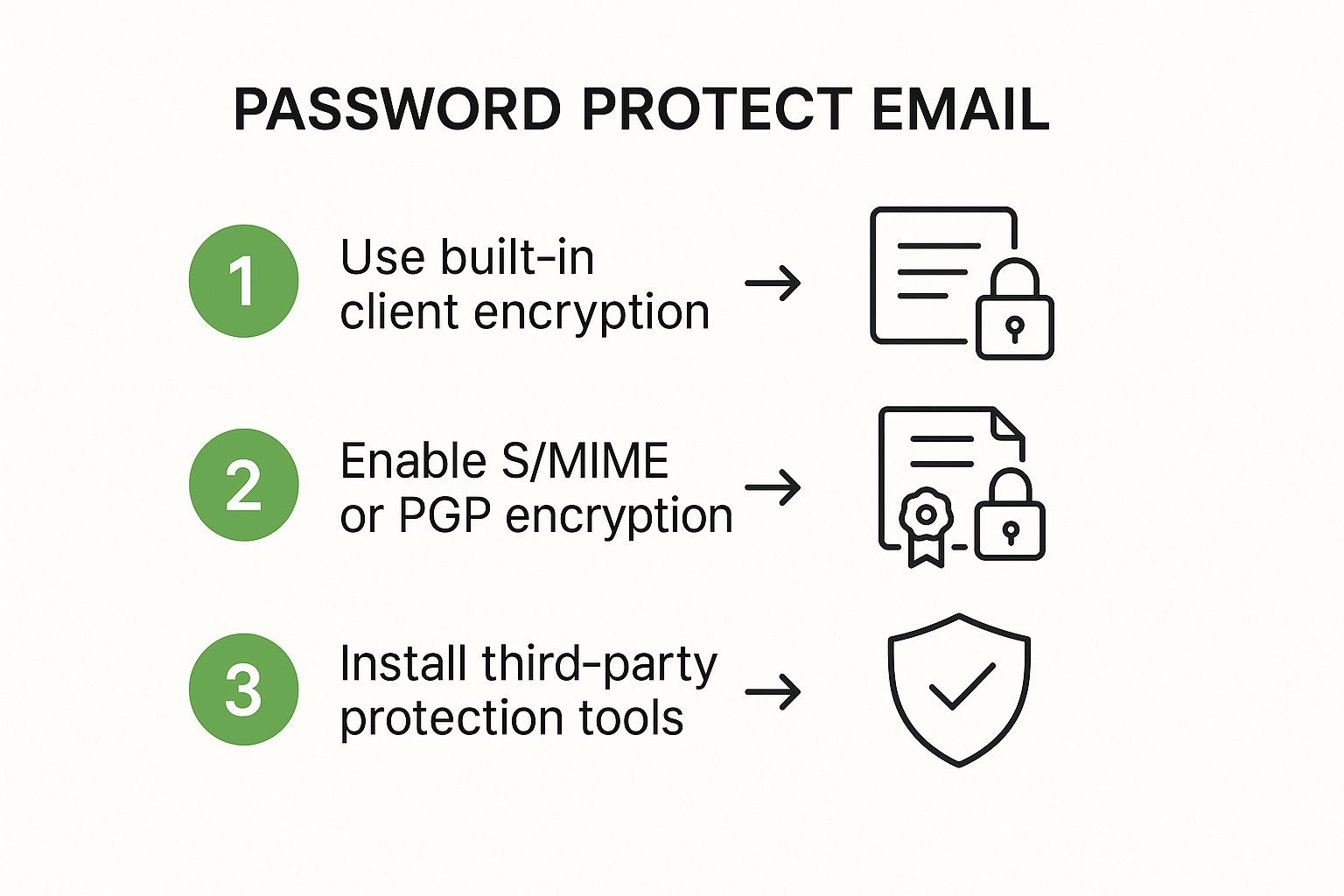
As you can see, the feature is front and center—no need to go digging through obscure settings menus to find it.
Understanding Your Encryption Options
When it comes to sending a password protected email, Outlook gives you a couple of key choices. The one you pick really depends on how much control you want to keep over that email after it leaves your outbox.
- Encrypt-Only: Think of this as your standard level of protection. It scrambles the email's content so only someone who can prove they own the recipient's inbox can read it. They can still copy, print, or forward it, though.
- Do Not Forward: This is the more restrictive, higher-security option. It does everything the "Encrypt-Only" setting does but also blocks the recipient from forwarding, printing, or even copying the content. It’s perfect for when you're sending something truly confidential.
So, what does this look like in the real world? If I'm sending a project update to my team, "Encrypt-Only" is usually enough. But if I'm sharing a draft of a legal agreement or a spreadsheet with financial forecasts with a partner, I always use "Do Not Forward." It's just a much safer bet.
A Quick Heads-Up: This isn't password protection in the traditional sense. Your recipient won't need a password you created. Instead, Outlook uses their own email login to verify who they are. If they're on Outlook, it's completely seamless. If they use Gmail, they'll just get a link to a secure Microsoft page to view the message.
What Your Recipient Will See
You might be wondering if this process is a pain for the person on the other end. It’s actually designed to be pretty simple. They’ll get an email letting them know a protected message is waiting for them.
For fellow Outlook or Microsoft 365 users, the email typically just opens right up after a quick, automatic identity check behind the scenes. If your recipient uses another service like Gmail or Yahoo, the notification email will have a link. Clicking it takes them to a secure portal where they can either sign in with their email account or get a one-time passcode sent to their inbox to prove it's them.
This is a huge plus. It means you don't have to worry about the security risk of sending a password in a separate text or email, but you still get robust protection.
Using Gmail Confidential Mode to Secure Emails
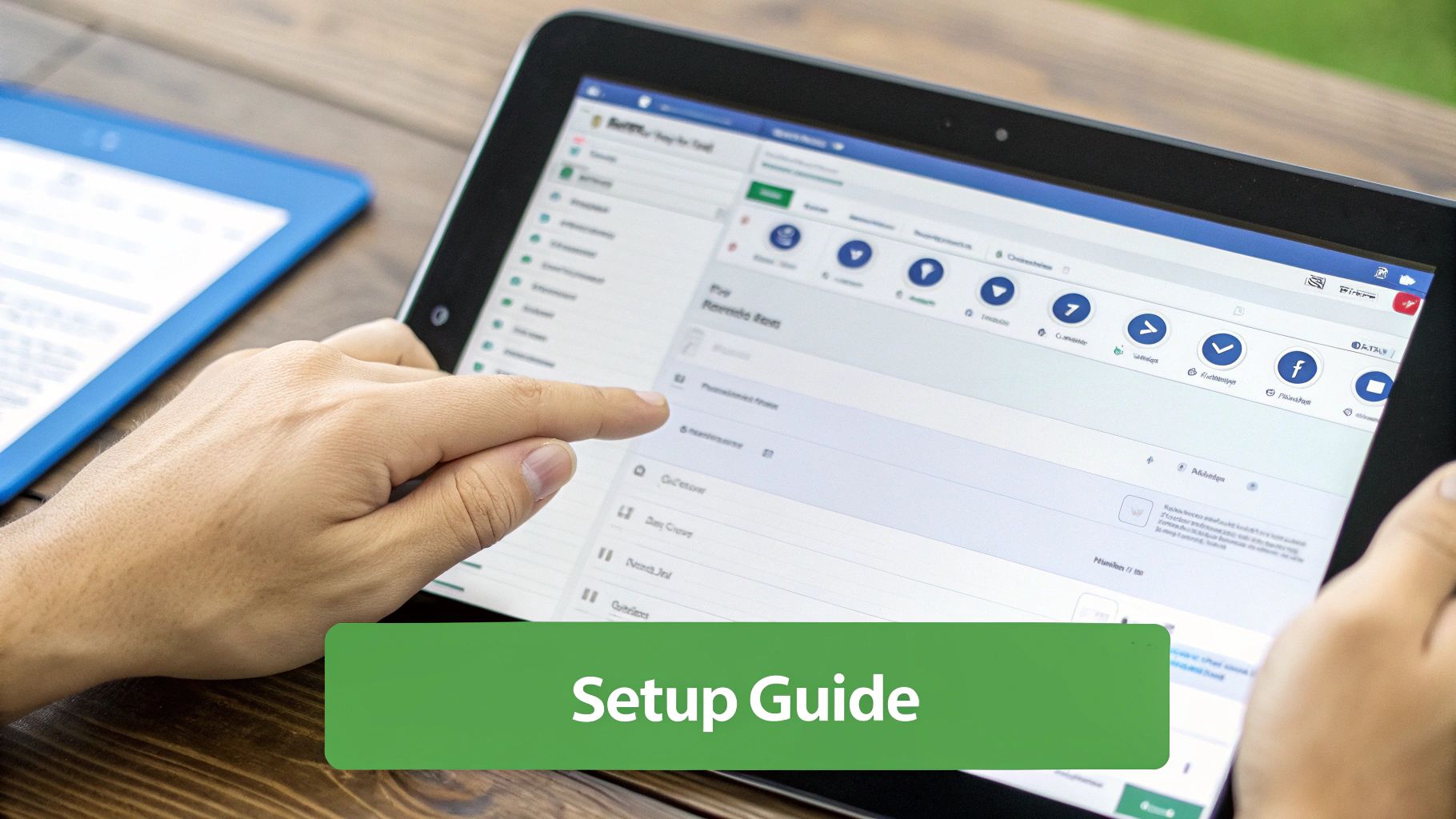
If you're one of the billions of people on Gmail, you already have a powerful tool for sending a password protected email right at your fingertips. It’s called Confidential Mode, and it’s a surprisingly simple feature that gives you an incredible amount of control over your messages, even after you’ve hit "send."
At its core, Confidential Mode lets you set an expiration date on your emails and, more importantly, you can revoke access anytime you want. It also blocks the recipient from forwarding, copying, printing, or downloading the message content and any attachments. This is a game-changer when you need to share sensitive information but don't want to lose control over it.
Activating and Configuring Confidential Mode
Getting this set up is a breeze. When you’re composing an email, just look for the little lock-and-clock icon in the toolbar at the bottom. A single click on that icon opens up the Confidential Mode settings, where you can dial in the specifics.
You’ve got a couple of key choices to make right away:
- Set Expiration: Decide how long your email will be accessible. The options are pretty flexible, ranging from just one day all the way up to five years. Once that time is up, the message is gone.
- Require Passcode: For an even stronger layer of security, you can require an SMS passcode. With this on, Google sends a one-time code to a phone number you specify. Your recipient can't open the email until they enter that code, which is a fantastic way to verify their identity.
This combination of a self-destruct timer and phone verification is what makes it feel like a password protected email without all the manual back-and-forth of creating and sharing passwords yourself. For a deeper dive into email security, check out our guide on mastering safe communication in 5 steps.
Real-World Scenarios and Key Limitations
So, when would you actually use this? I’ve found it invaluable in my own work. For instance, if you're a consultant sending a draft proposal to a potential client, you want their eyes on it, but you don't want it floating around their entire company. Confidential Mode is perfect for that.
It's also great for sending personal financial documents. Think about sending a W-9 or bank details to an accountant. Requiring that SMS passcode means that even if the recipient's email account gets compromised, the hacker still can't open that specific, sensitive message without also having their phone.
It's crucial to understand that Confidential Mode isn't foolproof. While it disables forwarding and printing functions within the email client, it can't prevent a determined recipient from taking a screenshot or a photograph of their screen.
This is the most important thing to remember. Confidential Mode is an excellent deterrent against accidental sharing and casual snooping. It's not an unbreakable digital vault. It works best when you have a general level of trust with your recipient but just want to put some smart guardrails in place to protect your information.
Advanced Methods for Ironclad Email Security
While the built-in tools from Gmail and Outlook are a solid starting point, there are times when you need to send a truly password protected email with a much higher level of assurance. This is especially true when handling sensitive client data, legal documents, or financial records where you need absolute certainty that your communications are locked down from end to end.
When the standard features just don't cut it, it’s time to look at more specialized methods.
For anyone who puts privacy first, dedicated secure email providers are the top-tier solution. Services like ProtonMail or platforms with security add-ons like Virtru are designed from the ground up with end-to-end encryption as the default. This means your message is scrambled the moment you hit send and can only be unscrambled by your intended recipient. No one else—not even the email provider—can read it.
Protecting Your Attachments Directly
A really practical and accessible technique is to protect the attachment itself instead of the entire email. I use this method all the time. It lets you stick with your familiar email client, like Gmail or Outlook, while adding a powerful layer of security right where it's needed most—on the sensitive file.
So, rather than encrypting the whole email, you just password-protect the specific file before you even attach it.
- For PDFs: Most PDF readers, like Adobe Acrobat, have a built-in option to add a password. You can set a password that the recipient must enter just to open the document.
- For Multiple Files: The easiest way is to create an encrypted ZIP archive. On both Windows and macOS, you can bundle your files into a folder, right-click, and find an option to compress and set a password.
Once the file is locked, you just attach it to a regular email and send it.
The golden rule here is how you share the password. Never, ever send the password in a follow-up email. That completely defeats the purpose. It's like locking your front door and then leaving the key on the welcome mat for a burglar to find.
If an attacker gets into the recipient's inbox, they'll find both the locked file and the key to open it. The right way to do it is to share the password through a completely separate channel. A quick phone call, a text message, or a message on an encrypted app like Signal are all perfect for this. That separation is what makes this method so effective.
Why Dedicated Tools Are Gaining Traction
Our digital lives are getting more complicated by the day. In 2025, it's estimated the average person will have to manage somewhere between 100 and 150 online accounts—a huge jump from just 90 back in 2020. With over 423 billion digital accounts floating around the globe, the need for specialized security tools to send things like a password protected email has never been greater. For a deeper dive into these numbers, check out the full 2025 password statistics analysis.
This explosion of digital identities is exactly why relying on purpose-built tools is becoming less of a niche choice and more of a smart, necessary move. To get the full picture, it helps to understand all the risks involved. That's why we've put together a complete defense guide against email security threats you might find helpful.
Essential Practices for Email Account Security
Sending a password-protected email is a great step, but it doesn't mean much if the account you're sending it from is vulnerable. Think of your email account as the master key to your entire digital life. It's where password resets land for nearly every other service you use, which makes it a prime target for attackers.
Locking down that account starts with ditching some common—and incredibly risky—password habits. We’ve all seen them: using slight variations of old passwords or something predictable like "Password123!". It feels like an obvious mistake, but these practices are a leading cause of account breaches.
The reality is, poor password hygiene is still a massive problem. In 2025, a mere 15% of internet users rely on a password manager, and over 36% admit to writing passwords down on paper. In the U.S. alone, a whopping 79% of people just mix common words with numbers, while 57% reuse old passwords across different sites. If you want to see just how common these vulnerabilities are, you can explore more password statistics for a real eye-opener.
Moving Beyond Basic Passwords
To get serious about security, you need to bring in modern tools. The two most powerful layers of protection you can add are a password manager and two-factor authentication (2FA). Honestly, these aren't just nice-to-haves anymore; they're essential.
A password manager is like a digital vault. It generates and remembers long, random, and unique passwords for every single account you have. All you need to do is remember one strong master password to access everything else. This one change single-handedly solves the two biggest password problems: reuse and weakness.
A strong password isn't just about length; it’s about randomness. A password like
Tr0ub4dor&3feels clever, but it’s weak because it follows predictable human patterns. A much better password, one a manager might generate, looks likek9#Z$vP@wT*b!nQ7—impossible to guess and a nightmare for brute-force attacks to crack.
The Non-Negotiable Layer of 2FA
Even with an unbreakable password, your account can still be exposed. That's where two-factor authentication (2FA) becomes your non-negotiable second line of defense. After you enter your password, 2FA asks for a second form of verification to prove you are who you say you are.
This second "factor" is typically one of three things:
- Something you know: Like a secret PIN or the answer to a security question.
- Something you have: Most commonly, a code from an authenticator app on your phone or a physical USB security key.
- Something you are: A biometric scan, like your fingerprint or face.
When you enable 2FA, you make it so that even if a cybercriminal manages to steal your password, they're stopped in their tracks. Without your phone or physical key, they can't get in. It's a simple step that blocks the overwhelming majority of automated attacks. For a more comprehensive approach, it’s worth looking into these 8 email security best practices you can implement now. Combining these strategies gives you a truly solid defense for your most important digital asset.
Answering Your Top Email Security Questions
Even with the best tools in hand, sending a password-protected email can feel a bit confusing. I've seen it time and time again—getting the small details right is what separates genuine security from just a false sense of safety. Let's walk through some of the most common questions I hear, so you can lock down your messages with confidence.
Encryption vs. Password Protection: What's the Real Difference?
One of the biggest points of confusion is the distinction between encryption and password protection. People often use the terms interchangeably, but they're not the same thing.
Encryption is a sophisticated process that essentially scrambles your email's content into unreadable code. Only someone with the correct digital "key" can unlock and read it. This is how modern features, like the one in Outlook, work—they verify a recipient's identity behind the scenes to grant them access.
Password protection, on the other hand, is a much more direct form of gatekeeping. You're simply locking a file—like a PDF or a ZIP archive—and the recipient needs the specific password you created to open it. While both get you to the same end goal of privacy, the mechanics are quite different.
What Happens When You Share a Secure Email?
A question I get asked all the time is, "What stops the recipient from just forwarding my secure email to someone else?" It's a great question, and the answer really depends on how you secured the message in the first place.
- Using built-in email features: If you're using something like Gmail's Confidential Mode or Outlook's "Do Not Forward" option, you have a lot of control. These tools are designed to explicitly prevent the recipient from forwarding, copying, or printing the email's contents.
- Using protected attachments: Now, if you've just attached a password-protected file, the email itself can be forwarded freely. The new recipient, however, won't be able to open that sensitive attachment unless they also have the password.
For the tightest control over the email body itself, your best bet is always to rely on the security features built directly into your email client.
The Critical Mistake You Must Avoid
This leads us to the single most important rule: is it safe to send the password in a follow-up email? The answer is an emphatic no. This is a massive security blunder that completely defeats the purpose of everything you just did.
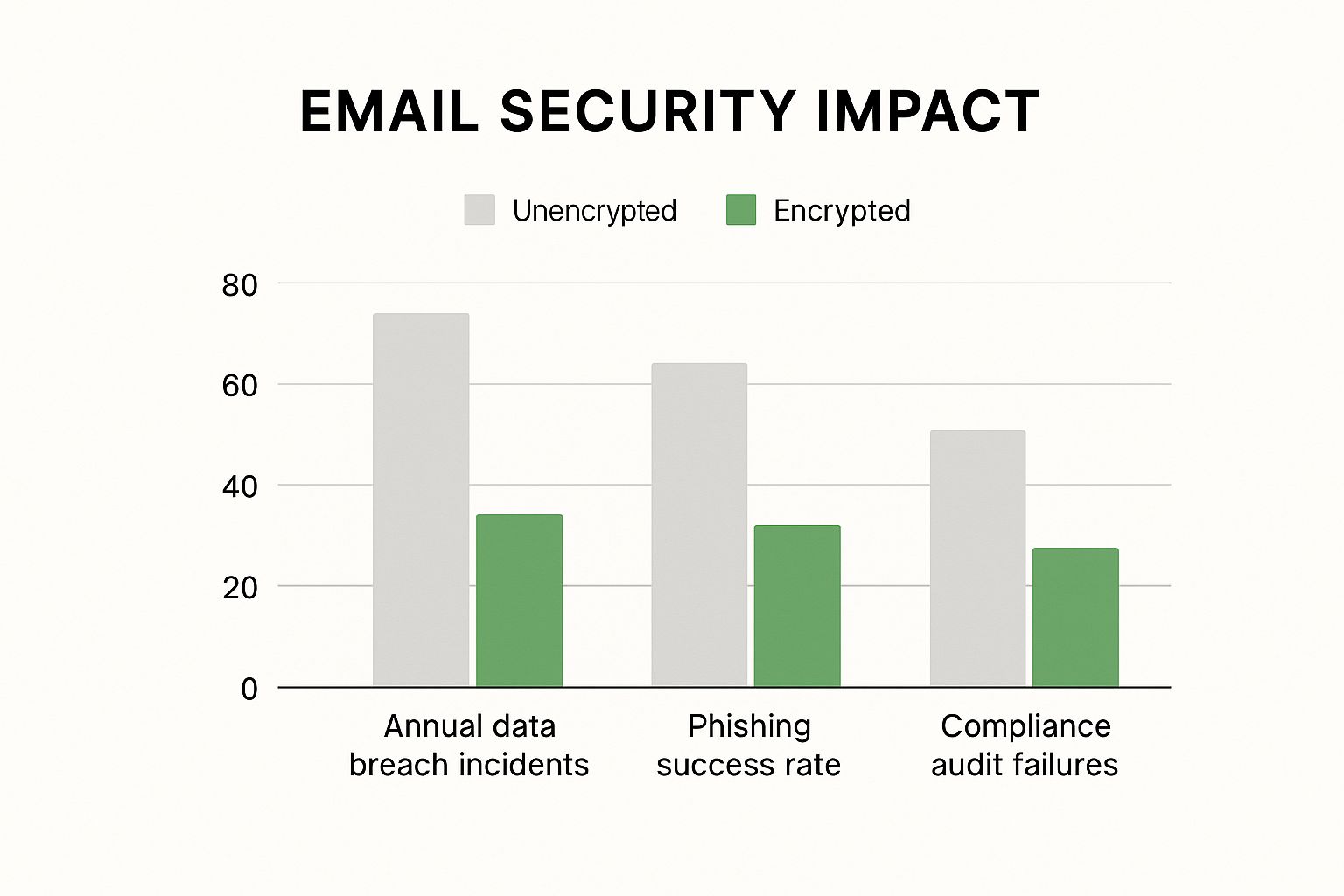
Sending the password via email is like locking your front door and then leaving the key under the doormat. If an attacker gains access to the email account, they get both the locked box and the key to open it. This is a classic vulnerability that phishing attacks exploit with great success.
The only safe way to do this is to share the password through a completely separate channel. A phone call is great. A quick SMS text message works, too. Or for maximum security, use an end-to-end encrypted messaging app like Signal.
This separation of channels is the foundation of this security method. It ensures that even if one account is compromised, your sensitive information remains locked away and truly private.
Ready for an email experience that puts your privacy first? With Typewire, you get secure, ad-free email hosting on private servers, ensuring your data is never tracked or mined. Take back control of your communications. Explore our plans and start your free trial today.