Author: williamwhite

  • How to Send Secure Email That Stays Private

    How to Send Secure Email That Stays Private

    When you send a secure email, you’re essentially wrapping your message in a digital lockbox using encryption methods like PGP or S/MIME. This scrambles the content, making it gibberish to anyone except the person holding the unique key. Think of it less like a postcard and more like an armored truck delivery.

    This guide will show you exactly why this is so important and how to put it into practice.

    Why Your Standard Email Is Insecure
    Image

    Here's a hard truth: most people think their email is private, but it's not. A standard email travels across the internet completely exposed, like a postcard anyone can read. It hops between multiple servers on its way to the recipient, and at any of those stops, it can be intercepted, copied, and stored.

    This isn't just a theoretical vulnerability. This lack of built-in privacy opens the door to very real risks, especially since we now share so much sensitive information through email without a second thought.

    The Real-World Risks of Unencrypted Communication

    Sending an unencrypted email is like leaving your front door unlocked. You're exposing yourself to threats like "man-in-the-middle" attacks, where a cybercriminal slips between you and your recipient to steal data. Even your own email provider or ISP can access and analyze your conversations.

    Let’s get specific. Here are a few common situations where unencrypted email is a disaster waiting to happen:

    • Business Confidentiality: Imagine sending a draft of a merger agreement, sensitive financial projections, or a new product roadmap in a standard email. That’s a direct invitation for corporate espionage.
    • Client Data: If you're a lawyer, accountant, or doctor, sending client information this way can lead to massive trust issues and even legal trouble for violating compliance standards like HIPAA.
    • Personal Privacy: Sharing things like your social security number, bank account details, or private health records without encryption is practically handing the keys to an identity thief.

    The heart of the problem is that email protocols were never built for the world we live in now. They were designed for simple delivery, not for privacy. Learning how to send secure email isn't just for tech geeks anymore—it's a basic skill everyone needs to protect themselves.

    The Growing Need for Email Security

    This vulnerability is made worse by the sheer volume of email we all send. Email is still king when it comes to communication. By 2025, the number of global email users is expected to hit 4.83 billion, with a mind-boggling 392 billion messages sent every single day. For hackers, this massive flow of data is a goldmine. You can find more statistics on the future of email at cloudhq.net.

    The point isn't to scare you, but to be clear about the stakes. You wouldn’t shout your credit card number across a busy coffee shop, right? Sending it in a regular email is the digital equivalent.

    The good news? Powerful and easy-to-use tools are available to lock down your messages. By adopting encryption, you take back control and make sure your private conversations stay private.

    Understanding the Building Blocks of Email Encryption
    Image

    Before you can send a truly secure email, you need to get familiar with the engines running under the hood. Email encryption isn't just one thing; it's a field built on established standards. The two you’ll encounter most are PGP (Pretty Good Privacy) and S/MIME (Secure/Multipurpose Internet Mail Extensions).

    From a bird's-eye view, both do the same job: they use a clever system of public and private keys to scramble your messages so only the intended recipient can read them. Your public key is like an open, secure dropbox that anyone can use to send you an encrypted file. But only you have the private key to unlock it.

    While they share that core principle, their philosophies and how they operate are worlds apart. The right choice for you really boils down to your specific situation—who you are, who you're emailing, and what kind of security you actually need.

    PGP: The Decentralized "Web of Trust"

    PGP runs on a decentralized model known as the “web of trust.” In this world, there’s no single, central gatekeeper that issues keys or verifies your identity. Trust is built from the ground up, person by person. You create your own key pair, and its legitimacy grows as other people "sign" your public key, essentially vouching that it really belongs to you.

    It's a lot like being new in town. You don't have an official certificate proving you're a trustworthy person. Instead, as you meet your neighbors and they get to know you, they vouch for you to others. This grassroots approach gives PGP incredible flexibility and makes it resistant to control by any single entity.

    This model is a favorite among people who prioritize personal autonomy and privacy:

    • Journalists use it to protect their sources from surveillance.
    • Activists and dissidents depend on it to communicate safely, especially in restrictive environments.
    • Privacy-focused individuals love it because it doesn't force them to register with or pay a third-party company.

    The biggest hurdle with PGP, honestly, is key management. You're on your own when it comes to generating, storing, and verifying keys, which can feel daunting if you're not particularly tech-savvy.

    S/MIME: The Centralized Certificate Authority

    S/MIME is the polar opposite. It uses a centralized, top-down trust model. To get started with S/MIME, you need to get a digital certificate from a trusted Certificate Authority (CA). These are commercial companies, like DigiCert or Sectigo, that verify your identity before they issue your certificate, which includes your public key.

    Think of it like getting a driver's license. A government body (the CA) confirms you are who you say you are and gives you an official ID (your certificate) that others can easily recognize and trust. When you receive an S/MIME encrypted email, your email client automatically checks the sender’s certificate against a built-in list of trusted CAs.

    S/MIME shines in settings where verifiable identity is just as crucial as confidentiality. It offers a formal, structured approach to trust that plugs directly into existing corporate security policies.

    This makes S/MIME the go-to standard for many organizations:

    • Corporations often mandate it to comply with data protection regulations like GDPR or HIPAA.
    • Government agencies use it to ensure the authenticity of official communications.
    • Regulated fields like finance and healthcare frequently require it to meet strict compliance rules.

    While S/MIME makes trust verification almost invisible to the end-user, it does mean you're dependent on CAs and often have to pay for a certificate. For a deeper dive into how these standards work, check out our essential guide to secure email protocols.

    Choosing the Right Standard for You

    So, which one is it? The choice between PGP and S/MIME really comes down to your context. An investigative journalist has fundamentally different security needs than a corporate lawyer. To help you figure out which path makes sense, I’ve put together a quick comparison.

    PGP vs. S/MIME: A Quick Comparison

    Feature PGP (Pretty Good Privacy) S/MIME (Secure/Multipurpose Internet Mail Extensions)
    Trust Model Decentralized (Web of Trust) Centralized (Certificate Authorities)
    Key Generation User-generated Issued by a trusted CA after identity verification
    Cost Typically free (software is open-source) Often requires purchasing a certificate from a CA
    Ease of Use Higher learning curve; manual key management Simpler for end-users; often integrated into clients
    Ideal User Journalists, activists, privacy advocates Corporations, government, regulated industries

    Ultimately, understanding these differences is the first real step in learning how to send secure email effectively. Once you know which system fits your world, you can move on to getting it set up.

    A Hands-On Guide to Setting Up PGP Encryption

    Getting started with PGP encryption can seem daunting, but I promise it's more straightforward than it sounds. We're going to skip the dense cryptographic theory and jump right into what you actually need to do to send truly secure emails.

    For this walkthrough, we'll be using a popular and completely free combination: the Thunderbird email client and its built-in OpenPGP features. I often recommend this setup for beginners because it wraps powerful encryption tools into a familiar email interface, making the whole process far less intimidating.

    Choosing Your PGP Tools

    Your first real decision is picking the software to handle your encryption. There are quite a few options out there, but consistency is your friend. The smoothest path, especially when you're just starting, is to use an email client that either has PGP built-in or a well-supported plugin.

    Here are a few trusted choices I've seen work well for people:

    • Thunderbird with OpenPGP: A free, open-source email client that works on Windows, macOS, and Linux. Its native PGP support is hard to beat for ease of use.
    • Gpg4win (Windows): This is a full encryption package for Windows users. It comes with Kleopatra for managing your keys and an Outlook plugin called GpgOL.
    • GPG Suite (macOS): The go-to for many Mac users, this suite integrates nicely with Apple Mail for a seamless experience.

    Since Thunderbird offers a consistent experience no matter your operating system, all the steps from here on out will be based on that.

    Generating Your First Key Pair

    Okay, you've got Thunderbird installed and your email account is set up. Now for the exciting part—creating your unique encryption keys. This is the moment you forge the digital "lock and key" for your private communications.

    Inside Thunderbird, head over to your Account Settings and look for the "End-to-End Encryption" tab. You should see an option to add a new key. The client will guide you through the process, but you'll need to confirm a few things:

    1. Identity: Make sure the correct email address is selected for this key.
    2. Key Type: Just stick with the recommended defaults here. That usually means an RSA key of at least 3072 or 4096 bits. A bigger number means it's exponentially harder for anyone to crack.
    3. Expiration Date: Setting your key to expire in a year or two is just good security hygiene. It's a built-in reminder to cycle your keys, which limits your risk if a key ever gets compromised. You can always push this date back later.

    Don't worry, Thunderbird handles all the complex math behind the scenes.

    The single most important part of this whole process is creating a strong passphrase. This is not your email password. Think of it as a separate, ultra-strong password that protects your private key file itself. If someone gets on your computer, this passphrase is the last line of defense stopping them from impersonating you.

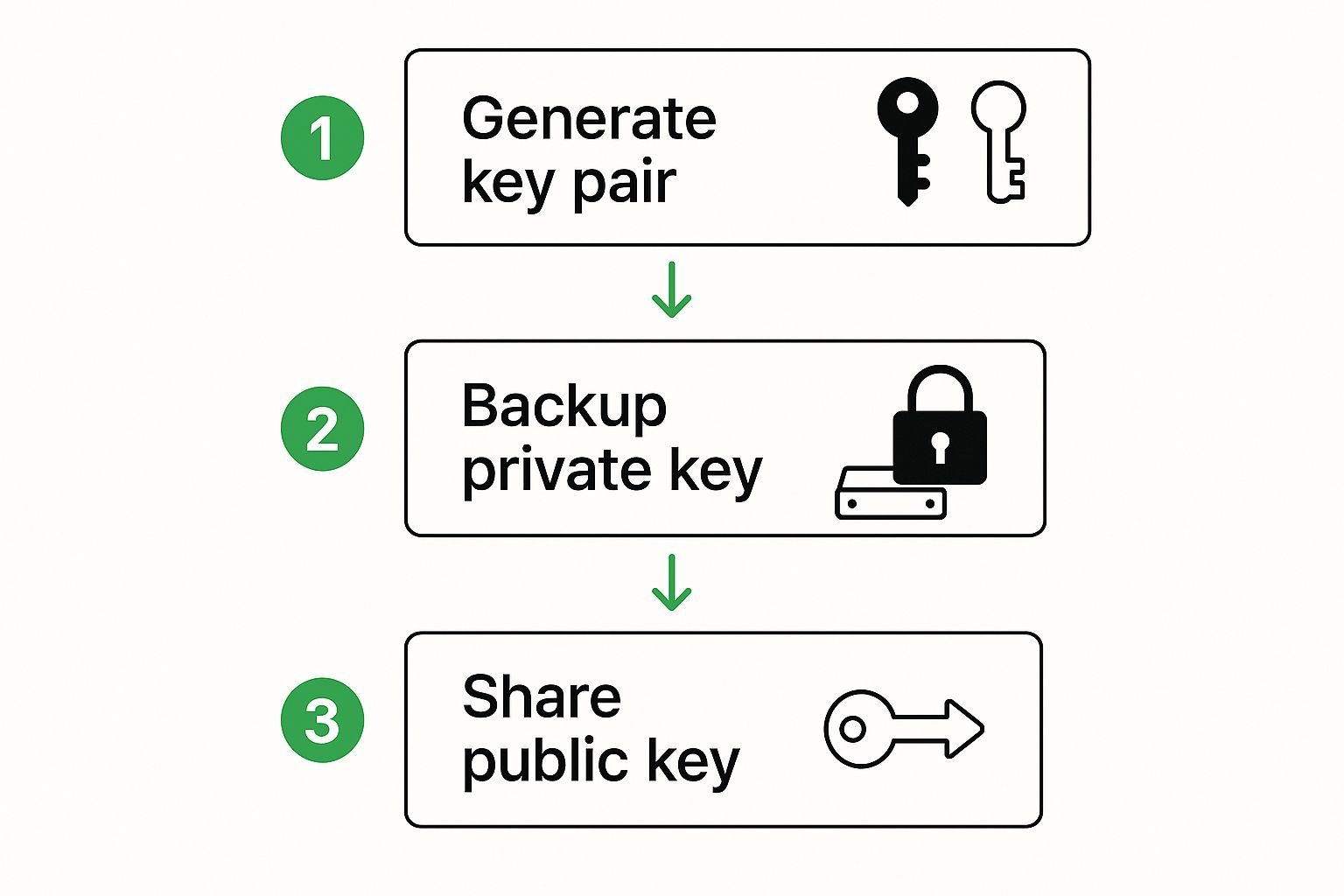
    The infographic below really helps visualize the basic flow of what you do with your new keys.
    Image

    As you can see, once the keys are generated, your job boils down to two things: protecting your private key and sharing your public one.

    Sharing and Managing Your Keys

    Here's a core concept to remember: encryption is a team sport. For you to send someone a secure email, you need their public key. And for them to reply securely, they need yours. This is where key management becomes a simple, everyday habit.

    Getting Your Public Key Out There
    You need to make it easy for people to find your public key. Inside Thunderbird's key manager, you can export your public key into a small text file (it'll have a name like my-key.asc). You can then attach this file to an email, send it to your contacts, or even post it on your website.

    Importing Your Contact's Public Key
    When someone sends you their public key file, you need to add it to your keychain. It's usually as simple as opening the file and letting Thunderbird import it. Once you do, the client automatically links that key to your contact's email address.

    From that moment on, whenever you start writing a new email to that person, Thunderbird will find their key and give you an option to encrypt the message with a single click. Watching it all come together is what really drives home the top benefits of encrypted email; it turns an abstract security idea into a real, practical tool you can use every day.

    Implementing S/MIME for Professional Security
    Image

    While PGP is a powerful tool for decentralized security, the professional world often marches to a different beat. For anyone working in corporate, government, or regulated fields like finance and healthcare, S/MIME (Secure/Multipurpose Internet Mail Extensions) is the gold standard.

    What makes it so different? Its strength is its centralized, verifiable trust model—something that’s absolutely essential for meeting strict compliance rules and organizational security policies.

    Unlike PGP's web of trust between individuals, S/MIME uses a top-down system built on Certificate Authorities (CAs). These are trusted third-party companies that formally verify your identity before issuing you a digital certificate. This certificate is your email's passport, proving to every recipient that you are who you claim to be.

    This formal verification is precisely why businesses rely on it. It takes the guesswork out of authentication, which is critical when you're handling sensitive client data, intellectual property, or legally binding agreements. For professionals, understanding how to send secure email with S/MIME isn’t just a good idea; it's often a requirement.

    Obtaining Your S/MIME Certificate

    Your first step is getting an S/MIME certificate from a recognized Certificate Authority. This isn't a file you generate yourself—you have to apply for it, much like getting an official ID. You'll find plenty of providers out there, from big names to smaller specialists.

    When you start looking, you'll see two main tiers of certificates:

    • Free Certificates: Some CAs offer free, basic certificates that are perfect for personal use or just trying things out. They typically provide encryption and last for a shorter period (like 90 days), with verification usually limited to confirming you own the email address.

    • Paid Certificates: For any serious business use, a paid certificate is the way to go. These involve a much more thorough validation process where the CA confirms your personal or organizational identity. They also last longer (usually one to three years) and are widely trusted by email clients, which means fewer compatibility headaches.

    From my experience, investing in a paid certificate for business is a no-brainer. The cost is negligible compared to the assurance it provides, and it sends a clear message to clients and partners that you take their security seriously.

    Installing and Configuring Your Certificate

    Once the CA has verified your identity and sent you the certificate—usually as a .p12 or .pfx file—it's time to install it. The good news is that most major email clients, including Microsoft Outlook and Apple Mail, have great built-in support for S/MIME.

    Installation is usually a breeze. In most cases, you just double-click the certificate file, and your operating system's keychain or certificate manager will walk you through the process. You'll need to enter the password you set up when you first exported the certificate from the CA's website.

    With the certificate installed, the final move is telling your email client to actually use it. This involves a quick trip to your email account's security settings.

    For example, in Microsoft Outlook, the steps look like this:

    1. Navigate to File > Options > Trust Center > Trust Center Settings.
    2. Select Email Security from the left-hand menu.
    3. Under the Encrypted email section, you can select your new certificate for signing and encrypting messages.

    Here, you can set your client to automatically digitally sign all outgoing messages. A digital signature doesn't hide your message content; instead, it acts like a tamper-proof seal, proving the email came from you and wasn’t altered along the way.

    You can also set a default to encrypt all outgoing mail. But just remember, you can only send an encrypted email to someone if you have their public key. The magic of S/MIME is that this key exchange happens seamlessly. The very first time you get a signed email from a new contact, your email client automatically saves their certificate. From that point on, you can send them encrypted messages. It all happens in the background, making S/MIME surprisingly easy to use day-to-day once it's set up.

    Easier Ways to Send Secure Email Every Day

    While PGP and S/MIME are the gold standard for bulletproof security, let's be realistic—they can be a nightmare to set up. For most people, figuring out how to generate, manage, and share keys is a major roadblock. This complexity often leads to mistakes or, worse, just giving up on encryption entirely.

    But what if you could have that same high-level security without all the technical headaches?

    Thankfully, a new wave of secure email services has stepped up to solve this exact problem. These platforms are designed with a "security by default" philosophy, meaning all the heavy lifting of encryption happens behind the scenes. You get to send a truly secure email with the same simplicity as using any popular webmail service.

    The New Breed of Simplified Secure Email

    Modern platforms like Typewire present a fantastic alternative. They deliver end-to-end encryption without forcing you to become a cryptography whiz. The whole experience is built for real people, hiding the complicated mechanics so you can focus on what you’re writing, not how it’s being secured.

    The secret sauce is automated key management. When you sign up, the service generates and handles your cryptographic keys for you. When you send a message to another user on the platform, encryption and decryption just happen. It’s seamless.

    This approach offers some huge advantages for daily use:

    • No Setup Required: Forget installing plugins, tweaking settings, or messing with key files. Just create an account and you're ready to go.
    • Use It Anywhere: These services usually have clean web interfaces and dedicated mobile apps, so your secure email is always accessible, no matter the device.
    • Modern Features: Many go beyond simple encryption, adding things like self-destructing messages, secure file transfers, and even the ability to recall an email after it’s been sent.

    The point of these platforms isn’t to kill off PGP or S/MIME. It's to make powerful encryption available to everyone. After all, the most secure system in the world is useless if nobody can figure out how to use it.

    Keeping Pace with the Modern Cloud Office

    This trend toward user-friendly security isn't just for personal use. Businesses are also ditching clunky, old-school solutions. The email security market is changing fast, thanks to the massive shift to cloud services and the constant threat of sophisticated cyberattacks. With so many companies relying on cloud-native platforms like Microsoft 365 and Google Workspace, there's a clear demand for security tools that are just as flexible and easy to manage. You can read more about these market shifts and challenges.

    This brings up a critical point: for a security tool to be successful, it has to fit into how people already work. Integrated solutions let companies enforce strong security policies without slowing everyone down—a balance that’s absolutely essential today. If you're looking to bring this kind of streamlined security into your own workflow, our guide can help you master safe communication in five steps.

    At the end of the day, whether it’s for protecting your personal privacy or meeting professional compliance standards, you shouldn’t have to sacrifice convenience for security. By breaking down the technical barriers, these simpler tools empower more people to protect their conversations. The best way to learn how to send secure email is with a tool that makes it feel completely natural.

    Common Questions About Sending Secure Email

    Even with the best guides, jumping into email encryption for the first time can feel a bit daunting. It’s only natural to have questions when you’re dealing with things like PGP keys and S/MIME certificates.

    Think of this section as a quick chat to clear up some of the most common things people wonder about. We’ll tackle the practical, "what-if" scenarios so you can get started with confidence.

    What Happens If I Lose My Private Key?

    Losing your private key is like losing the only key to a bank vault. It's a serious problem because you instantly lose the ability to read any email—past, present, or future—encrypted for you. This is why having a solid backup plan isn't just a suggestion; it's absolutely essential.

    Here’s what you need to do before disaster strikes:

    • Make a Secure Backup: As soon as you create your key pair, back up your private key. Don't just toss it in a cloud folder. Save it to an offline device, like a dedicated USB drive, and store that drive somewhere physically safe.
    • Create a Revocation Certificate: When you first generate your PGP keys, your software will give you the option to create a revocation certificate. Do it. This is your emergency "kill switch."
    • Know When to Use It: If you ever lose your private key or even suspect it's been compromised, you publish this certificate. It’s like putting out a public notice telling everyone, "Don't use my old key anymore!" This stops people from sending you emails you can no longer open and prevents a thief from using your key to impersonate you.

    Can I Send an Encrypted Email to Someone Without Encryption?

    The short answer is no, you can't send a fully end-to-end encrypted message to someone who isn’t set up for it. The whole system relies on you having their public key to "lock" the email. If they don't have one, you have no lockbox to put your message in.

    But that doesn't mean you can't add a layer of security. You can still digitally sign the email.

    A digital signature doesn’t hide the content of your email. Think of it more like a tamper-proof seal on an envelope. It provides cryptographic proof that the message genuinely came from you and hasn't been altered along the way. For true privacy where the message itself is unreadable, both you and your recipient need to be using encryption.

    Is a Service Like Typewire Better Than a Manual PGP Setup?

    This is a great question, and the honest answer is that it really depends on what you need and how hands-on you want to be. One isn't inherently "better" than the other; they're just built for different people.

    Setting up PGP manually with tools like Thunderbird or GPG Suite gives you complete and total control. You manage everything yourself, you aren't tied to a third-party service, and you can even inspect the open-source code. This is often the path for journalists, activists, or anyone who requires maximum autonomy. The trade-off? It comes with a much steeper learning curve.

    On the flip side, secure email services like Typewire are designed for ease of use. They handle all the complicated key management behind the scenes, making powerful encryption accessible to anyone. For most individuals and businesses, a dedicated service is simply the more practical and sustainable option. You get the robust security without all the manual work.

    Does the Browser Lock Icon Mean My Email Is Secure?

    That little lock icon you see in your browser's address bar next to Gmail or Outlook.com is important, but it doesn't mean your email message is secure.

    The lock indicates an HTTPS connection. All it means is that the data traveling between your computer and that one email server (e.g., Google's) is encrypted. This is crucial for protecting your password when you log in, but that’s where the protection ends.

    Once your email arrives at their server, it's typically stored unencrypted. When it's sent to your recipient, it travels across the internet to their provider's server, often in the clear. True email security—where only you and your recipient can read the message—requires end-to-end encryption like PGP, S/MIME, or a service that builds it in by default.


    Ready to skip the complexity and start sending truly private emails today? Typewire offers end-to-end encryption with no complicated setup, no ads, and no data mining. Protect your communications with a platform designed for privacy from the ground up. Start your free 7-day trial of Typewire and take back control of your inbox.
  • 8 Best Way to Organize Email Methods for 2025

    8 Best Way to Organize Email Methods for 2025

    Is your inbox a source of constant stress? You're not alone. The average professional receives over 120 emails per day, turning what should be a communication tool into a digital vortex of distraction and overwhelm. Simply creating a few folders isn't enough to combat this modern-day challenge. The solution lies in adopting a systematic approach, a true methodology for processing, sorting, and acting on your messages.

    Finding the best way to organize email isn't just about achieving a tidy inbox; it's about reclaiming your focus, reducing cognitive load, and transforming your relationship with email from reactive to proactive. This guide moves beyond generic advice to explore eight proven systems, each offering a unique philosophy and actionable framework.

    We will cover powerful methods including:

    • The rigorous Inbox Zero for a clean slate.
    • The project-focused PARA method for resource management.
    • The classic Getting Things Done (GTD) system for task-oriented workflows.

    You will learn specific implementation details, see real-world examples, and discover how to use the features of secure email platforms to support your chosen system. Get ready to find the structured approach that will finally put you in control of your inbox.

    1. GTD (Getting Things Done) Email System

    The Getting Things Done (GTD) method, created by productivity expert David Allen, isn't just for task lists; it provides a powerful framework for taming your inbox. This system treats your email not as a never-ending to-do list, but as an "in-basket" to be processed systematically. The core principle is to make quick, decisive choices about every single message, moving it out of your inbox and into its rightful place, ultimately achieving the coveted "inbox zero."

    This approach is highly effective because it prevents decision fatigue and ensures no task falls through the cracks. By processing emails into distinct categories like "Actionable," "Reference," or "Trash," you transform a chaotic feed into an organized command center. This is the best way to organize email if you struggle with constant notifications and the mental weight of an overflowing inbox.

    How the GTD Workflow Works

    The GTD email workflow is a clear, step-by-step process designed to eliminate clutter and clarify your next steps. It forces you to handle each email only once before moving it out of the inbox.

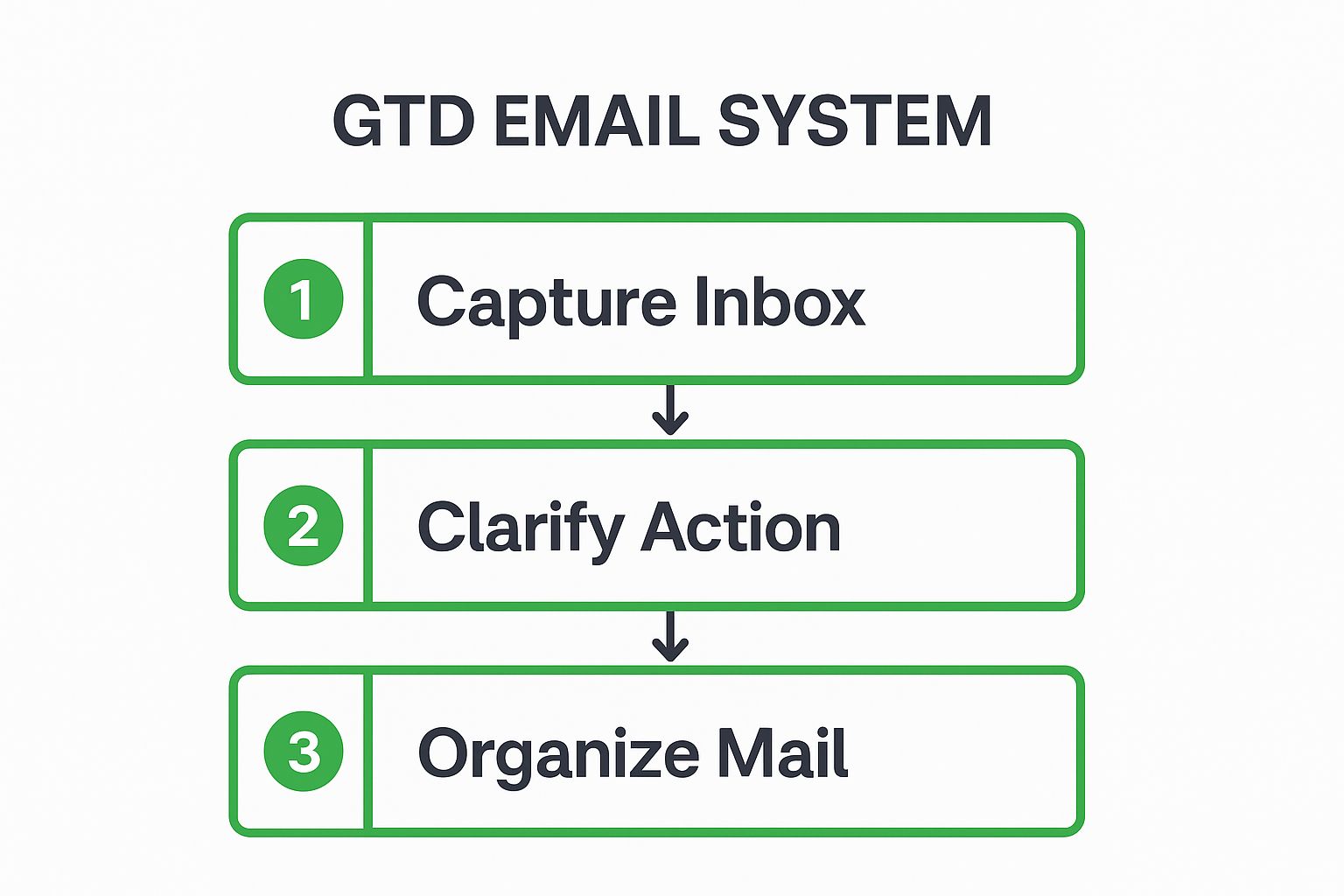
    This infographic illustrates the foundational three-step flow of processing your inbox with the GTD method.

    Infographic showing key data about GTD (Getting Things Done) Email System

    This simple flow from capture to organization ensures every email is processed deliberately, preventing it from languishing in your inbox.

    Practical Implementation Tips

    To get started with GTD for email, consider these actionable tips:

    • Process, Don't Check: Schedule specific blocks of time to process your email rather than checking it constantly.
    • Use the Two-Minute Rule: If an email requires an action that will take less than two minutes, do it immediately.
    • Create Action Folders: Set up a few simple folders, such as "@Action," "@Waiting For," and "Reference," to organize emails after clarification.
    • Filter Aggressively: Automate the sorting of newsletters, notifications, and non-urgent communications so they bypass your inbox entirely.

    2. Inbox Zero Method

    The Inbox Zero method, a philosophy popularized by productivity expert Merlin Mann, is a rigorous approach to email management. Its primary goal is to keep your inbox completely empty, or as close to it as possible, at all times. This system redefines the inbox from a cluttered storage cabinet into a temporary processing station where every email is handled decisively. The core principle is to take immediate action on each message, preventing them from piling up and creating digital and mental clutter.

    This method is highly effective because it transforms email from a source of constant distraction into a manageable task. By processing every message with one of five actions (delete, delegate, respond, defer, or do), you regain control and ensure nothing important is overlooked. This is the best way to organize email for professionals who feel overwhelmed by high email volumes and want to create a more focused and less reactive workflow.

    Inbox Zero Method

    How the Inbox Zero Workflow Works

    The Inbox Zero workflow is built on a simple, repeatable process for handling every email that arrives. Rather than letting messages sit, you immediately categorize them and move them out of the inbox, ensuring a clean slate after each session. This system prevents your inbox from becoming a de-facto to-do list.

    The key is to apply one of the five core actions to every single email:

    1. Delete/Archive: If no action is needed, get it out of sight.
    2. Delegate: If it's someone else's task, forward it.
    3. Respond: If it takes less than two minutes, reply immediately.
    4. Defer: If it takes longer, move it to a dedicated "Requires Response" folder or task list.
    5. Do: If it's a quick task, do it right away.

    Practical Implementation Tips

    Adopting the Inbox Zero method requires discipline, but these tips can make the transition smoother:

    • Schedule Processing Time: Dedicate specific blocks in your calendar for clearing your inbox, rather than reacting to every new email notification.
    • Start with Old Emails: When clearing a backlog, archive or delete all emails older than a month to get a head start.
    • Utilize Keyboard Shortcuts: Learn your email client’s shortcuts for archiving, deleting, and moving messages to rapidly process your inbox.
    • Create Quick-Action Folders: Set up folders like "Follow-Up" or "Read Later" to quickly defer emails that can't be handled immediately.

    3. PARA Method for Email

    Adapted from Tiago Forte's renowned "Building a Second Brain" framework, the PARA method offers a powerful system for organizing digital information, including your email inbox. PARA stands for Projects, Areas, Resources, and Archives. This system categorizes emails based on their actionability, aligning your inbox directly with your current goals and responsibilities.

    The PARA method transforms your email client from a cluttered repository into a dynamic workspace that mirrors your real-world workflow. By organizing emails into these four top-level categories, you create a clear hierarchy that separates urgent, project-specific tasks from ongoing responsibilities and general reference material. This is the best way to organize email if you're a project manager, consultant, or anyone juggling multiple active initiatives at once.

    How the PARA Workflow Works

    The PARA workflow is built on the principle of actionability. Instead of creating dozens of granular folders, you sort every relevant email into one of four primary folders. This streamlined approach makes it easy to find what you need, when you need it, by linking information directly to an outcome.

    • Projects: Emails related to a specific goal with a defined deadline (e.g., "Q4 Marketing Campaign," "Website Redesign").
    • Areas: Emails connected to your ongoing roles and responsibilities that have no end date (e.g., "Client Management," "Personal Finance").
    • Resources: Emails containing useful information or topics of interest that are not tied to a specific project or area (e.g., "Swipe Files," "Industry Reports").
    • Archives: Completed projects, inactive areas, and old resources. This is where emails go once they are no longer relevant to your active work.

    This structure ensures that the most time-sensitive and actionable emails are always prioritized at the top of your folder hierarchy.

    Practical Implementation Tips

    To effectively implement the PARA method in your email, follow these practical steps:

    • Create Your Four Folders: Start by creating the four main folders: 1. Projects, 2. Areas, 3. Resources, and 4. Archives. You can use numbers to enforce the correct order.
    • Nest Projects: Within your "Projects" folder, create sub-folders for each active initiative you're currently working on.
    • Review and Archive Regularly: At the end of a project, move its entire folder from "Projects" to "Archives." This keeps your active workspace clean and focused.
    • Conduct a Monthly Review: Set aside time each month to review your Areas and Resources, ensuring they are still relevant and organized. This prevents digital clutter from building up over time.

    4. Email Threading and Conversation View

    Instead of treating each email as a separate, isolated message, email threading groups related replies into a single, collapsible conversation. This approach, also known as conversation view, transforms your inbox from a chronological list of individual emails into a collection of ongoing dialogues. The core principle is to keep the entire context of an exchange together, making it easy to follow complex discussions without hunting for previous messages.

    This method is highly effective because it streamlines communication and reduces inbox clutter. By consolidating back-and-forth replies, you can quickly grasp the full story of a conversation, see who said what, and avoid missing crucial details. For anyone who manages project communications or engages in lengthy discussions, this is the best way to organize email to maintain clarity and momentum.

    How Email Threading Works

    Email threading uses the subject line and hidden message headers to identify and group related emails. When someone replies to a message, the email client recognizes it as part of an existing conversation and stacks it with the original. Modern clients like Gmail and Outlook do this automatically, presenting the entire thread as one line in your inbox.

    This organizational flow keeps your main inbox view clean and focused on distinct topics rather than every single reply. You can expand a thread to see all messages in sequence or collapse it to save space, giving you complete control over how you view your communications.

    Practical Implementation Tips

    To get the most out of email threading, consider these actionable strategies:

    • Use Clear Subject Lines: Start conversations with specific and descriptive subject lines. Avoid generic titles like "Question" or "Update," as they can cause unrelated emails to be threaded incorrectly.
    • Start New Threads for New Topics: If a conversation’s topic changes significantly, start a new email with a new subject line. This prevents a single thread from becoming bloated and confusing.
    • Archive Entire Conversations: Once a project or discussion is complete, archive the entire thread. This clears it from your inbox while keeping the full context available for future searches.
    • Customize Your View: Explore your email client’s settings. Most platforms, including Microsoft Outlook and Gmail, allow you to turn conversation view on or off and customize how threads are displayed.

    5. Time-Based Email Management

    Time-Based Email Management is an organizational approach that shifts the focus from what is in your inbox to when you handle it. Instead of treating email as a constant stream of interruptions, this method frames it as a scheduled activity. Popularized by productivity experts like Tim Ferriss and Cal Newport, this system prioritizes deep work by batching email processing into specific, predetermined time blocks.

    This strategy is highly effective because it reclaims your focus and prevents your schedule from being dictated by incoming messages. By structuring your day around your own priorities, you treat email as just another task to be completed. This is the best way to organize email if you find constant notifications are derailing your productivity and you need to protect your most valuable asset: your time.

    How the Time-Based Workflow Works

    The core of this workflow is simple: schedule specific times to process email and ignore it completely outside of those windows. Instead of a project-based folder system, you might use time-oriented folders like "This Week" or "Next Month" to defer items that don't require immediate attention. This transforms email from a reactive chore into a proactive, managed task.

    This approach stops the cycle of continuous checking, which fragments attention and reduces cognitive performance. By setting clear boundaries, you also manage others' expectations about your response times.

    Practical Implementation Tips

    To get started with Time-Based Email Management, consider these actionable tips:

    • Schedule Email Blocks: Designate 2-3 specific times per day (e.g., 9:30 AM, 1:00 PM, 4:30 PM) for checking and responding to emails. Put these blocks on your calendar.
    • Turn Off All Notifications: Disable desktop and mobile email alerts to eliminate the temptation to check your inbox outside of scheduled times.
    • Use an Auto-Responder: Set up an automatic reply that informs senders you check email at specific times and provides an alternative contact for truly urgent matters.
    • Create Time-Based Folders: Organize emails that require future action into folders like "@This Week," "@This Month," or "@Next Quarter" to keep your main inbox clear. For more guidance, you can explore a variety of email management tips to boost your productivity.

    6. Email Filters and Rules Automation

    Email filters and rules automation is a systematic approach that leverages your email client's built-in logic to manage your inbox for you. Instead of manually sorting messages, you create automated rules that categorize, prioritize, and even respond to emails based on criteria you define, such as the sender, subject line, or specific keywords. This method essentially builds a self-managing inbox that works tirelessly in the background.

    This strategy is one of the best ways to organize email because it dramatically reduces manual effort and maintains order consistently. It's perfect for anyone who receives a high volume of predictable emails, like newsletters, notifications, or standard client inquiries. By automating the sorting process, you ensure your main inbox is reserved only for high-priority messages that require your immediate attention.

    Email Filters and Rules Automation

    How Rules Automation Works

    The core of this system lies in creating "if-then" commands for your email client. For example, if an email arrives from a specific client, then move it to that client's dedicated folder and mark it with a colored label. This simple logic, when applied across various scenarios, prevents clutter before it even starts. Project managers can automatically sort emails by project codes, while customer service teams can route support tickets to the appropriate department without human intervention. The goal is to touch fewer emails while ensuring everything ends up in its proper place.

    Practical Implementation Tips

    To effectively implement email automation, follow these practical steps:

    • Start Simple: Begin with one or two basic rules, such as automatically filing all newsletters into a "Reading" folder.
    • Layer Complexity: Gradually add more sophisticated rules. For instance, create a rule that flags emails containing the word "urgent" or "invoice" and moves them to a high-priority folder.
    • Test and Refine: Always test a new rule to ensure it works as expected without unintentionally filtering important messages.
    • Regularly Review: Revisit your rules every few months to delete outdated ones and create new ones that reflect your current workflow. For more advanced options, you can explore the top email filtering solutions for enhanced inbox security and control.

    7. Priority-Based Email Organization

    A priority-based email organization system shifts the focus from chronological order to strategic importance. Inspired by principles from time management experts like Stephen Covey, this method involves processing emails based on their urgency and significance. Instead of treating every message equally, you categorize communications into distinct priority levels, ensuring your most critical tasks and relationships receive immediate attention.

    This approach is the best way to organize email for professionals who are constantly juggling high-stakes communications, such as executives managing board updates or sales teams handling high-value prospects. By creating a clear hierarchy, you can cut through the noise, allocate your energy effectively, and ensure that your most important work drives your day, not the constant influx of low-priority messages.

    How Priority-Based Workflow Works

    The core of this system is a rapid assessment process. As each email arrives, you evaluate it against a predefined set of criteria to assign a priority level. This triage system dictates when and how you will handle the message, moving it from the inbox into a designated workflow based on its importance.

    For example, a CEO might prioritize emails from investors and direct reports above all else, while a healthcare professional would prioritize patient communications. The goal is to create a clear, repeatable system for identifying and acting on what truly matters first.

    Practical Implementation Tips

    To effectively implement a priority-based system, consider these actionable steps:

    • Establish Clear Criteria: Define what makes an email high, medium, or low priority for your specific role. Write these rules down to ensure consistency.
    • Use Visual Indicators: Leverage flags, stars, or color-coded labels to make priority levels instantly recognizable in your inbox. For example, red for high priority, yellow for medium, and blue for low.
    • Create Priority Folders: Set up folders like "P1-Urgent," "P2-Important," and "P3-Later" to move emails into after you've triaged them.
    • Leverage VIP Lists: Most email clients allow you to create a "VIP" list that automatically flags emails from specific senders, ensuring you never miss a message from key contacts.
    • Process High Priority First: Always dedicate your initial energy to clearing out your high-priority emails before moving on to less critical tasks.

    8. Topic-Based Folder System

    The Topic-Based Folder system is a classic and intuitive method that brings the logic of a physical filing cabinet into your digital inbox. This approach involves creating a hierarchical folder structure based on specific topics, projects, clients, or business functions. By sorting emails into these predefined categories, you create a tidy, predictable environment where every message has a designated home. This system mirrors how many people naturally organize information, making it easy to adopt.

    This method is highly effective for professionals who manage distinct workstreams, such as a lawyer handling multiple cases or a consultant juggling several client projects. It provides a clear, at-a-glance overview of all communications related to a specific area. If you find value in structure and prefer manual organization over algorithmic sorting, this is one of the best ways to organize your email and maintain control.

    How the Topic-Based Workflow Works

    The workflow for a topic-based system is straightforward and manual, centered on disciplined filing. After reading an email, you decide which topic or project it belongs to and move it from the inbox to the corresponding folder. This action keeps your main inbox clear, reserving it for new, unprocessed items only.

    This approach transforms your email client into a searchable archive organized by context. For example, all communications for "Project Alpha" are neatly stored in one place, making it easy to retrieve historical information without sifting through a crowded inbox.

    Practical Implementation Tips

    To effectively implement a topic-based folder system, consider these actionable guidelines:

    • Keep It Simple: Design a folder hierarchy that is no more than two or three levels deep to avoid complexity and confusion.
    • Use Consistent Naming: Establish a clear naming convention for your folders (e.g., "Client – [Client Name]" or "Project – [Project Name]") and stick to it.
    • Archive Regularly: Periodically review your folders and archive completed projects or outdated topics to keep your active folder list manageable.
    • Leverage Search: Instead of clicking through deep folder structures, use your email client’s search function to find emails within a specific folder to save time.

    For a deeper look into structuring your inbox, you can explore more strategies to master your email inbox management.

    Best Practices Email Organization Comparison

    Method Implementation Complexity 🔄 Resource Requirements ⚡ Expected Outcomes 📊 Ideal Use Cases 💡 Key Advantages ⭐
    GTD (Getting Things Done) Email System High – requires setup and discipline Moderate – needs ongoing reviews Clear workflow, reduced email anxiety, scalable inbox zero Knowledge workers, executives, entrepreneurs Integrates with overall productivity; scalable; clear action steps
    Inbox Zero Method Moderate to High – consistent discipline needed Moderate – scheduled processing time Reduced overwhelm, faster responses, inbox emptied regularly Busy professionals, fast-paced industries Prevents email backlog; improves focus; clear inbox at all times
    PARA Method for Email Moderate – requires PARA knowledge and maintenance Moderate Work-aligned organization, reduces search time Project managers, consultants, researchers Mirrors project workflows; supports knowledge management
    Email Threading and Conversation View Low – usually built-in feature Low Maintains context, reduces clutter Corporate users, teams, anyone with ongoing threads Easy tracking of conversations; improves collaboration
    Time-Based Email Management Moderate – needs schedule adherence Low to Moderate Less interruptions, better focus, prioritized email handling Executives, academics, entrepreneurs Reduces constant checking; improves time management
    Email Filters and Rules Automation Moderate to High – technical setup involved Low (after setup) Automated sorting, reduces manual work Marketing, customer service, project managers Continuous automation; highly efficient; reduces errors
    Priority-Based Email Organization Moderate – requires ongoing prioritization Low to Moderate Faster handling of important emails CEOs, sales teams, healthcare professionals Focuses on critical tasks; improves response times
    Topic-Based Folder System Low to Moderate – manual folder setup Low Predictable email retrieval, long-term storage Legal, academic, consulting professionals Familiar system; highly customizable; supports filing discipline

    Choosing Your System and Putting It into Action

    We have explored a powerful collection of strategies, from the action-oriented GTD method to the comprehensive PARA framework. Each approach offers a unique lens through which to view your inbox, transforming it from a source of chaos into a well-oiled machine for communication and productivity. The journey to find the best way to organize email is not about finding a single, universally perfect solution. Instead, it is about discovering the system that resonates most deeply with your individual workflow, cognitive style, and professional demands.

    The most effective email organizers are not rigid adherents to one doctrine. They are tinkerers and innovators who blend different concepts to create a personalized, hybrid system. Consider the possibilities: you might adopt the core principle of Inbox Zero while using a Topic-Based folder structure for long-term archiving. Or, you could implement the GTD two-minute rule for rapid-fire responses while using sophisticated automation to sort incoming messages into Time-Based folders like "This Week" and "This Month."

    Your Action Plan for Email Mastery

    The true value of these methods is unlocked not by simply reading about them, but by putting them into practice. The transition from a cluttered inbox to a streamlined one requires a conscious, initial effort, but the long-term rewards are immense. The feeling of control, the reduction in cognitive load, and the reclaimed hours in your day are well worth the investment.

    Here is your clear, actionable path forward:

    1. Select Your Starting Point: Review the methods we have covered. Which one feels most intuitive to you? Does the logic of the PARA method appeal to your project-focused mind, or does the simplicity of Inbox Zero feel like the fresh start you need? Choose one primary framework to begin.
    2. Schedule the Setup: Block out a 1-2 hour window in your calendar. This is your dedicated "Email Reorganization" session. Use this time to create your new folder or label structure, set up initial filters and rules, and perform a major cleanup of your existing inbox according to your chosen system’s principles.
    3. Commit to a Trial Period: Consistency is crucial for building new habits. Commit to using your new system diligently for at least two full weeks. This gives you enough time to move past the initial awkwardness and begin to experience the benefits.
    4. Reflect and Refine: After the trial period, take a moment to assess what is working and what is not. Are certain folders going unused? Are your automation rules too aggressive or not specific enough? Make small adjustments to fine-tune your system for optimal performance.

    Ultimately, the best way to organize email is the one you will actually use. By taking these deliberate steps, you are not just cleaning a digital space; you are building a sustainable habit that will serve you for years to come, enhancing your focus and professional effectiveness.


    Ready to build your perfect email system on a foundation of security and speed? Typewire provides the advanced filtering, fast interface, and ad-free, private environment you need to implement any of these strategies effectively. Take control of your inbox today by visiting Typewire and discover how a truly modern email platform can amplify your organizational efforts.