Secure email hosting is a service dedicated to giving your email communications the advanced encryption and privacy they need, shielding them from anyone who shouldn't be reading them. Think of it as hiring a private armored car for your digital messages instead of just dropping them in a public mailbox. It ensures your emails are protected every step of the way, both while they're traveling and once they're stored. This is a massive leap from standard email, which is often more like sending a postcard that can be easily read by anyone who handles it.
Why Secure Email Hosting Isn't Just an Option Anymore
Standard email is incredibly useful, but its original design didn't prioritize security. When you send an email with a typical free provider, it bounces between various servers on its way to the recipient. While most services now use basic encryption to protect the message during this journey, that protection often disappears the moment it lands on the destination server. There, it can be scanned, analyzed, or accessed by the provider itself.
Secure email hosting flips this model on its head. It establishes a genuinely protected environment for your most important correspondence. This is about more than just a strong password; it's about building a digital fortress around your data from the ground up.
The philosophy behind secure email is straightforward: your private conversations should stay private. Only you and the person you're writing to should be able to read your messages, whether that email is zipping across the globe or just sitting in your inbox.
From Niche Tool to Everyday Necessity
Not long ago, high-level email security was something you'd associate with investigative journalists, activists, or huge corporations with deep pockets. That mindset is now dangerously out of date. With the explosion of sophisticated cyber threats, every single one of us—and every business—is a potential target. This is where you can see the real value of a dedicated hosting service shine.
Here’s why it has become so critical:
- Defense Against Modern Threats: Cybercriminals are experts at using email for phishing attacks to steal your login details and for Business Email Compromise (BEC) schemes, a tactic that has resulted in billions of dollars in losses. Secure hosting builds in crucial defenses against these attacks.
- Ensuring Data Privacy and Integrity: It guarantees that your messages aren't secretly altered in transit and keeps their contents locked away from the prying eyes of service providers, advertisers, and hackers.
- Protecting Sensitive Information: If you work in a field like law, healthcare, or finance, safeguarding client data isn't just a good idea—it's a legal and ethical obligation. Secure hosting is a cornerstone of maintaining compliance and earning trust.
The growing frequency and cleverness of these threats are what's driving the email security market. The global market for these services hit around US$18.5 billion and is on track to reach US$24 billion by 2030. That growth isn't just a market trend; it's a direct reaction to the urgent, real-world need for better defenses against email-based attacks. You can dive deeper into the data on the expanding email security market to see these forces at play.
At the end of the day, paying for secure email hosting has shifted from being a luxury to a fundamental piece of your security toolkit. It’s an essential investment for anyone who takes their privacy and digital safety seriously.
What Really Goes Into Secure Email Hosting?
Think of a truly secure email service less like a simple mailbox and more like a fortress. It's not just one feature, but a combination of defenses all working together. You have high walls, vigilant guards, and a reinforced gate. To understand why this matters, let's break down what these digital "pillars" actually do.
Each component plays a unique, crucial role in keeping prying eyes away from your private communications.
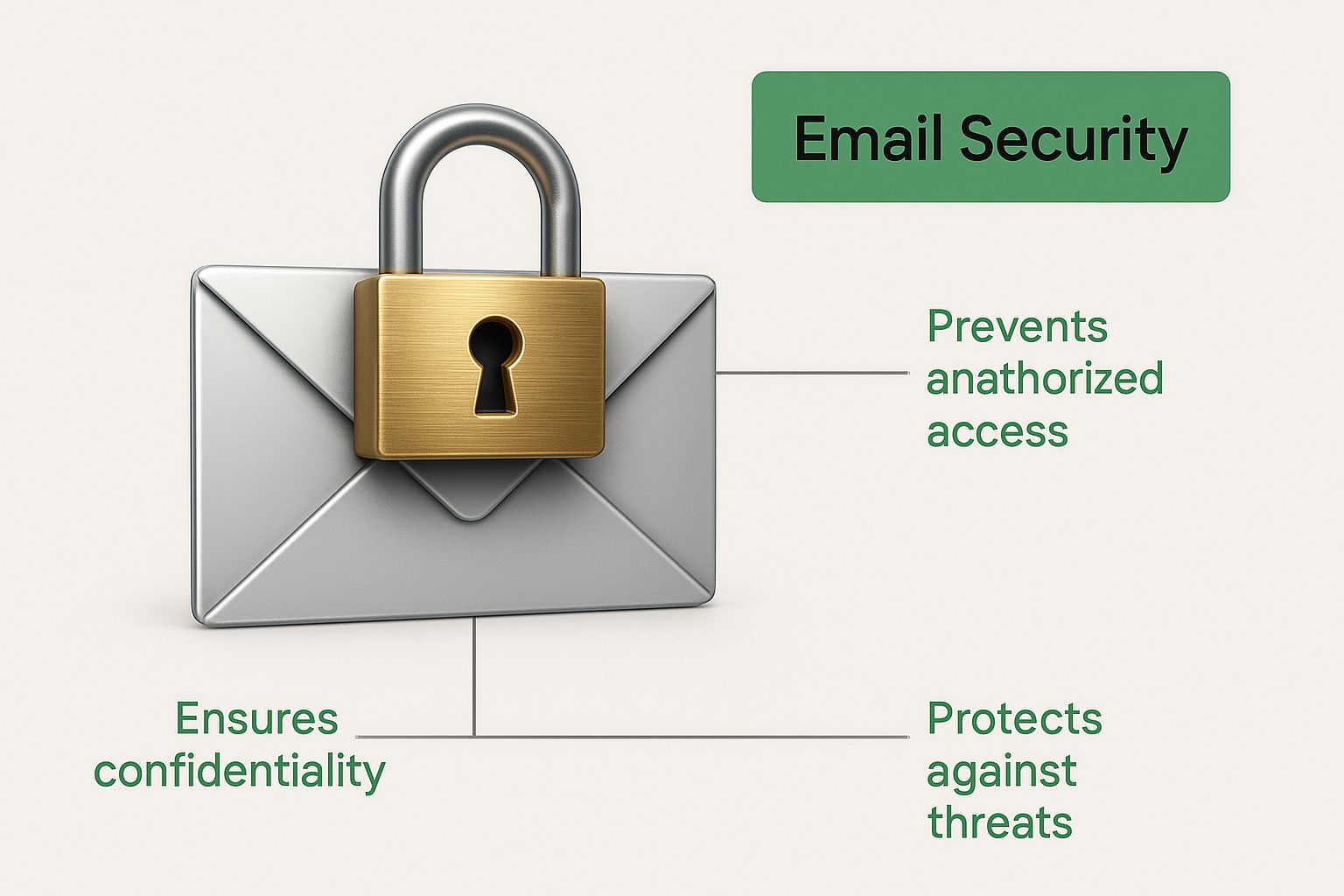
As you can see, modern security isn't about a single lock. It's about integrating multiple layers of protection directly into the way you communicate.
Encryption: The Armored Tunnel and the Soundproof Room
At its heart, email security is all about encryption. But not all encryption is created equal. The two main types you'll run into are Transport Layer Security (TLS) and the much stronger end-to-end encryption (E2EE).
Imagine you're sending a critical document across town. Transport Layer Security (TLS) is like putting that document in an armored truck for the trip. While it's in transit between your computer and the email server, or between servers, it’s completely safe from anyone trying to intercept it on the road.
The catch? When the truck reaches the mail sorting center (the email server), the guards there can open it to see what’s inside. This is how most standard email providers operate. Your message is protected on its journey, but the provider can still access it on their servers.
End-to-end encryption (E2EE) is a whole different level of security. Think of it as having a conversation in a completely soundproof room. Only you and the person you're talking to have the key. The message is scrambled on your device and can only be unscrambled by your recipient's device.
This is the gold standard for privacy. With E2EE, not even the hosting company can read your emails, ensuring your private information remains genuinely private.
Advanced Threat Protection: The Digital Sandbox
Cybercriminals are always finding clever new ways to sneak malware past basic spam filters. This is where Advanced Threat Protection (ATP) comes in, acting as a kind of digital bomb disposal unit for your inbox.
When a sketchy-looking attachment or link arrives, ATP doesn't just check it against a list of known viruses. It isolates the item in a secure virtual environment—a "sandbox." Inside this digital sandbox, the system can safely "detonate" the file or open the link to see what it does.
- Does it try to install suspicious software?
- Does it attempt to contact a known malicious server?
- Does it start encrypting files, like ransomware?
If the file shows any of these dangerous behaviors, ATP blocks it instantly, long before it has a chance to reach you. This proactive approach is essential for stopping "zero-day" attacks—threats so new that traditional antivirus software hasn't caught up yet.
Authentication: Your Digital Deadbolts
Finally, great security is about proving you are who you say you are—and verifying the same for your senders. This comes down to two key mechanisms.
Multi-Factor Authentication (MFA) is like adding a deadbolt to your front door. Even if a hacker steals your password (the first key), they can't get in without the second factor—usually a temporary code from an app on your phone. This one simple step can block over 99.9% of account compromise attacks.
Email Authentication Protocols like SPF, DKIM, and DMARC work behind the scenes to confirm that an email from, say, "yourbank.com" actually came from your bank. These checks are your best defense against email spoofing, which is a cornerstone of phishing attacks. If you'd like to learn more, our complete guide to email authentication breaks it all down. By confirming the sender's identity, these protocols add a final, vital layer to your email defense.
Cracking the Code on Email Encryption
Encryption is the secret sauce behind any truly secure email service. It sounds complex, but the basic idea is refreshingly simple. When you get a handle on how it works, you can see right through the marketing fluff and pick a service that actually keeps your conversations private.
At its heart, encryption is just a way of scrambling a message so it looks like complete gibberish to anyone who isn't supposed to read it. To unscramble it, you need the right "key."
This whole process boils down to two main approaches: symmetric and asymmetric encryption. They each play a different, but equally important, role in locking down your emails.
A Tale of Two Keys: Symmetric vs. Asymmetric
Think of symmetric encryption like a simple lockbox. There's only one key. You use it to lock the box, and your friend needs an identical copy of that same key to open it. It's fast and straightforward, but there's a glaring weak spot: how do you get the key to your friend without someone intercepting it along the way? If a third party grabs the key, your security is blown.
This is where asymmetric encryption comes in with a much smarter solution. It uses a pair of keys that work together: one public, one private.
Here's a great way to picture it: Imagine you have a personal mailbox with a mail slot. You can give a copy of the mailbox's location—your public key—to anyone. They can slide a letter through the slot, but only you have the one-of-a-kind private key to unlock the box and read what’s inside.
This two-key system is the bedrock of modern secure email hosting. It means people can send you fully encrypted messages without you ever having to nervously pass a secret key back and forth.
PGP and S/MIME: Encryption in the Real World
So, when you hear techy terms like PGP or S/MIME, don't let your eyes glaze over. These are simply the real-world systems that put that public/private key concept into action. They're the standards that make the mailbox analogy a reality.
- PGP (Pretty Good Privacy): This is a favorite among privacy advocates, journalists, and tech-savvy individuals. It’s highly flexible, allowing users to create and manage their own keys without a central gatekeeper.
- S/MIME (Secure/Multipurpose Internet Mail Extensions): You’ll find this one baked into many corporate email clients like Microsoft Outlook and Apple Mail. It's more structured, relying on a trusted Certificate Authority to issue and verify the keys, which fits well in a business environment.
Ultimately, both PGP and S/MIME deliver the same critical benefits: confidentiality, making sure your message is for your recipient's eyes only, and integrity, which confirms that no one has messed with the message while it was on its way.
This demand for real security is what’s fueling incredible growth in the email market. Valued at roughly USD 16 billion, the global market is on track to hit USD 28 billion by 2032. This isn't just a trend; it's a direct response from businesses needing ironclad security to protect their data. You can dig deeper into the email hosting market's growth trends to see how security is the main driver.
Now that you understand the nuts and bolts of encryption, you’re in a much better position to judge whether an email provider is offering real protection or just security theater.
How to Choose the Right Secure Email Provider
Choosing a secure email provider is a huge decision. You're not just picking software; you're entrusting a company with your most sensitive conversations. It's a careful balancing act between rock-solid technical security and the practical realities of daily use. The goal is to find a service that protects you without getting in your way.
This means you have to look past the flashy marketing slogans and really dig into what makes a provider trustworthy. You're essentially forming a partnership with the company that guards your data. It's no surprise the global email hosting market is projected to skyrocket from USD 12.4 billion to over USD 33.2 billion by 2033. As you can see in Technavio's analysis of the email hosting market, businesses are desperately seeking reliable partners to fend off a growing wave of cyber threats.
With so many providers vying for your attention, a methodical approach is the only way to make the right choice.
Scrutinize the Security and Privacy Fundamentals
First things first: let's talk about the non-negotiables. These are the core security and privacy promises that underpin everything else.
Start with the provider's home base—its legal jurisdiction. A company operating out of a country with strong privacy laws, like Switzerland or Germany, has a massive advantage. Their location directly impacts whether government agencies can legally force them to surrender your data. This is a critical detail many people overlook.
Next, you need to understand their encryption. Do they offer true zero-knowledge, end-to-end encryption? This is the gold standard. It means that absolutely no one, not even an employee at the email company, can read your messages. Here's a simple test: if a provider can reset your password and give you access to your old emails, they hold the keys. That isn't zero-knowledge.
A provider’s physical security is just as important as its digital defenses. Find out about their data centers. Do they own and operate them, or are they just renting space from a tech giant like AWS or Google Cloud? Privately owned infrastructure gives you a much stronger guarantee that your data is truly under their control, not someone else's.
Evaluate Usability and Essential Features
Let's be honest—the most secure email service in the world is useless if it's a nightmare to use. The best providers manage to weave powerful security into a smooth, intuitive experience.
Here’s what to look for on the practical side:
- Cross-Platform Support: The service has to work flawlessly wherever you do. That means a solid web client, a dedicated desktop app, and reliable mobile apps for both iOS and Android. A clunky or inconsistent experience is a recipe for frustration.
- Customer Support: When something goes wrong, you need to know you can get help from a real human who knows what they're talking about. Look for 24/7 support and check out real user reviews. If a provider makes it hard to find their support channels, that’s a big red flag.
- Migration Tools: Switching from a service like Gmail or Outlook can be a pain. Does the provider offer simple tools to import your old emails, contacts, and calendar events? A smooth transition is essential, especially for a business.
At the end of the day, these usability factors ensure your security investment doesn't tank your productivity. The most secure system is the one people will actually use consistently.
Create Your Evaluation Checklist
To cut through the noise and make a confident decision, a simple checklist is your best friend. It helps you compare your top choices side-by-side, turning a complicated decision into a clear, methodical process. If you want a quick refresher on the basics, our guide on how to send a secure email is a great place to start.
Here’s a sample checklist to get you going:
Security & Privacy
- Jurisdiction: Is it based in a country that respects privacy?
- Encryption: Does it offer true end-to-end and zero-knowledge protection?
- Data Centers: Are they privately owned or hosted by a third party?
- Anonymity: Can you sign up and pay without revealing your identity?
- Open Source: Is the code public so experts can check it for flaws?
Features & Usability
- Platform Support: Are the web, desktop, and mobile apps all top-notch?
- Custom Domain: Can you easily use your own domain name?
- Support: Is the customer support team accessible and well-regarded?
- Included Tools: Does it come with a secure calendar, contacts, or file storage?
- Pricing: Is the cost clear, fair, and able to grow with you?
By walking through this checklist, you can objectively score each secure email hosting provider against what truly matters to you. This will lead you straight to the service that hits that sweet spot between powerful protection and everyday practicality.
Secure Email in the Real World
All the talk about end-to-end encryption and zero-knowledge architecture can feel a bit abstract. But when you see these concepts applied to real-world problems, their importance clicks into place. Secure email hosting isn't just a technical nicety; it's a practical tool that protects careers, sensitive data, and in some cases, even people's safety.
Let's step away from the technical jargon for a moment and look at how different professionals depend on secure communication to do their jobs every single day. These stories show the real, tangible value of investing in proper email security.
Protecting Attorney-Client Privilege
Picture a small law firm that handles high-stakes corporate litigation. Their inboxes are constantly buzzing with case strategies, evidence discovery, and confidential client discussions. A single leak could do more than just violate attorney-client privilege—it could tank a case and shatter the firm’s hard-won reputation.
For a firm like this, a standard email account just won't cut it. They rely on a secure email provider that delivers uncompromising end-to-end encryption. When a lawyer sends a crucial update to their client, the message is scrambled on their device and can only be unscrambled by the recipient. The provider itself can't peek inside. It’s the digital version of speaking in a sealed, soundproof room, making sure their conversations remain completely private.
This level of security is absolutely critical for maintaining client trust and meeting their ethical obligations.
Securing Patient Data in Healthcare
Now, think about a local healthcare clinic. Their daily work involves coordinating with specialists, sending test results to patients, and discussing treatment plans. Every bit of this information is considered Protected Health Information (PHI) and is heavily regulated by laws like HIPAA. The consequences of a data breach are steep, hitting them with massive fines and a loss of patient trust.
This clinic uses a secure email service that gives them peace of mind with:
- HIPAA-compliant hosting: The provider signs a Business Associate Agreement (BAA), which is a legal commitment to protect PHI according to strict HIPAA rules.
- Encrypted communication portals: Instead of attaching a lab result to a regular email, the system sends the patient a secure link. This link leads to a private web portal where the patient logs in to view their information safely.
This method ensures sensitive patient data is never left vulnerable on an unsecured server. It allows the clinic to communicate effectively without risking compliance or privacy.
Safeguarding Sources in Journalism
Finally, consider an investigative journalist digging into a story on public corruption. Their entire investigation hinges on protecting their anonymous sources. If a source’s identity were to get out, they could face professional ruin or, in some cases, even physical harm.
The journalist turns to a secure email hosting provider located in a country with robust privacy laws, like Switzerland. They make sure to use features that scrub metadata from emails, which removes revealing details like IP addresses that could trace a message's origin. They also signed up for the service anonymously, leaving no paper trail. You can learn more about how to defend against these and other dangers in our complete guide to email security threats.
For this journalist, zero-knowledge encryption isn't just a feature; it's a lifeline. It means that even if the email provider was handed a court order, they couldn't surrender the contents of the emails—because they simply don't hold the keys.
As you can see, for many professionals, secure email isn't an IT luxury. It’s a fundamental tool of the trade, essential for working safely and ethically.
Clearing Up Common Email Security Myths
Getting serious about digital safety means cutting through the noise and tackling some dangerous misconceptions head-on. A lot of people—and businesses—are working with a false sense of security, believing old myths that leave their digital front door wide open. Let's bust these myths, because understanding the reality is the first real step toward protecting yourself with secure email hosting.
It's time to dismantle the most common—and damaging—ideas that keep people from getting the protection they genuinely need.
Myth 1: "My Business Is Too Small to Be a Target"
This is probably the most dangerous myth out there. The truth is, cybercriminals aren't always picky. They often use automated tools to scan the internet for any vulnerability, regardless of a company's size. They're playing a numbers game.
In fact, small businesses are often seen as low-hanging fruit precisely because they tend to have fewer security resources than big corporations. Attackers know that a successful breach can still lead them to valuable customer data, financial details, or a foothold to launch even bigger attacks. Being small doesn't make you invisible; it can make you look like an easy win.
Myth 2: "My Standard Email Is Good Enough"
Free email services from giants like Gmail or Outlook are incredibly convenient, but they weren't built with your absolute privacy as the top priority. They use a basic level of encryption called TLS to protect emails while they're in transit. Think of it like sending a postcard through a pneumatic tube—it's sealed while it's traveling, but once it reaches the sorting facility, anyone working there can pop it open and read it.
A provider that offers true end-to-end encryption, on the other hand, ensures that only you and your recipient hold the keys to the conversation. Not even the email company can read your messages. This delivers a level of confidentiality that standard services simply can't promise.
Relying on a standard provider for sensitive business or personal communication is a huge gamble. It leaves your information exposed to the provider's data scanning, government requests, and any potential breach of their own servers.
Myth 3: "Encryption Is Too Complicated for Me"
Maybe a decade ago, setting up encrypted email felt like a project for a tech wizard. That’s just not true anymore. The best secure email hosting providers have worked hard to make powerful encryption completely invisible to the user.
Today's secure email services have baked encryption right into their platforms. The entire process is automatic, so you don't have to do a thing.
- Automatic Encryption: When you email someone else using the same secure service, your messages are automatically end-to-end encrypted. No extra clicks needed.
- Easy External Communication: Need to send a secure message to someone on a standard service? You can easily send them a password-protected email or a secure link that opens the message in a private web portal.
- Familiar Experience: The top providers offer clean, intuitive apps for web and mobile that look and feel just like the email clients you’re already comfortable with.
The idea that encryption is too complex is a leftover from a bygone era. Modern services have handled all the heavy lifting to make elite security accessible to everyone, no matter their technical skill level. You don't have to be a security pro to get professional-grade privacy.
Frequently Asked Questions
Thinking about switching to a secure email host? You're not alone. Here are a few of the most common questions we hear, with straight-to-the-point answers to help you figure out what to expect.
Can I Use My Own Domain Name?
Yes, absolutely. Any professional secure email hosting provider worth its salt is designed to work with your own domain. This means you get to keep your professional brand identity (like you@yourbusiness.com) while getting all the benefits of high-level security.
Making the switch is usually a simple affair. It just involves updating your domain's MX records to direct your email to the new, secure servers. Don't worry if that sounds technical—most hosts provide excellent step-by-step guides to walk you through it.
Will My Recipients Need Special Software?
This is a great question and a common point of confusion. The good news is, modern secure email services have made this incredibly simple. The answer really depends on the type of encryption in play.
- For total, end-to-end encryption: The ideal setup is when both you and the person you're emailing use compatible secure systems.
- For emailing anyone else securely: This is where the magic happens. Instead of sending an encrypted email they can't open, your provider sends them a secure link. When they click it, they're taken to a private web page where they can read and reply to your message safely. No software to install, no account to create.
This smart approach ensures your communication stays private without creating a headache for the people you're talking to, no matter what email service they use.
Is Secure Email Hosting Expensive?
It’s true that secure email hosting isn't free, but "expensive" is all about perspective. While it costs more than a standard consumer account, its real value is in what it prevents. The price is a drop in the bucket compared to the crippling financial and reputational damage of a single data breach.
Think of it less as a cost and more as an essential insurance policy for your digital communications. A breach can cost you far more than just money; it can destroy customer trust that takes years, if not a lifetime, to win back.
Many providers offer tiered plans that are surprisingly affordable, putting top-tier security within reach for everyone from freelancers to large companies. Honestly, the peace of mind you get from knowing your private conversations are actually private is priceless.
Ready to take control of your digital privacy? Typewire offers secure, private email hosting with zero tracking and no ads. With our privately owned Canadian data centers, your data stays yours. Start your free 7-day trial and experience true email security today.