Yes, Gmail offers built-in encryption, but the level of email security varies. For everyday privacy, there's Confidential Mode. For business users on hosted email platforms like Google Workspace, there’s S/MIME encryption, which uses security certificates. Both are designed to enhance your email security, but only one offers true privacy.
Why Encrypting Your Gmail Is a Matter of Email Security
We use email for everything from sensitive business proposals to personal tax documents, often assuming these conversations are private. However, a standard email is more like a postcard than a sealed letter. It can be intercepted and read as it travels across the internet, which is why email encryption has become a critical aspect of digital security.
Gmail is a massive hosted email platform, with over 2.5 billion active users. Given its scale, understanding its security measures is vital for your email privacy. By default, Gmail uses Transport Layer Security (TLS) to encrypt emails in transit. This is a solid baseline for stopping casual eavesdropping as your message moves between servers. You can dig deeper into Gmail's user stats and what they mean for security over at sqmagazine.co.uk.
The Limits of Standard Email Privacy
While TLS provides a crucial layer of email security, it has a significant limitation: it only protects the email while it's moving. Once the message lands on a server, that TLS protection is gone. If the recipient's server isn't secure or their account is compromised, your sensitive information is exposed. Worse, because hosted email platforms like Gmail process your data, the provider itself can access the content.
True email privacy means your message is protected from the moment you hit "send" until only your intended recipient reads it. It's about maintaining control and ensuring no third party, including your email provider, can access your private conversations.
This is where end-to-end encryption is essential for genuine email security. It keeps the message scrambled and unreadable for everyone except you and the intended recipient. If you're sending a confidential project plan, you need assurance that no one else—not even Google—can access the contents. While hosted email platforms provide the infrastructure, achieving true email privacy requires using the right encryption tools.
Sending Secure Messages with Gmail's Confidential Mode
For sending sensitive information, Google offers a built-in feature called Confidential Mode to enhance email security.
Think of it as adding a layer of access control to your message. It's a useful tool for sending a business proposal or personal financial documents you don't want permanently stored in someone's inbox. It improves email privacy by giving you control over your information, even after you’ve sent it.
What Can You Do With Confidential Mode?
When composing a new email, the lock-and-clock icon in the bottom toolbar opens your security options.
This is where you can tailor the protection for your message:
Set an Expiration Date: You can make your email inaccessible after a set period, from a day up to 5 years. This is ideal for time-sensitive information that shouldn't remain accessible forever.
Require an SMS Passcode: For stronger security, you can require the recipient to verify their identity with a passcode sent to their phone. This makes it extremely difficult for anyone but the intended recipient to open the email.
Here’s a look at the settings you’ll see right in your compose window.
The recipient sees the message with a clear footer stating when access expires. Critically, options to forward, copy, print, and download are disabled. You can also revoke access at any time from your "Sent" folder, keeping you in control.
It's important to remember that Confidential Mode is not true end-to-end encryption. Since the content is processed on Google's servers, it doesn't offer absolute email privacy from the platform itself. However, it's a powerful tool for preventing unauthorized sharing by the recipient.
While Confidential Mode is a convenient feature for enhancing email security, it's just one piece of the puzzle. To explore other methods, you can learn how to protect an email with a password in our other guides.
Turning on S/MIME Encryption in Google Workspace
When your business operates on a hosted email platform and needs to meet stringent compliance standards, superior email security is required. This is where S/MIME (Secure/Multipurpose Internet Mail Extensions) becomes essential. It’s a significant upgrade that uses certificate-based encryption to lock down communications within Google Workspace.
Unlike standard encryption that only protects an email in transit, S/MIME secures the message itself. It's like putting your documents in a tamper-proof safe that only the recipient can unlock with their private key. It also adds a digital signature, which is crucial for verifying your identity and ensuring message integrity—key components of robust email security.
Getting S/MIME Set Up for Your Organization
Activating S/MIME is a task for a Google Workspace administrator. Through the Admin console, they can enable "hosted S/MIME," allowing Google to manage user certificates and maintain consistent email security policies.
The administrator's role includes:
Enabling S/MIME for specific teams or the entire organization.
Uploading each user's certificate, which can be done in bulk or by individual users.
Setting content compliance rules to enforce S/MIME signing and encryption for all outgoing mail.
S/MIME is the gold standard for many industries because it ties email security directly to verified identities. It builds a verifiable chain of trust, which is fundamental for secure business communication on any hosted email platform.
How to Send an S/MIME Encrypted Email
Once configured, the process for users is simple. Exchanging digitally signed emails with a new contact automatically shares the necessary certificates.
From then on, you can send a secure message by clicking the padlock icon next to the recipient's address in the compose window.
A green padlock confirms the email is protected with S/MIME encryption—the highest level of email security Gmail offers. This provides visual assurance that sensitive data is properly secured. To better understand the technology, our guide on secure email protocols is an excellent resource. These frameworks are the backbone of any modern hosted email platform that prioritizes email privacy and data integrity.
Choosing the Right Gmail Encryption Method
Selecting the right encryption method in Gmail depends on your email security needs and who you're communicating with. There is no one-size-fits-all solution; it's about matching the tool to the required level of email privacy.
For a one-off sensitive document, Confidential Mode is a practical choice. Sending a signed contract or an offer letter with an expiration date and SMS passcode provides strong access control without technical complexity for the recipient.
For ongoing, high-stakes business communications, S/MIME is the superior option. A law firm exchanging case files or a healthcare provider sending patient data needs verifiable, end-to-end encryption for every message. S/MIME delivers the digital signature and seal required for compliance and trust on hosted email platforms.
Gmail Encryption Options At a Glance
This side-by-side comparison of Gmail's native tools can help you decide which path aligns with your email security and privacy goals.
Here’s a quick breakdown of how Gmail's built-in encryption features stack up.
Feature
Standard TLS
Confidential Mode
Hosted S/MIME
Best For
Everyday emails
One-off sensitive documents
Ongoing secure business comms
Security Level
Good (In-transit)
Better (Access controls)
Excellent (End-to-end)
Recipient Action
None
May need SMS code
Needs compatible email client
Availability
All Gmail users
All Gmail users
Google Workspace users only
As you can see, each option serves a different purpose. Standard TLS is the baseline for email security, Confidential Mode adds a layer of control, and S/MIME is the enterprise-grade solution for achieving true email privacy.
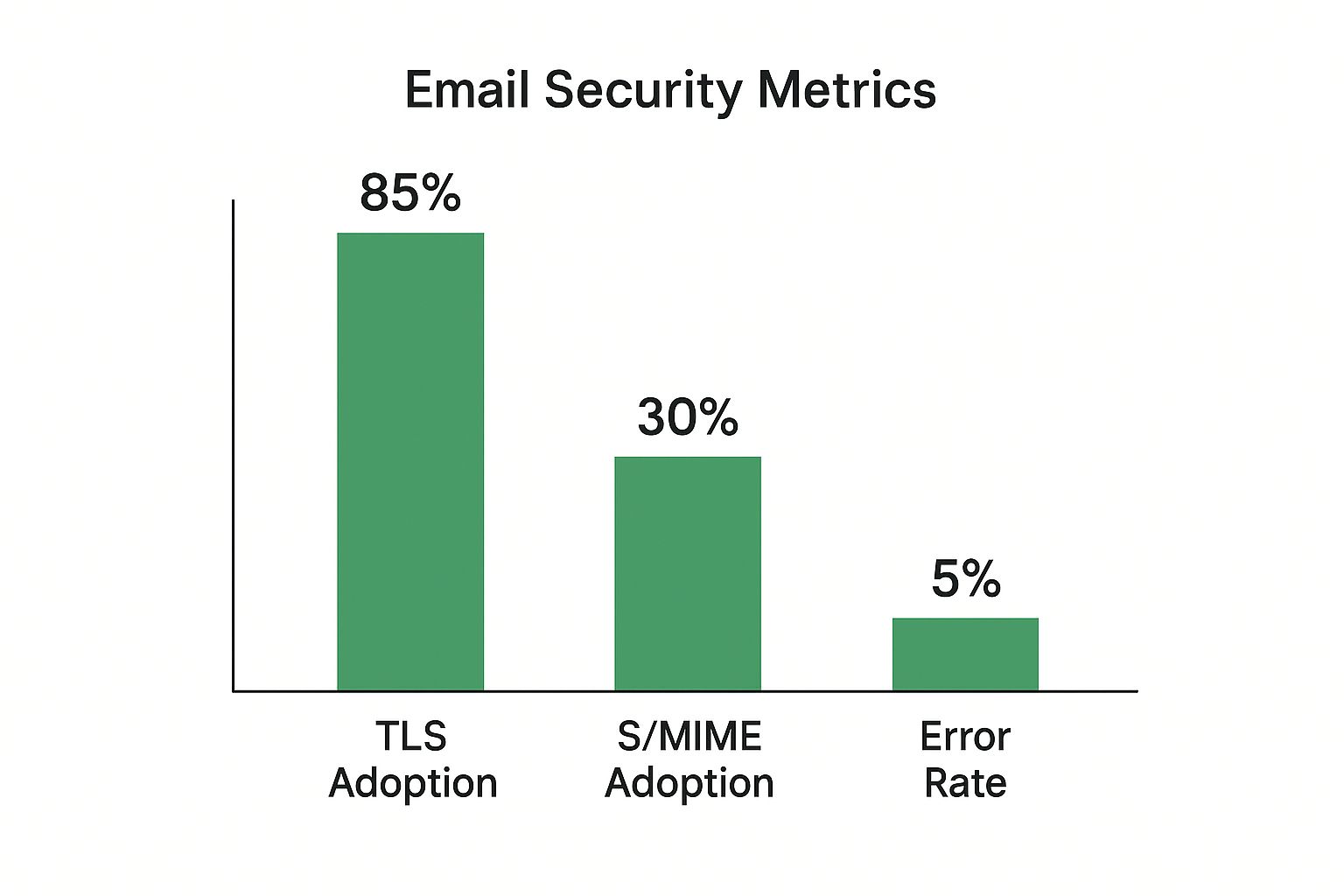
This visual gives you a sense of where different security protocols fit into the bigger picture of email communication.
The data highlights that while basic TLS is nearly universal, more advanced methods like S/MIME are specialized, typically deployed in sectors where email security and identity verification are top priorities.
The Bigger Picture of Email Security
Using Gmail's encryption tools is an important step, but it’s part of a larger email security strategy. The demand for better email privacy is driven by data protection laws like GDPR and HIPAA, and the constant threat of data breaches.
For industries like healthcare and finance, strong email encryption is a non-negotiable part of business. Companies invest heavily in email security to protect client information, ensure compliance, and maintain customer trust. Without it, the integrity of their entire operation is at risk.
A Growing Market for Email Privacy
This shift is reflected in market trends. The global email encryption market was recently valued at USD 7.43 billion and is projected to grow, driven by regulations and a rising awareness of digital privacy.
This growth signifies a crucial change in mindset. Businesses and individuals are increasingly moving away from standard, ad-supported services towards hosted email platforms that prioritize genuine email privacy and security. A key part of this is understanding the technology, so it's vital to know what end-to-end encryption is and how it protects your data from all third parties.
Mastering email encryption is a fundamental part of modern digital literacy. It empowers you to protect your information and make informed choices about the hosted email platforms you trust with your private conversations.
Email security can be complex, especially on a large hosted email platform like Gmail. Let's clarify some common questions to help you protect your messages effectively.
Is Gmail's Confidential Mode Really "Encrypted"?
This is a critical point for understanding email privacy. While Gmail’s Confidential Mode enhances email security, it is not true end-to-end encryption.
It functions as a privacy shield, preventing recipients from easily forwarding, printing, or downloading your email. However, because Google's servers process the content, the company can still access it. This is fundamentally different from a protocol like S/MIME, where only you and your recipient hold the keys to decrypt the message, ensuring complete email privacy.
Why Can't I Find S/MIME on My Personal Account?
Many users wonder why the strongest email security features aren't available on free accounts. The reason is that S/MIME is an enterprise-level tool.
S/MIME is a Google Workspace feature: Native S/MIME encryption is a premium tool exclusive to paid Google Workspace plans. If you're using a standard @gmail.com address, you'll need a third-party solution or a different hosted email platform for this level of security.
What's that red padlock icon? A red, unlocked padlock next to a sender's name is a warning from Gmail. It means the message was not sent using TLS encryption and was vulnerable to interception. Avoid sending any sensitive information in reply.
That little red padlock is a clear signal to prioritize your email security. It means the message traveled without basic protection, making its contents visible to anyone who might have intercepted it.
What Does the Recipient See With Confidential Mode?
A common question is whether your recipient needs a Gmail account to view a confidential message. The answer is no.
If you send a confidential email to a non-Gmail address, the recipient receives a link to a secure, Google-hosted page. They can view the message there after verifying their identity, ensuring the security controls work across different email providers.
For those seeking to regain full control over their data, a private hosted email platform is the ideal solution. Typewire provides a genuinely secure, ad-free email experience built on a foundation of email privacy. With no tracking and no data mining, your conversations remain yours alone. Explore a new standard of email privacy with Typewire.
Setting up a custom domain email is more than a technical task; it's a critical step in building a secure and private digital identity. The process is straightforward: choose a trusted, hosted email platform like Typewire, register a domain name if you don't have one, and then configure a few DNS settings to link them. Typically completed in just a few hours, this setup provides you with professional communication channels that safeguard your data and enhance your credibility.
Why a Secure Domain Email Isn't Just a "Nice-to-Have"
Switching from a generic email like yourname@gmail.com to a professional one like you@yourcompany.com is a game-changer. It goes way beyond simple branding—it’s a fundamental move toward locking down your email security, protecting your privacy, and instantly building trust with clients, partners, and customers. Think of it as installing a secure vault for your digital communications.
When an email lands in someone's inbox from your custom domain, it sends a powerful signal. They see a legitimate, professional sender, which dramatically lowers the risk of your message getting lost in the shuffle or, worse, flagged as spam. In an age where phishing and spoofing are constant threats, that first impression of legitimacy is everything.
A custom domain email is your digital handshake and your first line of defense. It gives you control over security protocols that stop others from impersonating you, making sure your contacts know they’re talking to the real you—not a scammer hiding behind a look-alike address.
The Privacy and Security Payoff
Opting for a dedicated, hosted email platform gives you a massive advantage over free services, which are notorious for scanning your private data to sell ads. When you make the switch, you're stepping away from that invasive model. Hosted providers are in the business of email security and privacy, not advertising.
Here’s why that move is so critical:
You're in Control of Security: You get the keys to the kingdom. You can implement essential security standards like SPF, DKIM, and DMARC that prove your emails are authentic and shield your domain from being used in phishing attacks.
Credibility on Display: Let's be honest, an email from contact@yourbusiness.com just feels more trustworthy than yourbusiness123@yahoo.com. That small detail can make a huge difference in response rates and overall client confidence.
Your Data Stays Yours: Paid, hosted email platforms have a simple business model: you pay for a service, and they deliver it. They work for you, not advertisers. This means your private communications are never mined for marketing data.
This shift toward professional email isn't new—it's been the standard for building a credible online presence since the late 90s. Today, it’s an absolute essential. In fact, projections show that by 2025, over 80% of small to medium-sized businesses globally will use professionally hosted domain emails. If you're curious, you can dig into more email marketing statistics to see just how important this is.
This guide will walk you through setting up your domain email with a focus on security, so you can build that foundation of trust and privacy from the get-go.
Choosing the Right Hosted Email Platform
When you’re ready to set up a professional email on your own domain, the hosted email platform you choose is the most important decision you'll make. It’s not just about a slick interface or getting a ton of storage. This is about entrusting your digital communications to a partner that prioritizes your security and privacy above all else.
Think of it this way: your email host is the gatekeeper for all your sensitive conversations. They handle every message, store your data, and implement the security that shields you from spam, phishing, and other digital threats. Some providers focus on building powerful, integrated suites for collaboration, while others have built their entire reputation on a foundation of absolute privacy.
Mainstream Powerhouses vs. Privacy Specialists
The world of email hosting really splits into two main camps. On one side, you have the industry giants like Google Workspace and Microsoft 365. They offer these incredible ecosystems where your email is just one piece of a much larger puzzle that includes documents, calendars, video calls, and cloud storage.
These platforms are built for heavy-duty collaboration and are trusted by millions of businesses. Their security is top-notch, using sophisticated, AI-driven systems to filter out junk and malicious content. The trade-off? Their business models sometimes rely on using aggregated, anonymized user data to improve their services. For most, this is a perfectly reasonable compromise for the sheer convenience and power they deliver.
Then you have the privacy-first specialists, like Proton Mail, Fastmail, and our own platform, Typewire. These services operate on a completely different philosophy. Their core product isn't a suite of apps—it’s privacy.
Your choice really comes down to this: what's more important for you right now? Is it the seamless, all-in-one collaboration of a major suite, or is it ironclad data privacy and security? Answering that one question will make your decision much, much easier.
Privacy-focused hosts often base their operations in countries with strong data protection laws, like Switzerland or Canada. They champion features like end-to-end encryption (E2EE), a technology that ensures no one but you and your recipient—not even the email provider—can decipher your messages. Their loyalty is to you, the user, not to advertisers, which translates into strict no-tracking and no-data-mining policies.
Key Factors to Evaluate
It’s easy to get bogged down comparing feature lists. To cut through the noise and make a smart decision, focus on these critical security and privacy elements.
Encryption Methods: Does the service offer end-to-end encryption? Standard TLS encryption is great for protecting data as it travels across the internet, but E2EE protects it even when it's sitting on their servers. It's the gold standard for truly private communication.
Data Jurisdiction: Where are the company’s servers physically located? A provider based in a country with strong privacy laws (like Switzerland) offers much better legal protection against government data requests than one based in a Five Eyes country (like the U.S.).
Privacy Policy: It's worth taking a few minutes to actually read it. A trustworthy provider will state clearly that they don’t scan your email content for advertising or any other purpose. Transparency here is a huge green flag.
Security Certifications: Look for independent verifications like ISO 27001 or SOC 2 compliance. These audits confirm that a provider meets rigorous international standards for managing information security.
To give you a clearer picture of how these providers stack up, we've put together a table comparing some of the top options on the market.
Hosted Email Platform Security and Privacy Comparison
This table offers a snapshot of how leading email providers approach security and privacy, helping you match a service to your specific priorities.
Provider
Best For
Key Security Features
Privacy Policy Stance
Starting Price
Typewire
Professionals & Teams Prioritizing Privacy
E2EE, Zero-knowledge architecture, Canadian jurisdiction
Strict no-logs, no-data-mining, user-first focus
$7/month
Google Workspace
Businesses Needing a Full Productivity Suite
Advanced phishing/malware protection, 2FA, data regions
Data used for service improvement (anonymized)
$6/user/month
Microsoft 365
Enterprises Deeply Integrated with Windows/Office
Advanced Threat Protection, data loss prevention (DLP)
Strong enterprise security, some telemetry data collection
$6/user/month
Proton Mail
Privacy-Conscious Individuals & Journalists
E2EE by default, Swiss jurisdiction, anonymous sign-up
Zero-access encryption, user data is never shared
$4.99/month
Fastmail
Users Wanting a Clean, Fast, Independent Option
2FA with security keys, masked email, data sovereignty
Privacy-focused policy, no ad-based revenue model
$5/user/month
Ultimately, choosing an email host isn't about finding a single "best" provider—it's about finding the one that’s the right fit for you. A consultant handling sensitive client data will likely gravitate toward the uncompromising privacy of a specialist. On the other hand, a rapidly scaling startup might find the collaborative muscle of a mainstream platform indispensable. By focusing on the core security architecture and privacy commitments, you'll be well-equipped to pick a platform that truly serves and protects you.
Connecting Your Domain and Directing Your Email
Alright, you’ve picked a secure email host. Now for the fun part: bringing your professional identity to life. This next step is all about getting a domain name—your unique address on the internet—and then pointing it to your email provider so your messages actually get delivered. It might sound a bit technical, but trust me, it's more like giving the post office a change of address form than it is writing code.
Think of your domain name (like yourcompany.com) as the plot of land for your digital home. It's the foundation for both your website and your professional email, so choosing the right one is a big deal for building a memorable brand.
Picking and Registering a Professional Domain
Your domain name should be simple, memorable, and tie directly back to your brand. If your business is called "Acme Consulting," the hands-down best choice is acmeconsulting.com. If that’s already taken, you could try a slight variation like acmeconsults.com or even acme.consulting.
Here are a few tips from my experience for nailing the perfect domain:
Keep It Short and Sweet: Shorter domains are just easier to type and remember. I always tell people to avoid hyphens or numbers—they're a nightmare to explain out loud.
Go for .com: Even with hundreds of other options out there, .com is still the gold standard. It’s what people recognize and trust, so it should always be your first choice.
Check Availability: Head over to a domain registrar like Namecheap, GoDaddy, or Porkbun to see if your dream name is available. If it is, you can usually register it for a small yearly fee.
Setting up a domain-based email always follows the same path: register the domain, pick a host, and then configure the DNS records. It's a well-trodden road, and by 2025, providers like mail.com are leaning into this by offering over 100 brand-neutral domains. This lets people create highly personalized addresses like you@engineer.com, which shows a cool trend of matching our digital identities to our professions.
Once you’ve locked in your domain, you're ready for the most critical step in the entire setup: configuring your MX records.
What Are MX Records and DNS Settings, Anyway?
This is the part where people's eyes tend to glaze over, but the concept is actually pretty simple. Every domain has a set of Domain Name System (DNS) records. Think of DNS as the internet's global address book. These records tell browsers where to find your website and, just as importantly, they tell email servers where to deliver your mail.
The one record that matters most for email is the MX (Mail Exchange) record.
Your MX record is basically the official mailing address you give to the postal service. When someone sends an email to you@yourcompany.com, their email server first looks up the MX record for yourcompany.com. This tells it which mail server is the right one to receive the message. Without a correct MX record, that email is getting returned to sender.
Your email host—whether it's Typewire, Google Workspace, or someone else—will provide you with their specific MX record values. All you have to do is log into your domain registrar (where you bought the domain) and plug those values into your DNS settings.
A Real-World Walkthrough of Configuring Email Flow
Let's say you just registered yourbrand.co and signed up with Typewire for email hosting. Here’s what that process actually looks like:
Get Your Host's MX Values: First, you’ll find Typewire’s MX record details in your account dashboard. This will usually be a server address (something like mx.typewire.com) and a priority number (often 10). The priority number is there in case you have multiple records; it tells servers which one to try first.
Find Your DNS Settings: Next, log into your domain registrar's website and navigate to the DNS management panel for yourbrand.co. Look for a link that says "DNS Settings," "Manage DNS," or "Advanced DNS."
Add the New MX Record: In the DNS panel, you'll see an option to "Add New Record." Just choose "MX" as the record type and paste in the values Typewire gave you. You'll also see a "TTL" (Time To Live), which you can almost always leave at the default setting (like 1 hour or 3600 seconds).
After you save the changes, the new information starts spreading across the internet in a process called propagation. It can take a few hours, but once it’s done, any email sent to your domain will be routed straight to your new host's servers.
That simple record update is what "flips the switch" and gets your email flowing. But just getting mail delivered isn't enough—you also need to secure it from spoofing and phishing. That’s where the next layers of security come in. For a deep dive into how all these pieces fit together, check out our real-world guide to email authentication.
Locking Down Your Email with Essential Security Protocols
Now that your email is flowing to the right place, it's time to build a digital fortress around it. Setting up a professional email like you@yourcompany.com isn't just about getting messages; it's about proving you're the only one who can legitimately send them. This is where three critical security protocols come into play: SPF, DKIM, and DMARC.
Think of these as a three-part security check for every email you send. Each plays a distinct role in verifying your identity and protecting your domain's reputation. Skipping this step is like leaving the front door of your business wide open—you're basically inviting spammers and phishers to impersonate you, ruin your brand's credibility, and scam your customers.
SPF: Your Digital Guest List
First up is the Sender Policy Framework (SPF). In plain English, an SPF record is a public list of all the servers authorized to send email for your domain. It’s like having a bouncer with a strict guest list at the door.
When you send an email, the recipient's mail server glances at your domain's SPF record. If the sending server is on your approved list, the message gets a warm welcome. If it's not, the server immediately gets suspicious, seeing it as a potential forgery and making it far more likely to get flagged as spam or rejected completely.
This is your first and most crucial defense against email spoofing, which is when an attacker fakes the "from" address to make their email look like it came from you. Without an SPF record, there’s nothing stopping them.
DKIM: A Tamper-Proof Seal for Your Messages
Next, we have DomainKeys Identified Mail (DKIM). While SPF checks the sender, DKIM validates the message itself. It works by attaching a unique, cryptographic signature to every outgoing email—a signature that's directly tied to your domain.
Picture sending a sensitive document in the mail. DKIM is like adding a custom, tamper-proof wax seal to the envelope. When the letter arrives, the recipient can check if that seal is intact. If it is, they know two things for certain:
The message genuinely came from you.
The contents haven't been messed with along the way.
If an attacker intercepts your email and changes a single word, the DKIM signature breaks. The receiving server sees the broken seal, knows something is wrong, and raises a red flag. This makes DKIM an incredibly powerful defense against phishing and man-in-the-middle attacks.
DMARC: The Security Policy That Enforces the Rules
Finally, there’s Domain-based Message Authentication, Reporting, and Conformance (DMARC). If SPF is the guest list and DKIM is the tamper-proof seal, then DMARC is the head of security who tells the bouncer what to do when someone fails those checks.
DMARC builds on SPF and DKIM by creating a clear policy. It gives instructions to receiving email servers on how to handle messages that fail authentication. Do they let them through, send them to the junk folder, or block them entirely?
You can set your DMARC policy to one of three levels:
p=none: This is "monitor" mode. Emails that fail the checks are still delivered, but you get reports about them. It's a great starting point.
p=quarantine: This tells servers to send failing emails to the recipient's spam folder.
p=reject: This is the strictest setting, telling servers to completely block any email that fails the checks.
DMARC also sends you valuable reports that show who is trying to send email on behalf of your domain. These reports are gold for spotting unauthorized activity and potential security threats. For a deeper dive, our guide on secure email protocols provides an essential overview of email security can help you fully master these concepts.
Here's what a DKIM signature actually looks like inside an email's technical headers. It might look complex, but each part plays a key role.
The signature contains crucial information, like the signing domain (d=) and the selector (s=), which the receiving server uses to look up the public key and verify the email is legit.
Putting It All Into Practice
Let's get these protocols working for you. Implementing them means adding a few more DNS records, just like you did for your MX records. The good news is that your email provider, like Typewire, will give you the exact values to use.
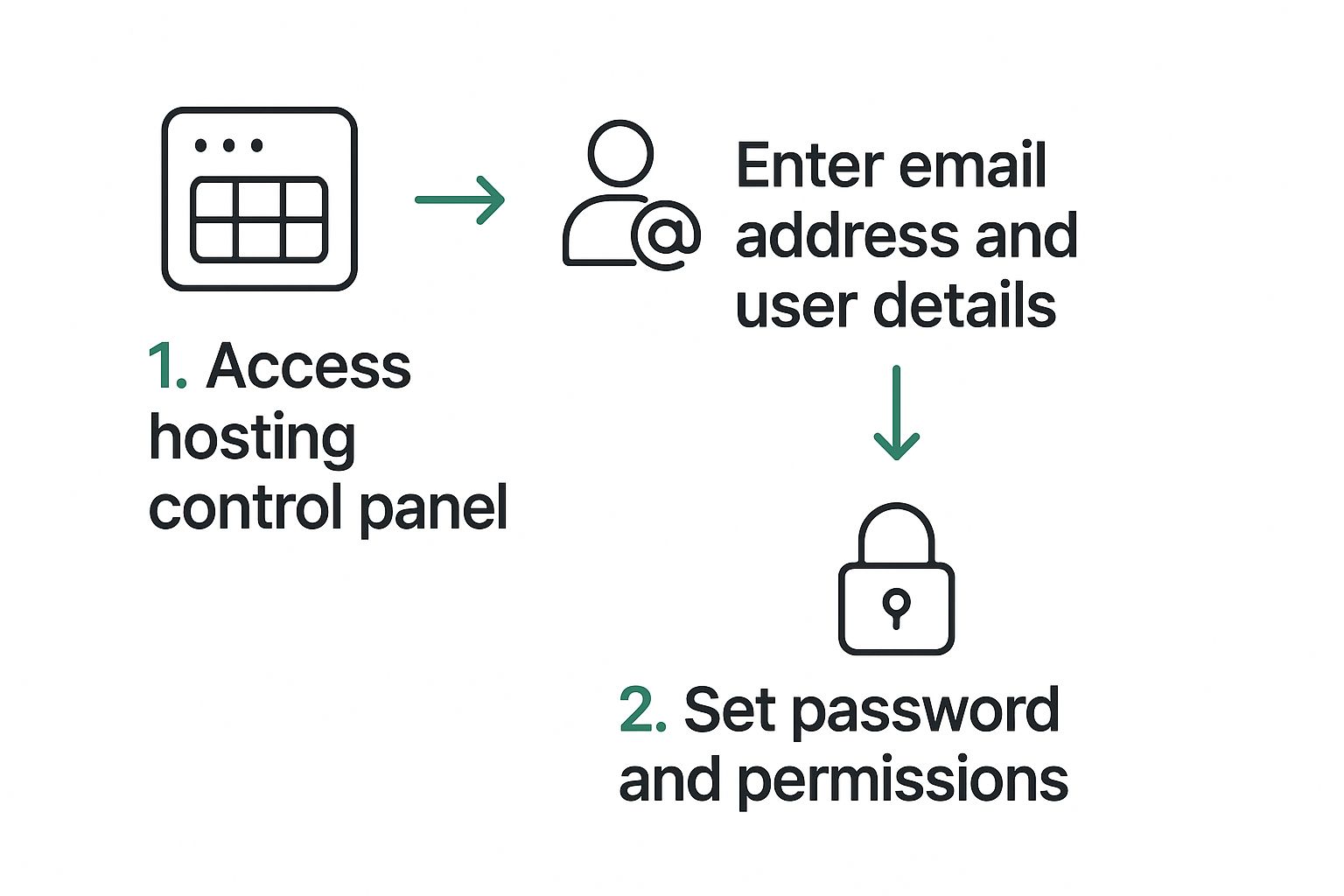
Here's the general idea of how to get a mailbox set up before you add the security records. It's all about accessing your control panel and plugging in the right details.
You'll be adding these SPF, DKIM, and DMARC values as TXT records in your domain's DNS management panel.
The Bottom Line: Your email provider does the heavy lifting by generating the SPF, DKIM, and DMARC records. All you need to do is copy and paste those values into your domain's DNS settings. This simple action is what brings your email security fortress to life.
Once you’ve added the records, they’ll start to propagate across the internet, usually within a few hours. From that point on, mail servers worldwide will begin verifying your messages, which dramatically improves your email deliverability and shields your domain from abuse. To be absolutely certain your defenses are solid, some organizations use cybersecurity penetration testing services to find and fix any potential vulnerabilities.
Wrapping Up: From Setup to Secure Habits
Alright, the heavy lifting on the technical side is done. Your email is now flowing through a properly authenticated and secure pipeline. But let's be real—email security isn't a "set it and forget it" kind of deal. It's a habit. This last part is all about moving from configuration to daily practice, which means creating user accounts, managing your email flow, and building a security-first mindset.
This is where your solid foundation translates into real-world protection for your organization. After all, the best-configured SPF or DKIM record in the world can't stop someone from clicking a convincing phishing link. That’s why your team’s daily security habits are just as critical as the DNS records you just set up.
Getting Your Team Onboard: Mailboxes and Aliases
First things first, you need to create the actual mailboxes for your team members in your email provider's dashboard. This is usually a simple affair—you'll assign an email address (like jane.doe@yourcompany.com) and a strong, unique password for each person.
While you're at it, think about setting up some functional aliases. These aren't separate inboxes that you have to pay for; they’re just forwarding addresses that route emails to one or more real people. It’s a great way to streamline things.
For example:
info@yourcompany.com: Perfect for general inquiries. You can have this forward to a founder, an office manager, or a small group.
support@yourcompany.com: This is a must-have for customer service. It can direct emails to your support team or a dedicated helpdesk system.
billing@yourcompany.com: Keeps all the financial stuff in one place, sending it directly to whoever handles the books.
Using aliases helps keep individual inboxes private while making your business look professional and organized from the outside.
Make Two-Factor Authentication Non-Negotiable
If you do one thing—and only one thing—from this section, make it this: mandate Two-Factor Authentication (2FA) for every single email account. A password by itself just doesn't cut it anymore. A leaked password can give an attacker the keys to the kingdom, but 2FA throws a deadbolt on the door.
Think of 2FA like needing both a key and a PIN to open a safe. Even if a thief steals your key (the password), they still can't get in without the code from your phone. This simple step can prevent over 99.9% of account compromise attacks.
Seriously, no exceptions. From the CEO to the newest intern, every account needs 2FA enabled from day one. Most email platforms let you enforce this at the admin level, so there’s no excuse.
Staying Sharp: Ongoing Security Awareness
With email volume projected to hit over 376 billion messages per day by 2025, having a professional and secure setup is more important than ever. It's a big reason businesses are flocking to hosted email platforms. You can dig into more of these trends in this email statistics report on cloudhq.net.
Your job now is to cultivate a culture of awareness. This means training your team to spot modern phishing attempts, which can be incredibly convincing. Encourage a bit of healthy skepticism and a simple policy: "When in doubt, ask before you click."
Finally, get into the habit of checking your DMARC reports every so often. They offer fantastic insight into who might be trying to spoof your domain, helping you catch threats early and tweak your security policies. This kind of ongoing vigilance is what turns a secure setup into a resilient security culture.
Common Questions About Setting Up Your Domain Email
Even with the best guide in hand, you're bound to have a few questions when setting up a custom email address. Let's tackle some of the most common things people ask, especially when it comes to getting the security and privacy details just right.
Nailing these final points is what separates a setup that just works from one that's truly professional and secure.
How Long Until My DNS Changes Actually Work?
This is probably the number one question I get. When you update your MX or SPF records, the change isn't instant. The process is called DNS propagation, and it can take anywhere from a few minutes up to 48 hours to fully kick in across the globe.
In my experience, you’ll often see things start working within an hour or two. But it's smart to give it a full day before you start worrying. Think of it like the internet's giant address book—it just takes a while for every copy to get the new information.
Can I Use the Domain I Already Have for My Website?
Absolutely. In fact, you should! If you already own a domain for your website, there's no need to buy another one.
All you have to do is head over to your domain registrar's dashboard and add the new DNS records (MX, SPF, and so on) that your email host provides. This won't mess with your website at all; it simply tells the internet's mail servers where to deliver messages addressed to your domain.
What’s the Difference Between an Alias and a User Account?
Getting this right can save you a lot of headaches (and money). It’s simpler than it sounds.
A User Account is a real, dedicated inbox. Think sara@yourcompany.com. It has its own login, password, and storage space. It's for a person.
An Alias, on the other hand, is just a forwarding address. It doesn't have its own inbox. An alias like info@yourcompany.com can be set up to send any incoming mail straight to Sara's user account (or even multiple accounts at once).
Aliases are fantastic for creating role-based addresses (support@, sales@) without having to pay for extra mailboxes. It keeps you organized and helps the budget.
The most common reason new domain emails land in spam is missing or incorrect security records. SPF, DKIM, and DMARC are non-negotiable for building a trustworthy sending reputation from day one.
Another frequent issue is that a brand-new domain simply has no sending history. A good practice is to start sending emails at a moderate pace and ask your first few recipients to mark your messages as "not spam." For a deep dive covering everything from initial setup to long-term maintenance, check out this ultimate guide to Mastering Email: Your Ultimate Guide To Setup, Troubleshooting And Optimization.
Ready to take control of your email with a platform that puts your privacy first? Typewire offers secure, private email hosting with no ads, no tracking, and zero data mining. Start your 7-day free trial today and experience email as it should be. https://typewire.com